How to Schedule a Wallpaper Change in Windows 10

Use Windows 10’s built-in slideshow for interval rotation or schedule an exact daily wallpaper change with Task Scheduler and a short PowerShell script.
To lock Windows 10 automatically after you stop using it, set a screen saver timeout and enable On resume, display logon screen. Windows will show the sign-in screen when you return after the idle period you choose. This keeps your apps open; it does not shut down the PC or set its sleep timer.

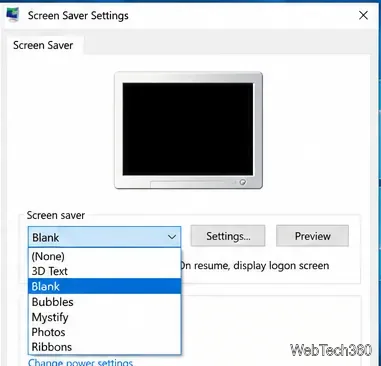
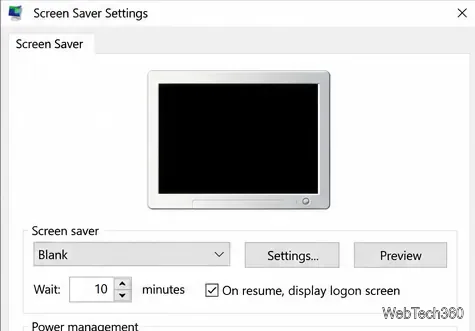
A Blank screen saver paints the display black; it does not power off the monitor. Use the separate Power & sleep controls if you want the monitor itself to turn off. The inactivity countdown restarts when Windows detects keyboard or mouse activity. A one-minute Wait interval is available, but choose a timeout that will not interrupt you during ordinary short pauses. A shorter interval limits how long an unattended desktop stays open; a longer one means fewer sign-in prompts.
Leave the computer untouched until the selected interval passes. The screen saver should start. Move the mouse or press a key to return; Windows should display its sign-in screen. Sign in with the password, PIN, fingerprint, or other sign-in method already configured for your account. The screen saver setting does not create or change your credentials.
If Windows returns directly to the desktop, reopen Screen Saver Settings and confirm On resume, display logon screen is checked. Make sure your account has a sign-in method, too. A workplace or school administrator may manage these options, so a missing or disabled setting may require help from IT.
This method uses the screen saver’s idle timer. It does not change when Windows turns off the display or puts the PC to sleep. If either power timer is shorter than the screen saver interval, the display may turn off or the PC may sleep first. Adjust Start > Settings > System > Power & sleep if you want to change those timers.
If you prefer the PC to sleep, also require sign-in after it wakes: go to Start > Settings > Accounts > Sign-in options, find Require sign-in, and choose the option that requires sign-in when the PC wakes from sleep. That setting protects wake-from-sleep; it does not set the screen saver’s inactivity interval.
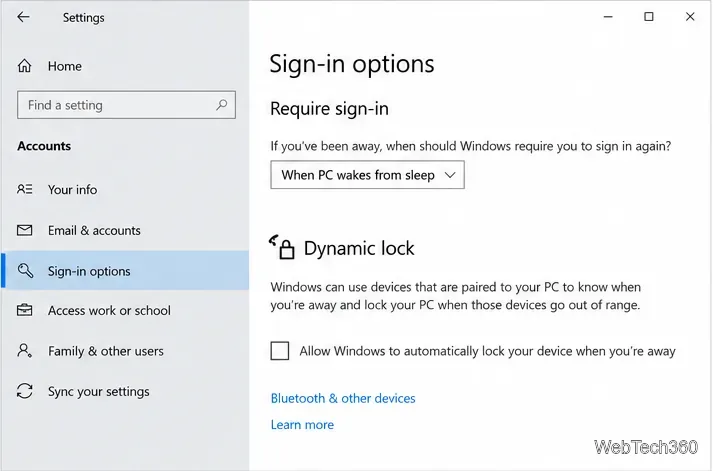
Dynamic Lock is another option in Sign-in options. It uses a paired Bluetooth device moving out of range as its signal, rather than a fixed number of idle minutes, so it is not a replacement for a timed screen saver lock.
For the current Windows steps, see Microsoft’s guide to configuring a screen saver, its device security guidance for sign-in after sleep, and the Windows sign-in options overview.
Use Windows 10’s built-in slideshow for interval rotation or schedule an exact daily wallpaper change with Task Scheduler and a short PowerShell script.
Choose a built-in alert tone or WAV file for Windows 10 message notifications, test the change, and troubleshoot apps that keep playing another sound.
Arrange Windows 10 apps in top-and-bottom rows with the taskbar’s Show windows stacked command, or create a reusable two-zone layout with PowerToys FancyZones.
Keep each display at its recommended resolution, arrange Windows 10 monitors accurately, and use MouseUnSnag to cross mismatched edges and sticky corners.
Find whether your connected Wi-Fi uses WPA2, WPA3, or an older security mode in Windows 10 with Settings, Command Prompt, or Control Panel.
Automatically lock Windows 10 after inactivity with a screen saver timer and sign-in prompt, then check how sleep settings affect the result.
Add a persistent colored ring around your Windows 10 mouse pointer with PenAttention, or use built-in pointer tools and PowerToys for temporary highlights.
Keep the Xbox Game Bar Performance widget visible over other windows on Windows 10, with CPU, GPU, and RAM readings you can position and unpin.
Capture two or more Windows 10 displays in one OBS video. Add a Display Capture source for each monitor, fit the canvas, and test the layout.
Create a GUID on Windows 10 with [guid]::NewGuid() or New-Guid, reuse it in a script, and learn when to look up an existing identifier.







