How to Schedule a Wallpaper Change in Windows 10

Use Windows 10’s built-in slideshow for interval rotation or schedule an exact daily wallpaper change with Task Scheduler and a short PowerShell script.
When two monitors have different resolutions, Windows 10 lays them out as differently sized rectangles in one desktop. The cursor can cross only where those rectangles touch, so it may stop at a section of the edge that has no neighboring screen. Windows has no built-in switch to remove that boundary. You can keep each monitor at its recommended resolution, arrange the displays to match your desk, and use MouseUnSnag to jump the cursor across blocked edges and sticky corners.

First make sure Windows recognizes both monitors and is extending the desktop. Press Windows+P and choose Extend if the screens are duplicating or only one is active. Then open Start > Settings > System > Display. Microsoft documents this page for selecting and arranging connected displays.
Different resolutions make the display rectangles different sizes. If you align them along their bottom edges, for example, the taller rectangle extends above the shorter one. That upper section has no adjacent display, so Windows keeps the pointer on its current screen there. You can change the virtual arrangement, but keep it consistent with the physical layout or windows and the pointer may appear in unexpected places. Leave each monitor at its Recommended resolution when possible; lowering resolution just to line up the edges can make text less sharp.
For the exact current Windows 10 display controls, see Microsoft's resolution and display-layout instructions.
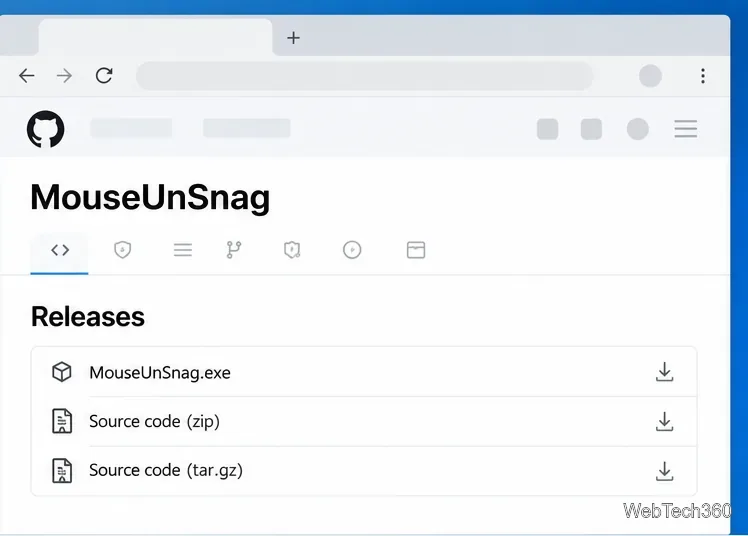
Open the MouseUnSnag Releases page on GitHub and download the executable asset from the latest release. The page also offers source-code archives; you do not need those to run the ready-made program. MouseUnSnag is an independent open-source utility, not a Windows setting or Microsoft app. If you prefer to review the project first, its repository README explains how it responds when the cursor gets stuck at a monitor edge.
Run the downloaded executable. The current project release runs from the notification area, so its icon may be under the small Show hidden icons arrow near the clock. Keep the app running while you use the monitors; closing it stops its cursor behavior.
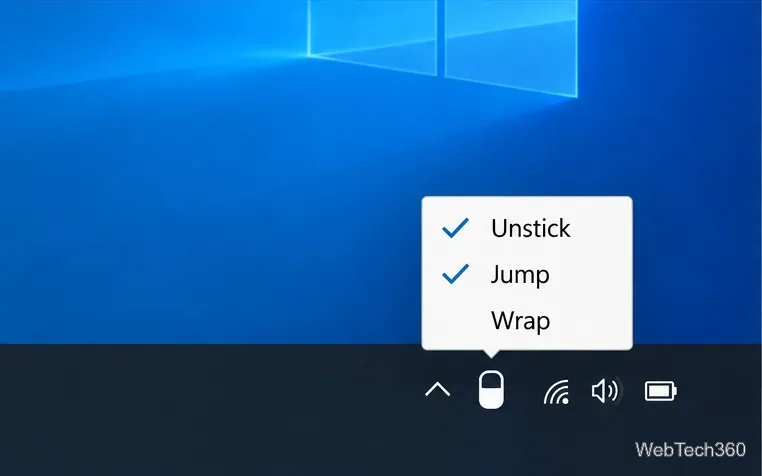
Right-click the MouseUnSnag notification-area icon to open its context menu. The project exposes three options:
For mismatched monitor heights, keep Jump enabled. Leave Unstick on if corners feel difficult to cross. Turn Wrap off unless you want the cursor to reappear at the other end of the whole monitor arrangement; that edge-to-edge behavior can be surprising during ordinary work. The project enables these options by default, and its release notes say choices made from the tray menu are saved in the app's configuration.
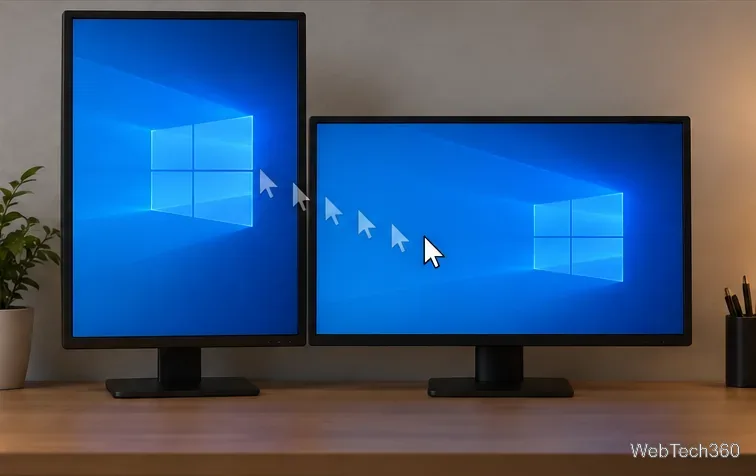
Move the pointer toward the part of one monitor's edge that does not meet the neighboring display. With Jump active, MouseUnSnag watches for an attempted movement that Windows blocks and moves the cursor to the neighboring screen. Test both directions and the corners you use most. The cursor may appear at a corresponding point on the other display rather than traveling through a perfectly continuous shared pixel row, so take a moment to learn how it behaves with your layout.
If it still will not cross, check that Windows is set to Extend, the display tiles are in the correct left-to-right order, MouseUnSnag is still running, and Jump is enabled in its tray menu. If the icon is not visible, check the hidden notification-area icons. A mismatch between the physical monitor arrangement and the rectangles in Display settings can also make the pointer enter the other screen at an unexpected height.
MouseUnSnag does not equalize resolutions, change the monitors' image quality, or make the Windows display rectangles identical. It changes how the pointer responds when it reaches a blocked edge or corner. If you want normal Windows behavior again, disable the relevant options from the tray menu or exit the app.
Windows 10 still works, but Microsoft ended its standard free software updates, technical assistance, and security fixes on October 14, 2025. That support change does not affect these display settings, though it is relevant if this PC remains online.
Use Windows 10’s built-in slideshow for interval rotation or schedule an exact daily wallpaper change with Task Scheduler and a short PowerShell script.
Choose a built-in alert tone or WAV file for Windows 10 message notifications, test the change, and troubleshoot apps that keep playing another sound.
Arrange Windows 10 apps in top-and-bottom rows with the taskbar’s Show windows stacked command, or create a reusable two-zone layout with PowerToys FancyZones.
Keep each display at its recommended resolution, arrange Windows 10 monitors accurately, and use MouseUnSnag to cross mismatched edges and sticky corners.
Find whether your connected Wi-Fi uses WPA2, WPA3, or an older security mode in Windows 10 with Settings, Command Prompt, or Control Panel.
Automatically lock Windows 10 after inactivity with a screen saver timer and sign-in prompt, then check how sleep settings affect the result.
Add a persistent colored ring around your Windows 10 mouse pointer with PenAttention, or use built-in pointer tools and PowerToys for temporary highlights.
Keep the Xbox Game Bar Performance widget visible over other windows on Windows 10, with CPU, GPU, and RAM readings you can position and unpin.
Capture two or more Windows 10 displays in one OBS video. Add a Display Capture source for each monitor, fit the canvas, and test the layout.
Create a GUID on Windows 10 with [guid]::NewGuid() or New-Guid, reuse it in a script, and learn when to look up an existing identifier.







