How to Schedule a Wallpaper Change in Windows 10

Use Windows 10’s built-in slideshow for interval rotation or schedule an exact daily wallpaper change with Task Scheduler and a short PowerShell script.
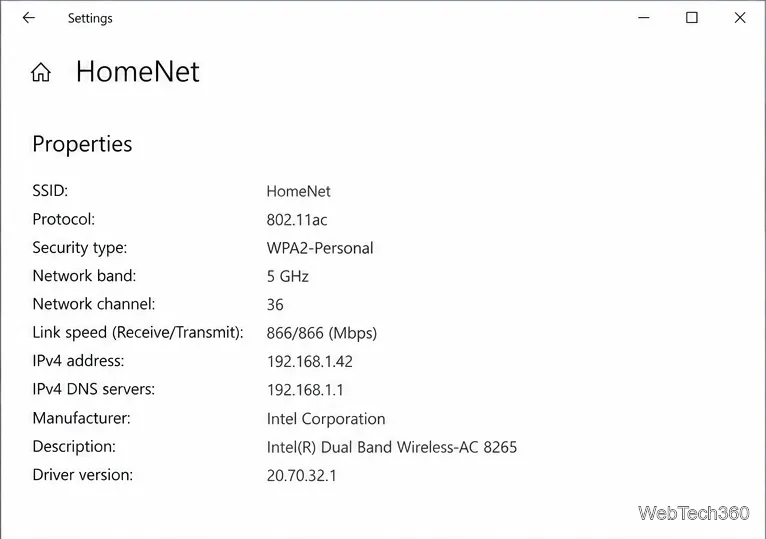
To check the Wi-Fi network security type on Windows 10, open the connected network’s properties and read Security type. The Settings app is the quickest route. You can also use Command Prompt or the classic Network and Sharing Center. These methods identify the security mode used by the network you are connected to; they do not reveal the Wi-Fi password.
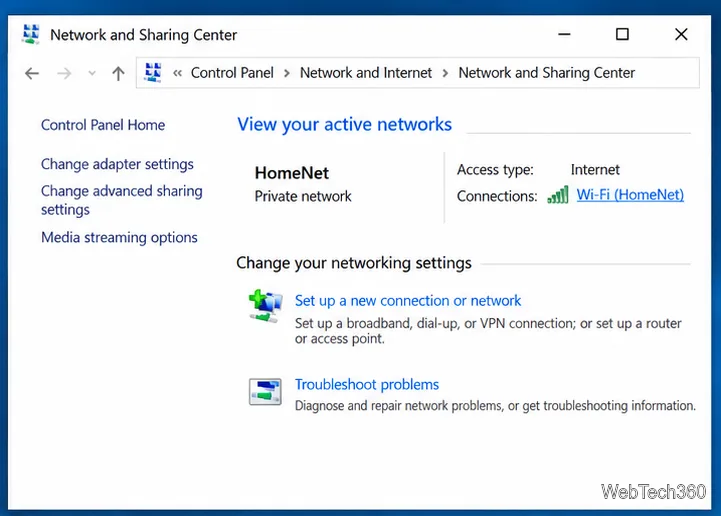
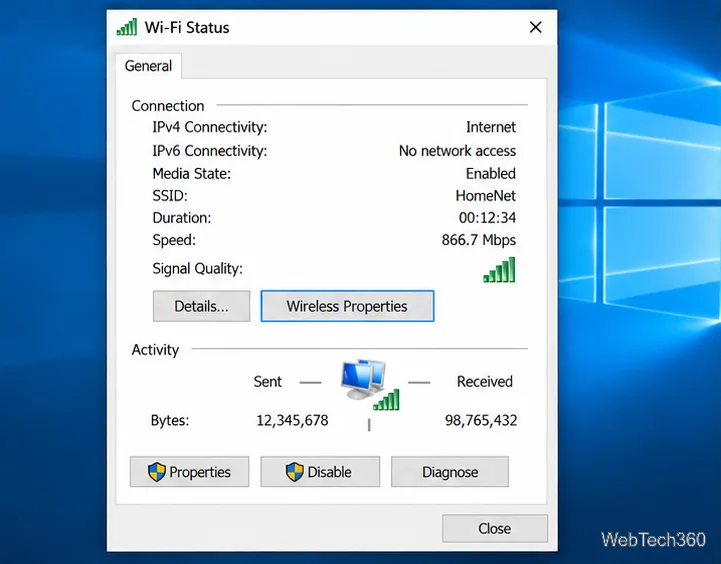
The interface examples below use a fictional Wi-Fi name, HomeNet; your network name and security value may differ.
First confirm the network name (SSID) on screen. If your PC has more than one wireless adapter, make sure the result you read belongs to the network you intend to check.

The exact arrangement varies slightly between Windows 10 builds. If the connected network’s details are not visible on the Wi-Fi page, select the network or its Properties link. The properties page may also list the SSID, network band, and other connection details; those are separate from the security type.
netsh wlan show interfaces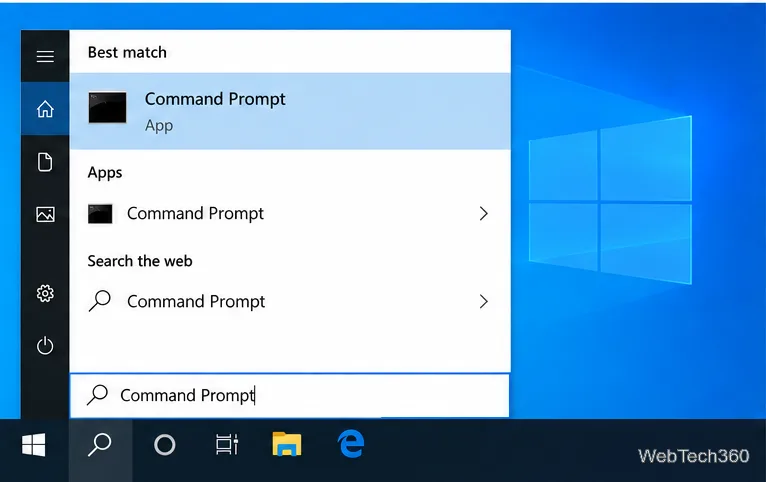
In the output, find the wireless interface whose State is connected, then confirm its SSID matches your network. Read the value on the Authentication line. For example, “WPA2-Personal” identifies the security mode for that connection. The Cipher line describes the encryption cipher; it is related, but it is not the security type label itself.
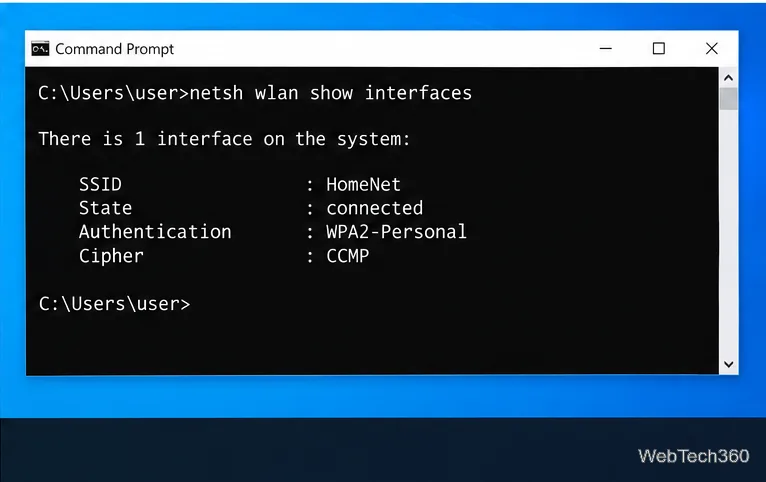
The command is read-only. If it lists more than one interface, use the SSID and state to avoid reading details for a disconnected adapter. If it shows no connected interface, reconnect to Wi-Fi and run it again.
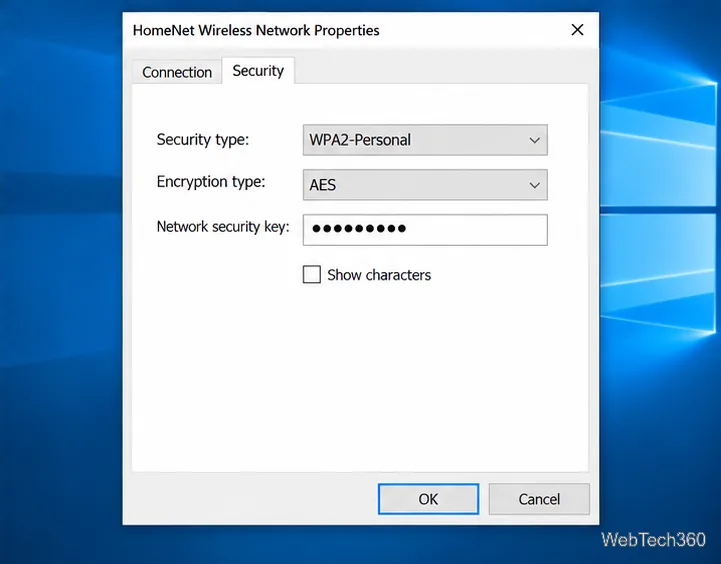
You do not need to select Show characters. That checkbox reveals the saved network password; it does not identify the security mode. Leave it unchecked if you only want to inspect the connection type.
WPA3-Personal and WPA2-Personal are common for home Wi-Fi. Work or school networks may use an Enterprise mode, such as WPA2-Enterprise, with organization-managed authentication. WPA3 is the newer standard, but using it requires compatible router or access point settings and a Wi-Fi adapter and driver that support it. If WPA3 does not appear, Windows may not be able to use it with the current hardware, driver, or access point.
If Windows reports WEP or TKIP, Microsoft identifies those as outdated standards with known vulnerabilities. Microsoft also recommends avoiding WEP and, when possible, mixed WPA+WPA2 router modes that can fall back to older WPA. For a home router, check its manufacturer’s instructions or ask your internet provider how to use a newer supported mode. For a workplace network, contact the network administrator rather than changing managed settings yourself.
Do not confuse a Wi-Fi security type with Windows’ Public or Private network profile. The security type describes how the wireless connection authenticates; Public or Private controls whether your PC is discoverable and how it handles sharing. Changing that profile does not upgrade the router’s Wi-Fi security.
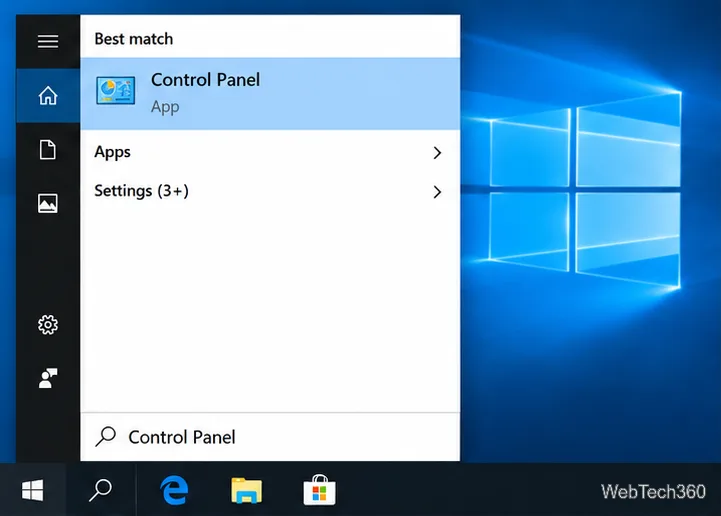
Use Control Panel if your Windows 10 build does not show Security type in Settings. For a saved network that is not currently connected, these steps may not show the active connection details; connect to it and check again, or consult the router’s settings or your organization’s administrator. The Windows result describes the security mode negotiated for the Wi-Fi connection, not every aspect of the network’s safety, such as router updates, password strength, or guest-network isolation.
For more detail, see Microsoft’s guides to connecting to Wi-Fi in Windows, the netsh wlan commands, WPA3 support, and home Wi-Fi security recommendations. Microsoft also explains why older Wi-Fi security can trigger a “not secure” warning.
Use Windows 10’s built-in slideshow for interval rotation or schedule an exact daily wallpaper change with Task Scheduler and a short PowerShell script.
Choose a built-in alert tone or WAV file for Windows 10 message notifications, test the change, and troubleshoot apps that keep playing another sound.
Arrange Windows 10 apps in top-and-bottom rows with the taskbar’s Show windows stacked command, or create a reusable two-zone layout with PowerToys FancyZones.
Keep each display at its recommended resolution, arrange Windows 10 monitors accurately, and use MouseUnSnag to cross mismatched edges and sticky corners.
Find whether your connected Wi-Fi uses WPA2, WPA3, or an older security mode in Windows 10 with Settings, Command Prompt, or Control Panel.
Automatically lock Windows 10 after inactivity with a screen saver timer and sign-in prompt, then check how sleep settings affect the result.
Add a persistent colored ring around your Windows 10 mouse pointer with PenAttention, or use built-in pointer tools and PowerToys for temporary highlights.
Keep the Xbox Game Bar Performance widget visible over other windows on Windows 10, with CPU, GPU, and RAM readings you can position and unpin.
Capture two or more Windows 10 displays in one OBS video. Add a Display Capture source for each monitor, fit the canvas, and test the layout.
Create a GUID on Windows 10 with [guid]::NewGuid() or New-Guid, reuse it in a script, and learn when to look up an existing identifier.







