How to Schedule a Wallpaper Change in Windows 10

Use Windows 10’s built-in slideshow for interval rotation or schedule an exact daily wallpaper change with Task Scheduler and a short PowerShell script.
Windows 10 can rotate a folder of backgrounds at a chosen interval, but it has no built-in trigger for a specific picture at a set clock time or on selected weekdays. For a timed change, Task Scheduler can launch a short PowerShell script that applies one image to the signed-in user’s desktop. This changes the desktop background, not the lock-screen picture.
Microsoft notes that Windows 10 support ended on October 14, 2025. These personalization settings remain on installed systems, but free security updates have ended. See Microsoft’s desktop background guide for its current Windows instructions.
For automatic rotation without an exact schedule, press Windows + I, open Personalization > Background, choose Slideshow, then use Browse to select a picture folder. Set the Change picture every interval and optionally enable shuffle. You can also right-click the desktop and select Next desktop background to advance manually. Slideshow rotates by interval; it does not set a particular wallpaper for a chosen time.
One scheduled task applies one image at one daily or weekly trigger. To show different images at different times, repeat the task setup for each time and file. The script uses Microsoft’s documented SystemParametersInfoW function to set the desktop background.
The older Wallpaper Change Scheduler mentioned in the previous version is not used here: FutureSight’s current product page lists Windows XP, Vista, and 7 under Requirements, so it does not document Windows 10 compatibility.
Create a folder such as C:\Users\YourName\Pictures\Wallpapers, save the image there, and note its full path. Keep the file in place; moving or renaming it later breaks the task. If it is in a cloud-synced folder, make sure it is downloaded locally.
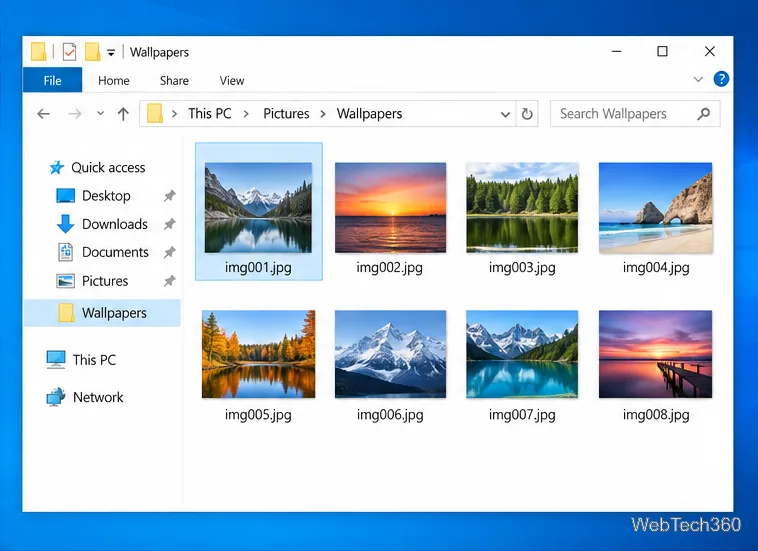
Open Settings > Personalization > Background and select Picture. If Slideshow stays enabled, it may change the background again on its own interval.
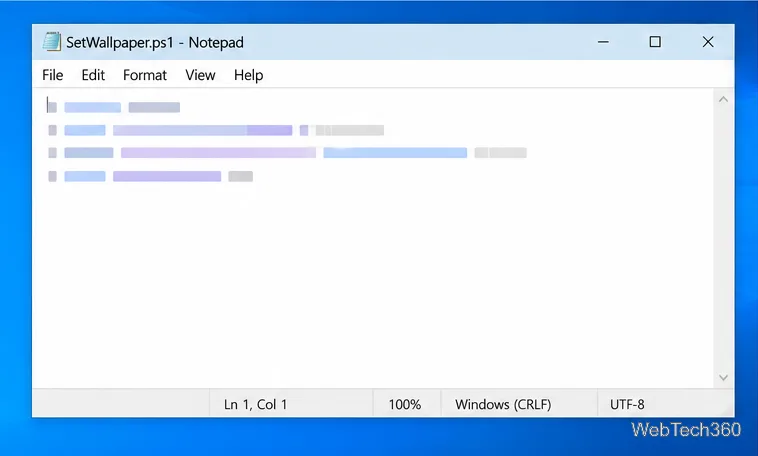
Open Notepad, paste the script, and save it as SetWallpaper.ps1 in the image folder. In Save As, choose All Files so Notepad does not append .txt.
param(
    [Parameter(Mandatory = $true)]
    [string]$ImagePath
)

if (-not (Test-Path -LiteralPath $ImagePath -PathType Leaf)) {
    throw "Wallpaper image not found: $ImagePath"
}

Add-Type -TypeDefinition @"
using System.Runtime.InteropServices;
public static class WallpaperApi
{
    [DllImport("user32.dll", EntryPoint = "SystemParametersInfoW",
        CharSet = CharSet.Unicode, SetLastError = true)]
    public static extern bool SystemParametersInfo(
        uint action, uint param, string value, uint flags);
}
"@

$resolvedPath = (Resolve-Path -LiteralPath $ImagePath).Path
$success = [WallpaperApi]::SystemParametersInfo(20, 0, $resolvedPath, 3)
if (-not $success) {
    $code = [Runtime.InteropServices.Marshal]::GetLastWin32Error()
    throw "Windows could not set the wallpaper. Error: $code"
}
The action value 20 selects the wallpaper-setting operation; flags value 3 saves the change and broadcasts it. Use an image that Windows can already set as a desktop background.
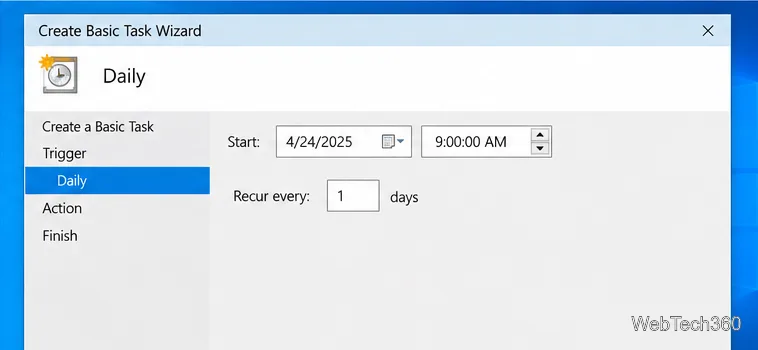
Search for and open Task Scheduler. Choose Create Basic Task, name it, then select Daily or Weekly. Set the start date and time; for a daily change, recur every 1 day. Choose a future start time if you want to test it soon.
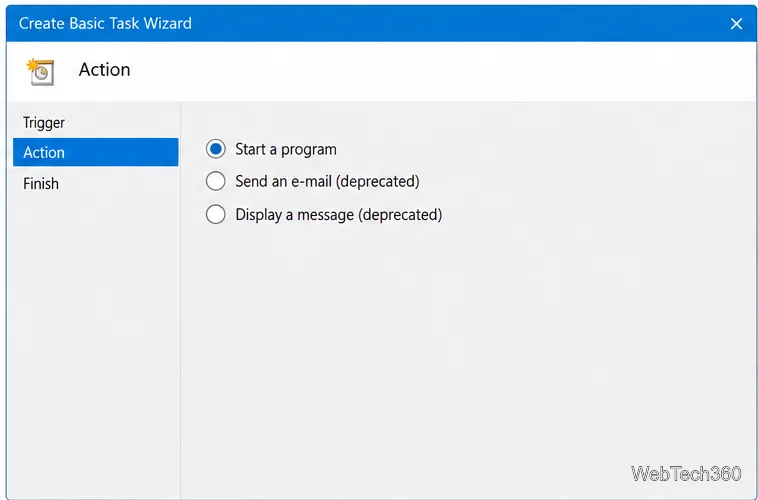
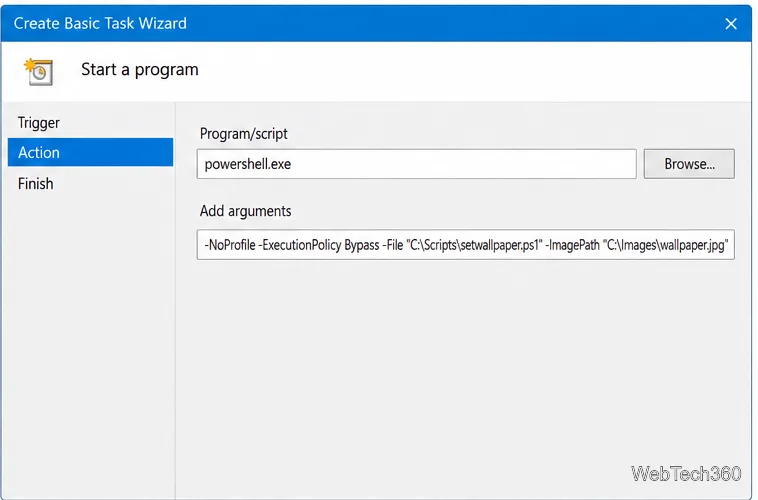
Choose Start a program when the wizard asks what the task should do.
Enter powershell.exe in Program/script. In Add arguments, enter this as one line, replacing the example account name and image filename:
-NoProfile -WindowStyle Hidden -ExecutionPolicy Bypass -File "C:\Users\YourName\Pictures\Wallpapers\SetWallpaper.ps1" -ImagePath "C:\Users\YourName\Pictures\Wallpapers\Evening.jpg"Keep the quotation marks around each full path, including when names contain spaces. The execution-policy option applies to this PowerShell process; use it only with the script you saved. Continue through the wizard. On Finish, check Open the Properties dialog for this task when I click Finish.
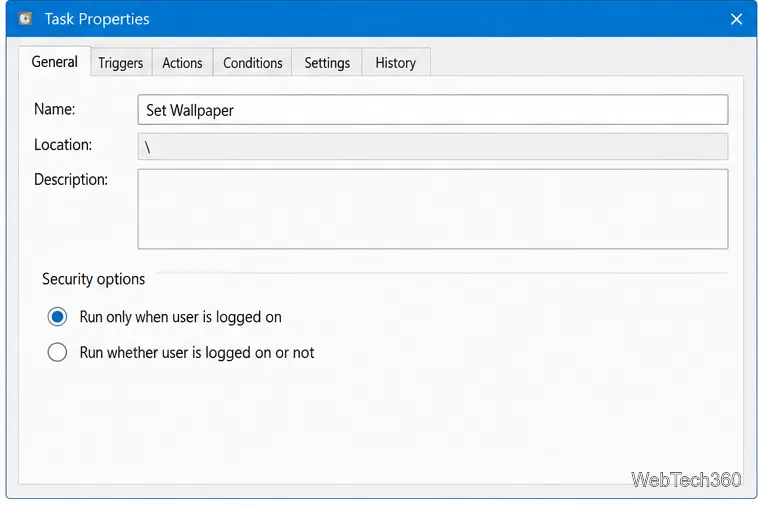
In the task’s Properties > General tab, keep your account and select Run only when user is logged on. The change applies to that user’s interactive desktop. Microsoft explains task accounts and logon context in its Task Scheduler security-context documentation.
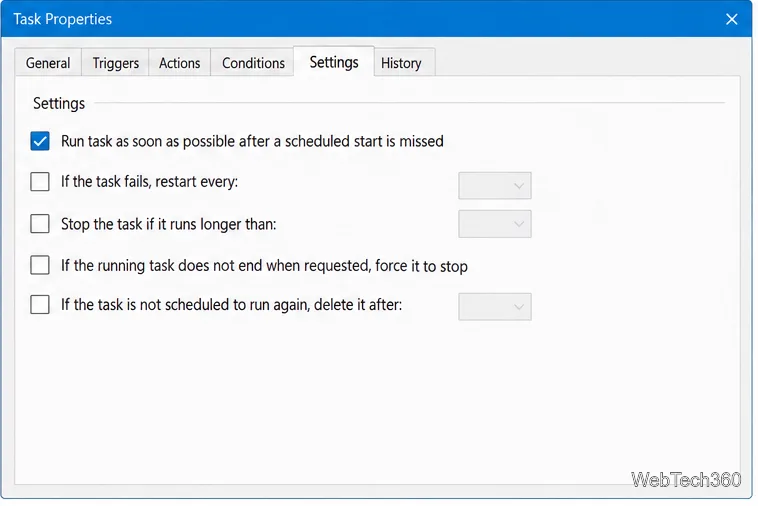
In the Settings tab, enable Run task as soon as possible after a scheduled start is missed. This can run a missed task after Windows becomes available; it does not wake a powered-off PC or guarantee the original time. Microsoft describes this behavior in the StartWhenAvailable documentation.
Click OK to save. Find the task in Task Scheduler Library, right-click it, and choose Run to test the image change. If it does not work, check both paths, Picture mode, and the account selected in Properties. Windows must be running and that account signed in for the desktop to update.
Use Windows 10’s built-in slideshow for interval rotation or schedule an exact daily wallpaper change with Task Scheduler and a short PowerShell script.
Choose a built-in alert tone or WAV file for Windows 10 message notifications, test the change, and troubleshoot apps that keep playing another sound.
Arrange Windows 10 apps in top-and-bottom rows with the taskbar’s Show windows stacked command, or create a reusable two-zone layout with PowerToys FancyZones.
Keep each display at its recommended resolution, arrange Windows 10 monitors accurately, and use MouseUnSnag to cross mismatched edges and sticky corners.
Find whether your connected Wi-Fi uses WPA2, WPA3, or an older security mode in Windows 10 with Settings, Command Prompt, or Control Panel.
Automatically lock Windows 10 after inactivity with a screen saver timer and sign-in prompt, then check how sleep settings affect the result.
Add a persistent colored ring around your Windows 10 mouse pointer with PenAttention, or use built-in pointer tools and PowerToys for temporary highlights.
Keep the Xbox Game Bar Performance widget visible over other windows on Windows 10, with CPU, GPU, and RAM readings you can position and unpin.
Capture two or more Windows 10 displays in one OBS video. Add a Display Capture source for each monitor, fit the canvas, and test the layout.
Create a GUID on Windows 10 with [guid]::NewGuid() or New-Guid, reuse it in a script, and learn when to look up an existing identifier.








