How to Schedule a Wallpaper Change in Windows 10

Use Windows 10’s built-in slideshow for interval rotation or schedule an exact daily wallpaper change with Task Scheduler and a short PowerShell script.
To change the Windows 10 sound for a new message, open the classic Sound dialog, select New Text Message Notification under Program Events, choose a different sound, and select Apply. You can use a built-in Windows tone or browse to a WAV file. This changes the sound assigned to that Windows event; an app that plays its own alert may keep using its own sound.

In Windows 10, select Start > Settings > System > Sound, then select More sound settings. Depending on your Windows 10 version, the link may be labeled Sound Control Panel. Either route opens the older Sound dialog that contains event-by-event sound controls. You can also type Change system sounds in the taskbar search box and open the matching Control Panel result.
In the Sound dialog, select the Sounds tab. Under Program Events, expand Windows if needed and look for New Text Message Notification. The list can vary with the Windows sound scheme and version. Select the event once; the current sound appears in the Sounds box below the list.
If that event is not listed, this dialog cannot assign a separate tone to it on your current setup. Check the messaging app’s own notification settings instead. Do not assume that the similarly named Notification event controls every app; the app must use that Windows event for its sound to change.
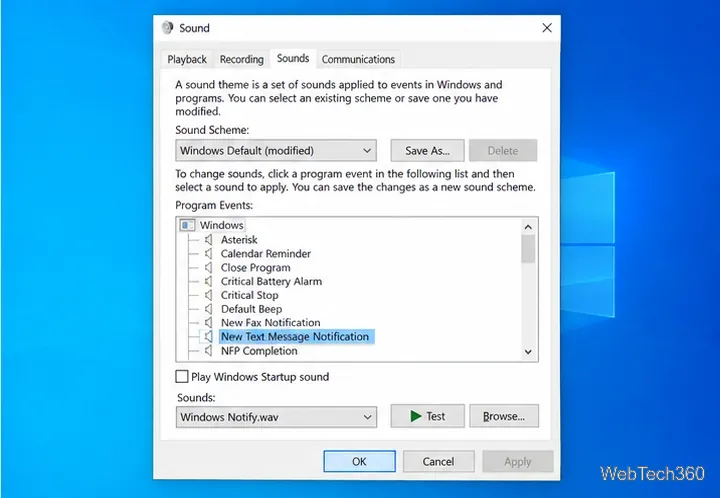
Testing is only a preview; it does not save your choice by itself. If you are changing several events, you can use Save As to save a named sound scheme. Avoid changing the whole Sound Scheme when you only want to change one event, because a scheme can assign sounds to many Windows events.
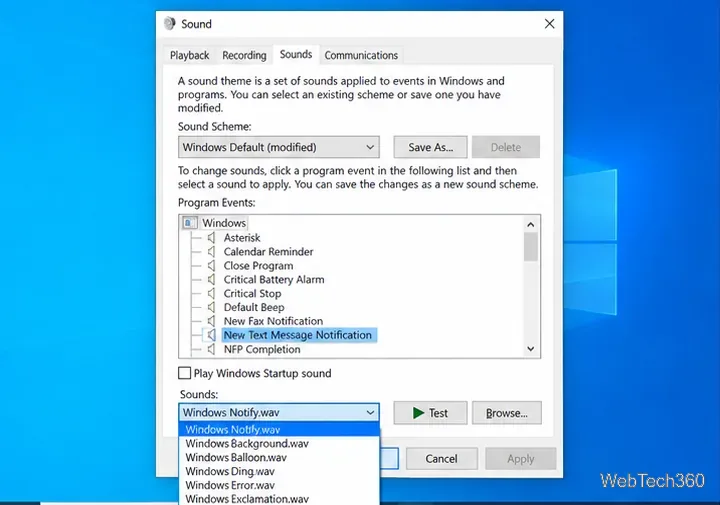
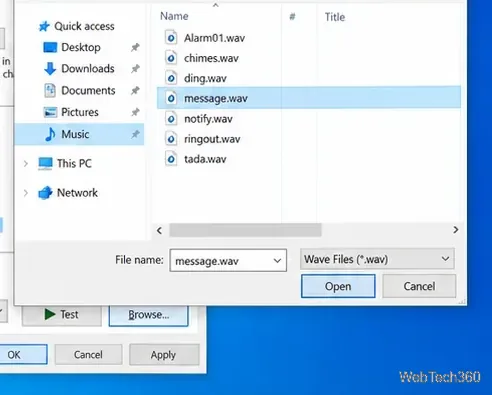
In the Sounds tab, select the message event and choose Browse. Select a local .wav file, choose Open, and then use Test before selecting Apply and OK. The Sound dialog’s Browse picker is for WAV sound files; an MP3 or AAC file will not work as the event sound unless you convert it to WAV first. Microsoft gives the same WAV requirement for the related New Mail Notification event in its Outlook sound instructions.
The Program Events list assigns sounds to Windows events; it does not control whether an app is allowed to send a notification. In Windows 10, open Settings > System > Notifications & actions, select the messaging app, and check that notifications and Play a sound when a notification arrives are enabled. That setting turns app notification sound on or off; it does not provide a separate tone picker for every app. Microsoft’s Windows notification guidance describes these per-app controls.
Some programs use their own notification sound setting, so changing a Windows event may not affect them. Look in the app’s notification or sound preferences if an incoming message still plays the old tone. Email usually has its own event: select New Mail Notification in Program Events to change a Windows mail alert. Outlook also has a separate Play a sound option, as explained in Microsoft’s instructions for changing the new mail sound.
Microsoft’s guide to changing Windows notification and system sounds follows the same Sound dialog workflow: select an event, choose a sound, test it, then apply the change.
These sound controls remain available on Windows 10, but Microsoft ended free support and security updates for Windows 10 on October 14, 2025. Microsoft’s support pages now recommend moving to Windows 11 for continued updates.
Use Windows 10’s built-in slideshow for interval rotation or schedule an exact daily wallpaper change with Task Scheduler and a short PowerShell script.
Choose a built-in alert tone or WAV file for Windows 10 message notifications, test the change, and troubleshoot apps that keep playing another sound.
Arrange Windows 10 apps in top-and-bottom rows with the taskbar’s Show windows stacked command, or create a reusable two-zone layout with PowerToys FancyZones.
Keep each display at its recommended resolution, arrange Windows 10 monitors accurately, and use MouseUnSnag to cross mismatched edges and sticky corners.
Find whether your connected Wi-Fi uses WPA2, WPA3, or an older security mode in Windows 10 with Settings, Command Prompt, or Control Panel.
Automatically lock Windows 10 after inactivity with a screen saver timer and sign-in prompt, then check how sleep settings affect the result.
Add a persistent colored ring around your Windows 10 mouse pointer with PenAttention, or use built-in pointer tools and PowerToys for temporary highlights.
Keep the Xbox Game Bar Performance widget visible over other windows on Windows 10, with CPU, GPU, and RAM readings you can position and unpin.
Capture two or more Windows 10 displays in one OBS video. Add a Display Capture source for each monitor, fit the canvas, and test the layout.
Create a GUID on Windows 10 with [guid]::NewGuid() or New-Guid, reuse it in a script, and learn when to look up an existing identifier.







