How to Schedule a Wallpaper Change in Windows 10

Use Windows 10’s built-in slideshow for interval rotation or schedule an exact daily wallpaper change with Task Scheduler and a short PowerShell script.
If emails are disappearing from Outlook, first check whether the messages are gone or only hidden from the app. Open the mailbox in Outlook on the web or your email provider’s website. If the mail is still there, the cause is usually a filter, rule, sync setting, profile, add-in, or local data file. If it is missing online too, check Deleted Items and recovery options first.
Outlook now has both new Outlook for Windows and classic Outlook, so some menus differ. The steps below identify classic-only fixes.
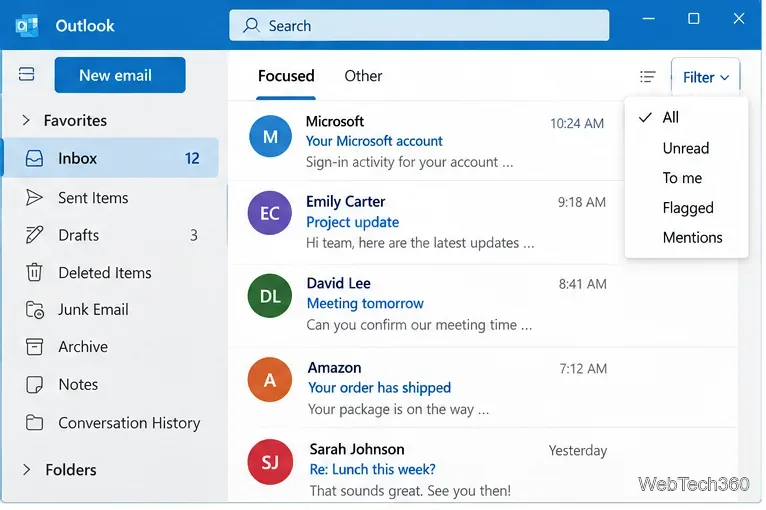
Set Filter to All, check both Focused and Other if Focused Inbox is enabled, and search the entire mailbox rather than only the current folder. Also open Archive and folders used by rules.
Rules can automatically move or delete incoming mail. In new Outlook, go to Settings > Mail > Rules. In classic Outlook, use File > Manage Rules & Alerts. Microsoft also recommends checking filters and rules when mail appears missing. See Microsoft’s missing-email guidance and Outlook rules documentation.
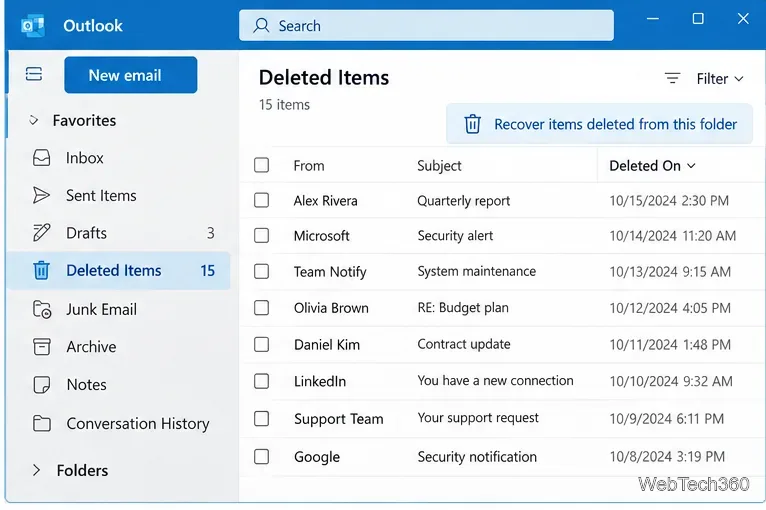
Open Deleted Items and move the message back to Inbox if it is there. For Microsoft 365, Exchange, and Outlook.com accounts, Outlook may also offer Recover items deleted from this folder after an item is no longer in Deleted Items. Recovery availability depends on the account and retention policy. Microsoft documents both new and classic Outlook in Recover and restore deleted items in Outlook.
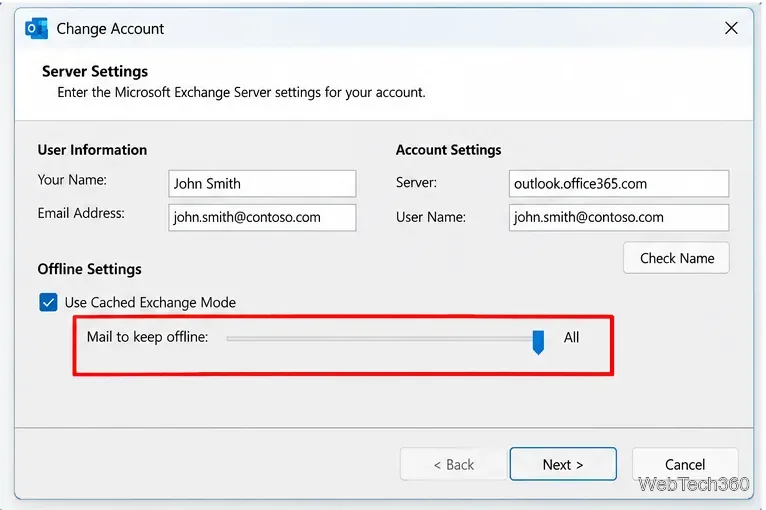
This fix is mainly for classic Outlook with Microsoft 365 or Exchange. Make sure Outlook is not stuck in Working Offline. Then open File > Account Settings > Account Settings, select the account, choose Change, and review how much mail is kept offline. Older mail can look missing locally when the cached range is limited even though it remains on the server. See Microsoft’s Cached Exchange Mode settings.
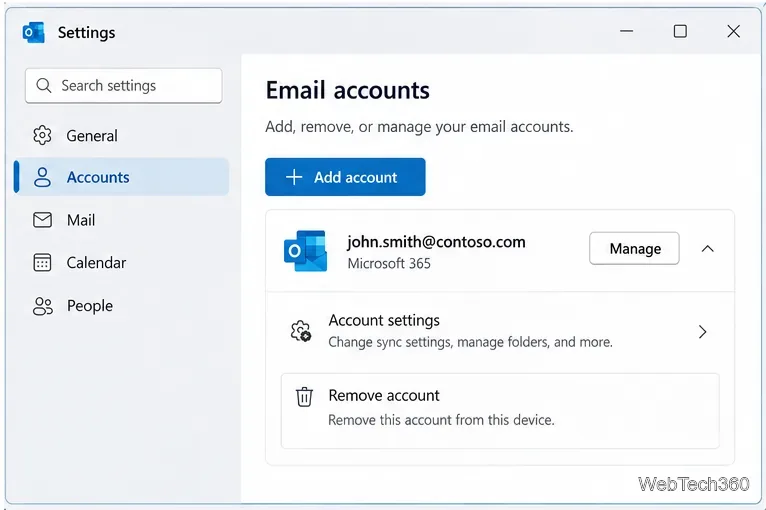
If webmail looks correct but Outlook will not sync it, reconnecting the account can rebuild local synchronization. In new Outlook, open View Settings or File > Account info, choose the account, and select Manage. In classic Outlook, use File > Account Settings > Account Settings.
Confirm important mail exists on the server or is backed up before removing the account. Removing it clears that account’s offline cached content from Outlook. For third-party accounts in new Outlook, choose removal from only this device unless you intentionally want the broader option. Follow Microsoft’s current add and remove account instructions.
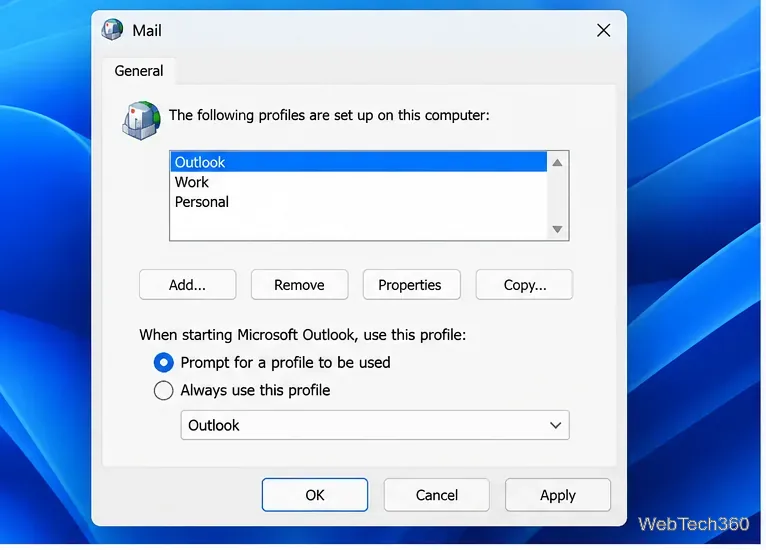
A damaged profile can cause classic Outlook to show incomplete folders or fail to sync. Close Outlook, then hold Shift while starting it to open the profile picker. Choose Options > New, create a profile, add the account, and test synchronization before removing the old profile. See Create a profile in classic Outlook for Windows.
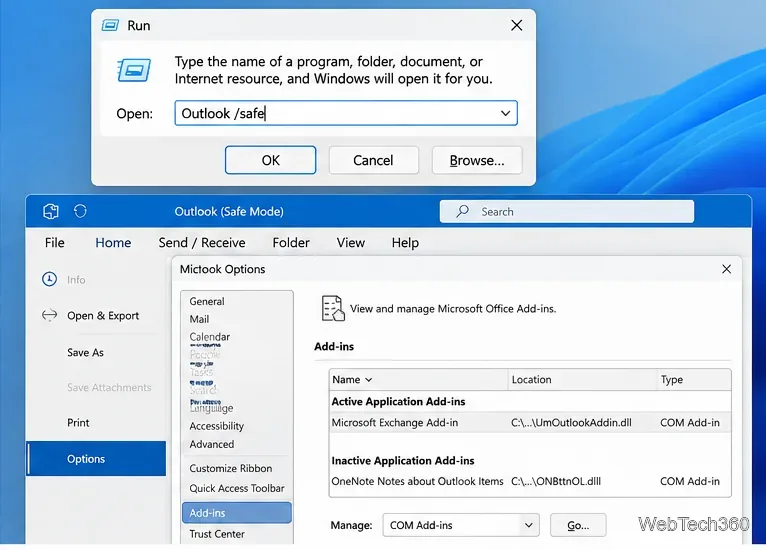
Press Windows + R, type Outlook /safe, and press Enter. If the missing messages appear normally, an add-in may be interfering with classic Outlook. Go to File > Options > Add-ins, select COM Add-ins, choose Go, disable the add-ins, then re-enable them one at a time. Microsoft describes this flow in its Outlook for Windows troubleshooting guide.
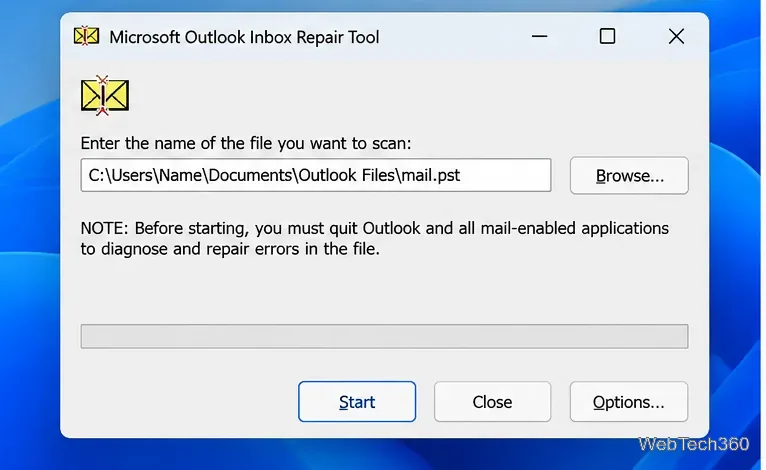
If classic Outlook reports data-file errors or local folders are incomplete, close Outlook and use Microsoft’s Inbox Repair Tool (SCANPST.EXE) for a PST file. Microsoft recommends backing up the data file first. For Exchange accounts that use an OST cache, Outlook can recreate the OST from the server. Use Microsoft’s repair instructions rather than a fixed SCANPST path because the installation location can vary.
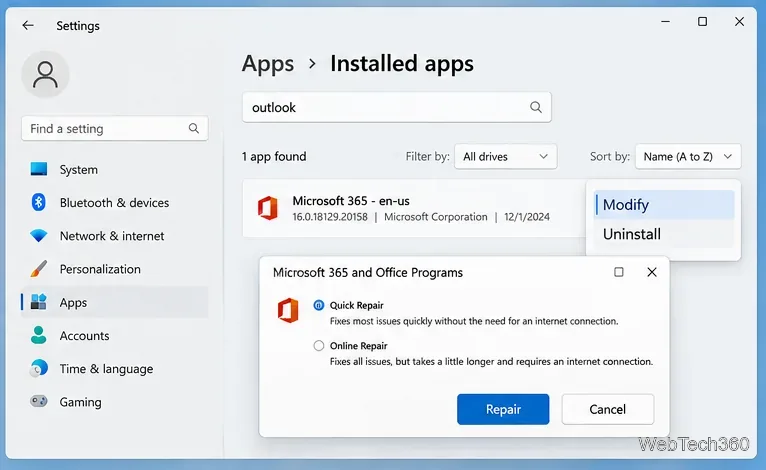
If mail is present in webmail but Outlook still behaves incorrectly, repair the app. For classic Outlook installed with Microsoft 365, open Windows Installed apps, find Microsoft 365 or Office, choose Modify, and run Quick Repair first; use Online Repair if needed. See Repair an Office application.
For new Outlook for Windows, Microsoft’s current troubleshooting guidance also supports uninstalling and reinstalling the app from Microsoft Store when the app itself is malfunctioning.
If mail is absent from Outlook, webmail, Deleted Items, and recoverable items, check server-side rules, retention policies, and other devices that may be moving or deleting messages. For a work account, contact your Microsoft 365 administrator before deleting local data files or repeatedly removing the account.
Use Windows 10’s built-in slideshow for interval rotation or schedule an exact daily wallpaper change with Task Scheduler and a short PowerShell script.
Choose a built-in alert tone or WAV file for Windows 10 message notifications, test the change, and troubleshoot apps that keep playing another sound.
Arrange Windows 10 apps in top-and-bottom rows with the taskbar’s Show windows stacked command, or create a reusable two-zone layout with PowerToys FancyZones.
Keep each display at its recommended resolution, arrange Windows 10 monitors accurately, and use MouseUnSnag to cross mismatched edges and sticky corners.
Find whether your connected Wi-Fi uses WPA2, WPA3, or an older security mode in Windows 10 with Settings, Command Prompt, or Control Panel.
Automatically lock Windows 10 after inactivity with a screen saver timer and sign-in prompt, then check how sleep settings affect the result.
Add a persistent colored ring around your Windows 10 mouse pointer with PenAttention, or use built-in pointer tools and PowerToys for temporary highlights.
Keep the Xbox Game Bar Performance widget visible over other windows on Windows 10, with CPU, GPU, and RAM readings you can position and unpin.
Capture two or more Windows 10 displays in one OBS video. Add a Display Capture source for each monitor, fit the canvas, and test the layout.
Create a GUID on Windows 10 with [guid]::NewGuid() or New-Guid, reuse it in a script, and learn when to look up an existing identifier.








