How to Play Minecraft Offline on Windows 10: Java and Bedrock

Prepare Java or Bedrock on Windows 10 for offline single-player, enable the right Xbox setting, and back up your local Minecraft worlds.
Error 0x80004005 is a generic Windows “unspecified error,” so the right fix depends on what you were doing when it appeared. It commonly shows up during Windows Update, when opening a network share, while copying or extracting files, or in classic Outlook. Start with the section that matches your situation instead of applying every fix at once.
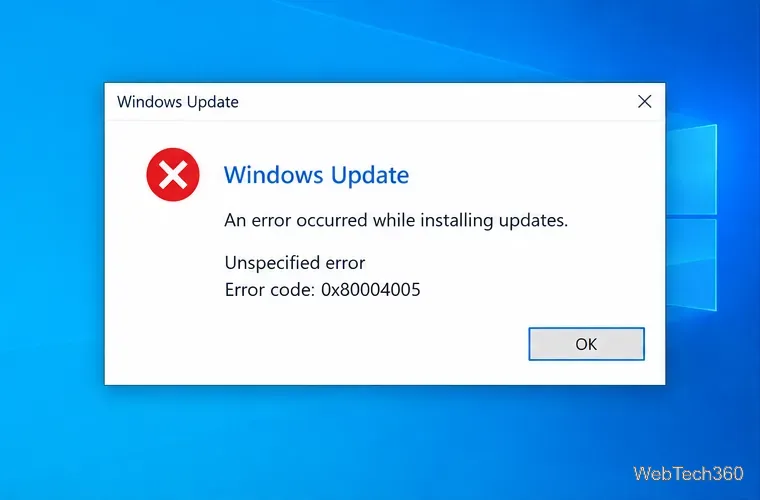
The code does not identify one single failure. It can be triggered by damaged update files, permission or network-share problems, a conflicting app or add-in, or corrupted Windows components. Restart the PC once, repeat the failed action, and note exactly which app or feature shows the code.
Windows 10 reached end of support on October 14, 2025. If you still use it, Microsoft recommends moving to Windows 11 when possible or using an eligible Extended Security Updates option during the transition. See Microsoft’s Windows 10 end-of-support guidance.
On Windows 10, open Settings > Update & Security > Troubleshoot > Additional troubleshooters, select Windows Update, and run the troubleshooter. Microsoft also provides an automated Windows Update troubleshooter through the Get Help app. Restart the PC afterward and check for updates again.
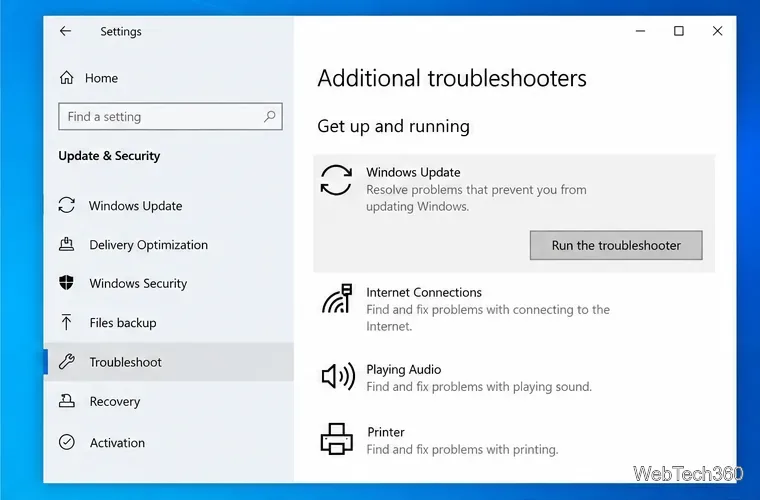
Microsoft’s current steps are available in the Windows Update Troubleshooter documentation.
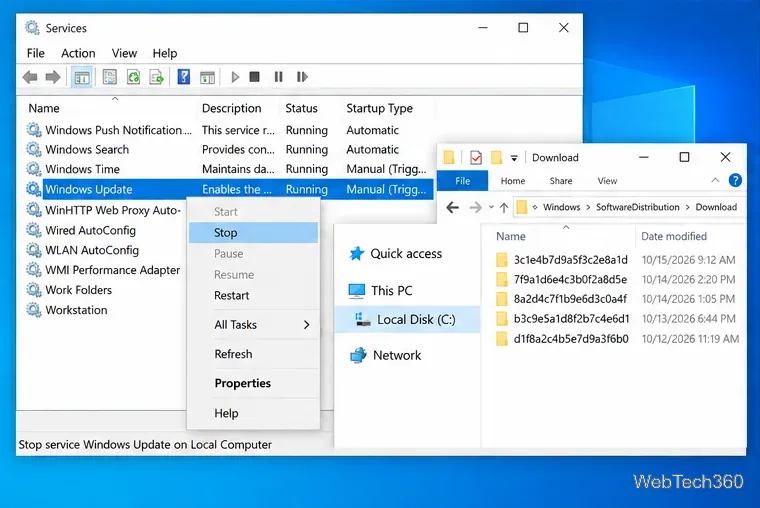
If the error appears while an update is downloading or installing, the cached download may be incomplete. Press Windows + R, enter services.msc, stop the Windows Update service, then open C:\Windows\SoftwareDistribution\Download in File Explorer and delete the contents of that folder. Return to Services and start Windows Update again, then go to Settings > Update & Security > Windows Update and select Check for updates.
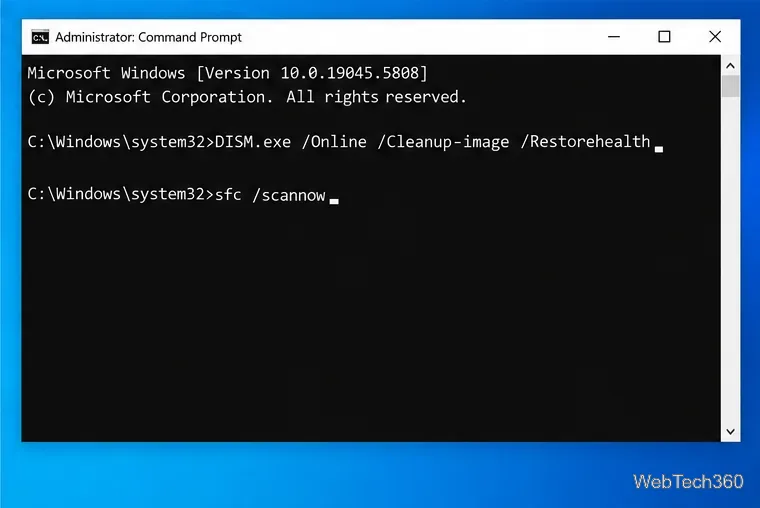
Use Microsoft’s built-in repair tools if 0x80004005 appears in several Windows features or returns after an update retry. Open Command Prompt as administrator and run these commands in order:
DISM.exe /Online /Cleanup-image /Restorehealth
sfc /scannow
Let each command finish before closing the window, then restart Windows. Microsoft recommends running DISM before System File Checker because DISM can repair the component source used by SFC. See Microsoft’s DISM and SFC instructions.
If File Explorer shows 0x80004005 for a shared folder, first verify that both computers are on the same network, the target computer is turned on, and your account has permission to the share. On a trusted home or office LAN, set the network profile to Private and turn on Network discovery and File and printer sharing.
Microsoft’s file-sharing guide also lists the Windows services used for network discovery. Avoid enabling SMB1 just to make an old device work unless you fully understand the security risk; Microsoft describes SMB1 as obsolete and recommends SMB2 or later.
If the code appears in classic Outlook for Windows, update Office first. Microsoft documented a mailbox sync issue that produced 0x80004005 in 2026 and marked the server-side problem as fixed, so an up-to-date client and a fresh retry should come before deeper repair.
For classic Outlook, press Windows + R, enter outlook.exe /safe, and try the same action. If Outlook works in Safe Mode, disable recently added COM add-ins and test again. If Outlook reports a damaged data file, use Microsoft’s SCANPST.EXE Inbox Repair Tool and back up the PST first. See the official Outlook data-file repair instructions and Microsoft’s 0x80004005 Outlook known-issue notice.
If 0x80004005 occurs only in one desktop program, repair or reinstall that program before changing Windows-wide settings. If the problem disappears in a clean boot, a non-Microsoft service or startup app is probably interfering.
Avoid older “one-size-fits-all” fixes such as turning off Microsoft Defender, re-registering unrelated DLL files, or setting LocalAccountTokenFilterPolicy to 1. That registry value changes Remote UAC behavior and is intended for specific remote-administration scenarios, not as a general cure for 0x80004005. If the error persists after the targeted checks above, record the exact action that fails and troubleshoot that Windows feature or application specifically.
Prepare Java or Bedrock on Windows 10 for offline single-player, enable the right Xbox setting, and back up your local Minecraft worlds.
Change a file type icon in Windows 10 while keeping its current default app. Follow the FileTypesMan steps, handle icon picker issues, and restore the original setting.
Set PhysX in NVIDIA Control Panel on Windows 10, understand Auto-select vs. CPU or GPU, and learn when to use Windows Graphics settings instead.
Compare six free office suites for documents, spreadsheets, and presentations, including browser-based collaboration and offline desktop options.
Turn on Notepad’s Status Bar to see the current line and column in Windows 10, troubleshoot a disabled option, and learn when you need a line-number gutter.
Display a custom Windows dialog with a short PowerShell command, Command Prompt, or a reusable .bat or .ps1 file, including a title, icon, and buttons.
Fix Windows 10 update error 0x80071160 with Microsoft’s troubleshooter, a safe update-cache reset, DISM and SFC repairs, and a careful manual-install check.
Create a Windows 10 UEFI installer with Microsoft’s Media Creation Tool or Rufus, then boot and install safely without wiping the wrong drive.
Stop individual Edge tabs from crowding the Windows 10 Alt+Tab switcher. Change one Multitasking setting, limit recent tabs, and check why the option may be missing.
Enable Adobe’s PDF thumbnail handler, correct File Explorer’s icon settings, rebuild the thumbnail cache, and check OneDrive files that are not stored locally.








