How to Schedule a Wallpaper Change in Windows 10

Use Windows 10’s built-in slideshow for interval rotation or schedule an exact daily wallpaper change with Task Scheduler and a short PowerShell script.
If a PNG with transparency shows a solid black background in Windows 10 File Explorer, first confirm that the image really contains transparent pixels. If it does, the most useful fixes are to restart Windows Explorer, rebuild the thumbnail cache, and re-export the PNG with a valid alpha channel. These steps fix the thumbnail without changing the image unless the PNG itself is the problem.
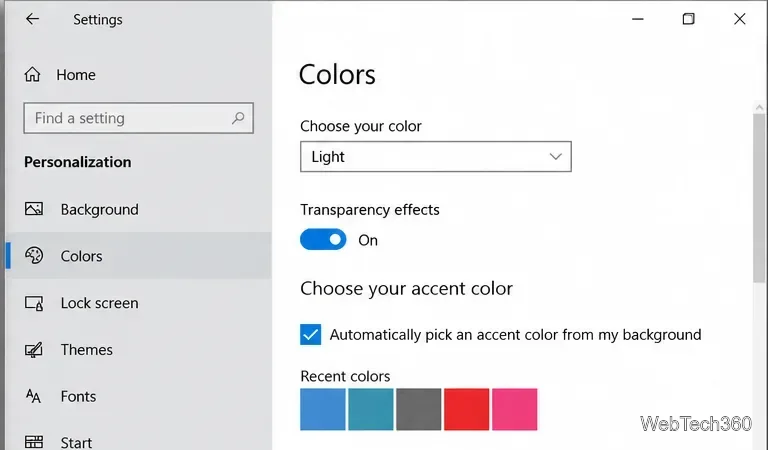
Transparent pixels do not have a background color of their own. File Explorer draws a thumbnail against its current interface background, so dark mode can make transparent areas look darker than expected. As a quick diagnostic, temporarily switch Windows 10 to the light theme:
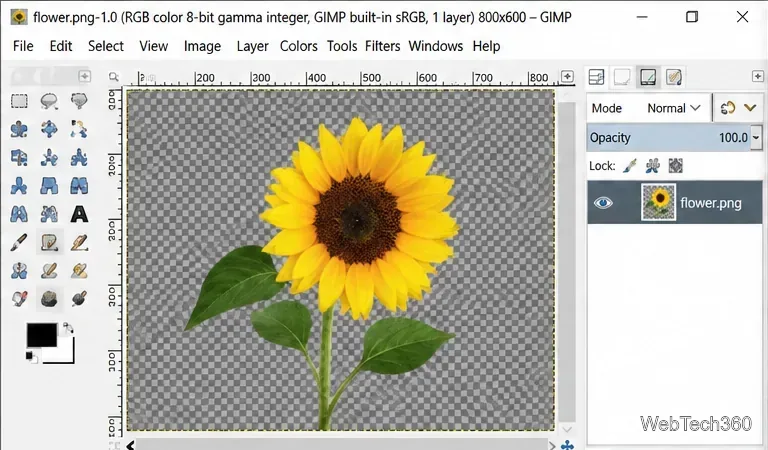
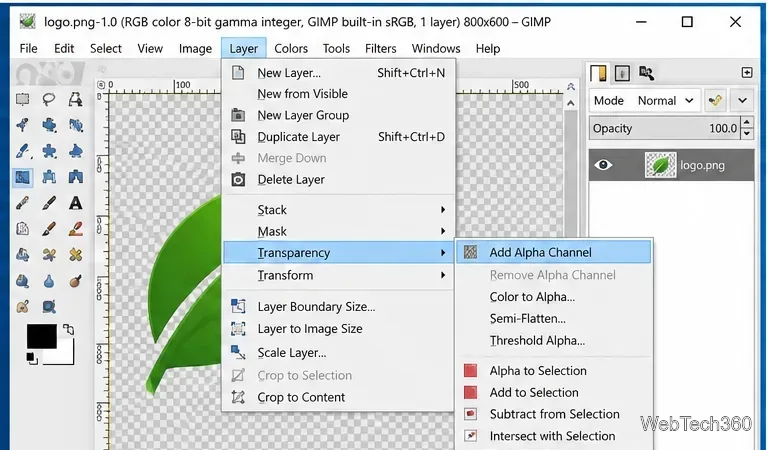
Next, open the PNG in an editor that displays transparency, such as GIMP. A checkerboard in the editor indicates transparent pixels. If the image editor also shows solid black pixels, the black area is part of the file and File Explorer is displaying it correctly. GIMP documents alpha-channel transparency in its official alpha channel guide.
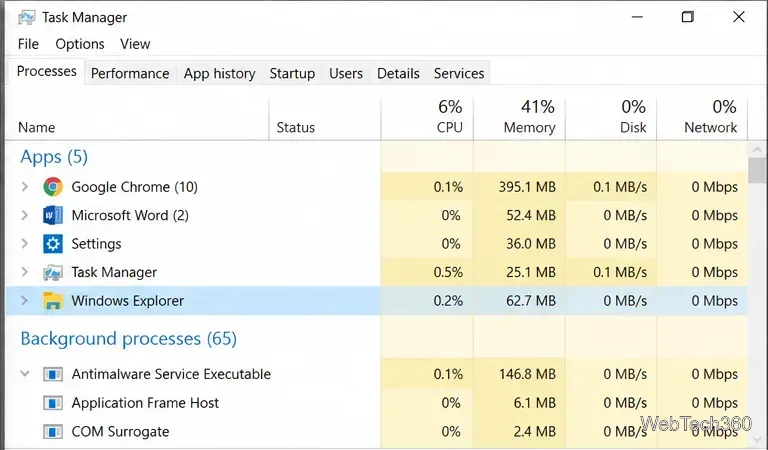
If the PNG is transparent in an editor but its File Explorer thumbnail is wrong, restart Explorer before changing anything else. This refreshes the shell and its thumbnail display without rebooting the whole PC.
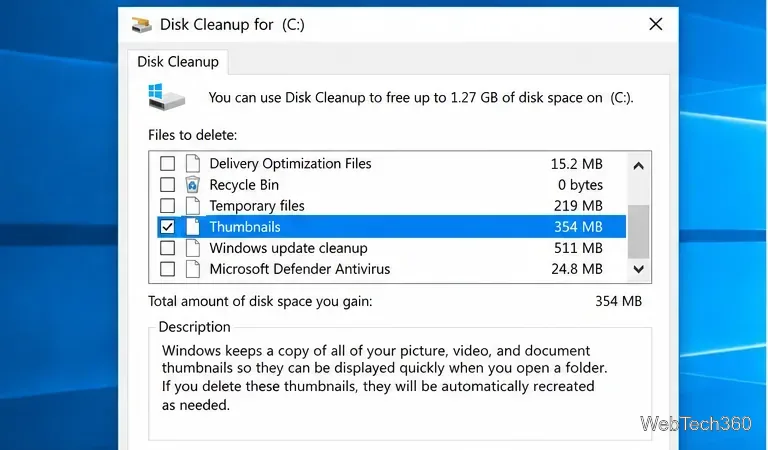
A stale or damaged thumbnail cache is a common reason File Explorer keeps showing an old preview even when the actual PNG is correct. Microsoft still documents Disk Cleanup as a supported way to remove cached thumbnails.
Microsoft's current instructions are available in Free up drive space in Windows.
If only one or two PNG files are affected, try a low-risk refresh before deeper repairs. Rename the PNG, copy it to a new local folder, or switch the folder from Details view to Large icons and back. These actions can make Explorer request a new thumbnail instead of reusing an existing preview.
If a copied file looks correct in a new folder but the original still looks black, the image data is probably fine and the problem is more likely tied to cached folder or thumbnail state.
If the thumbnail is still black, save a fresh copy of the image. This is especially useful for files created by older graphics tools, converters, or export pipelines that may have produced unusual PNG metadata.
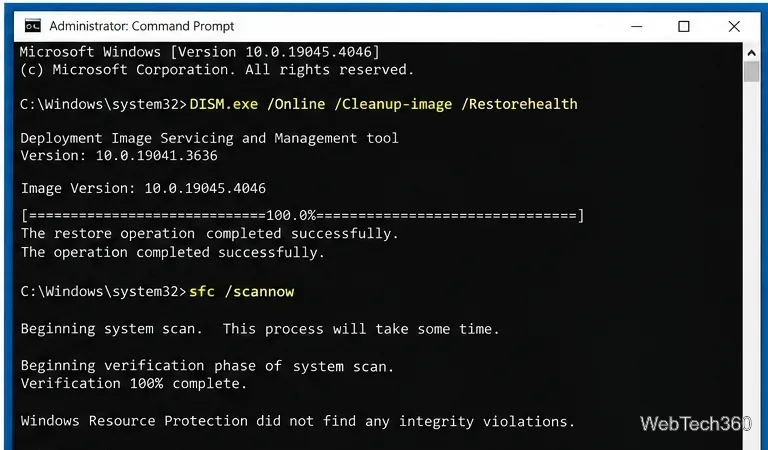
If many image thumbnails are wrong, File Explorer is unstable, or rebuilding the cache does not help, check Windows system files. Microsoft recommends running DISM before System File Checker when repairing Windows components.
DISM.exe /Online /Cleanup-Image /RestoreHealth.sfc /scannow.Use this step for broader Windows problems rather than a single bad PNG. Microsoft documents the repair sequence in its Windows troubleshooting guidance.
Do not start by uninstalling random Windows updates or shell extensions just because the thumbnail is black. Those changes are broader than the symptom and can create new problems. If the issue began immediately after installing a specific utility that adds File Explorer preview or context-menu features, update or temporarily disable that utility first.
Windows 10 reached the end of standard support on October 14, 2025. PCs still run, but Microsoft no longer provides normal security fixes or technical support for Windows 10 outside applicable Extended Security Updates programs. If this thumbnail problem is part of wider File Explorer instability, plan to move to a supported Windows release when possible. See Microsoft's Windows 10 end-of-support notice.
Use Windows 10’s built-in slideshow for interval rotation or schedule an exact daily wallpaper change with Task Scheduler and a short PowerShell script.
Choose a built-in alert tone or WAV file for Windows 10 message notifications, test the change, and troubleshoot apps that keep playing another sound.
Arrange Windows 10 apps in top-and-bottom rows with the taskbar’s Show windows stacked command, or create a reusable two-zone layout with PowerToys FancyZones.
Keep each display at its recommended resolution, arrange Windows 10 monitors accurately, and use MouseUnSnag to cross mismatched edges and sticky corners.
Find whether your connected Wi-Fi uses WPA2, WPA3, or an older security mode in Windows 10 with Settings, Command Prompt, or Control Panel.
Automatically lock Windows 10 after inactivity with a screen saver timer and sign-in prompt, then check how sleep settings affect the result.
Add a persistent colored ring around your Windows 10 mouse pointer with PenAttention, or use built-in pointer tools and PowerToys for temporary highlights.
Keep the Xbox Game Bar Performance widget visible over other windows on Windows 10, with CPU, GPU, and RAM readings you can position and unpin.
Capture two or more Windows 10 displays in one OBS video. Add a Display Capture source for each monitor, fit the canvas, and test the layout.
Create a GUID on Windows 10 with [guid]::NewGuid() or New-Guid, reuse it in a script, and learn when to look up an existing identifier.








