How to Play Minecraft Offline on Windows 10: Java and Bedrock

Prepare Java or Bedrock on Windows 10 for offline single-player, enable the right Xbox setting, and back up your local Minecraft worlds.
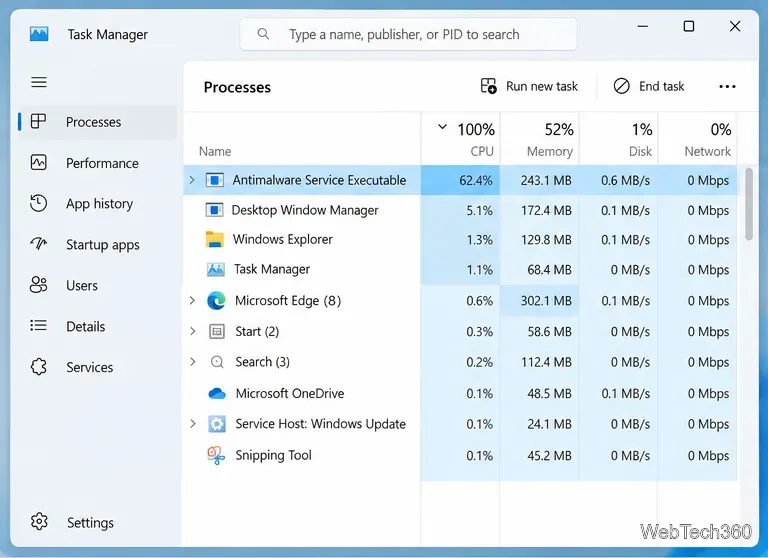
Antimalware Service Executable, shown as MsMpEng.exe, is the main process used by Microsoft Defender Antivirus. Short CPU spikes are normal while Defender checks new files or runs a scan. If the process stays near the top of Task Manager for long periods and makes Windows sluggish, use the steps below to reduce the load without disabling your antivirus.
Open Task Manager with Ctrl + Shift + Esc, select Processes, and watch Antimalware Service Executable for several minutes. A temporary spike during a scan is expected. Persistent high usage while you are actively working is the behavior worth troubleshooting.
Outdated security intelligence or a Defender platform issue can contribute to repeated scanning. Open Windows Security > Virus & threat protection, check for protection updates, then install any available Windows updates and restart the PC.
You can also update Defender security intelligence from an elevated PowerShell window:
Update-MpSignature
Microsoft documents the Update-MpSignature command for downloading the latest antimalware definitions.
Open Windows Security > Virus & threat protection > Scan options. Start with a Quick scan for a routine check. Use a Full scan when you have a reason to inspect every file and running program, and use Microsoft Defender Antivirus (offline scan) when you suspect persistent malware that may hide while Windows is running.
Do not turn off real-time protection before the scan. CPU usage can rise while the scan is running; judge performance again after it finishes.
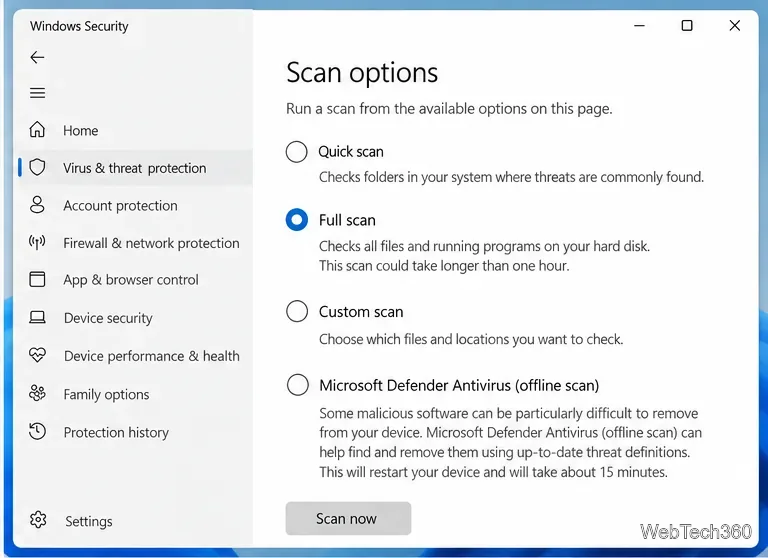
Microsoft's current Windows Security documentation explains the available scan controls in the Microsoft Defender Antivirus section of Windows Security.
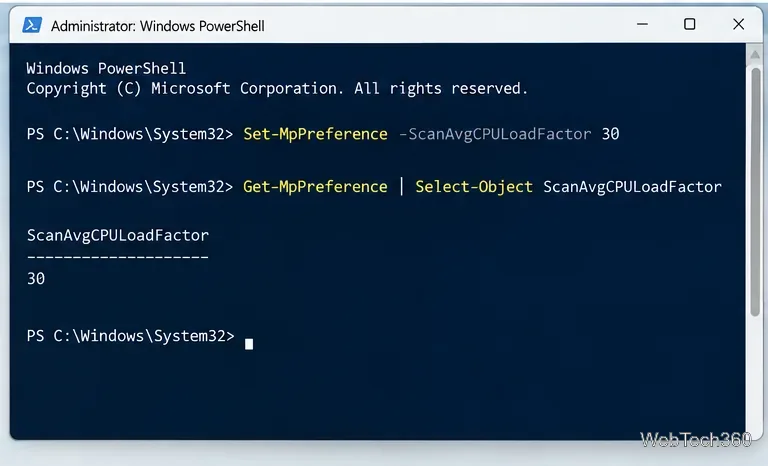
If the high usage happens during scheduled scans, Windows lets administrators set an average CPU target. Open PowerShell as Administrator and run:
Set-MpPreference -ScanAvgCPULoadFactor 30
Then verify the setting:
Get-MpPreference | Select-Object ScanAvgCPULoadFactor
Microsoft accepts values from 5 to 100; the documented default is 50, while 0 disables CPU throttling. The value is guidance for average scan CPU use, not a strict ceiling, and certain idle-scan settings can override it. Lower limits can also make scans take longer.
See Microsoft's scheduled scan PowerShell guidance for the supported scan settings.
If MsMpEng.exe remains busy, identify what Defender is repeatedly scanning instead of guessing. Microsoft provides a Defender Performance Analyzer on supported Windows systems.
In an elevated PowerShell window, start a recording:
New-MpPerformanceRecording -RecordTo C:\Temp\Defender-scans.etl
Reproduce the slowdown, press Enter to stop and save the trace, then inspect the most expensive scans:
Get-MpPerformanceReport -Path C:\Temp\Defender-scans.etl -TopScans 20
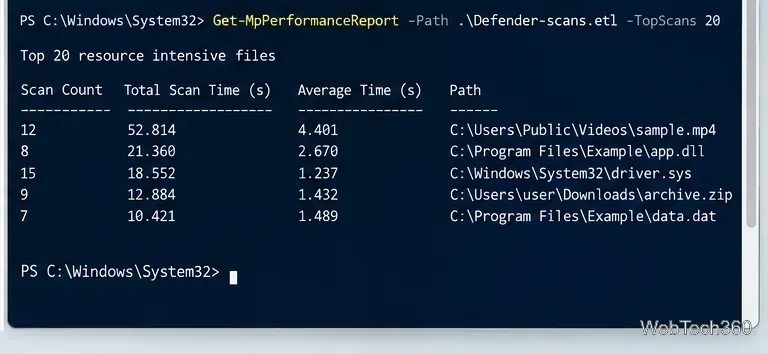
The Microsoft Defender Antivirus Performance Analyzer can report costly files, paths, extensions, and processes.
Do not add MsMpEng.exe itself as an exclusion just to lower CPU usage. Microsoft warns that exclusions create protection gaps, and broad process exclusions can also reduce inspection by features such as network protection and attack surface reduction rules.
If the Performance Analyzer identifies one trusted workload that is genuinely safe and repeatedly expensive to scan, consider the narrowest possible exclusion only after you understand the tradeoff. Review Microsoft's Defender exclusion guidance before changing anything.
Install pending Windows updates, reboot, and repeat the Performance Analyzer test. On a work-managed PC, Defender settings may be enforced by Group Policy, Microsoft Intune, or Defender for Endpoint, so contact your administrator before changing scan policies or exclusions.
If you are still using Windows 10, note that Microsoft ended free Windows 10 support on October 14, 2025. Microsoft recommends moving eligible PCs to Windows 11; the Windows Update FAQ explains the current support status.
For most PCs, the safest fix is to update Defender, let an appropriate scan finish, lower the scheduled-scan CPU target if necessary, and use the performance tools to identify the actual scanning hotspot before creating any exclusion.
Prepare Java or Bedrock on Windows 10 for offline single-player, enable the right Xbox setting, and back up your local Minecraft worlds.
Change a file type icon in Windows 10 while keeping its current default app. Follow the FileTypesMan steps, handle icon picker issues, and restore the original setting.
Set PhysX in NVIDIA Control Panel on Windows 10, understand Auto-select vs. CPU or GPU, and learn when to use Windows Graphics settings instead.
Compare six free office suites for documents, spreadsheets, and presentations, including browser-based collaboration and offline desktop options.
Turn on Notepad’s Status Bar to see the current line and column in Windows 10, troubleshoot a disabled option, and learn when you need a line-number gutter.
Display a custom Windows dialog with a short PowerShell command, Command Prompt, or a reusable .bat or .ps1 file, including a title, icon, and buttons.
Fix Windows 10 update error 0x80071160 with Microsoft’s troubleshooter, a safe update-cache reset, DISM and SFC repairs, and a careful manual-install check.
Create a Windows 10 UEFI installer with Microsoft’s Media Creation Tool or Rufus, then boot and install safely without wiping the wrong drive.
Stop individual Edge tabs from crowding the Windows 10 Alt+Tab switcher. Change one Multitasking setting, limit recent tabs, and check why the option may be missing.
Enable Adobe’s PDF thumbnail handler, correct File Explorer’s icon settings, rebuild the thumbnail cache, and check OneDrive files that are not stored locally.








