How to Play Minecraft Offline on Windows 10: Java and Bedrock

Prepare Java or Bedrock on Windows 10 for offline single-player, enable the right Xbox setting, and back up your local Minecraft worlds.
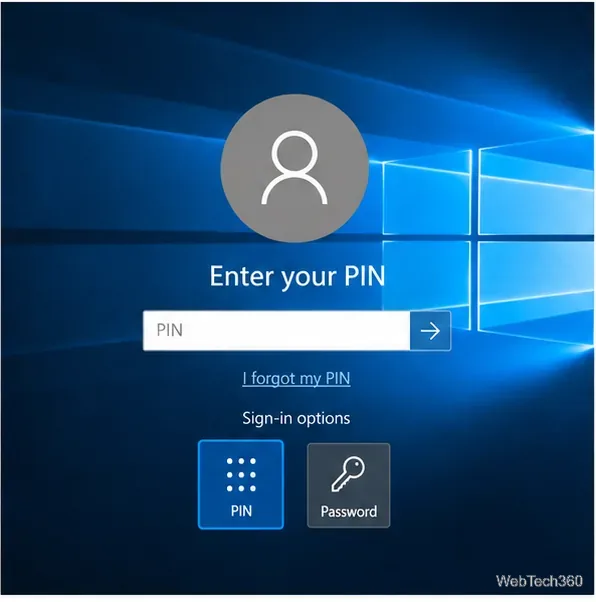
If Windows 10 says “Something happened and your PIN isn’t available,” choose Sign-in options on the lock screen and try your account password. After signing in, reset Windows Hello PIN from the lock screen flow or Settings. The I forgot my PIN option is for Microsoft accounts; a local account generally needs its Windows password first.
Your Windows Hello PIN is different from your account password. This message alone does not mean your Microsoft account or files are lost.
Restart once from the lock screen with Power > Restart. If you use a Microsoft account, connect to Wi-Fi using the network icon at the lower right; account verification may need internet access. Then select Sign-in options, choose the key-shaped Password option, and enter the password for the account shown.
If you recently changed your Microsoft account password, make sure the PC is online before signing in. A local PIN can work offline, but the password reset and verification flow may require a connection.
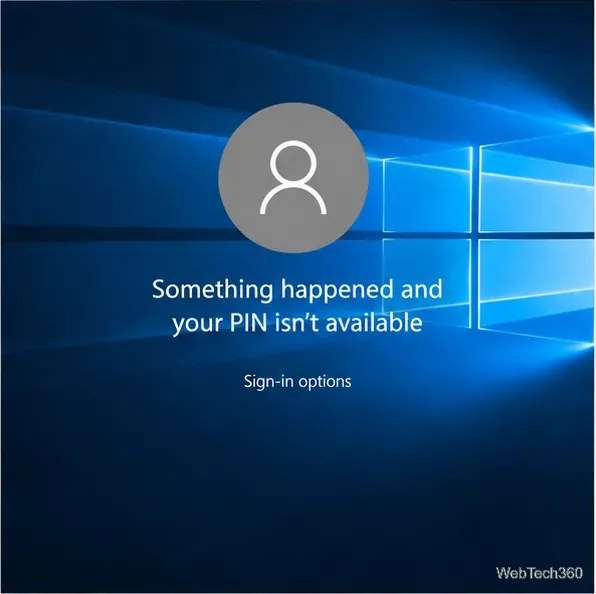
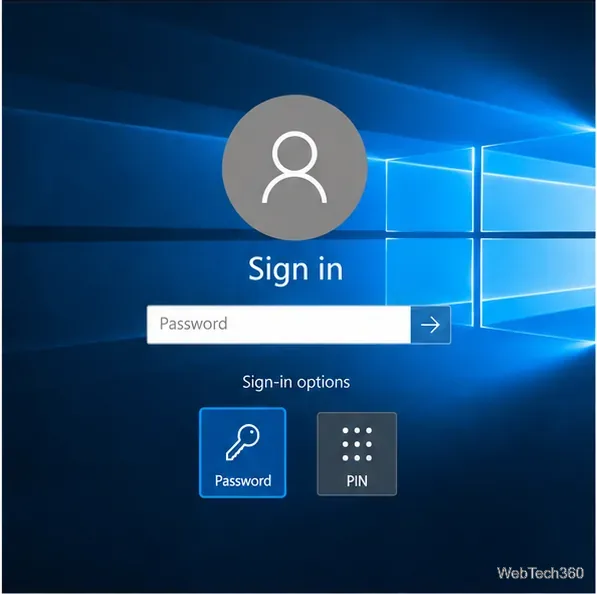
On the PIN screen, select I forgot my PIN. If Windows shows multiple accounts, choose the one whose PIN you need to replace. Follow the identity verification prompts, create a new PIN, and use it to sign in.
Microsoft says this sign-in-screen reset is available for Microsoft accounts, not local accounts. If the link is missing, sign in with your password and use Settings instead. The PIN is separate from the Microsoft account password; resetting one does not reset the other. See Microsoft’s Windows PIN reset instructions.
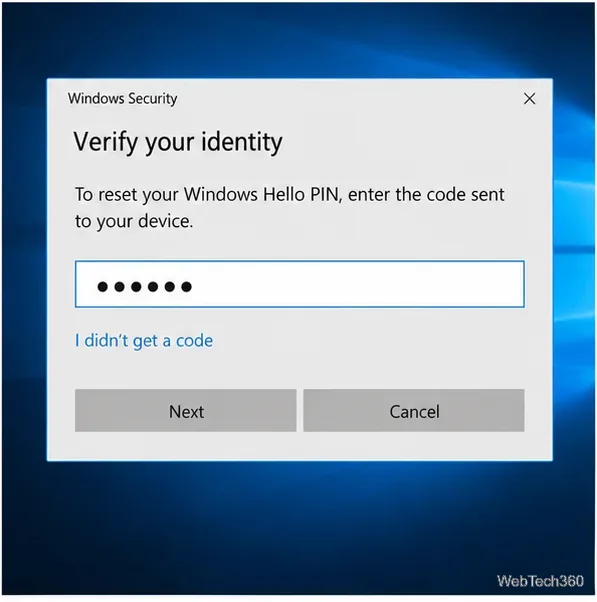
Once you reach the desktop, open Start > Settings > Accounts > Sign-in options. Expand Windows Hello PIN, select I forgot my PIN, complete the verification prompts, and create a new PIN. Choose Change only if you know the current PIN, since that option may ask for it.
If a work or school device blocks the reset, its organization may manage sign-in settings. Ask the IT administrator before changing device policies.
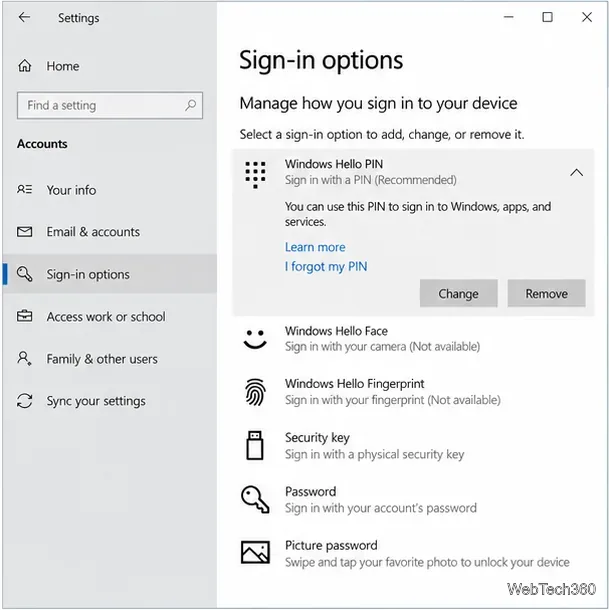 Sign-in options with Windows Hello PIN expanded." width="609" height="610">
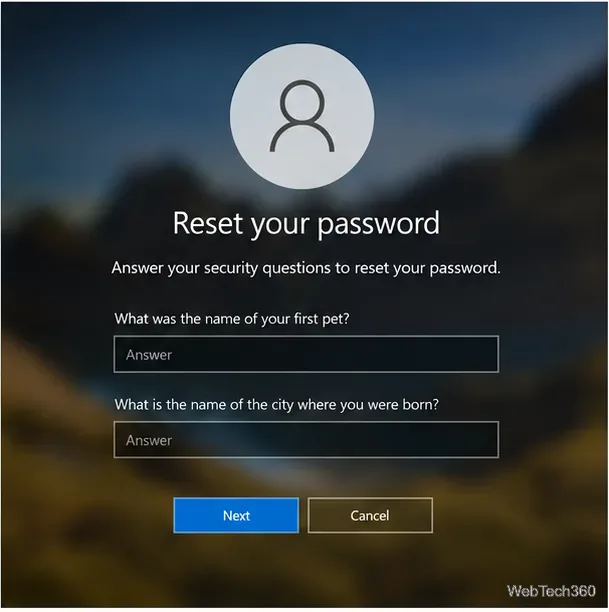
Recover the password for the account type you use; this is a separate process from replacing the PIN.
After recovering the password, sign in and reset the PIN from Settings. Microsoft cannot bypass account verification or retrieve a forgotten password. The local-account recovery screen below is for the password, not the PIN.
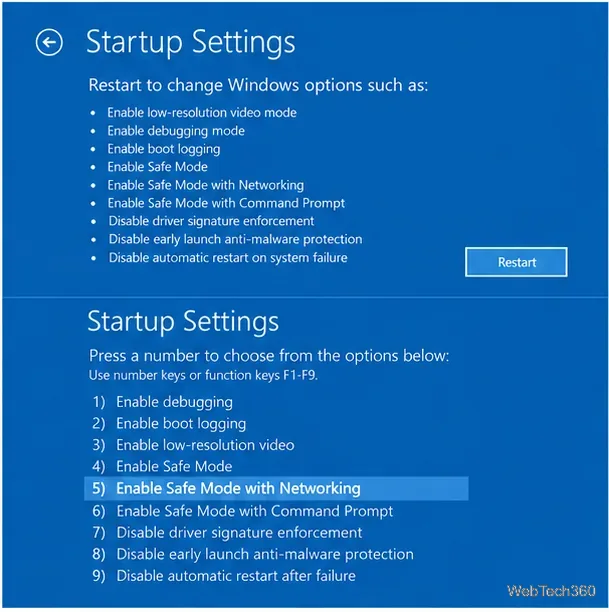
Safe Mode is a diagnostic step, not a PIN repair. Windows disables PIN and biometric sign-in in Safe Mode, so you must know the account password. Use it only if other sign-in problems continue after a normal restart.
If the desktop loads in Safe Mode, restart normally and retry the PIN reset. Windows Recovery Environment may ask for your BitLocker recovery key on an encrypted PC. Microsoft explains these limits in its Windows sign-in troubleshooting guide.
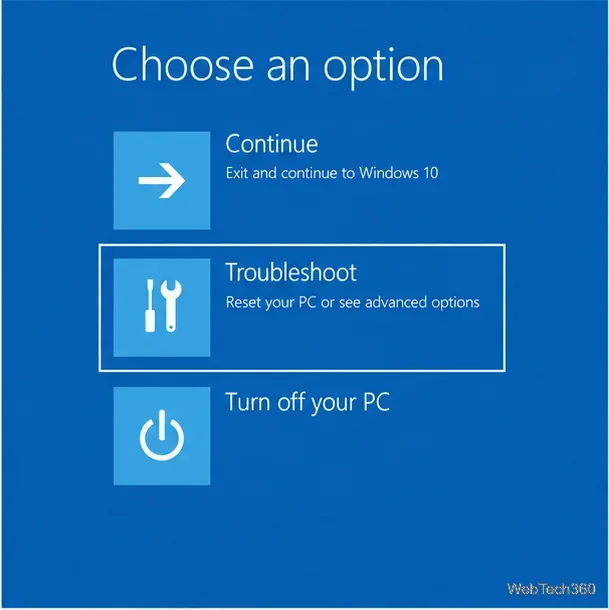
If Windows reaches the sign-in screen and only the PIN is failing, do not start with Startup Repair or reset the PC. Startup Repair targets problems that prevent Windows from starting; it does not reset a PIN. Use Microsoft’s Startup Repair instructions only when Windows itself will not boot.
After you regain access, restart and install any updates offered for the device. Microsoft says system changes or security updates can sometimes prompt Windows Hello to request a PIN again; its Windows Hello troubleshooting guide recommends resetting the PIN when it fails at sign-in.
Windows 10 support ended on October 14, 2025. Windows still runs, but standard feature and security updates have ended; eligible enrolled devices may receive updates through Extended Security Updates. Check Microsoft’s Windows 10 support status for current options.
For most PIN-only errors, signing in with the account password and creating a replacement PIN is the direct fix.
Prepare Java or Bedrock on Windows 10 for offline single-player, enable the right Xbox setting, and back up your local Minecraft worlds.
Change a file type icon in Windows 10 while keeping its current default app. Follow the FileTypesMan steps, handle icon picker issues, and restore the original setting.
Set PhysX in NVIDIA Control Panel on Windows 10, understand Auto-select vs. CPU or GPU, and learn when to use Windows Graphics settings instead.
Compare six free office suites for documents, spreadsheets, and presentations, including browser-based collaboration and offline desktop options.
Turn on Notepad’s Status Bar to see the current line and column in Windows 10, troubleshoot a disabled option, and learn when you need a line-number gutter.
Display a custom Windows dialog with a short PowerShell command, Command Prompt, or a reusable .bat or .ps1 file, including a title, icon, and buttons.
Fix Windows 10 update error 0x80071160 with Microsoft’s troubleshooter, a safe update-cache reset, DISM and SFC repairs, and a careful manual-install check.
Create a Windows 10 UEFI installer with Microsoft’s Media Creation Tool or Rufus, then boot and install safely without wiping the wrong drive.
Stop individual Edge tabs from crowding the Windows 10 Alt+Tab switcher. Change one Multitasking setting, limit recent tabs, and check why the option may be missing.
Enable Adobe’s PDF thumbnail handler, correct File Explorer’s icon settings, rebuild the thumbnail cache, and check OneDrive files that are not stored locally.








