5 Ways to Speed Up Slow iTunes on Windows
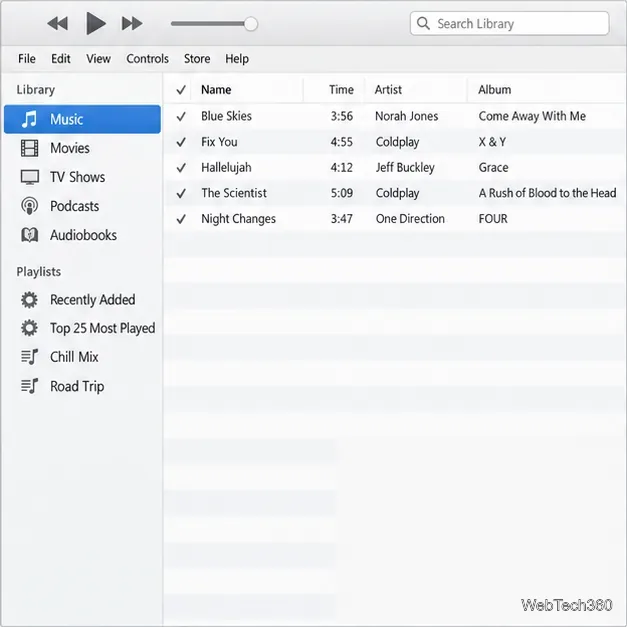
Speed up slow iTunes on Windows with five practical fixes for outdated installs, browsing lag, playback stutters, Smart Playlist refreshes, and unwanted syncing.
If Google Chrome is not working on Windows 11, start by restarting Windows and closing any Chrome process that stayed open in the background. Then check for a browser update. If Chrome opens but crashes or freezes, test Incognito mode, disable extensions, try a clean profile, and turn off graphics acceleration. Reinstall Chrome only after those checks fail.
For launch failures, start with steps 1–3, then try step 8. For crashes after launch, try steps 4–7. If only one site fails, test it in another browser; the site or connection may be the cause.
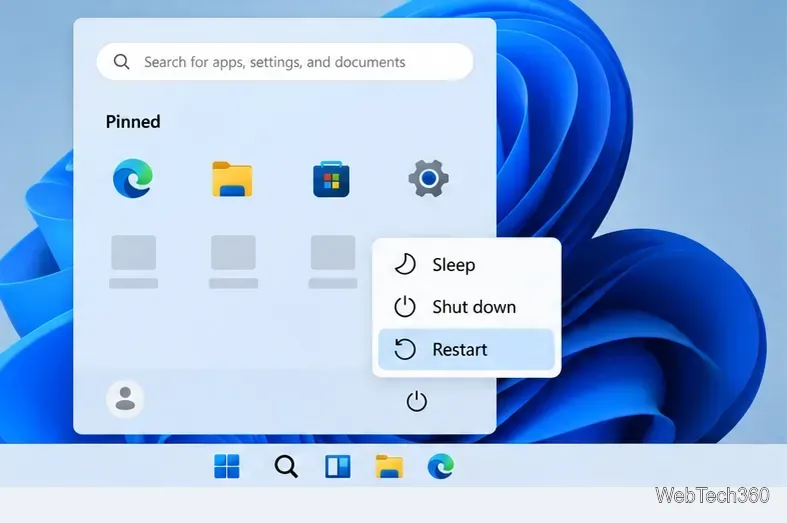
Save open work, select Start > Power > Restart, and let Windows start again before opening Chrome. A restart closes browser processes and other apps that may be stuck.
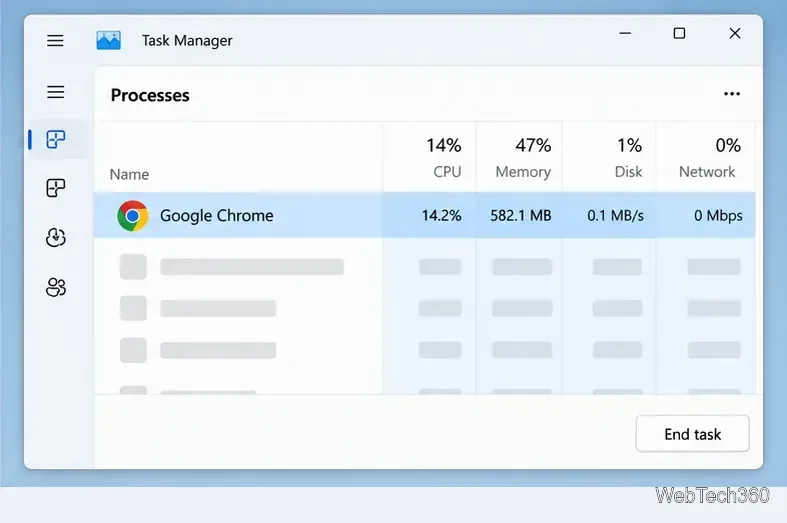
If clicking Chrome does nothing, it may already be running invisibly. Press Ctrl + Shift + Esc to open Task Manager. Under Processes, select Google Chrome (or a Chrome process) and choose End task. Confirm any grouped Chrome entries are closed, then try launching the browser again. Closing it this way can discard unsaved form text, so save work in other apps first.
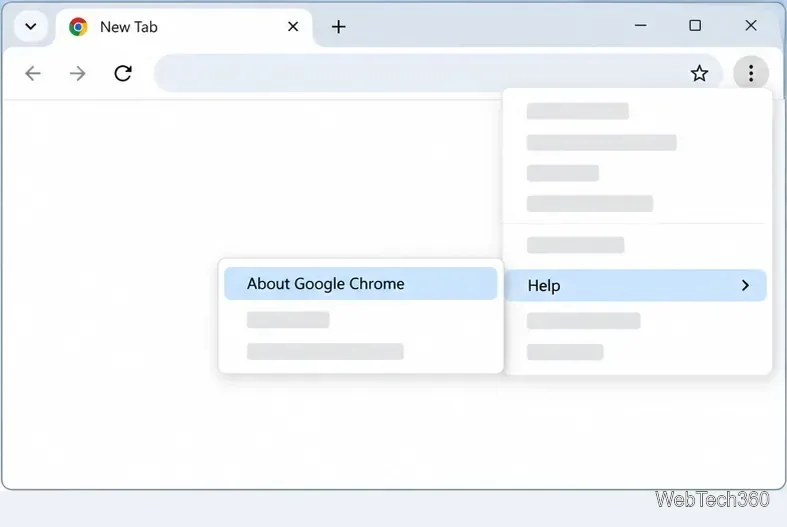
If Chrome opens, select More (⋮) > Help > About Google Chrome. Chrome checks for an update on that page. Select Relaunch if it appears; the browser applies updates after restarting. Chrome usually updates in the background; a pending update may need a browser restart. If Chrome will not open, skip the in-browser check and use Google’s official installer in step 8. The Chrome update instructions list the current steps.
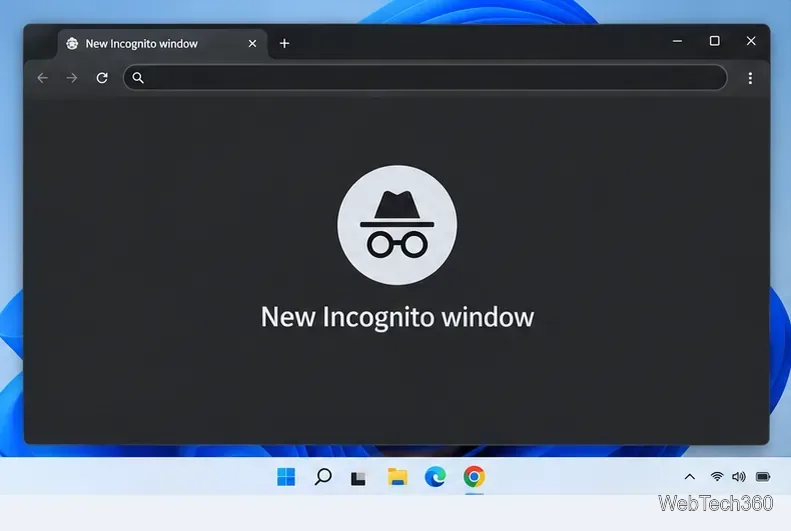
Press Ctrl + Shift + N to open an Incognito window, then try the page or action that causes the crash. Incognito does not use the regular window’s existing cookies, and extensions are off there by default unless you allowed them in Incognito. If it works, your regular profile, stored site data, or an extension may be involved.
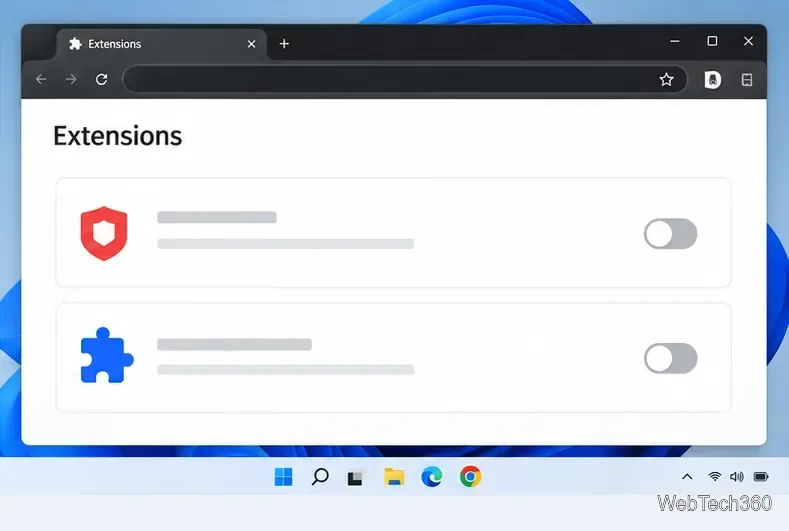
In a regular Chrome window, enter chrome://extensions in the address bar. Turn off the extensions, then test Chrome. If the problem stops, switch extensions back on one at a time until you identify the one that triggers it. Remove or update only the extension you identify; if Chrome cannot stay open long enough to reach this page, move on to the profile or reinstall steps.
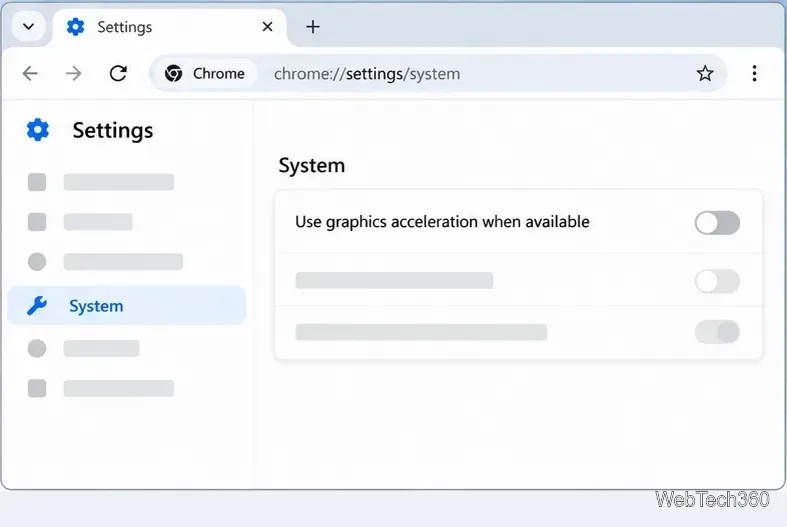
Try this when Chrome opens but shows a blank or flickering window, freezes during video, or crashes during graphics-heavy pages. Go to More (⋮) > Settings > System, turn off Use graphics acceleration when available, and select Relaunch. Test Chrome, then update your display driver through Windows Update or the PC manufacturer if the issue continues. You can turn acceleration back on if it makes no difference.
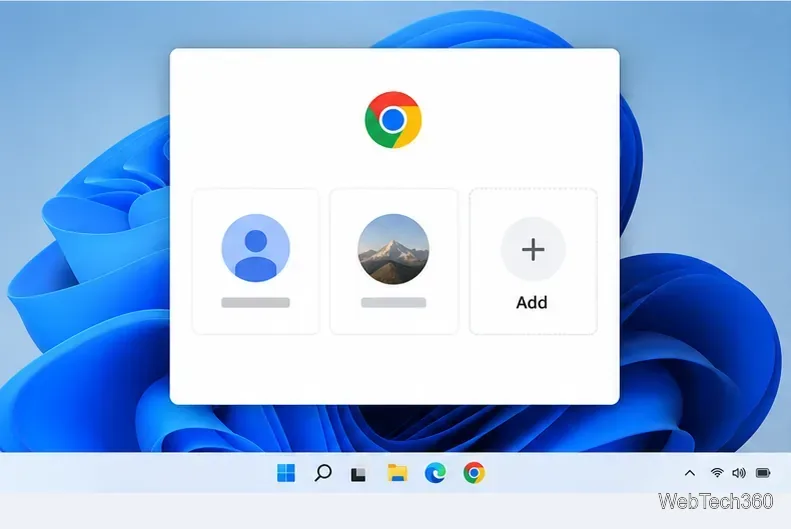
Select your profile icon near the top-right of Chrome, choose Add, and open a separate profile. You can test it before moving bookmarks or signing in. If the new profile works, the problem is likely tied to settings or data in the original profile. Keep the old profile until you have confirmed what is synced or saved locally.
If you prefer to repair the current profile, Chrome’s Settings > Reset settings > Restore settings to their original defaults option can help. Google says this does not delete saved bookmarks or passwords, but it resets items such as startup pages, site permissions, extensions, and themes; settings may also change on other devices where you are signed in. Review Google’s Chrome reset details before choosing it.
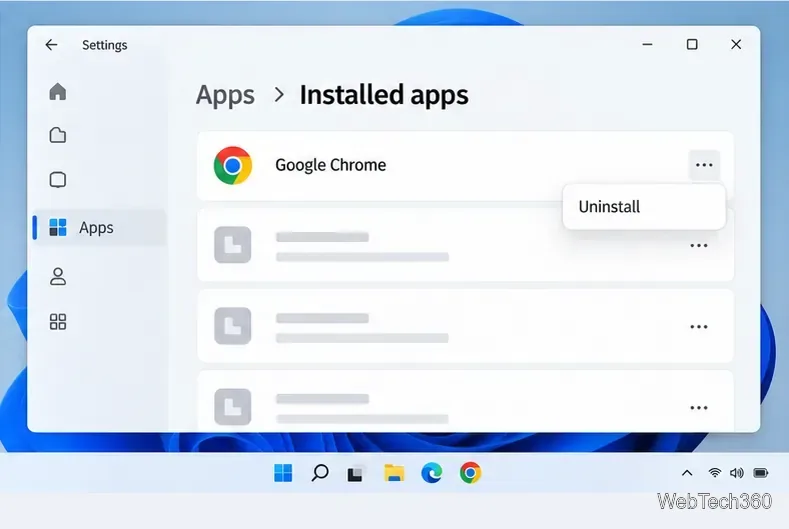
Close Chrome, then open Start > Settings > Apps > Installed apps. Find Google Chrome, select the three-dot menu, and choose Uninstall. Reinstall it from Google’s Chrome download page. Google’s Windows 11 uninstall instructions show the current menu path.
Before uninstalling, make sure you can access any bookmarks, passwords, or other data that is not synced or backed up. If Windows asks whether to remove browsing data, choose that only if you intend to delete the local Chrome profile data. After installation, open Chrome and sign in only if you want to restore the information associated with your Google Account.
Check Windows Security or your antivirus history for a recent block involving Chrome, but do not disable protection broadly. Also check whether Windows has pending updates and whether the issue began immediately after installing a new app or extension. Google’s Chrome crash and startup guide covers these checks and additional recovery options. If another browser also cannot load websites, troubleshoot the network or site instead.
Speed up slow iTunes on Windows with five practical fixes for outdated installs, browsing lag, playback stutters, Smart Playlist refreshes, and unwanted syncing.
BMPreVIEW is a legacy Windows BMP viewer for fitting large images, browsing folders, zooming selected areas, and checking file details—with key limits explained.
Learn whether an NVIDIA BIOS editor supports your GPU, how to back up a graphics-card VBIOS, and when to use safer tuning or vendor firmware tools.
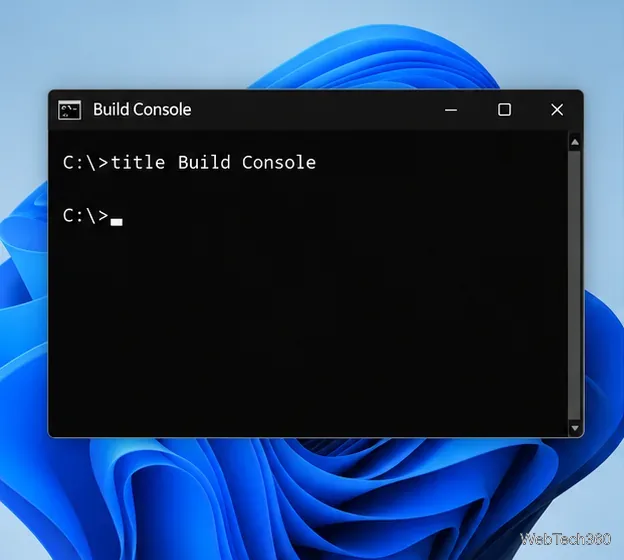
Rename a Command Prompt window with the title command, set a reusable shortcut label, or keep a Windows Terminal tab title from resetting.
Find a compatible Windows 7 driver, install it through Device Manager or the manufacturer’s package, and roll back if a device stops working.
Use SeaTools to check a Seagate or Maxtor drive, run safe and long diagnostics, interpret results, and understand the data-loss risk before trying Fix All.
Learn TinyTalk’s direct-IP voice chat workflow, prepare your microphone, connect two PCs on a LAN, and understand why internet calls need extra care.
Extract multiple password-protected RAR archives in one batch, keep each archive in its own folder, and troubleshoot passwords and split volumes.
Compare Temp File Cleaner and Temp Cleaner, see what each one can remove, and learn safer checks to make before cleaning Windows temporary files.
Learn what Time Stopper was designed to do, why its old trial-extension instructions are unreliable, and how to manage software trials, billing, and project files safely.