How to Create a Torrent Magnet Link with uTorrent (and Magnetizer)
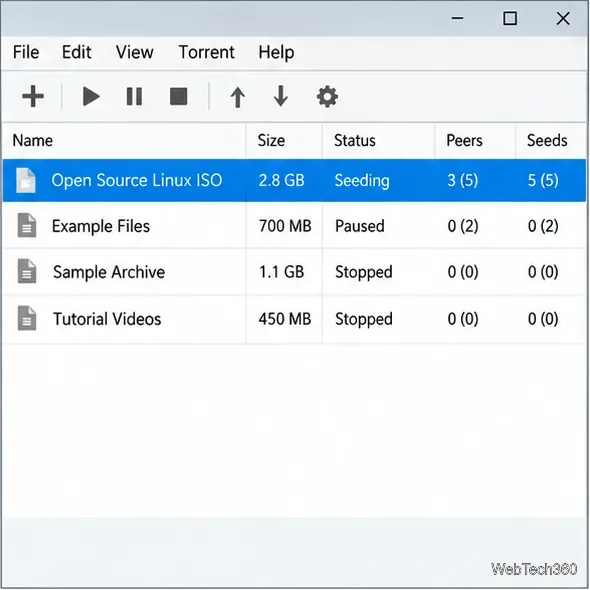
Create a magnet link from a torrent in uTorrent, learn how to check it, and see why Magnetizer is now a legacy option.
Slow iTunes rarely has one universal fix. The right adjustment depends on what is lagging: opening the app, browsing a large library, playing music, or syncing a device. These five steps target unnecessary work and outdated workflows; they can improve the part that is slow, but they do not guarantee a faster computer.
This guide covers legacy iTunes for Windows. Apple now offers separate Windows apps for music, video, and device syncing; iTunes remains available for podcasts and audiobooks, and can still handle other media if you have not installed the newer apps. On Mac, iTunes is for macOS Mojave or earlier; newer versions use the Music app. See Apple’s guide to how iTunes is changing on PC and its syncing on different operating systems for the current app split.
An old or mismatched app can cause compatibility problems that look like poor performance. If you installed iTunes from the Microsoft Store, open Store > Library and check for updates. If you installed it from Apple’s download page, open iTunes and choose Help > Check for Updates. Quit and reopen iTunes after updating. Apple says Store versions update automatically, but you can check manually. Updating is a sensible first step, not a promise that every slowdown will disappear. If your task is managing an iPhone or iPad and you have Apple Devices installed, use that app for syncing and backups; use Apple Music for your library if it is installed.
Apple’s current instructions are in Update iTunes on PC and Download Apple apps for Windows.
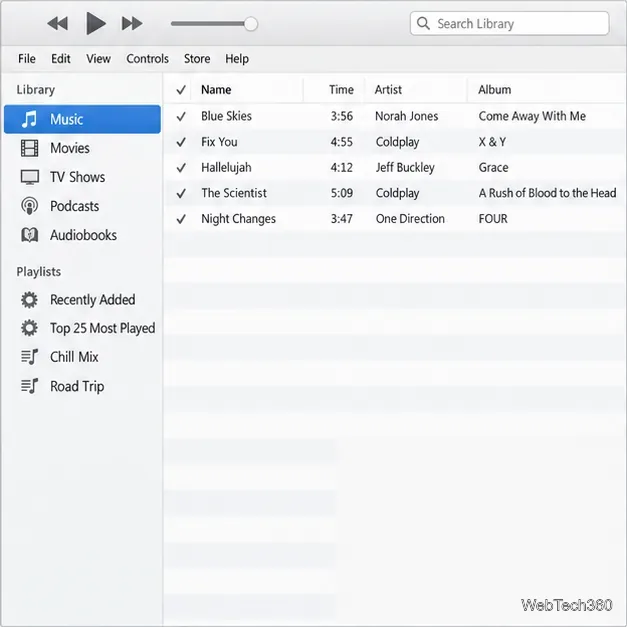
If iTunes feels slow mainly when you browse or scroll through a large Songs list, hide columns you rarely use. This will not shrink the library or speed up conversions, but it can reduce horizontal scrolling and make the screen easier to scan. In Songs, choose View > Show View Options, then keep only useful fields such as Name, Artist, Album, and Time. Apple documents this view control in its guide to playing songs in iTunes on PC.
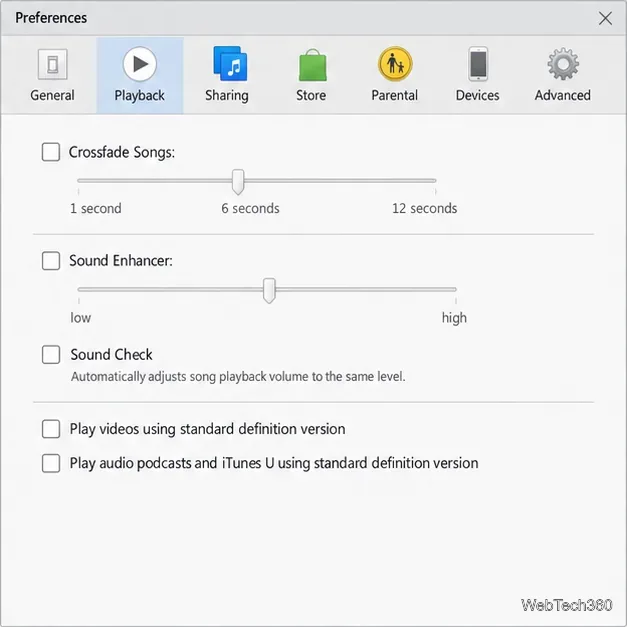
If the problem is choppy playback rather than a slow launch, test iTunes without optional visual or audio effects. To stop the visualizer, choose View > Visualizer > Hide Visualizer or press Esc. Then open Edit > Preferences > Playback and turn off Crossfade Songs, Sound Enhancer, or Sound Check only if you do not want those effects. Crossfade blends songs, Sound Enhancer changes playback sound, and Sound Check evens out volume. These settings affect playback; Apple does not claim that switching them off speeds up startup. Treat this as a troubleshooting test and turn a feature back on if you prefer its sound. See Apple’s Playback preferences and visualizer instructions.
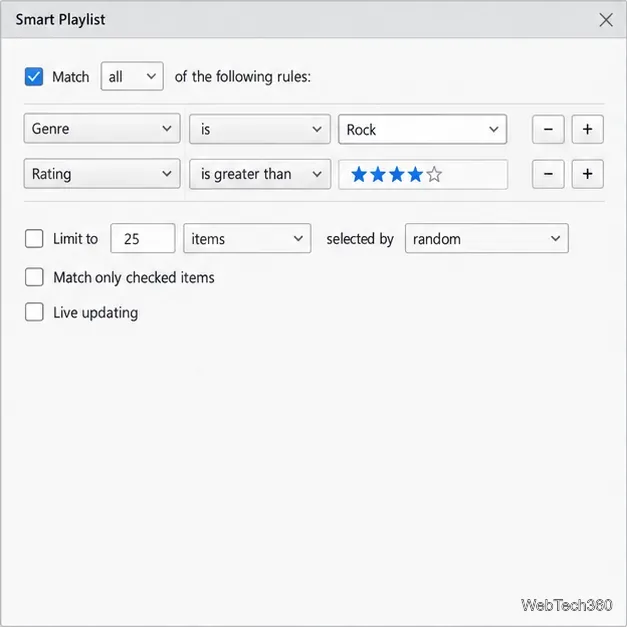
A Smart Playlist checks library items against rules. When Live updating is enabled, iTunes updates the playlist as matching items are added, removed, or changed. If a playlist does not need to refresh immediately, select it, click Edit Rules, and clear Live updating. You can also remove rules you no longer need or use the Limit option to narrow the list. This may reduce playlist work when your library changes, but Apple publishes no guaranteed speed improvement. Leave live updating on for lists that should stay current automatically; with it off, their results will not refresh in the same way. Apple explains these controls in its Smart Playlists guide.
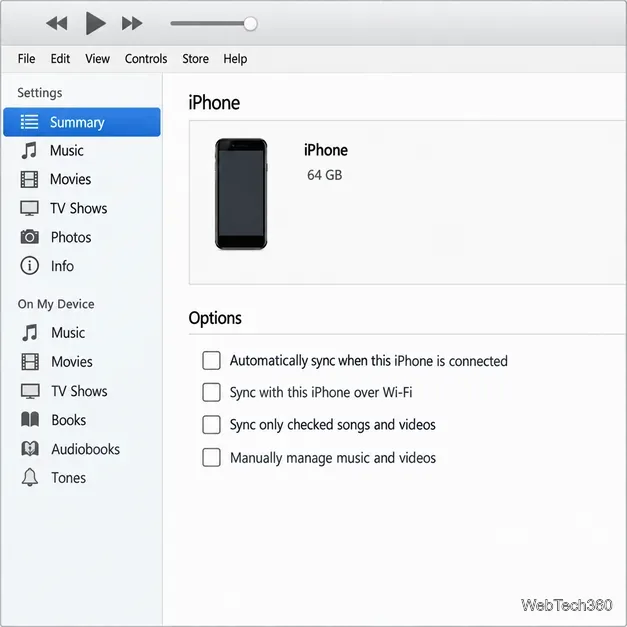
A device sync can keep iTunes busy after you connect an iPhone, iPad, or iPod. If you prefer to sync manually, open Edit > Preferences > Devices in legacy iTunes and select Prevent iPods, iPhones, and iPads from syncing automatically. You can still choose the device and click Sync when you want to transfer content. If you use Apple Devices instead, select your device, open General, clear Automatically sync when this [device] is connected, and click Apply. Do not disable automatic syncing if you depend on it. Apple provides separate steps for iTunes Devices preferences and the Apple Devices app.
Change one setting at a time, quit and reopen iTunes, then repeat the action that felt slow. If the pause happens only while importing, converting, downloading, or syncing, let that task finish before judging the app’s normal speed. The older claim that removing every Smart Playlist makes iTunes start three times faster is not supported by Apple’s current documentation, and deleting playlists removes those playlist definitions. Keep the playlists you use and make targeted changes instead.
If iTunes continues freezing after an update and a restart, note whether the delay happens at launch, during playback, or only with a connected device; that detail will make Apple’s support steps easier to match to the problem.
Create a magnet link from a torrent in uTorrent, learn how to check it, and see why Magnetizer is now a legacy option.
Learn how to repair a corrupt Word or Excel file with Office’s built-in tools, recover Word text, extract Excel data, and safely check earlier versions.
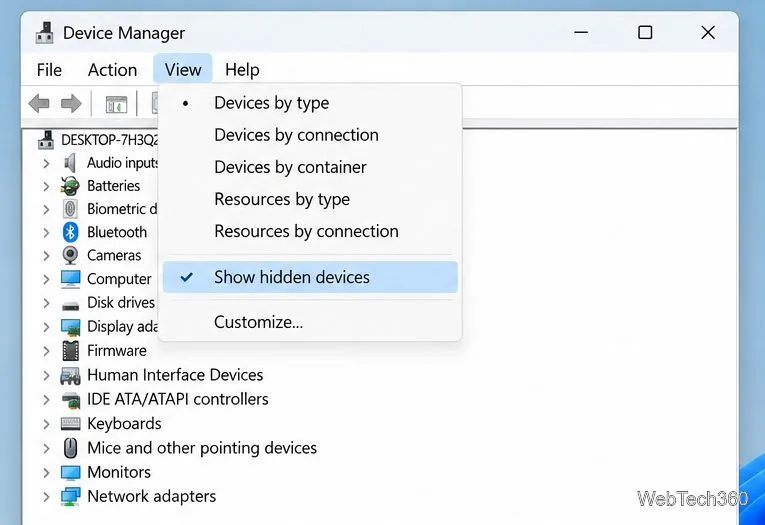
Learn how to safely remove hidden (ghosted) devices in Windows, identify disconnected hardware, and avoid deleting a driver package other devices may need.
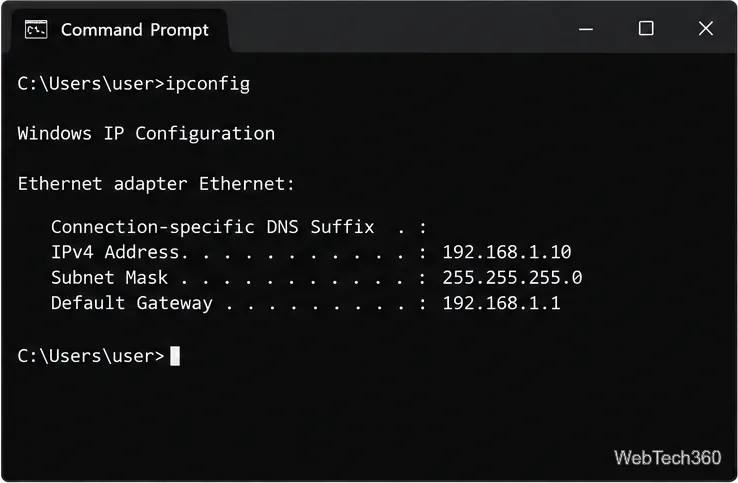
Learn what the legacy IP Address Range Pinger did, scan an authorized /24 on Windows with PowerShell 7, and interpret ICMP results correctly.
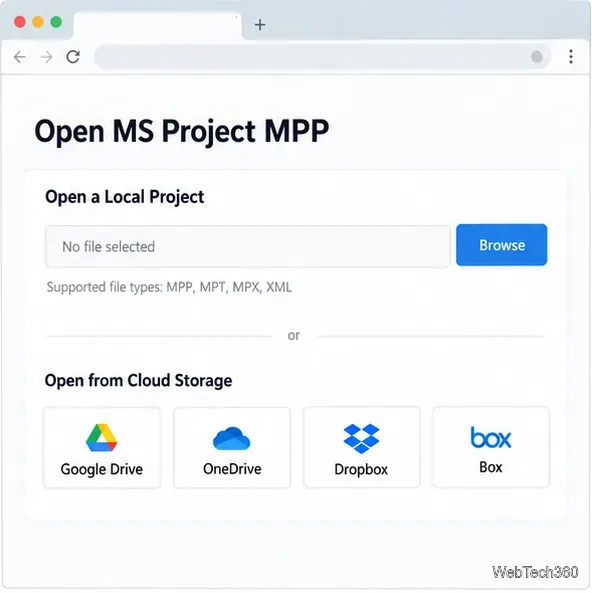
Open a Project 2010 MPP file in a browser with a free read-only viewer, check Project 2007 compatibility, and choose a safer sharing fallback.
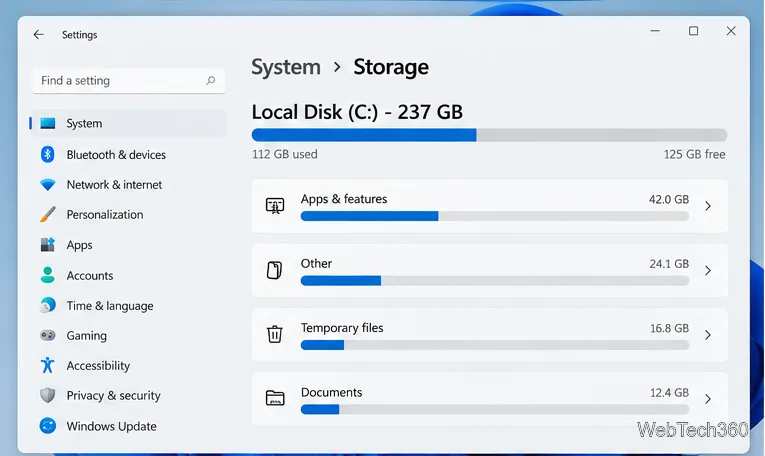
Learn what Windows.old contains, what to copy before deleting it, and the supported Windows 11 and Windows 10 steps for safely reclaiming storage.
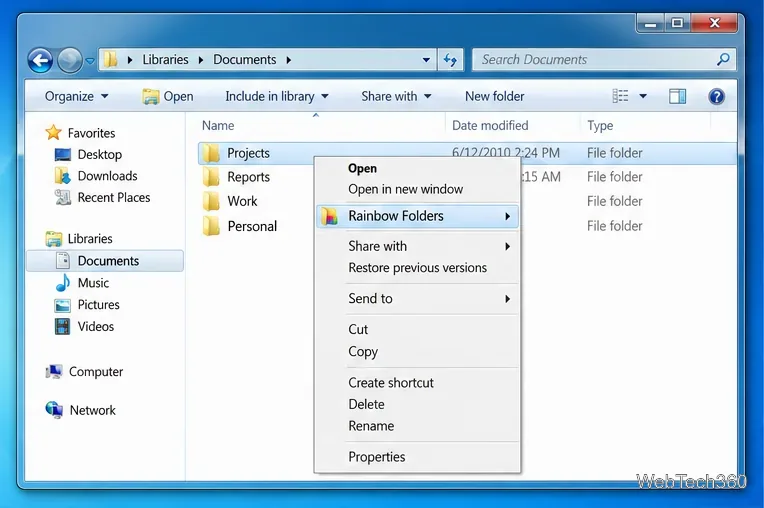
Learn how Rainbow Folders changes Windows 7 folder icons, choose a style and hue, undo the change, and use a built-in icon option safely.
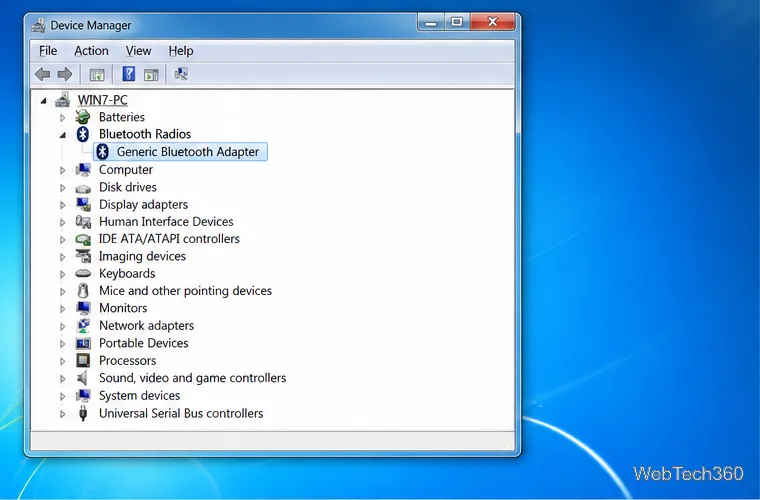
Install the right Bluetooth driver in Windows 7 using the PC maker’s package or Device Manager, then verify the adapter and test pairing safely.
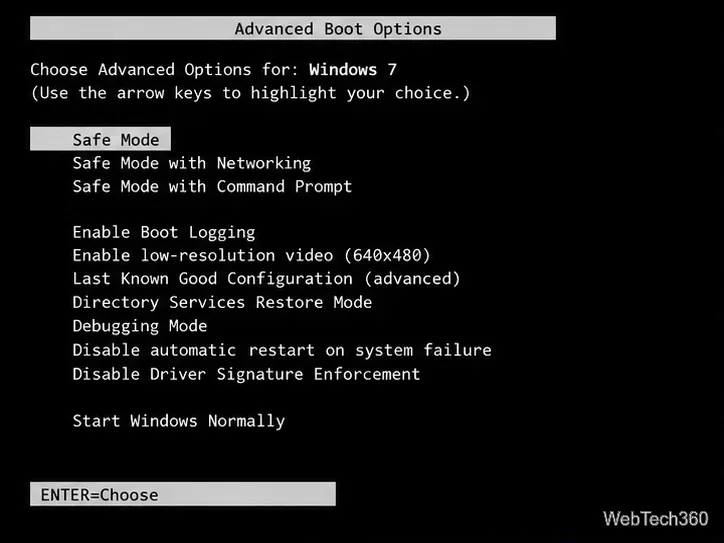
Diagnose a Windows 7 black screen by checking the display, starting Safe Mode, running Startup Repair, and using System Restore after a recent system change.
Learn the safest way to install an unsigned driver in Windows 7, use the one-session F8 option, and understand test signing for driver development.