How to Install Unsigned Drivers in Windows 7

The safest way to install an unsigned driver in Windows 7 is to first look for a compatible, digitally signed package from the device manufacturer. If a legitimate legacy device has no signed package, Windows 7’s Disable Driver Signature Enforcement option can let you test it for one boot session. It is temporary: a normal restart restores signature enforcement.

Driver signing is especially important on 64-bit Windows 7, where kernel-mode drivers must have a verifiable signature to load by default. A warning does not prove a driver is malicious, but it means Windows cannot verify it as expected. Do not bypass it for a file from an unknown download site.

Before installing an unsigned driver

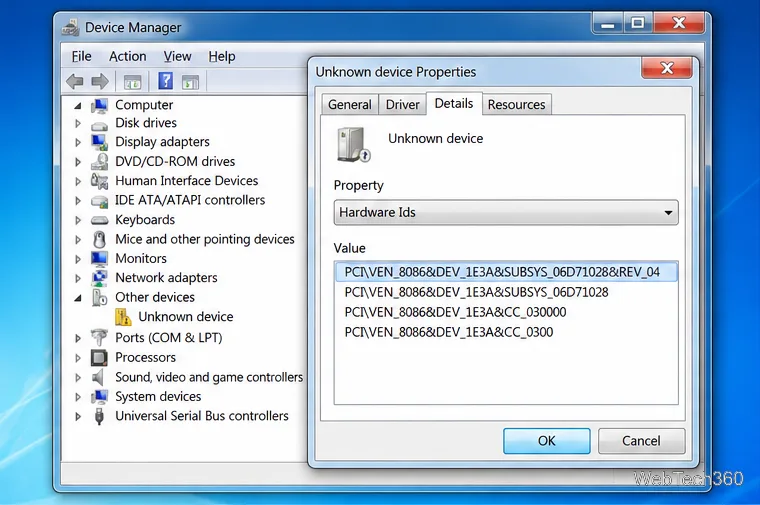
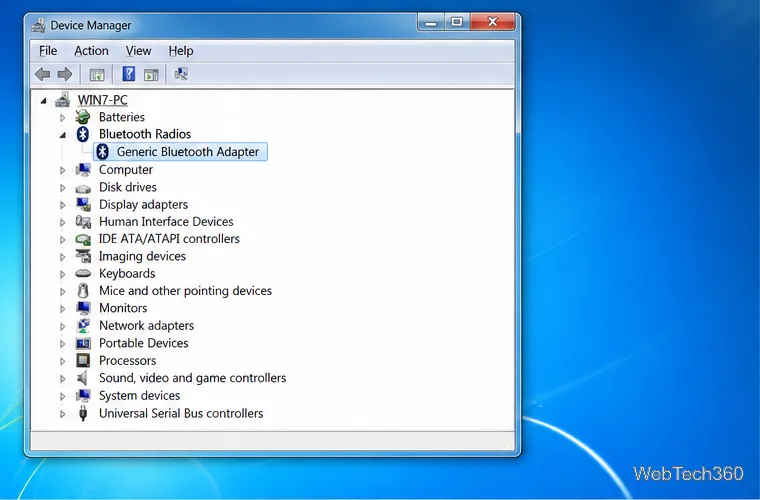
  • Confirm the device and Windows architecture. In Device Manager, open the device’s Properties and use the Details tab to view Hardware Ids. Match the device model and Windows 7 32-bit or 64-bit version to the manufacturer’s driver page.
  • Use a trusted source. Prefer the PC or hardware manufacturer’s support site. Avoid driver bundles, repackaged installers, and old utilities that modify the bootloader.
  • Prepare a recovery path. Create a restore point or a system image before changing drivers. Windows 7 is out of support; Microsoft ended support on January 14, 2020, so it no longer receives regular security updates.
Illustrative Windows 7 Device Manager Properties window with Hardware Ids selected for an unknown device
Check a device’s Hardware Ids before searching the manufacturer’s site for the matching driver.

Use F8 to install or test the driver for one session

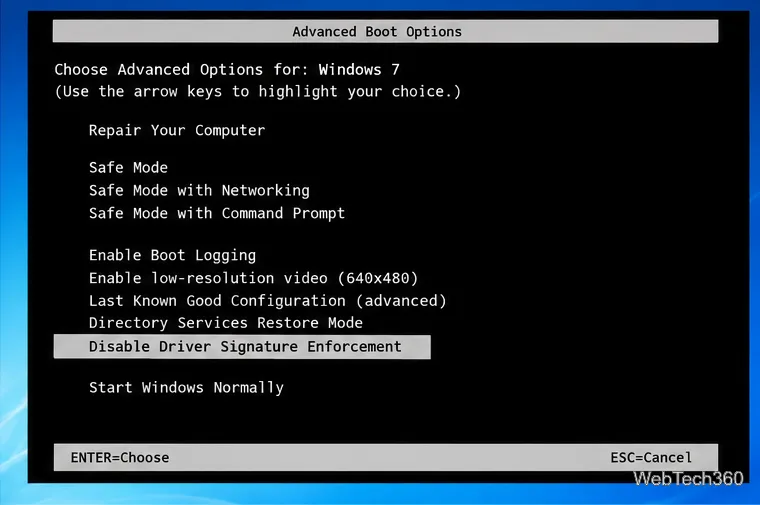
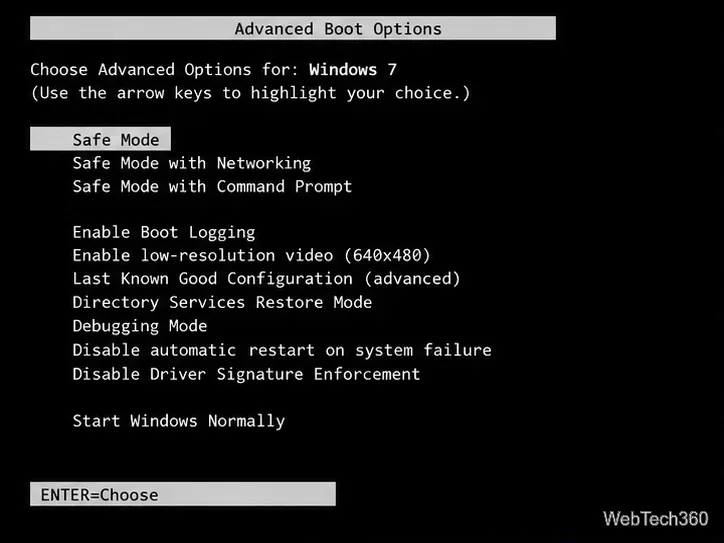
  1. Restart the computer. After the firmware screen and before Windows starts loading, press F8 repeatedly to open Advanced Boot Options.
  2. Select “Disable Driver Signature Enforcement.” Use the arrow keys and press Enter. Windows starts with load-time signature enforcement disabled for this session only.
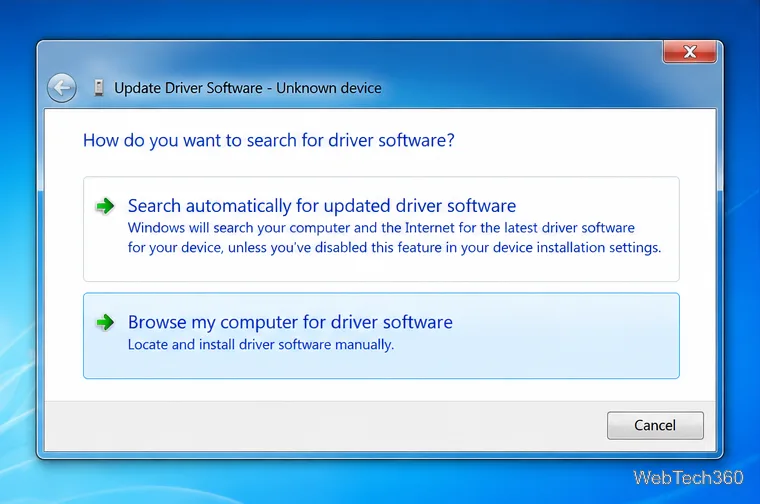
  3. Install the package from the trusted source. Run the manufacturer’s installer as an administrator, or open Device Manager, right-click the device, choose Update Driver Software, select Browse my computer for driver software, and point to the extracted driver folder that contains its INF file.
  4. Review any confirmation prompt. Continue only if you obtained the package from a source you trust and it is meant for this exact device and Windows version. Keep the installer and device details so you can undo the change if needed.
  5. Check the device, then restart normally. Confirm that the device appears without an error in Device Manager and that its basic functions work. The F8 choice does not persist after reboot. If the device stops working on a normal start, remove or roll back the driver and install a signed package instead.
Windows 7 Advanced Boot Options menu with Disable Driver Signature Enforcement highlighted
The F8 option temporarily relaxes driver load-time signature enforcement for the current boot session.
Windows 7 Update Driver Software wizard with Browse my computer for driver software selected
In Device Manager, browse to the trusted driver folder containing the device’s INF file.

Microsoft documents the F8 option as a current-session setting; it does not remain enabled after a restart. It also does not remove every Plug and Play installation prompt, so Windows may still ask an administrator to authorize a driver package.

For driver developers: use test signing

If you are testing a driver you built or received from its developer, use a test-signed driver package on a dedicated test computer. Test mode is not a way to turn an arbitrary unsigned driver into a signed one: the package must already carry a test signature Windows can validate.

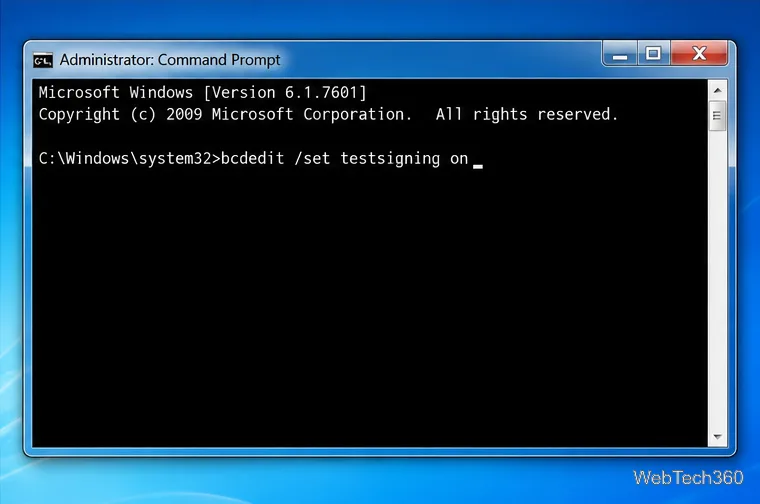
  1. Back up the test computer and open Command Prompt with Run as administrator.
  2. Enter bcdedit /set testsigning on, then restart Windows.
  3. Install and test the package signed with the developer’s test certificate. Windows displays a Test Mode watermark when test signing is enabled.
  4. When testing is complete, open an elevated Command Prompt, run bcdedit /set testsigning off, and restart. The test-signed driver will no longer load under normal signature enforcement; replace it with a production-signed release package.
Elevated Windows 7 Command Prompt with the testsigning command typed at the prompt
The testsigning option is intended for test-signed kernel-mode code and requires a restart.

BCDEdit changes the boot configuration, so use it only on a machine you can recover. Microsoft’s reference states that testsigning controls loading of test-signed kernel-mode code and that a restart is required. Do not substitute bcdedit /set nointegritychecks on; Microsoft documents that this option is ignored by Windows 7.

When not to bypass the warning

Do not disable User Account Control or antivirus protection to make an old driver utility run, and do not treat a virus warning as a false positive without independent confirmation from the vendor. If the manufacturer cannot provide a compatible driver, use supported hardware or a supported operating system where possible. For a PC that must remain on Windows 7, limit its network exposure and keep a tested backup.

For the exact behavior and limits, see Microsoft’s driver test-signing guidance and BCDEdit /set reference. Microsoft’s Windows end-of-support page lists Windows 7’s support end date.

Leave a Comment

How to Create a Torrent Magnet Link with uTorrent (and Magnetizer)
How to Create a Torrent Magnet Link with uTorrent (and Magnetizer)

Create a magnet link from a torrent in uTorrent, learn how to check it, and see why Magnetizer is now a legacy option.

How to Repair or Recover Corrupt Microsoft Word and Excel Files

How to Repair or Recover Corrupt Microsoft Word and Excel Files

Learn how to repair a corrupt Word or Excel file with Office’s built-in tools, recover Word text, extract Excel data, and safely check earlier versions.

Remove Hidden (Ghosted) Devices in Windows 10 and 11

Remove Hidden (Ghosted) Devices in Windows 10 and 11

Learn how to safely remove hidden (ghosted) devices in Windows, identify disconnected hardware, and avoid deleting a driver package other devices may need.

How to Ping Multiple IP Addresses on Windows With a Range Pinger

How to Ping Multiple IP Addresses on Windows With a Range Pinger

Learn what the legacy IP Address Range Pinger did, scan an authorized /24 on Windows with PowerShell 7, and interpret ICMP results correctly.

Free Online Microsoft Project MPP Viewer: Open Files in a Browser

Free Online Microsoft Project MPP Viewer: Open Files in a Browser

Open a Project 2010 MPP file in a browser with a free read-only viewer, check Project 2007 compatibility, and choose a safer sharing fallback.

What Is the Windows.old Folder, and How Do You Remove It?

What Is the Windows.old Folder, and How Do You Remove It?

Learn what Windows.old contains, what to copy before deleting it, and the supported Windows 11 and Windows 10 steps for safely reclaiming storage.

How to Change Windows 7 Folder Colors with Rainbow Folders

How to Change Windows 7 Folder Colors with Rainbow Folders

Learn how Rainbow Folders changes Windows 7 folder icons, choose a style and hue, undo the change, and use a built-in icon option safely.

How to Install a Bluetooth Driver in Windows 7

How to Install a Bluetooth Driver in Windows 7

Install the right Bluetooth driver in Windows 7 using the PC maker’s package or Device Manager, then verify the adapter and test pairing safely.

How to Fix a Black Screen on Windows 7

How to Fix a Black Screen on Windows 7

Diagnose a Windows 7 black screen by checking the display, starting Safe Mode, running Startup Repair, and using System Restore after a recent system change.

How to Install Unsigned Drivers in Windows 7

How to Install Unsigned Drivers in Windows 7

Learn the safest way to install an unsigned driver in Windows 7, use the one-session F8 option, and understand test signing for driver development.