How to Create a Torrent Magnet Link with uTorrent (and Magnetizer)
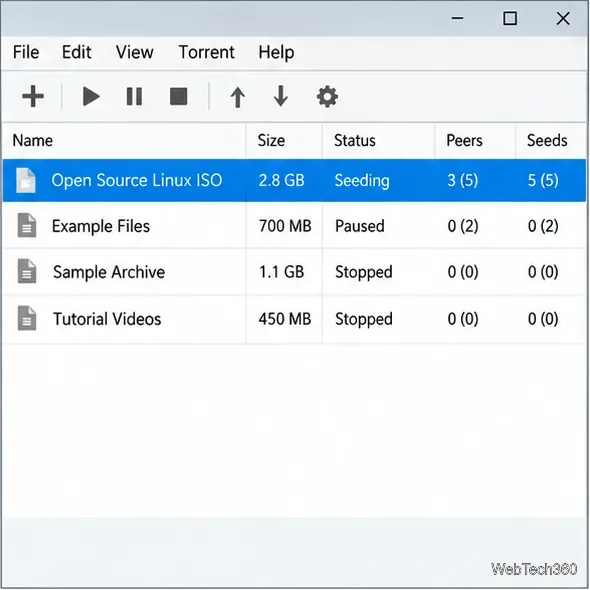
Create a magnet link from a torrent in uTorrent, learn how to check it, and see why Magnetizer is now a legacy option.
If a Word document or Excel workbook will not open, start with a copy of the file and use Office’s built-in recovery tools. In current desktop versions of Word and Excel for Windows, choose File > Open > Browse, select the file, open the arrow beside the Open button, and choose Open and Repair. Excel can also extract values and formulas when a full repair fails. Word for Mac has a separate Recover Text option for salvaging text. These methods may recover some or most of a file, but they cannot guarantee that its original formatting, formulas, charts, or embedded objects will all return.
Close the document if it is still open, then make a duplicate in File Explorer or Finder. Work on the duplicate and keep the untouched original until you have checked the recovered copy. If the file is on a removable drive or network location and the problem began during a transfer, copy it to a healthy local drive before trying recovery. Microsoft specifically recommends moving a workbook off a disk or network location when an error there is preventing it from opening.
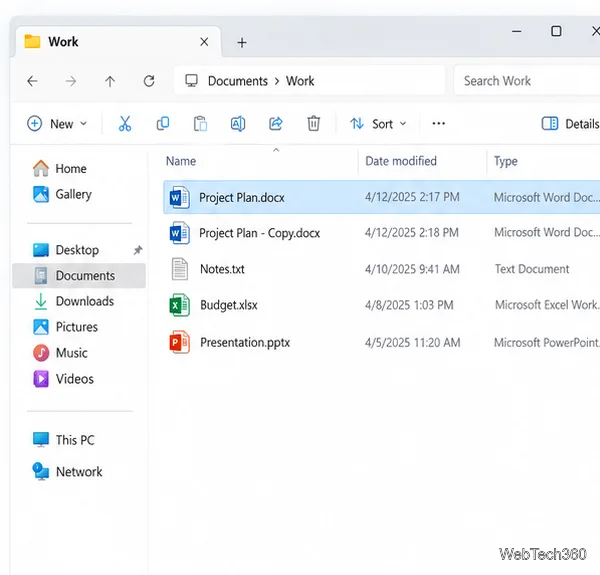
Microsoft describes Open and Repair for a document after a file corruption error. Check more than the first page: review tables, images, headers, footnotes, and the last page, since a file that opens may still have missing or damaged content.
If Word for Mac cannot repair the document and the words matter more than layout, try its Recover Text option. In Word, open Word > Preferences, choose General under Authoring and Proofing Tools, enable Confirm file format conversion at Open, and close Preferences. Then choose File > Open, select Recover Text from the Open menu, and open the damaged file. Microsoft documents this path in its Word file recovery guidance.
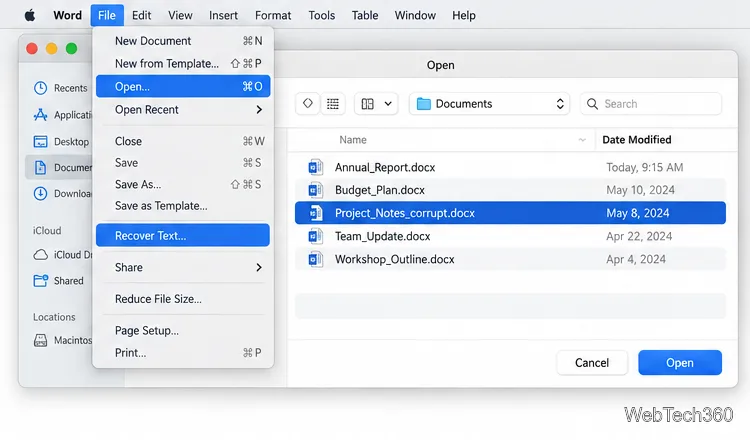
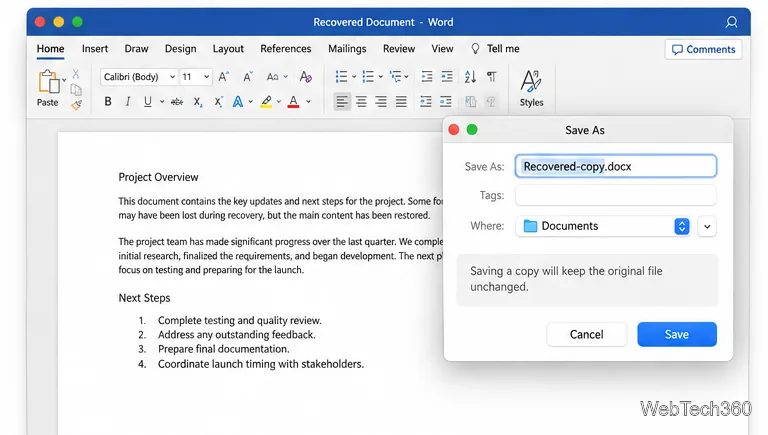
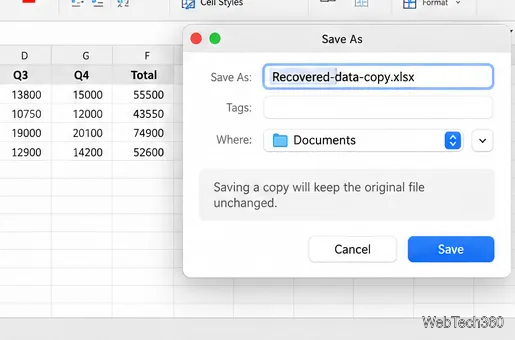
This is a text salvage method, not a full document repair: formatting and non-text elements may be lost. If readable text appears, save it immediately as a new Word document. The Save As dialog below illustrates why the recovered copy should have its own filename.
See Microsoft’s current instructions for repairing a corrupted Excel workbook. If you use Extract Data, inspect the results carefully: a workbook is more than its visible cell values, so check formulas and any important sheets, formatting, charts, links, or macros before treating the recovered file as complete.
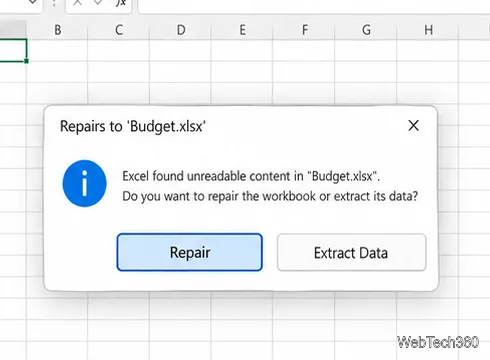
When the workbook opens, use File > Save As to create a different .xlsx file. Do not overwrite the only original. Reopen the saved copy, check each worksheet, and verify important totals and formulas against a trusted copy or source data.
If the file is stored in OneDrive or SharePoint, check File > Info > Version History for an earlier version. You can also use Version History in OneDrive. Restoring a version replaces the current version, so first download or copy anything from the current file that you still need. Microsoft explains how to restore a previous OneDrive file version.
After an app crash, Word may show the Document Recovery pane when it restarts. You can also look under File > Info > Manage Document > Recover Unsaved Documents. In Excel, check File > Info > Manage Workbook > Recover Unsaved Workbooks. The exact labels and available recovery copies depend on your Office version and AutoRecover settings; Microsoft’s Office recovery guide covers earlier versions and unsaved files.
If neither repair nor version history produces a usable copy, preserve the damaged file and any backups before trying another recovery method. Keep the first successful recovery as a separate file, then compare it with the original before relying on it.
Create a magnet link from a torrent in uTorrent, learn how to check it, and see why Magnetizer is now a legacy option.
Learn how to repair a corrupt Word or Excel file with Office’s built-in tools, recover Word text, extract Excel data, and safely check earlier versions.
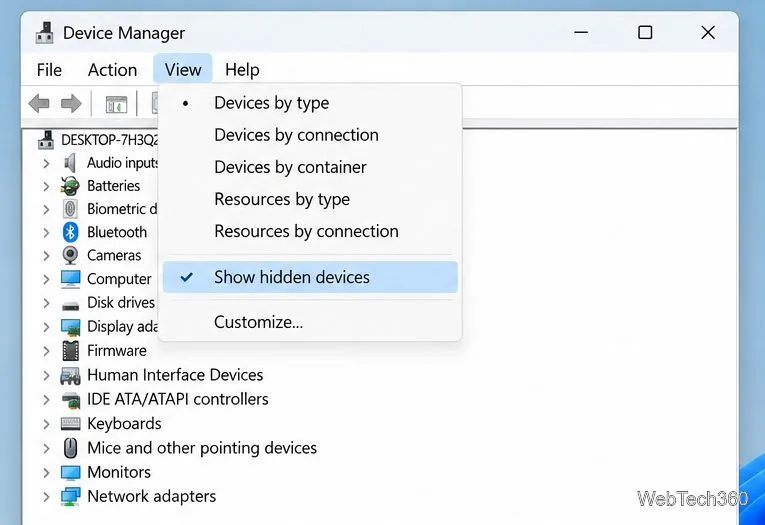
Learn how to safely remove hidden (ghosted) devices in Windows, identify disconnected hardware, and avoid deleting a driver package other devices may need.
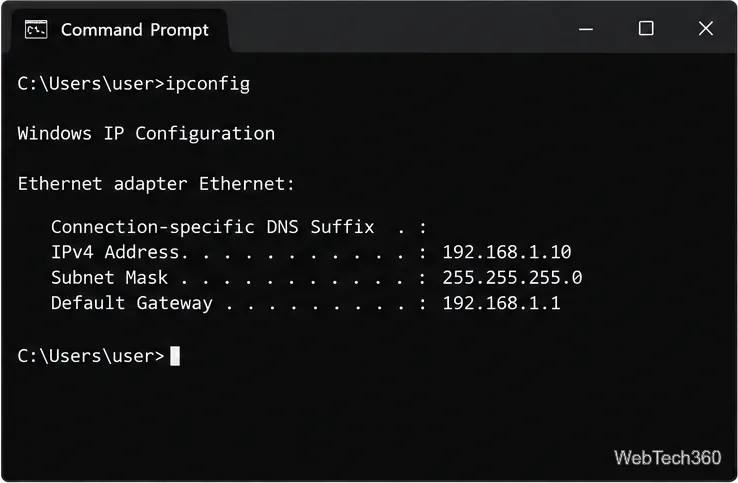
Learn what the legacy IP Address Range Pinger did, scan an authorized /24 on Windows with PowerShell 7, and interpret ICMP results correctly.
Open a Project 2010 MPP file in a browser with a free read-only viewer, check Project 2007 compatibility, and choose a safer sharing fallback.
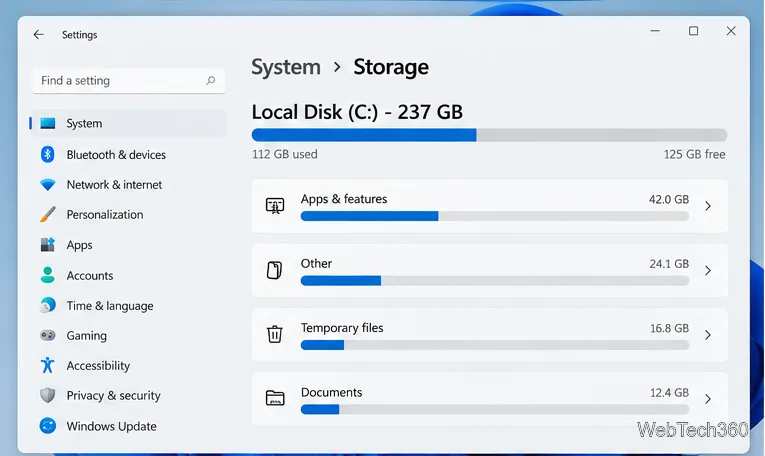
Learn what Windows.old contains, what to copy before deleting it, and the supported Windows 11 and Windows 10 steps for safely reclaiming storage.
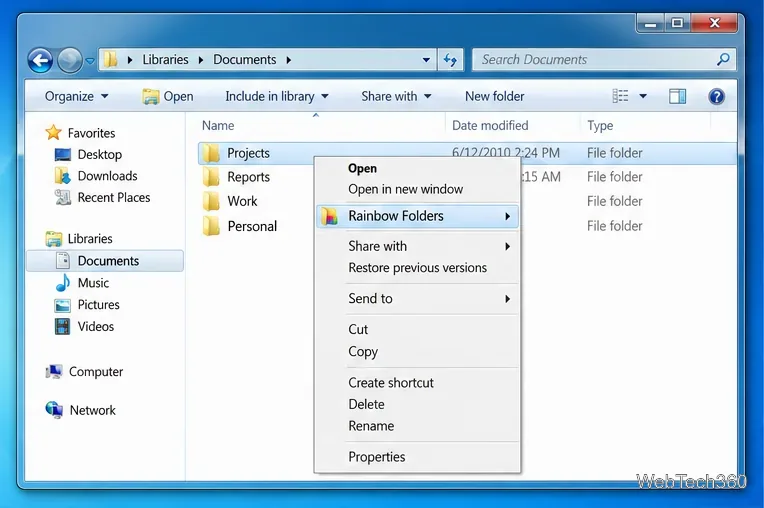
Learn how Rainbow Folders changes Windows 7 folder icons, choose a style and hue, undo the change, and use a built-in icon option safely.
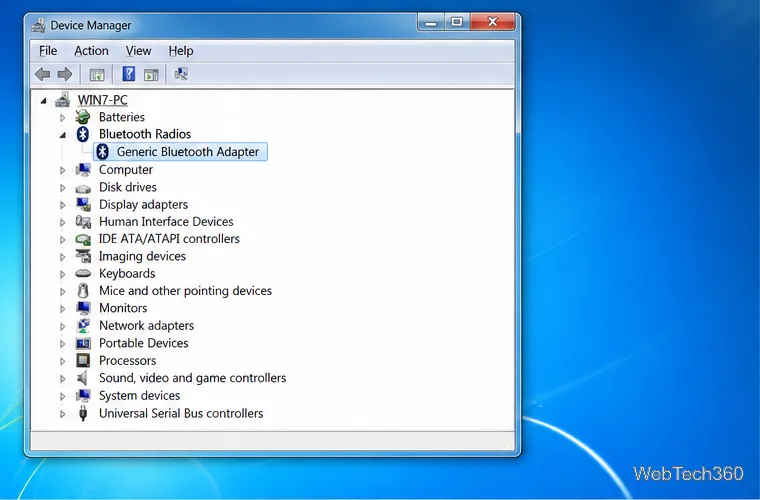
Install the right Bluetooth driver in Windows 7 using the PC maker’s package or Device Manager, then verify the adapter and test pairing safely.
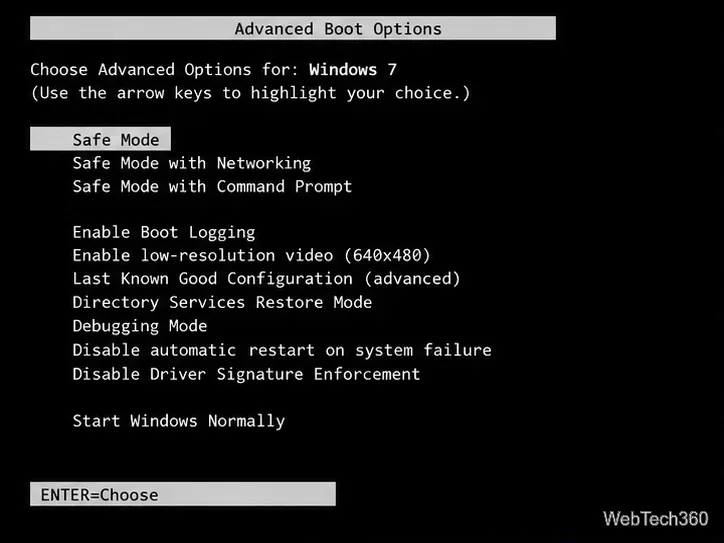
Diagnose a Windows 7 black screen by checking the display, starting Safe Mode, running Startup Repair, and using System Restore after a recent system change.
Learn the safest way to install an unsigned driver in Windows 7, use the one-session F8 option, and understand test signing for driver development.