How to Create a Torrent Magnet Link with uTorrent (and Magnetizer)
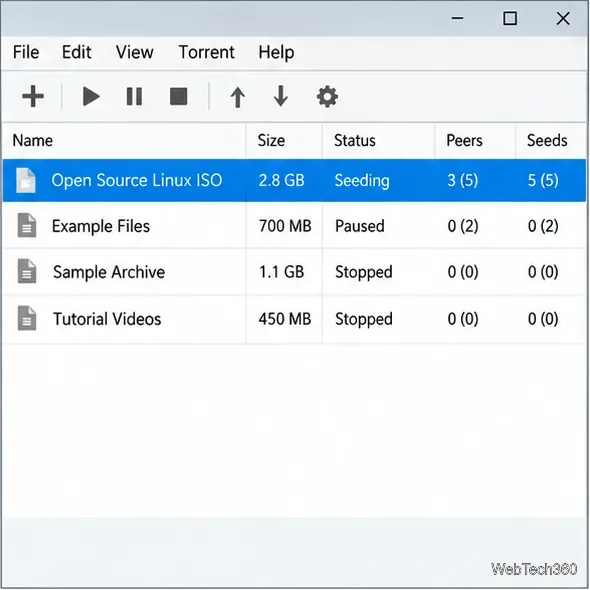
Create a magnet link from a torrent in uTorrent, learn how to check it, and see why Magnetizer is now a legacy option.
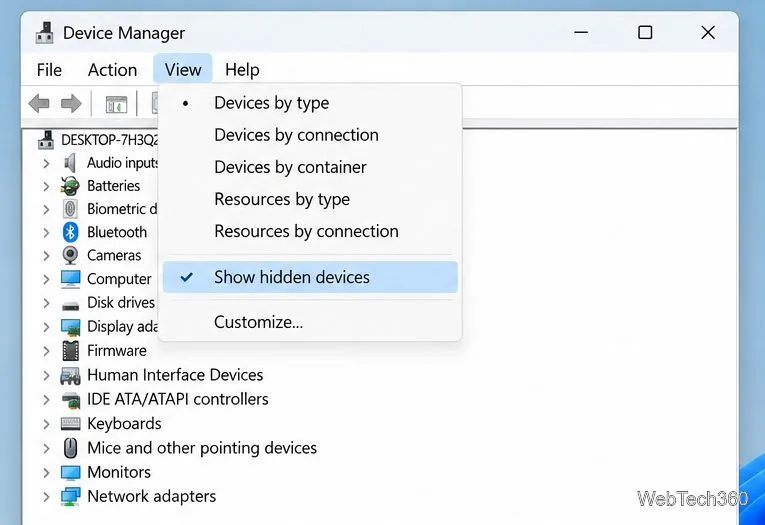
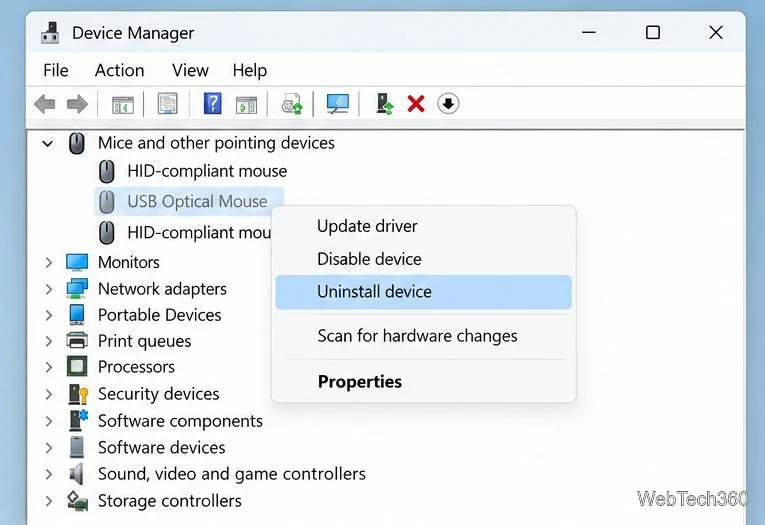
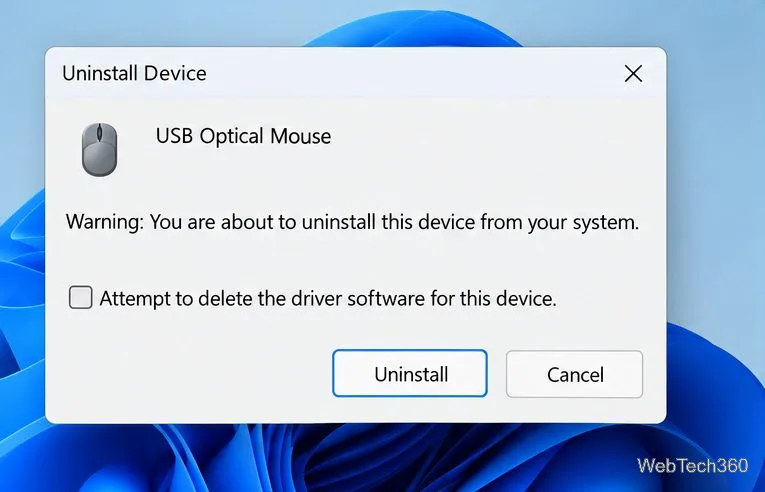
To remove a hidden (ghosted) device, open Device Manager, choose View > Show hidden devices, identify a device you recognize and no longer use, then select Uninstall device. In the confirmation dialog, leave the option to delete the driver software unchecked for routine cleanup. A stale entry is usually harmless, so remove it to clear an obsolete device record or troubleshoot a specific issue—not to speed up Windows.
Device Manager normally emphasizes hardware currently detected by Windows. Turning on Show hidden devices can reveal devices Windows does not display by default, including devices that were physically removed but still have a device record. A disconnected mouse, USB accessory, or old printer may appear faded. However, not every hidden entry is a ghost: Windows also hides some device categories by design. Check that an entry is both disconnected and recognizable before removing it.
Uninstalling a device entry does not automatically erase its driver package. Windows keeps driver packages in its Driver Store so it can reuse a compatible driver if the hardware is connected again. Removing a leftover entry rarely makes startup noticeably faster; the original claim that ghosted devices slow startup is not a reason to perform a broad cleanup.
Only remove an entry you can identify with confidence, such as an old USB mouse you no longer own. Do not use this as a general cleanup pass on unfamiliar devices. Be especially careful with current hardware and entries for storage, display, network, chipset/system, sound/video/game controllers, firmware, or USB controllers. Removing an active or system-critical device can interrupt a feature or make hardware stop working until Windows reinstalls its driver.
If you are changing driver packages or cleaning up several devices, create a restore point first. If a device is physically connected and you intend to uninstall it, unplug it before removal; otherwise Windows may immediately rediscover the device and reinstall its driver.
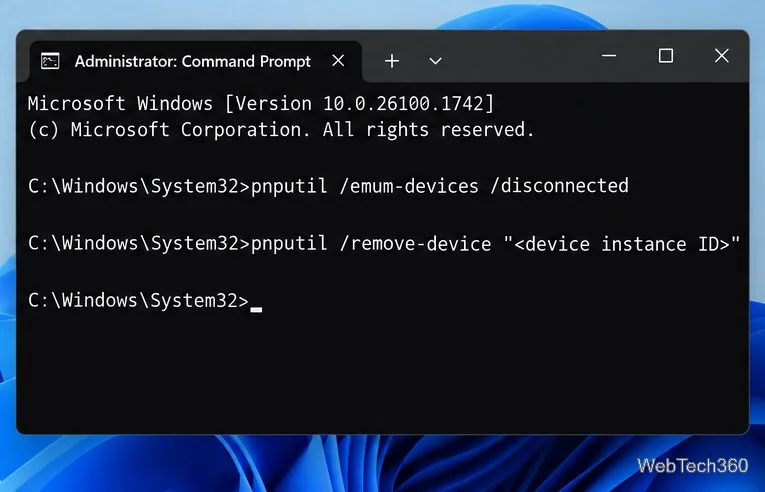
On Windows 10 version 1903 or later, an administrator can use PnPUtil to list disconnected devices. Open Terminal (Admin) or Command Prompt (Admin) and run:
pnputil /enum-devices /disconnectedReview the output and copy the exact Instance ID of a device you have positively identified. On Windows 10 version 2004 or later, you can ask PnPUtil to remove that one device instance:
pnputil /remove-device "<device instance ID>"Replace the placeholder, including its angle brackets, with the actual instance ID and keep the quotation marks. Do not guess an ID or use a broad class or device-ID command to remove a group. PnPUtil’s remove command targets a device instance; it does not mean you should delete the corresponding driver package. Microsoft documents the supported versions and syntax in its PnPUtil command reference.
Make sure Show hidden devices is on and refresh the Device Manager view. A device that returns after a restart may still be present through a dock, monitor, receiver, or another connected device; disconnect it before uninstalling again. If the hardware is currently needed and stops working, reconnect it and let Windows detect it, or use the manufacturer’s current driver. Do not remove a driver package just to make a ghosted entry disappear.
For the current Device Manager steps and driver-removal behavior, see Microsoft’s guide to uninstalling devices and driver packages. Microsoft also explains which types of devices can appear as hidden in its hidden devices reference.
Create a magnet link from a torrent in uTorrent, learn how to check it, and see why Magnetizer is now a legacy option.
Learn how to repair a corrupt Word or Excel file with Office’s built-in tools, recover Word text, extract Excel data, and safely check earlier versions.
Learn how to safely remove hidden (ghosted) devices in Windows, identify disconnected hardware, and avoid deleting a driver package other devices may need.
Learn what the legacy IP Address Range Pinger did, scan an authorized /24 on Windows with PowerShell 7, and interpret ICMP results correctly.
Open a Project 2010 MPP file in a browser with a free read-only viewer, check Project 2007 compatibility, and choose a safer sharing fallback.
Learn what Windows.old contains, what to copy before deleting it, and the supported Windows 11 and Windows 10 steps for safely reclaiming storage.
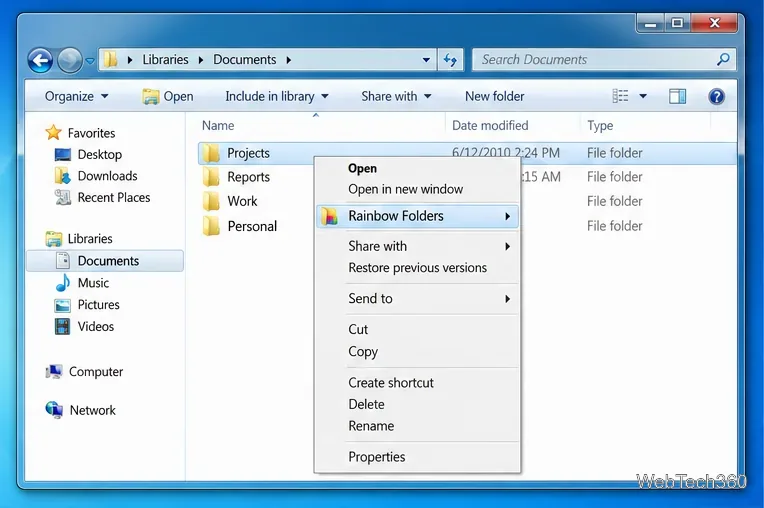
Learn how Rainbow Folders changes Windows 7 folder icons, choose a style and hue, undo the change, and use a built-in icon option safely.
Install the right Bluetooth driver in Windows 7 using the PC maker’s package or Device Manager, then verify the adapter and test pairing safely.
Diagnose a Windows 7 black screen by checking the display, starting Safe Mode, running Startup Repair, and using System Restore after a recent system change.
Learn the safest way to install an unsigned driver in Windows 7, use the one-session F8 option, and understand test signing for driver development.