How to Create a Torrent Magnet Link with uTorrent (and Magnetizer)
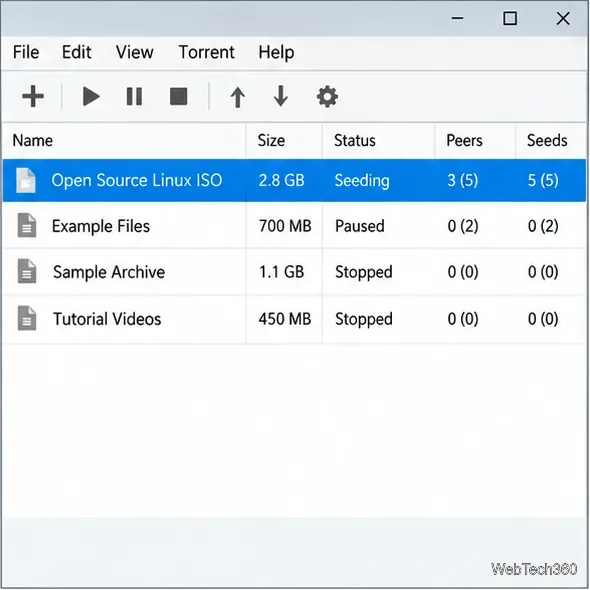
Create a magnet link from a torrent in uTorrent, learn how to check it, and see why Magnetizer is now a legacy option.
Rainbow Folders can change the appearance of a Windows 7 folder by applying a colored icon. Select a folder, choose an icon style and hue, then use the tool’s colorize command. This changes the folder’s icon artwork; it does not recolor the folder itself or alter its files.
Rainbow Folders is an old Windows program, and its original publisher page is currently unavailable. A maintained official installer, signature, and current compatibility statement could not be verified, so this guide does not point to a third-party download mirror. If you already have a copy from a source you trust, check its origin and scan it before opening it. A scan is not proof that an old executable is safe. Avoid installing unknown software on a computer that contains sensitive information.
Microsoft ended Windows 7 support on January 14, 2020. Windows 7 PCs no longer receive regular security updates. If this computer still connects to the internet, plan to move to a supported Windows version; see Microsoft’s Windows 7 end-of-support notice. The steps below are for readers who already have a trusted Rainbow Folders copy.
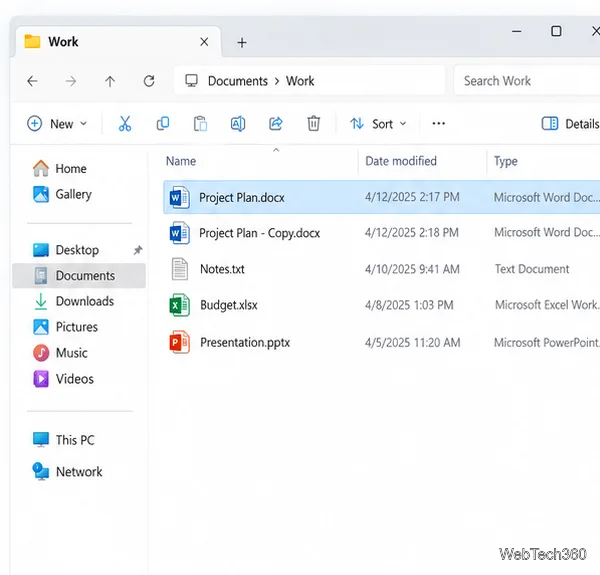
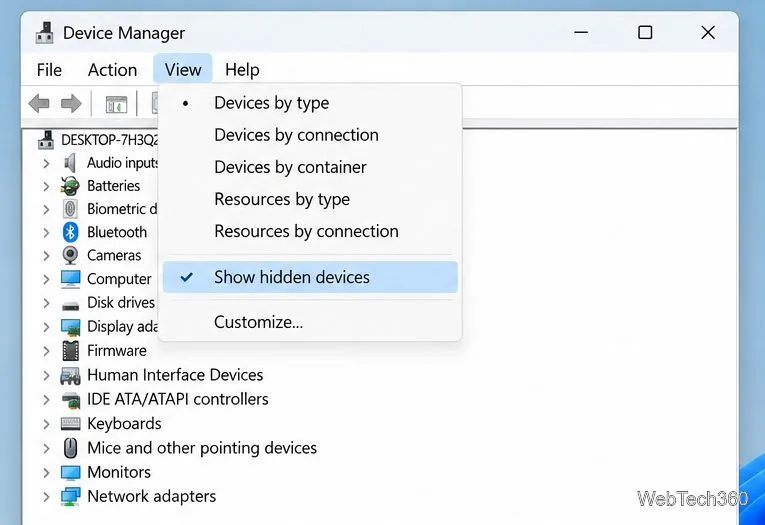
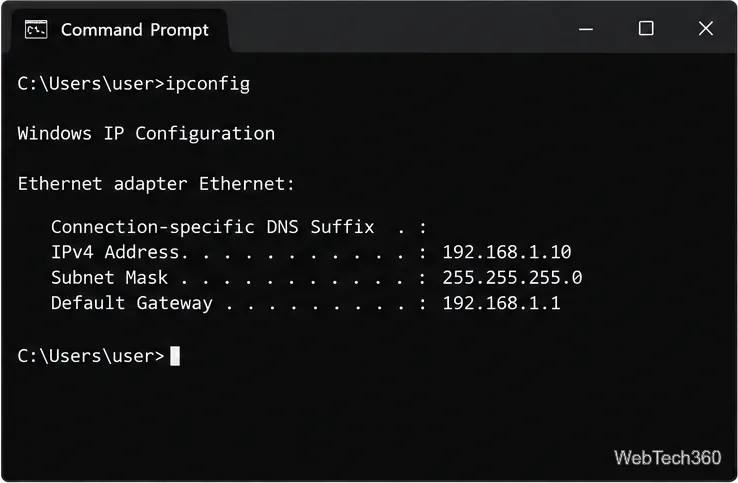
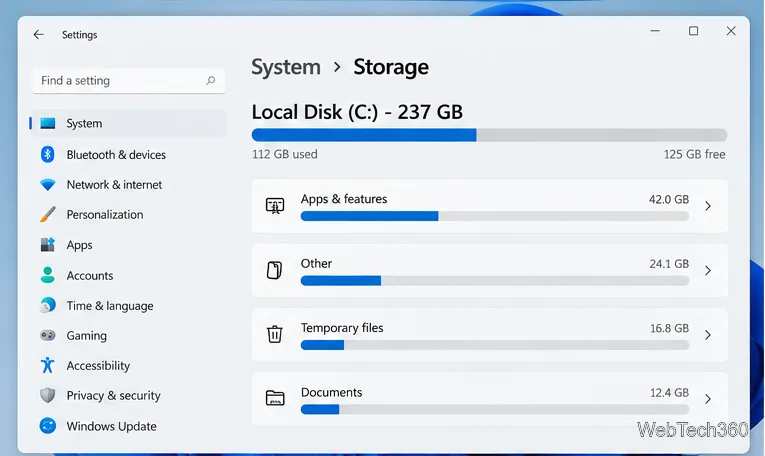
The interface images below are conceptual diagrams of the legacy workflow, not captures from a currently supported release. The exact layout may differ in the copy you have.
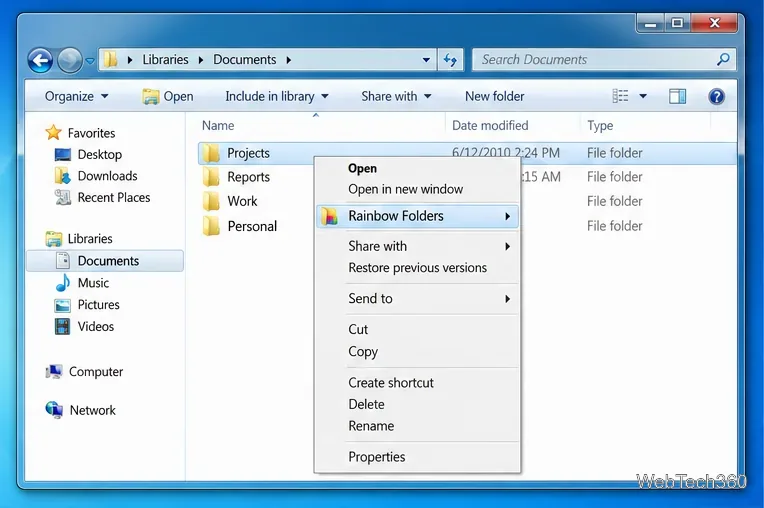
Start with an ordinary folder you can easily identify, such as a project or archive folder. Avoid Windows system folders, application folders, and folders that other people depend on. In File Explorer, right-click the folder and choose Rainbow Folders if the shell-menu item is available. Some versions also let you open the program and select a folder from its tree. If the menu item is missing, check the program’s Options for a shell-extension setting; only change it if you trust the copy and understand the Windows prompt.
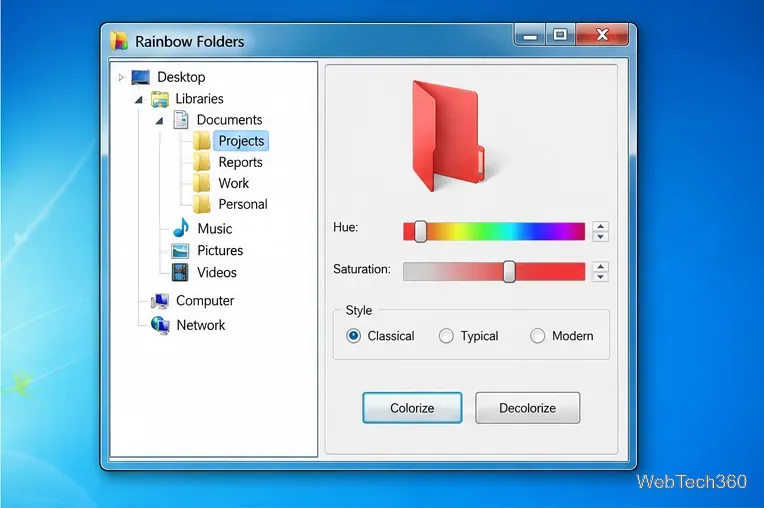
In the Rainbow Folders window, select the target folder in the left-hand tree. Choose one of the available styles—Classical, Typical, or Modern—then adjust the hue and saturation controls until the preview is easy to distinguish. A vivid color can help identify a folder at a glance, but use a consistent scheme so the colors remain meaningful. If the tool offers saved colors or favorites, use them to repeat a palette rather than assigning unrelated shades at random.
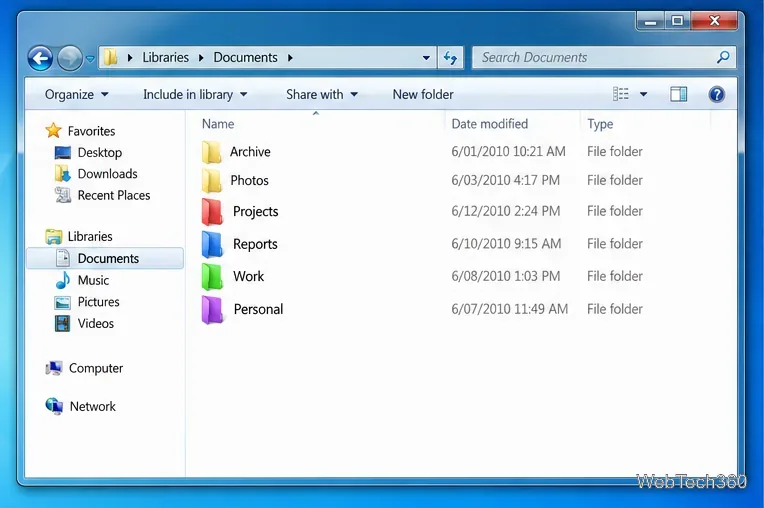
Click Colorize once for the selected folder. Return to File Explorer and check the result in a view that displays folder icons, such as Medium Icons or Large Icons. The tool changes the icon resource associated with the folder, so a details-only list may make the change less noticeable. Confirm that you colored the intended folder before repeating the process on more locations. Keep a short note of what each color means if you use color as an organizational cue.
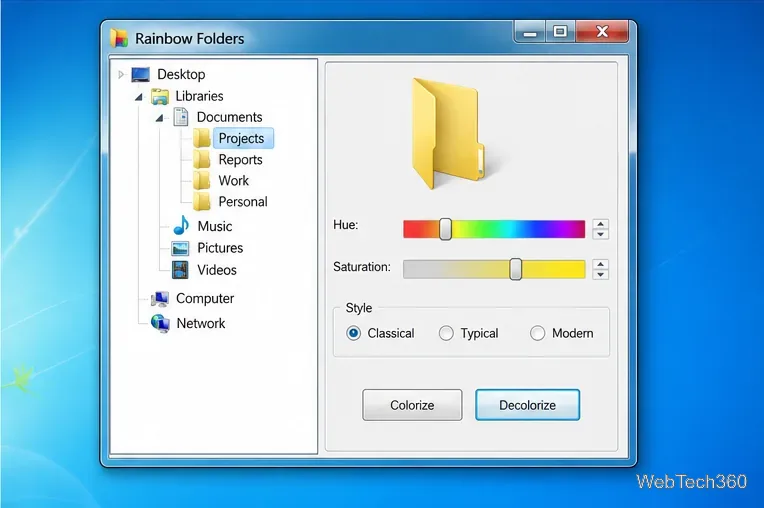
To undo a color change, select the same folder in Rainbow Folders and use Decolorize, then inspect it again in Explorer. If the icon looks unchanged, close and reopen the folder window first. Older releases included an option to rebuild the Windows icon cache; use it only if the copy you have exposes that command. Otherwise, sign out and back in or restart the computer to refresh cached icons. Do not delete system files or edit the registry just to force a color update.
If you cannot verify a Rainbow Folders download, Windows can still display a different icon for an individual folder. Right-click the folder, open Properties, choose Customize, and select Change Icon. Pick one of the available icons or browse to a trusted .ico file. This changes the picture used for the folder; Windows does not provide a built-in control for tinting the standard folder itself. Keep any custom icon file in a stable location, because moving or deleting it can leave the folder without that icon.
For the underlying Windows folder-customization format, see Microsoft’s Desktop.ini folder customization documentation. It explains how Windows can associate a custom icon with a folder.
Create a magnet link from a torrent in uTorrent, learn how to check it, and see why Magnetizer is now a legacy option.
Learn how to repair a corrupt Word or Excel file with Office’s built-in tools, recover Word text, extract Excel data, and safely check earlier versions.
Learn how to safely remove hidden (ghosted) devices in Windows, identify disconnected hardware, and avoid deleting a driver package other devices may need.
Learn what the legacy IP Address Range Pinger did, scan an authorized /24 on Windows with PowerShell 7, and interpret ICMP results correctly.
Open a Project 2010 MPP file in a browser with a free read-only viewer, check Project 2007 compatibility, and choose a safer sharing fallback.
Learn what Windows.old contains, what to copy before deleting it, and the supported Windows 11 and Windows 10 steps for safely reclaiming storage.
Learn how Rainbow Folders changes Windows 7 folder icons, choose a style and hue, undo the change, and use a built-in icon option safely.
Install the right Bluetooth driver in Windows 7 using the PC maker’s package or Device Manager, then verify the adapter and test pairing safely.
Diagnose a Windows 7 black screen by checking the display, starting Safe Mode, running Startup Repair, and using System Restore after a recent system change.
Learn the safest way to install an unsigned driver in Windows 7, use the one-session F8 option, and understand test signing for driver development.