How to Create a Torrent Magnet Link with uTorrent (and Magnetizer)
Create a magnet link from a torrent in uTorrent, learn how to check it, and see why Magnetizer is now a legacy option.
To install a Bluetooth driver in Windows 7, first identify the Bluetooth adapter, then install the matching driver from your PC or adapter manufacturer. Run the manufacturer’s setup program, or use Device Manager to point Windows to an extracted driver folder. A generic driver utility may help in a few cases, but it should be a last resort because it can replace the adapter’s existing Bluetooth software.
Windows 7 has been out of support since January 14, 2020. Microsoft no longer provides Windows 7 software or security updates, including new drivers through Windows Update. Keep this PC offline when practical, and only install a driver that explicitly supports your exact adapter and 32-bit or 64-bit edition of Windows 7. Microsoft explains what Windows end of support means.
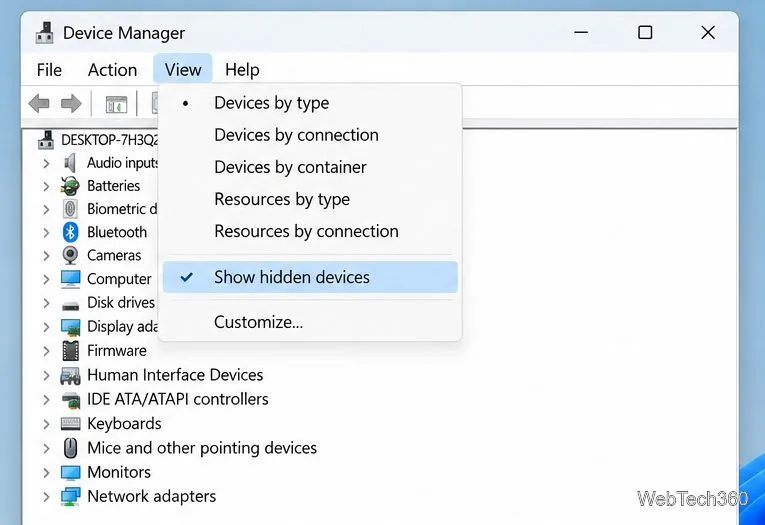
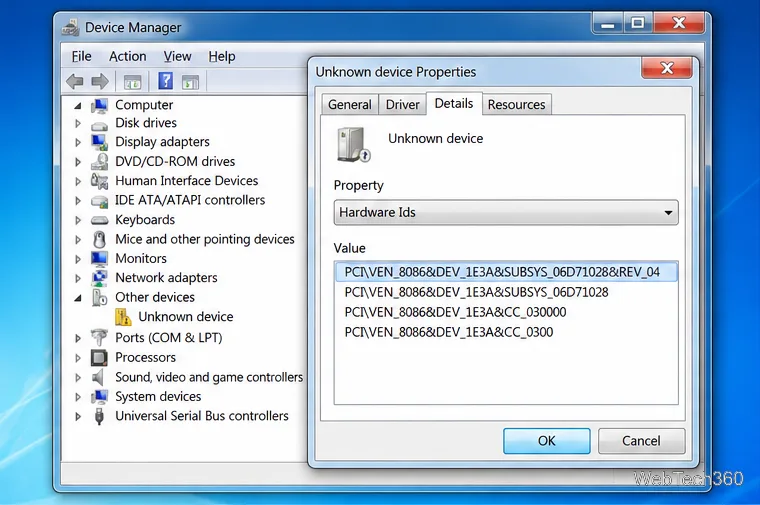
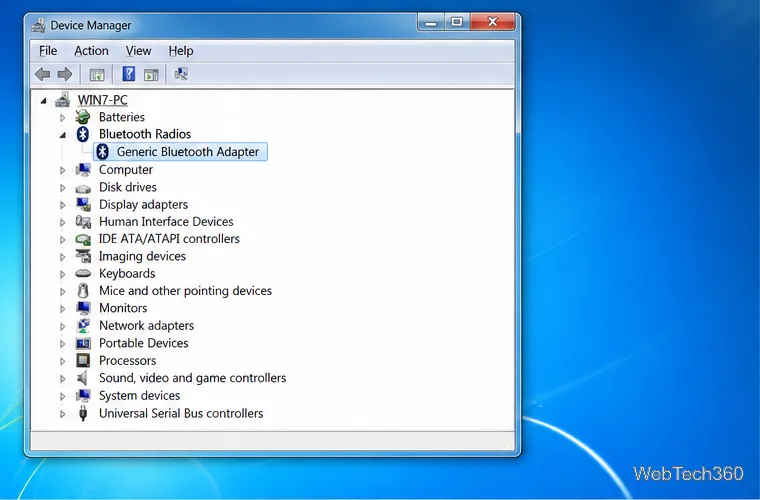
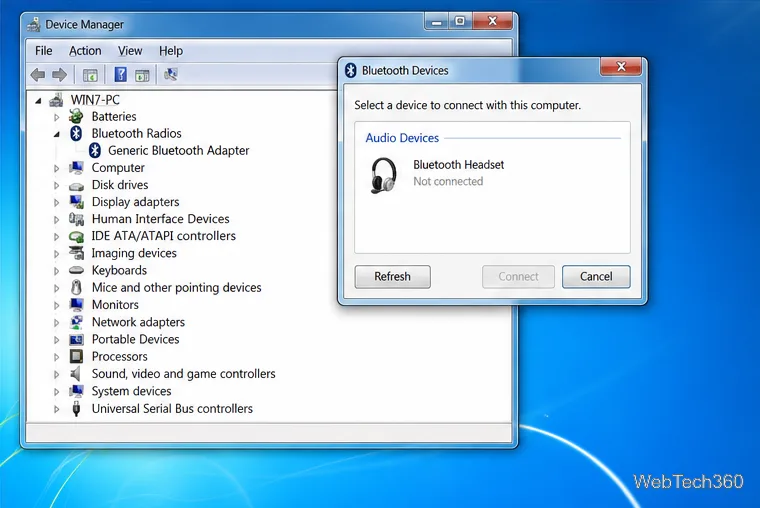
Open Start, type Device Manager in the search box, and open it. Expand Bluetooth Radios. If it is missing, check Other devices for an unknown device or yellow warning icon. The adapter may be disabled, disconnected, or undetected, so a driver may not be the only issue.
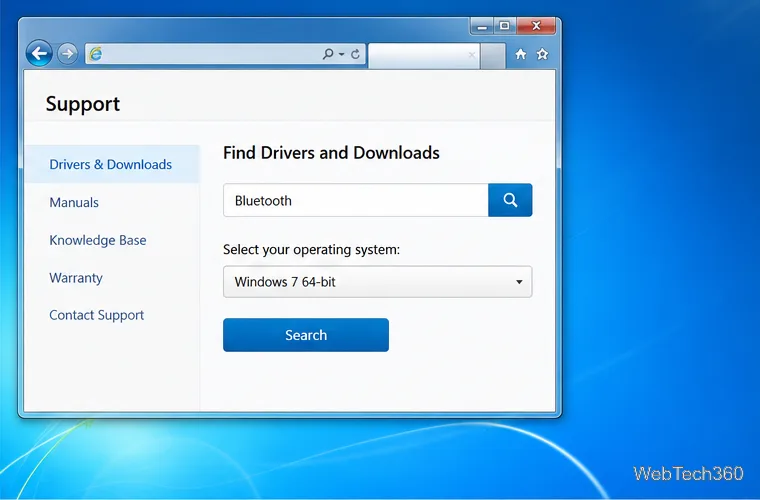
For built-in Bluetooth, search the PC maker’s support site by model or service tag. For a USB dongle, use its maker’s exact model number. Choose a package for Windows 7 and your 32-bit or 64-bit system type. Follow any listed Service Pack or chipset prerequisites.
Prefer the PC maker’s package for built-in radios, which may include hardware-specific components. Avoid driver-download directories and updater bundles. If no Windows 7 package exists, do not substitute a similarly named driver.
If the download includes a setup program such as Setup.exe, close other programs, right-click the installer, choose Run as administrator, and follow the manufacturer’s prompts. Restart if asked.
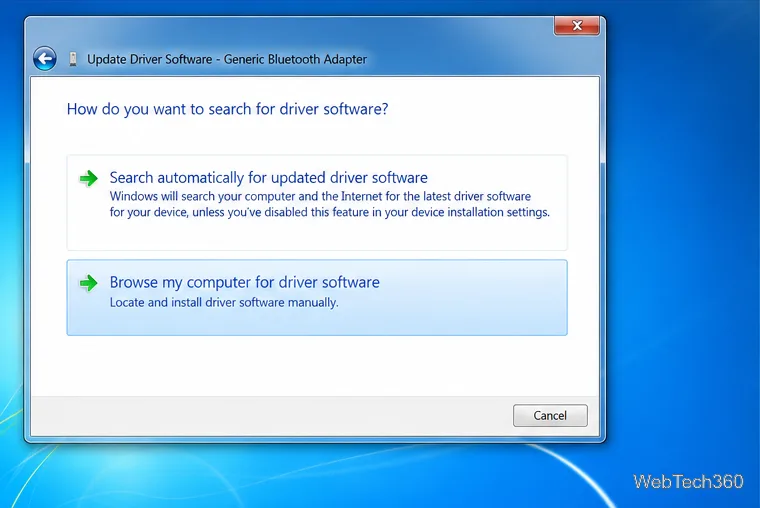
If the package contains driver files rather than an installer, extract it first, then:
Microsoft’s current Device Manager guide covers newer Windows versions; the labels above are for Windows 7. See Microsoft’s driver installation overview.
After restarting, reopen Device Manager. The adapter should appear under Bluetooth Radios without a yellow warning symbol. Its Properties > General tab also shows device status. If an error remains, confirm the model, Windows architecture, and prerequisites instead of repeating the same install.
To test it, put a headset, mouse, or keyboard in pairing mode. Open Start > Devices and Printers, choose Add a device, and follow the prompts. Keep the accessory nearby. A loaded driver does not guarantee that every device or Bluetooth profile is compatible.
Only consider Bluetooth Driver Installer from its publisher if an OEM driver is unavailable or failed. The publisher says it attempts to install a generic Microsoft Bluetooth driver, which may not support your adapter. Its download page labels version 1.0.0.182 Beta (released January 25, 2026) and offers separate 32-bit and 64-bit files.
The publisher’s instructions call for removing the existing Bluetooth stack, restarting, and canceling Windows’ driver prompt before running the utility. That changes the driver setup. Create a restore point yourself first: the publisher describes rollback through System Restore but does not say the utility creates a point automatically. Read its usage and rollback notes.
Create a magnet link from a torrent in uTorrent, learn how to check it, and see why Magnetizer is now a legacy option.
Learn how to repair a corrupt Word or Excel file with Office’s built-in tools, recover Word text, extract Excel data, and safely check earlier versions.
Learn how to safely remove hidden (ghosted) devices in Windows, identify disconnected hardware, and avoid deleting a driver package other devices may need.
Learn what the legacy IP Address Range Pinger did, scan an authorized /24 on Windows with PowerShell 7, and interpret ICMP results correctly.
Open a Project 2010 MPP file in a browser with a free read-only viewer, check Project 2007 compatibility, and choose a safer sharing fallback.
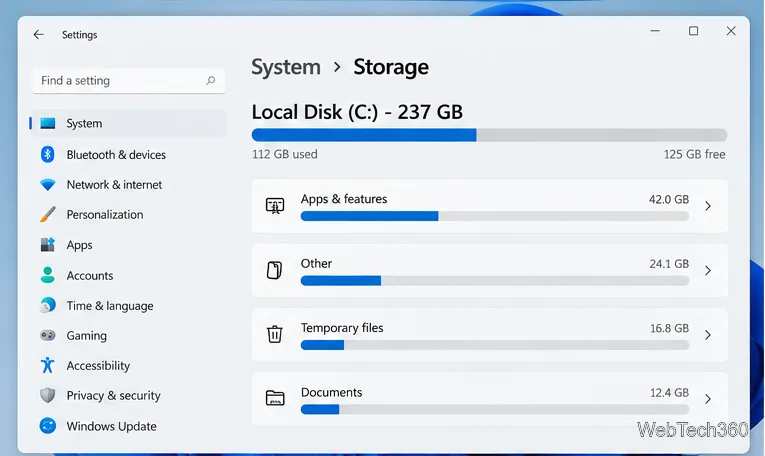
Learn what Windows.old contains, what to copy before deleting it, and the supported Windows 11 and Windows 10 steps for safely reclaiming storage.
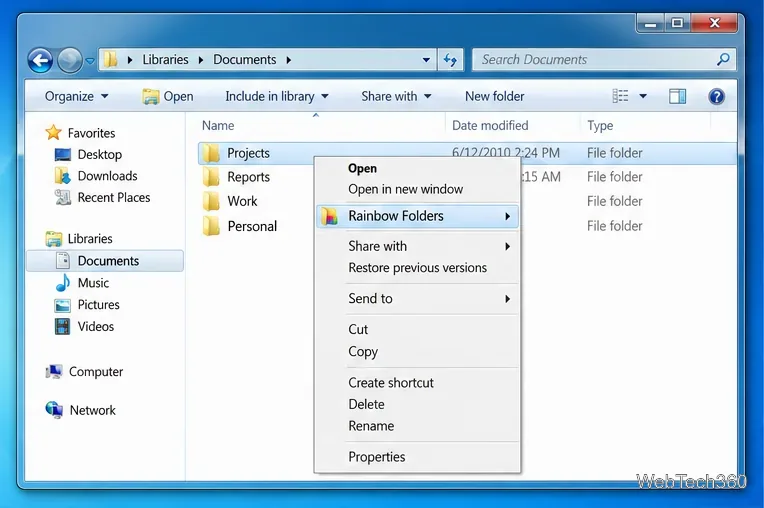
Learn how Rainbow Folders changes Windows 7 folder icons, choose a style and hue, undo the change, and use a built-in icon option safely.
Install the right Bluetooth driver in Windows 7 using the PC maker’s package or Device Manager, then verify the adapter and test pairing safely.
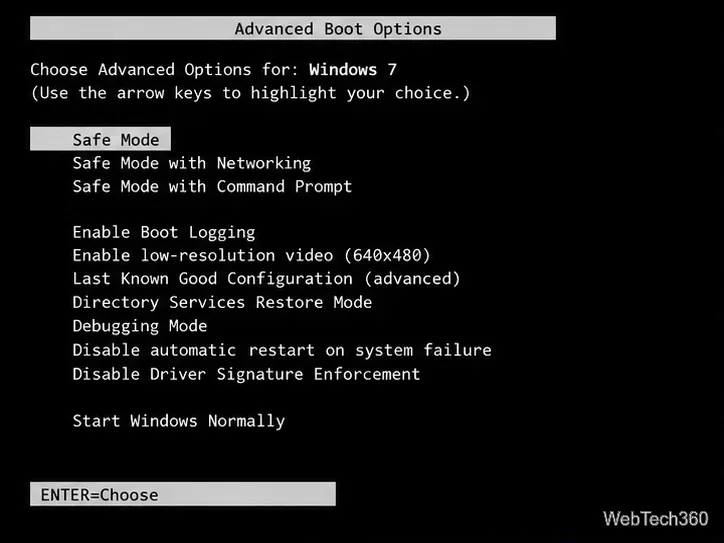
Diagnose a Windows 7 black screen by checking the display, starting Safe Mode, running Startup Repair, and using System Restore after a recent system change.
Learn the safest way to install an unsigned driver in Windows 7, use the one-session F8 option, and understand test signing for driver development.