How to Create a Torrent Magnet Link with uTorrent (and Magnetizer)
Create a magnet link from a torrent in uTorrent, learn how to check it, and see why Magnetizer is now a legacy option.
To create a torrent magnet link in uTorrent, open a lawful .torrent file in the client, select its entry in the torrent list, right-click it, and choose Copy Magnet URL. The copied link identifies the torrent by its info hash. It does not host the files or guarantee that anyone is still sharing them.
A magnet link is useful when you want to share a torrent without sending the original .torrent file. The recipient’s BitTorrent client uses the link to find peers and retrieve torrent metadata. For sharing your own files, keep the computer and client online and the torrent available while recipients connect, as uTorrent’s sharing instructions explain. Only download or share content you have permission to distribute.
A magnet URI usually includes an xt value, the exact topic that identifies the torrent. A BitTorrent v1 link commonly uses urn:btih: followed by a 40-character hexadecimal info hash (or a compatible 32-character Base32 hash). Newer v2 torrents can use urn:btmh:. A display name and tracker addresses may also appear, but they are optional. The BitTorrent specification describes these fields in BEP 9.
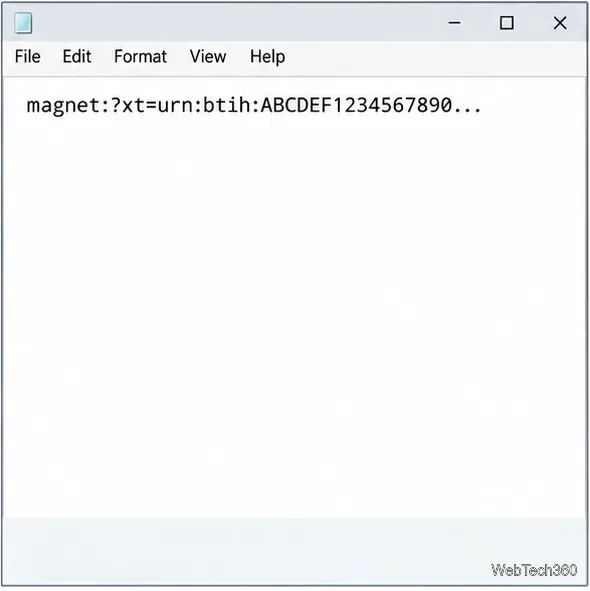
magnet:?xt=urn:btih:<info-hash>&dn=<optional-name>This is a format example, not a working link. Editing a real hash changes the torrent it identifies.
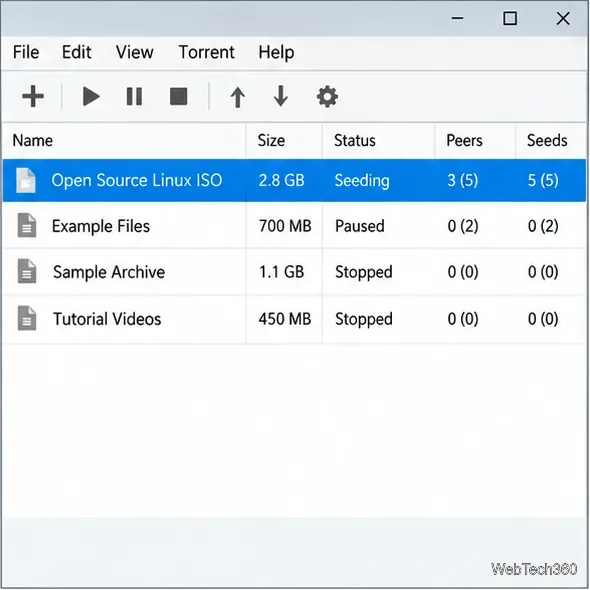
Use a .torrent file you are authorized to download or share. Open it with uTorrent, drag it into the client, or use File > Add Torrent and select the file. Confirm that its entry appears in the torrent list. If you are creating a link for your own files, make sure uTorrent can access the files and that the torrent is seeding or otherwise ready to serve them.
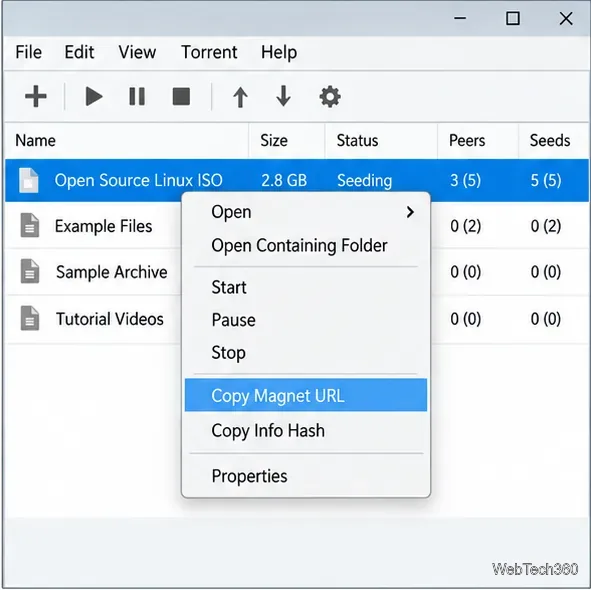
Right-click the torrent’s row and choose Copy Magnet URL. uTorrent’s support page documents this command for a selected torrent. The exact menu layout can vary by client version. If the command is missing, update to an official client build or use another maintained BitTorrent client that supports copying magnet links.
Paste the clipboard contents into a plain-text editor to confirm that the link starts with magnet:? and includes an xt value. Copy the entire URI, including any characters after the hash. Some links include optional tracker parameters. Treat a link from a private tracker as private information and share it only where that tracker permits.
To check a link, open it with the torrent client registered to handle magnet links. You can click a magnet link in a browser or paste the URI into a link field that accepts magnet URIs; review the client’s add-torrent prompt before confirming, because this creates a torrent job. Wait while the client retrieves metadata. uTorrent notes that a magnet link may take a few seconds to resolve. If you are only checking it, stop or remove the test job afterward, taking care not to delete files you want to keep.
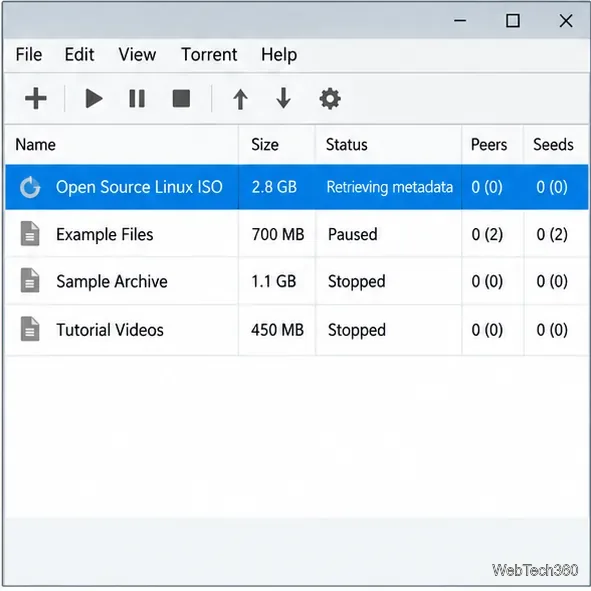
For current uTorrent instructions, see How do I add a torrent?. Its Add Torrent from URL option is documented for a direct URL to a .torrent file; do not assume that this menu item is the right way to test a magnet URI.
The original article presented Magnetizer as a portable Windows app for batch conversion and tracker management. I could not verify a current developer-maintained download or compatibility documentation. Avoid unverified mirrors: an old executable or tracker-fetch feature may be unsafe or outdated. uTorrent’s documented copy command is a manual alternative, though it is not a batch converter.
Trackers and the distributed hash table (DHT) help clients find peers; they do not store torrent files. The DHT specification explains peer discovery. A magnet link can replace a missing .torrent file only if peers still provide its metadata and content.
Create a magnet link from a torrent in uTorrent, learn how to check it, and see why Magnetizer is now a legacy option.
Learn how to repair a corrupt Word or Excel file with Office’s built-in tools, recover Word text, extract Excel data, and safely check earlier versions.
Learn how to safely remove hidden (ghosted) devices in Windows, identify disconnected hardware, and avoid deleting a driver package other devices may need.
Learn what the legacy IP Address Range Pinger did, scan an authorized /24 on Windows with PowerShell 7, and interpret ICMP results correctly.
Open a Project 2010 MPP file in a browser with a free read-only viewer, check Project 2007 compatibility, and choose a safer sharing fallback.
Learn what Windows.old contains, what to copy before deleting it, and the supported Windows 11 and Windows 10 steps for safely reclaiming storage.
Learn how Rainbow Folders changes Windows 7 folder icons, choose a style and hue, undo the change, and use a built-in icon option safely.
Install the right Bluetooth driver in Windows 7 using the PC maker’s package or Device Manager, then verify the adapter and test pairing safely.
Diagnose a Windows 7 black screen by checking the display, starting Safe Mode, running Startup Repair, and using System Restore after a recent system change.
Learn the safest way to install an unsigned driver in Windows 7, use the one-session F8 option, and understand test signing for driver development.