How to Create a Torrent Magnet Link with uTorrent (and Magnetizer)
Create a magnet link from a torrent in uTorrent, learn how to check it, and see why Magnetizer is now a legacy option.
Windows.old is a temporary folder that keeps files from a previous Windows installation after certain upgrades or reinstallations. It can help you recover files that did not move to the new installation and may be needed to return to the previous version of Windows. You can remove it after checking and copying anything you still need. The supported cleanup option is in Settings or Disk Cleanup; deleting the folder removes the rollback files and cannot be undone.
The exact labels and layout can differ slightly between Windows releases. Use the category named for the previous Windows installation, and avoid selecting other cleanup categories unless you want those files removed too.
The folder is usually on the drive where Windows is installed, commonly C:\Windows.old. Its contents depend on how Windows was installed, but may include files from the older Windows directory, installed-program folders, and previous user profiles. It is not a complete, dependable backup of your old PC, and applications generally cannot be restored just by copying their old folders.
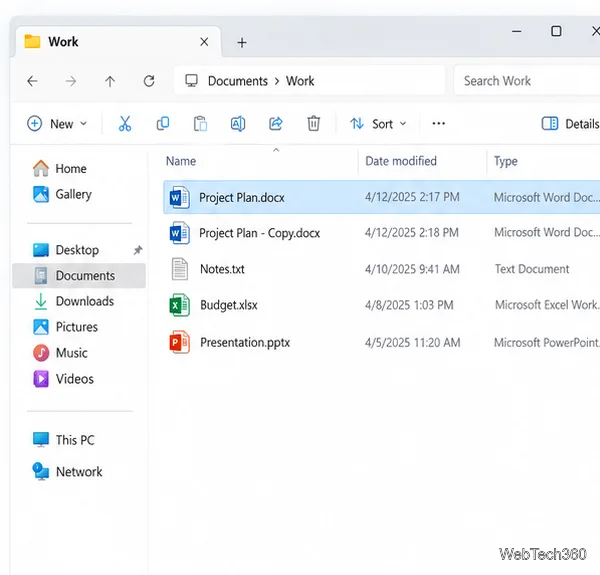
If you are looking for personal files, check the old profile under C:\Windows.old\Users\<account>. Look in familiar locations such as Desktop, Documents, and Pictures. Copy needed files into your current profile or to a separate backup drive, then open a few of them to confirm the copies work. Some folders may require an administrator account to access. Microsoft’s instructions for retrieving files from Windows.old explain the supported recovery path.
Windows keeps the previous installation only for a limited time. Microsoft says the prior version is automatically removed 10 days after an upgrade in the documented Windows recovery flow. A later upgrade, reinstall, or reset can also replace an existing Windows.old folder, so do not treat it as long-term storage.
If you are unsure whether a file was migrated, copy it first. After cleanup, Windows.old is not a Recycle Bin item, and the removal is not reversible through Settings.
On current Windows 11 and many Windows 10 installations, use the temporary-files cleanup page:
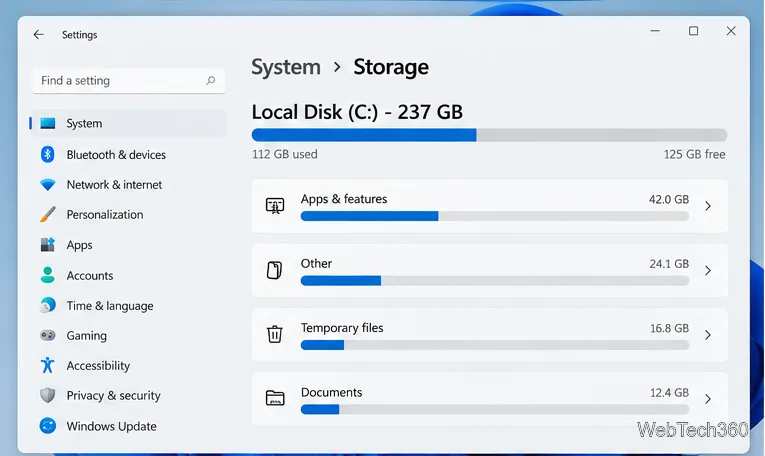 Storage, with the Temporary files category visible.">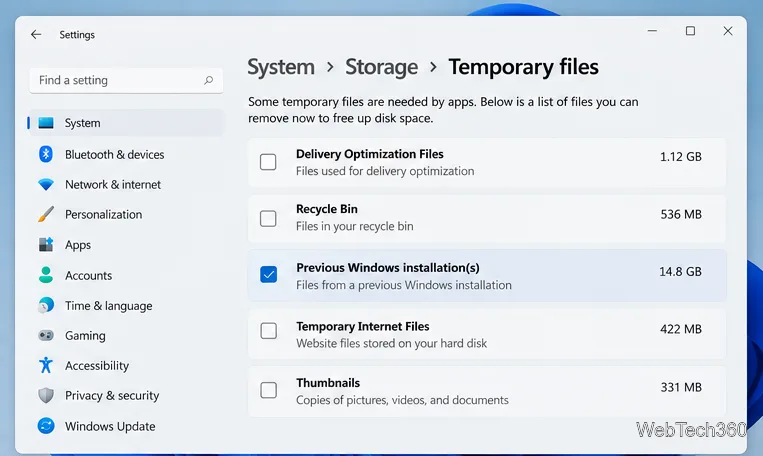
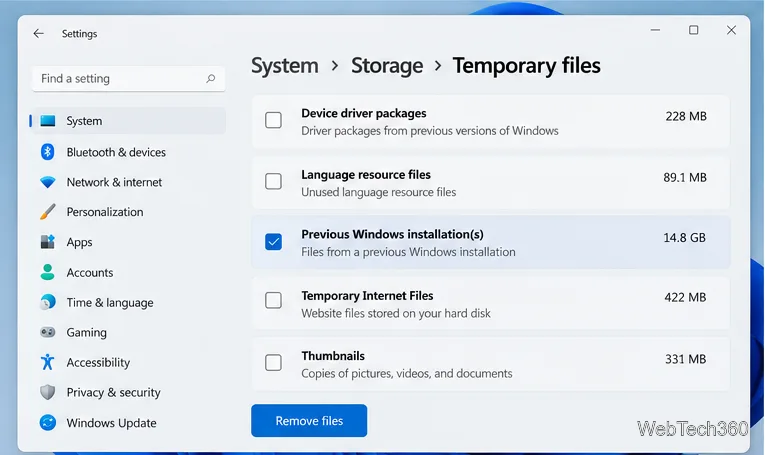
Some Windows 10 builds use an older Storage Sense screen instead: open Settings > System > Storage, choose Change how we free up space automatically, then under Free up space now select Delete previous version of Windows and choose Clean now. Microsoft documents this route for supported Windows 10 versions.
Disk Cleanup is a built-in alternative. Search for Disk Cleanup from Start, choose the drive where Windows is installed, and select OK. Choose Clean up system files, select the same drive again if prompted, and wait for the scan. Check Previous Windows installation(s), then select OK and Delete Files to proceed. Use an administrator account when prompted.
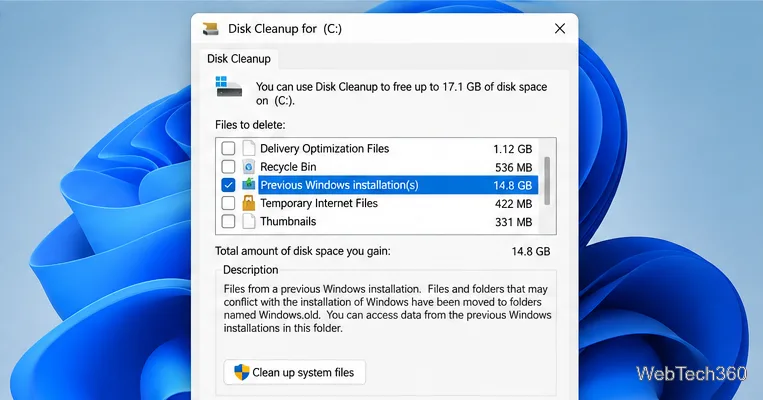
Microsoft lists both Settings cleanup steps for the previous Windows version and Disk Cleanup instructions for freeing drive space. If neither tool lists a previous installation, Windows may already have removed it or there may be no eligible rollback files on that drive. Check the Windows drive and the selected cleanup categories before trying anything else.
For most people, the decision is straightforward: keep Windows.old long enough to recover files or decide whether to roll back, then remove it through Settings or Disk Cleanup when those files are no longer needed.
Create a magnet link from a torrent in uTorrent, learn how to check it, and see why Magnetizer is now a legacy option.
Learn how to repair a corrupt Word or Excel file with Office’s built-in tools, recover Word text, extract Excel data, and safely check earlier versions.
Learn how to safely remove hidden (ghosted) devices in Windows, identify disconnected hardware, and avoid deleting a driver package other devices may need.
Learn what the legacy IP Address Range Pinger did, scan an authorized /24 on Windows with PowerShell 7, and interpret ICMP results correctly.
Open a Project 2010 MPP file in a browser with a free read-only viewer, check Project 2007 compatibility, and choose a safer sharing fallback.
Learn what Windows.old contains, what to copy before deleting it, and the supported Windows 11 and Windows 10 steps for safely reclaiming storage.
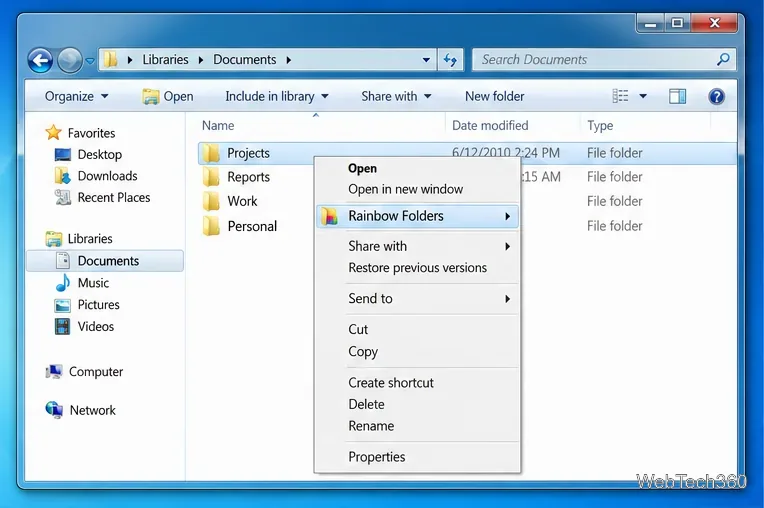
Learn how Rainbow Folders changes Windows 7 folder icons, choose a style and hue, undo the change, and use a built-in icon option safely.
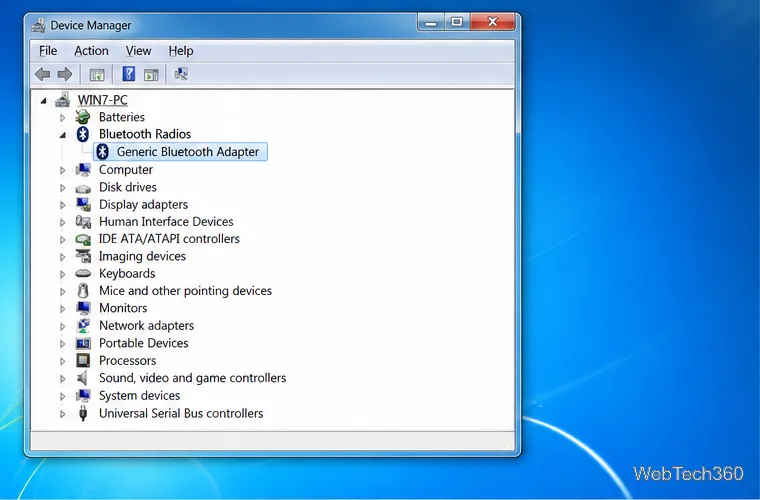
Install the right Bluetooth driver in Windows 7 using the PC maker’s package or Device Manager, then verify the adapter and test pairing safely.
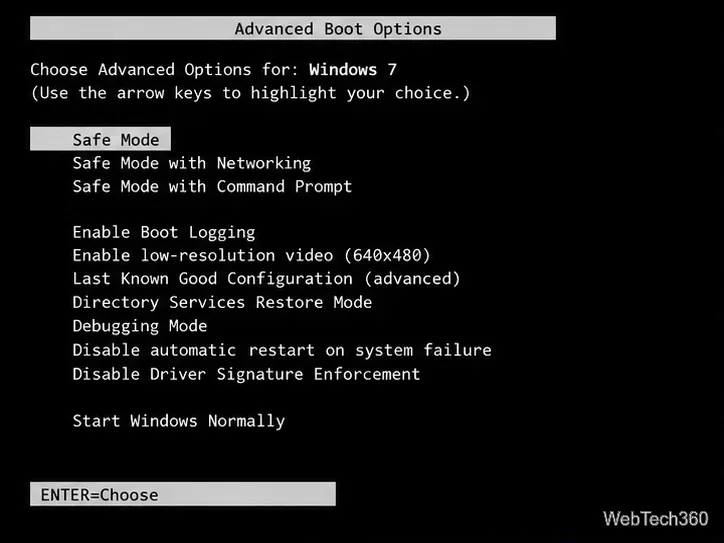
Diagnose a Windows 7 black screen by checking the display, starting Safe Mode, running Startup Repair, and using System Restore after a recent system change.
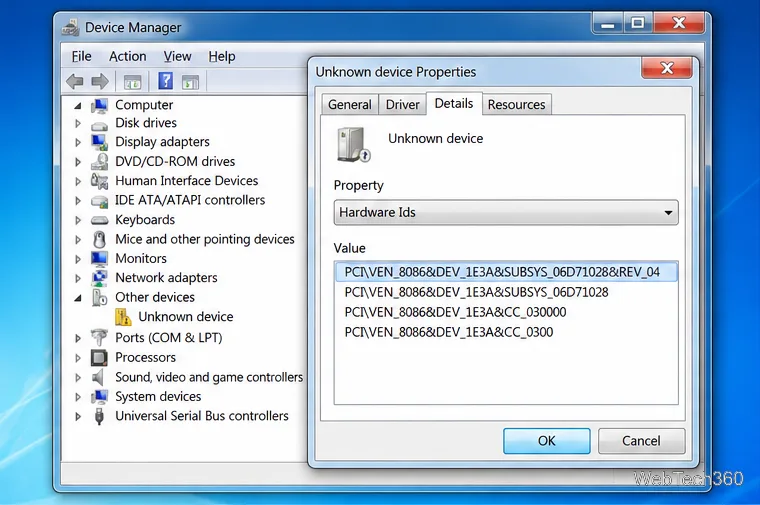
Learn the safest way to install an unsigned driver in Windows 7, use the one-session F8 option, and understand test signing for driver development.