How to Create a Torrent Magnet Link with uTorrent (and Magnetizer)
Create a magnet link from a torrent in uTorrent, learn how to check it, and see why Magnetizer is now a legacy option.
To ping an IPv4 range on a current Windows PC, identify your subnet, build a list of addresses, and send an ICMP echo request to each one. The original IP Address Range Pinger did this through a “Ping Range” option, but its old download and compatibility claims cannot be verified as current. The PowerShell 7 method below checks an authorized local network and reports each address separately.
The old article describes a portable Windows utility that runs a Ping Range sweep and lists hosts that respond. The old article lists Windows XP, Vista, Server 2003/2008, and Windows 7, and its image and download references are no longer a reliable guide to current availability. I could not verify a maintained publisher download or current Windows support, so treat the named application as legacy software rather than following third-party mirror links.
Windows still includes the ping command, and PowerShell can generate a range and attach a result to every IP address. A ping tests ICMP response only; it does not identify every device or prove that a particular application is reachable.
ipconfig.192.168.1.10 with subnet mask 255.255.255.0 is a common /24 network. The sample below checks host addresses 192.168.1.1 through 192.168.1.254.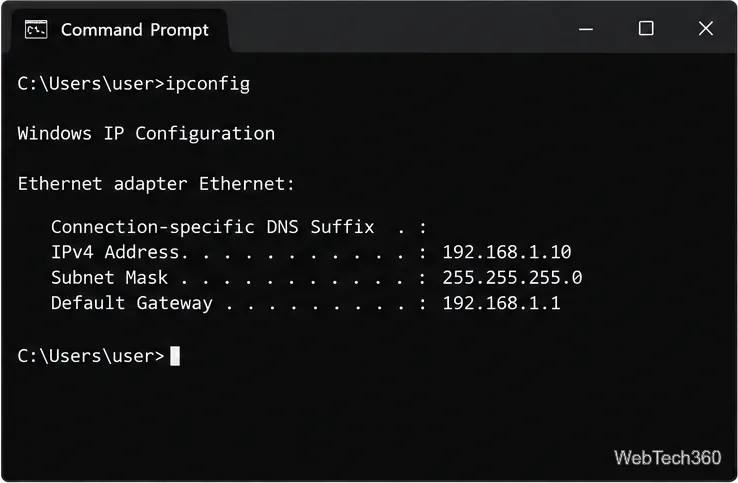
A /24 example does not fit every network. If your subnet mask is different, calculate the correct address range first and adjust both the prefix and host numbers in the script. Run a scan only on addresses you own or have permission to administer.
This example uses ForEach-Object -Parallel, introduced in PowerShell 7, and the Test-Connection timeout option. PowerShell 7 installs side by side with Windows PowerShell 5.1; this exact script requires PowerShell 7. If needed, follow Microsoft’s PowerShell 7 installation guide. Microsoft documents the parallel loop and its throttle limit and the Test-Connection parameters.
/24, then paste and run this block: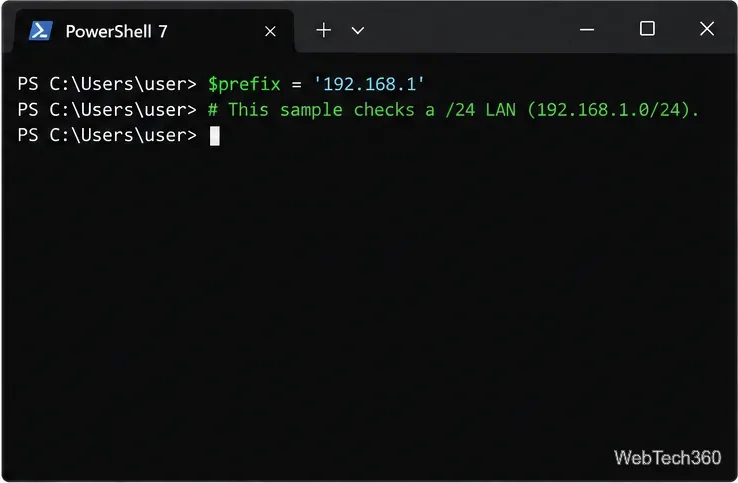
$prefix = '192.168.1' # Replace with your authorized /24 prefix
$results = 1..254 | ForEach-Object -Parallel {
    $ip = '{0}.{1}' -f $using:prefix, $_
    $reachable = Test-Connection -TargetName $ip -IPv4 -Count 1 -TimeoutSeconds 1 -Quiet
    [pscustomobject]@{
        IPAddress = $ip
        Reachable = $reachable
    }
} -ThrottleLimit 32

$results | Sort-Object { [version]$_.IPAddress } | Format-Table -AutoSize
The loop sends one ping to each of 254 example host addresses. -TimeoutSeconds 1 limits how long each individual test waits, while -ThrottleLimit 32 caps how many checks run in parallel. For a smaller range, replace 1..254 with the host numbers you need. Do not expand this loop to a different subnet size without correcting the target list.
To keep a record, run this after the table appears:
$results | Export-Csv -Path "$env:USERPROFILE\Desktop\ping-sweep.csv" -NoTypeInformation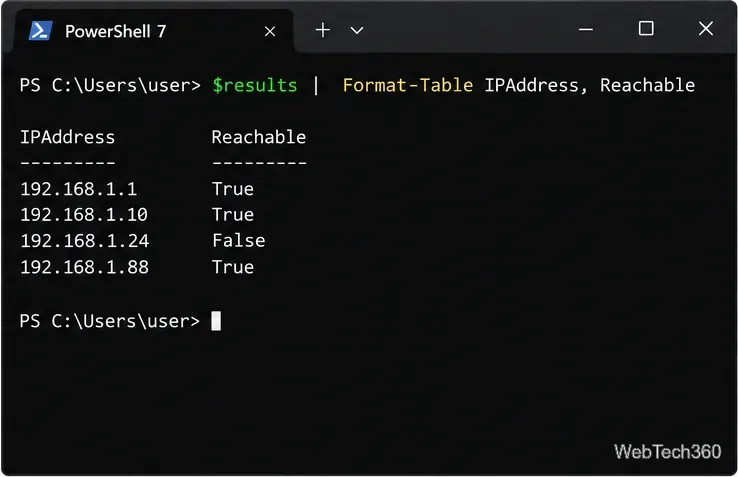
True means the address returned an ICMP echo reply during this scan. False means PowerShell did not receive a reply before the timeout. It does not prove the device is powered off. A host firewall, network firewall, access-control rule, wireless client isolation, sleep state, routing issue, or incorrect subnet can prevent a reply. A device may also be active but configured not to answer ping.
Use the output as a quick reachability list, not a complete inventory. The script checks IPv4 only and does not identify device names, open ports, or services. If you save the CSV, it contains both responding and nonresponding addresses so you can compare results later.
For a one-off check in Command Prompt, use Windows’ documented /n count and /w wait options:
ping /n 1 /w 800 192.168.1.10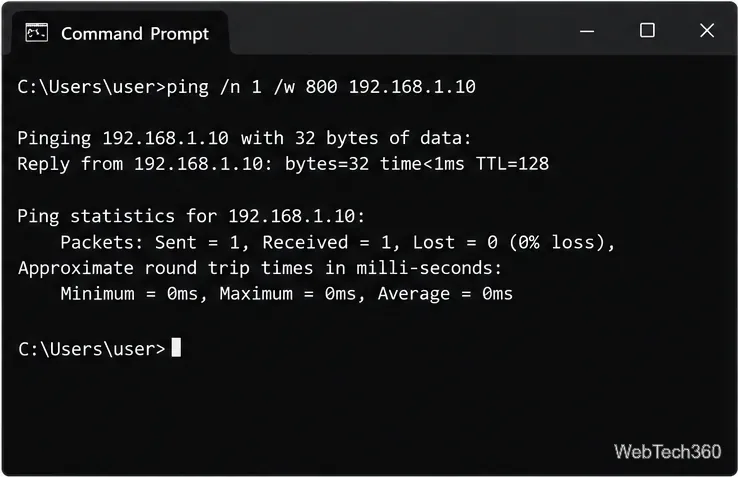
Microsoft’s ping reference explains these options. If a host times out, check the address and subnet, then review the target’s ICMP policy and any intervening firewall rules. Avoid turning off a firewall globally just to make ping work; ask the network administrator to allow only the needed traffic if policy permits.
If the real question is whether a website, file share, or other service is available, test its actual TCP port as well—for example, Test-NetConnection -ComputerName 192.168.1.10 -Port 443 for a service expected on port 443. Microsoft notes that ping is only a basic connectivity check and recommends application-layer checks when you need to confirm access to a listening service. See the TCP/IP troubleshooting guidance and Test-NetConnection reference.
Create a magnet link from a torrent in uTorrent, learn how to check it, and see why Magnetizer is now a legacy option.
Learn how to repair a corrupt Word or Excel file with Office’s built-in tools, recover Word text, extract Excel data, and safely check earlier versions.
Learn how to safely remove hidden (ghosted) devices in Windows, identify disconnected hardware, and avoid deleting a driver package other devices may need.
Learn what the legacy IP Address Range Pinger did, scan an authorized /24 on Windows with PowerShell 7, and interpret ICMP results correctly.
Open a Project 2010 MPP file in a browser with a free read-only viewer, check Project 2007 compatibility, and choose a safer sharing fallback.
Learn what Windows.old contains, what to copy before deleting it, and the supported Windows 11 and Windows 10 steps for safely reclaiming storage.
Learn how Rainbow Folders changes Windows 7 folder icons, choose a style and hue, undo the change, and use a built-in icon option safely.
Install the right Bluetooth driver in Windows 7 using the PC maker’s package or Device Manager, then verify the adapter and test pairing safely.
Diagnose a Windows 7 black screen by checking the display, starting Safe Mode, running Startup Repair, and using System Restore after a recent system change.
Learn the safest way to install an unsigned driver in Windows 7, use the one-session F8 option, and understand test signing for driver development.