How to Create a Torrent Magnet Link with uTorrent (and Magnetizer)
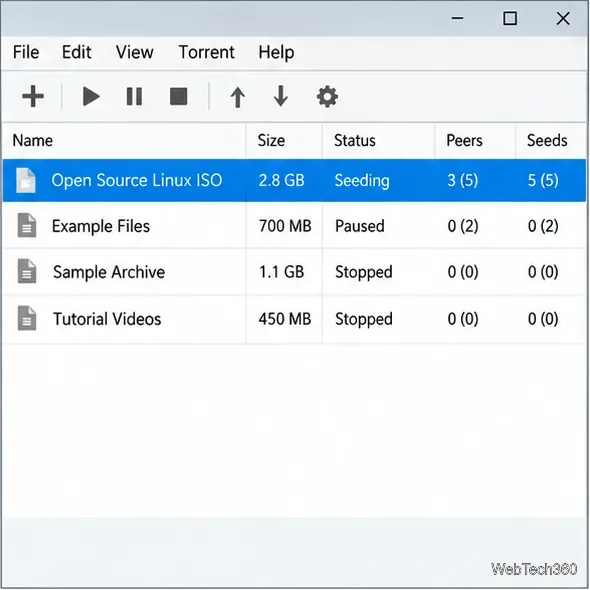
Create a magnet link from a torrent in uTorrent, learn how to check it, and see why Magnetizer is now a legacy option.
A Windows 7 black screen can come from a monitor connection, graphics driver, failed startup, or desktop session that did not load. The screen alone does not prove malware or a bad update caused it. Check the display first, then use Safe Mode and Windows recovery tools.
Note whether the monitor says “No signal,” whether the Windows logo appears, and whether a mouse pointer is visible. No signal before Windows starts points to the monitor, cable, port, or graphics hardware. A black screen after the Windows logo suggests a startup or driver issue; a black screen after sign-in with a pointer can mean Windows loaded but the desktop did not.
Confirm the monitor is powered on and using the correct input. Reseat the video cable at both ends, then try another cable, port, or monitor if possible. On a laptop, raise brightness and disconnect external displays, docks, and nonessential USB devices. Restart once after checking the connections.
If the screen works on another monitor, Windows may be using a display mode the first screen cannot show. If there is no picture before the Windows logo on any display, Windows settings are unlikely to be the cause.
Restart and tap F8 repeatedly just before the Windows logo. In Advanced Boot Options, choose Safe Mode. Use Safe Mode without Networking unless internet access is essential; Windows 7 is no longer a secure system for routine browsing.
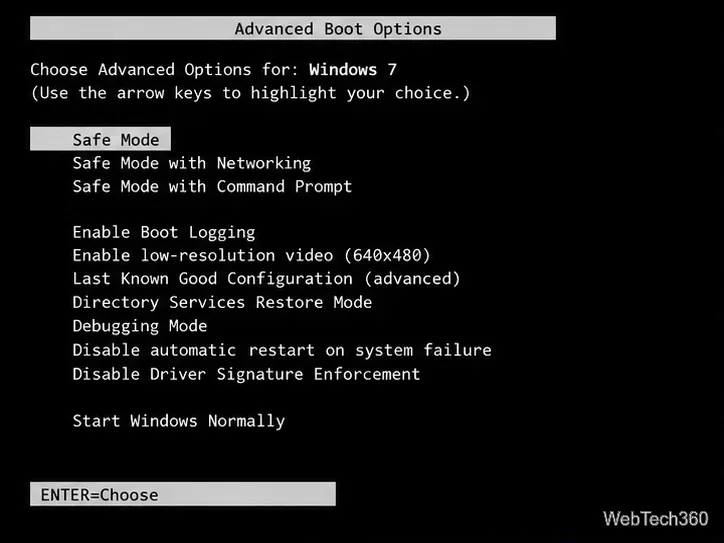
If Safe Mode works, continue to the display and driver checks below. If it does not, restart, tap F8 again, and choose Repair your computer if available. Sign in to System Recovery Options, then choose Startup Repair and follow the prompts. This tool checks for common problems that prevent Windows from starting, but it cannot fix every black-screen cause.
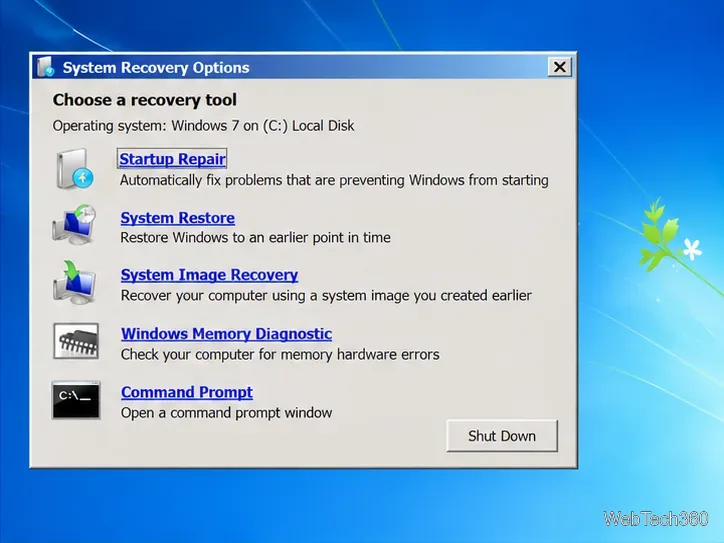
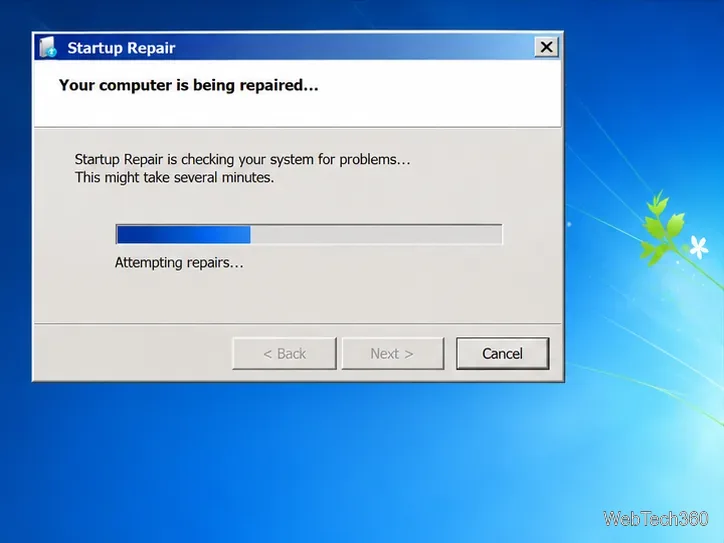
If F8 does not open recovery, boot from a Windows 7 installation DVD or system repair disc you already have. Select the language and keyboard, then choose Repair your computer, not Install. If recovery cannot see the Windows installation, stop before formatting or reinstalling so your files can be protected.
If the problem began after a driver, program, or system change, open System Restore from System Recovery Options. Select a restore point from before the black screen appeared. If offered, use Scan for affected programs to see what may change, then confirm the restore and let it finish without shutting down the PC.
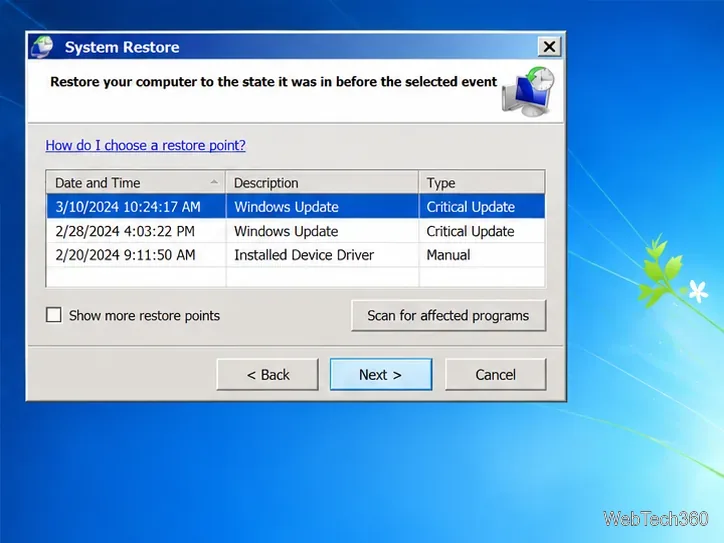
System Restore rolls back system files, drivers, settings, and some installed programs. It is designed to leave personal files alone, but it is not a backup. Copy important files to separate storage first if you can reach them in Safe Mode.
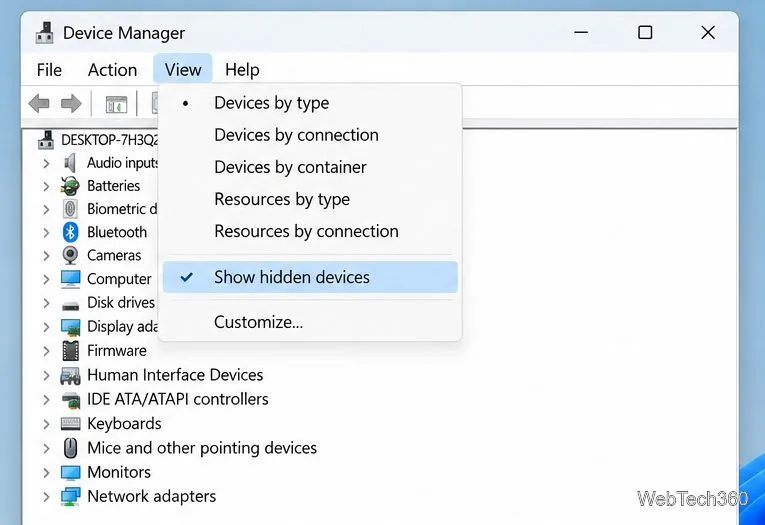
If only normal startup gives a black screen, open Control Panel in Safe Mode and choose a screen resolution supported by the monitor. In advanced display settings, use only a refresh rate shown as supported. If the issue followed a graphics-driver change, open Device Manager > Display adapters, open the graphics device’s properties, and choose Roll Back Driver if available. Restart to check whether the picture returns.
For a black screen after sign-in with a visible pointer, press Ctrl+Alt+Delete and open Task Manager. Choose File > New Task, enter explorer.exe, and press Enter. If the desktop appears, back up files and review recently installed startup software. Avoid driver bundles from unofficial download sites.
A black screen by itself is not evidence of malware. If it comes with suspicious pop-ups, unknown programs, or security alerts, disconnect the PC from the network. Use a security product only if its publisher still documents Windows 7 support; avoid expired scanners and “black screen fix” downloads from third-party sites.
If the screen is blank before the Windows logo, the drive makes unusual noises, recovery cannot find Windows, or Startup Repair and System Restore fail, the problem may involve hardware or deeper boot damage. Avoid factory reset, formatting, or clean installation until important files are backed up. Windows 7 support ended on January 14, 2020, so plan to move to a supported operating system before using the PC for sensitive online activity.
Create a magnet link from a torrent in uTorrent, learn how to check it, and see why Magnetizer is now a legacy option.
Learn how to repair a corrupt Word or Excel file with Office’s built-in tools, recover Word text, extract Excel data, and safely check earlier versions.
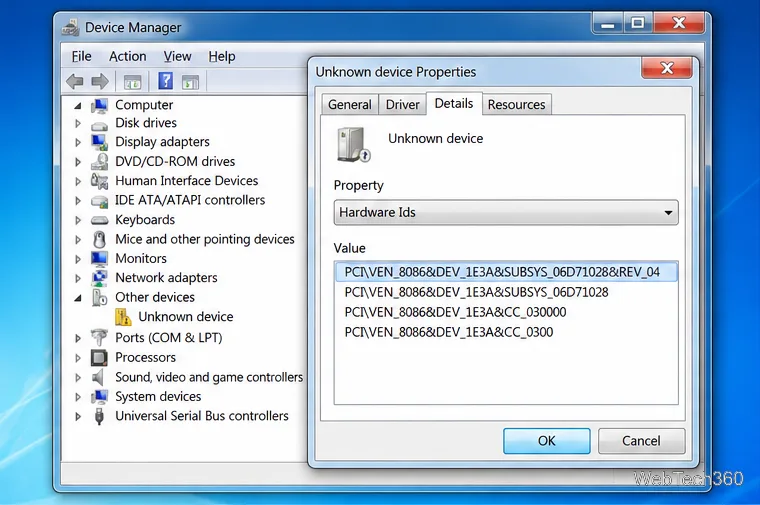
Learn how to safely remove hidden (ghosted) devices in Windows, identify disconnected hardware, and avoid deleting a driver package other devices may need.
Learn what the legacy IP Address Range Pinger did, scan an authorized /24 on Windows with PowerShell 7, and interpret ICMP results correctly.
Open a Project 2010 MPP file in a browser with a free read-only viewer, check Project 2007 compatibility, and choose a safer sharing fallback.
Learn what Windows.old contains, what to copy before deleting it, and the supported Windows 11 and Windows 10 steps for safely reclaiming storage.
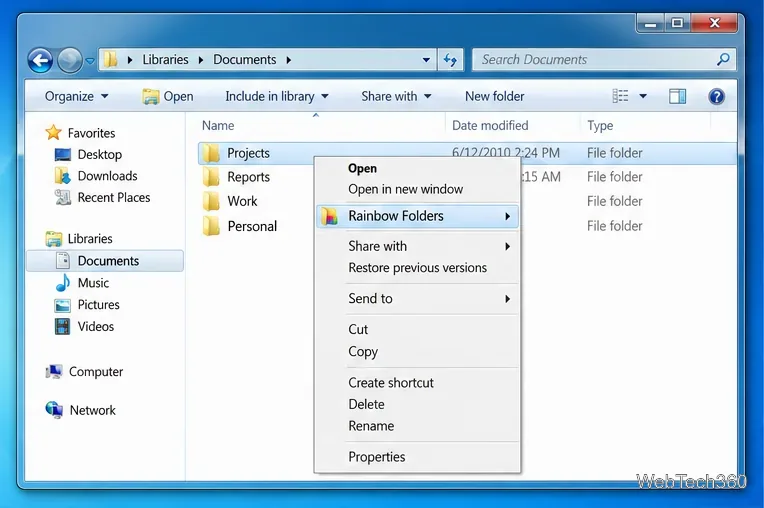
Learn how Rainbow Folders changes Windows 7 folder icons, choose a style and hue, undo the change, and use a built-in icon option safely.
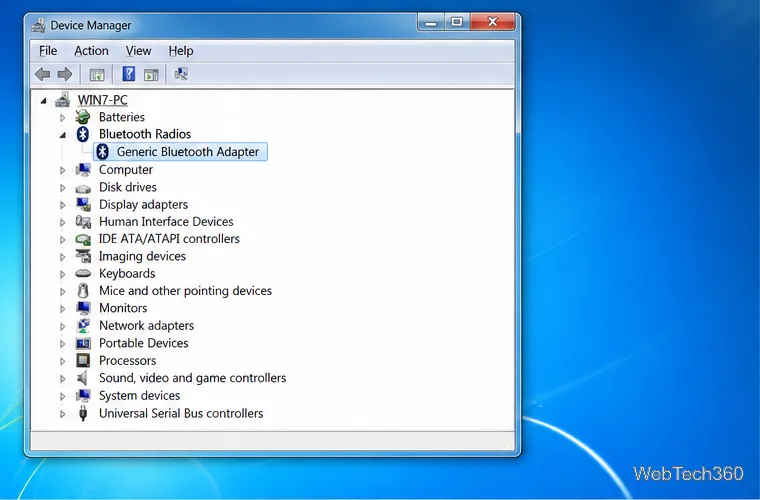
Install the right Bluetooth driver in Windows 7 using the PC maker’s package or Device Manager, then verify the adapter and test pairing safely.
Diagnose a Windows 7 black screen by checking the display, starting Safe Mode, running Startup Repair, and using System Restore after a recent system change.
Learn the safest way to install an unsigned driver in Windows 7, use the one-session F8 option, and understand test signing for driver development.