How to Play Minecraft Offline on Windows 10: Java and Bedrock

Prepare Java or Bedrock on Windows 10 for offline single-player, enable the right Xbox setting, and back up your local Minecraft worlds.
Windows 10’s built-in Open with command lets you choose an app, but its normal settings do not let you create a persistent custom right-click list. The open-source Open with++ shell extension adds a separate menu of commands for selected file types. It leaves the built-in menu and default app association unchanged.
Download the current release from the maintainer’s official GitHub Releases page; choose its application asset, not a Source code archive. The project’s setup notes list Windows 7 x64 or later, .NET Framework 4.8 x64, and the Visual C++ 2019 Redistributable x64 as requirements. If a component is missing, the notes link to Microsoft downloads.
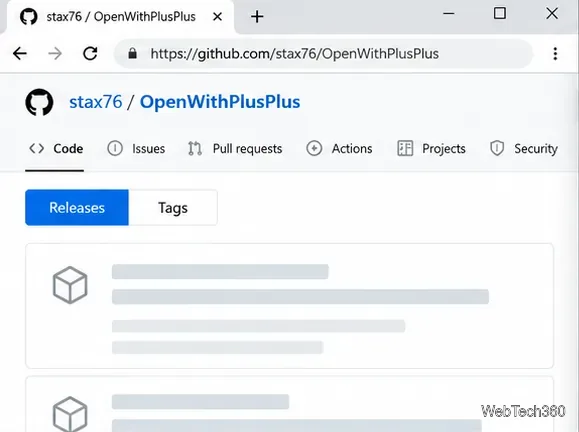
Open Releases, select the entry marked Latest, and download its application asset. If it is compressed, extract it to a permanent folder before installing; the maintainer says not to move the folder afterward.
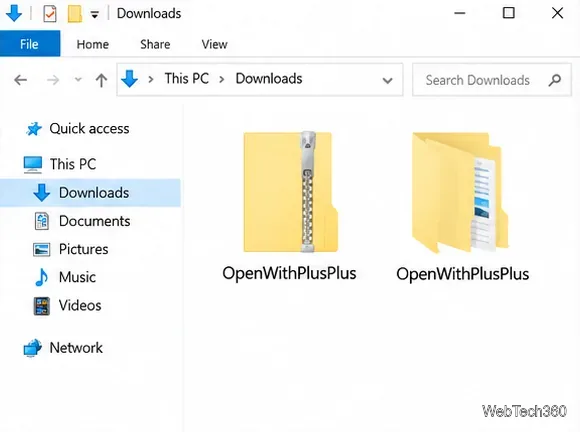
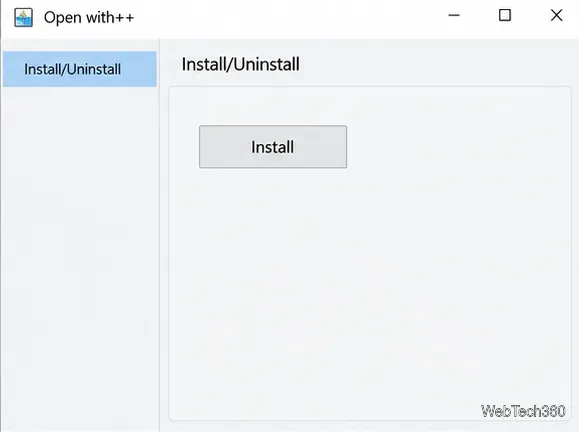
Open the application from the extracted folder, choose Install/Uninstall, then click Install. This registers the shell extension with File Explorer.
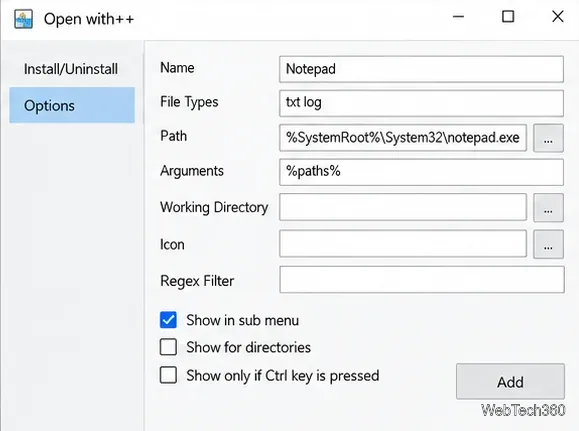
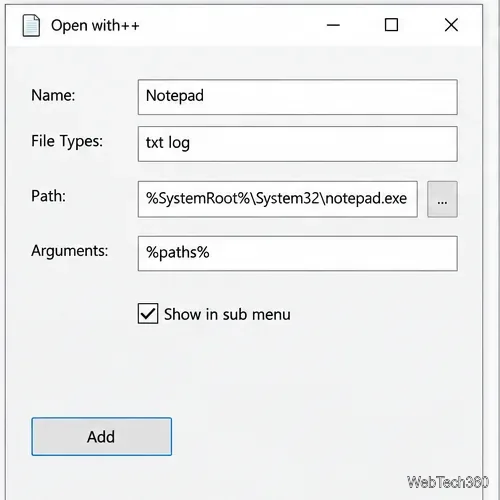
Choose Add, then enter a name, file extensions, and the executable to run. For a Notepad entry, use Notepad for Name, txt log for File Types, and %SystemRoot%\System32\notepad.exe for Path. Open with++ supports environment variables in paths.
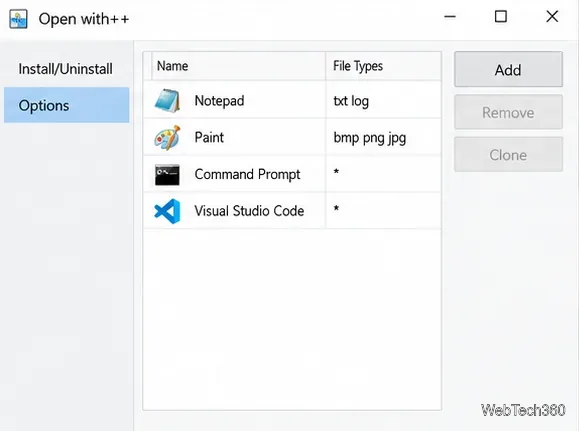
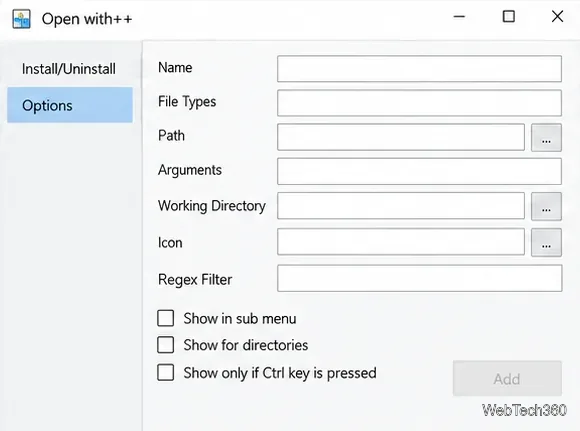
Enter extensions without a leading period and separate them with spaces, such as txt log. The project uses *.* for all file types; a narrower list keeps the command relevant. See Microsoft’s file extension guide if you are unsure of a file’s extension.
In Arguments, use %paths% when the program expects the selected file path. Open with++ expands it and adds quotation marks, so do not quote the macro yourself. Add other switches only in the format specified by the app’s documentation.
Leave Working Directory, Icon, and Regex Filter blank unless needed. Check Show in sub menu to nest the command, or clear it to show the command at the top level. Click Add to save.
Right-click a matching file, point to Open with++, and select your command. If you used *.*, it may appear for files the target program cannot open.
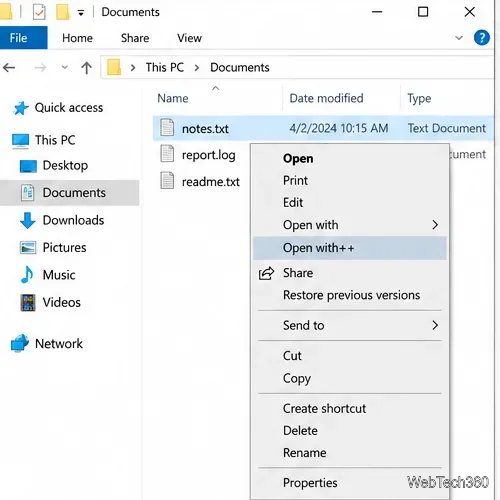
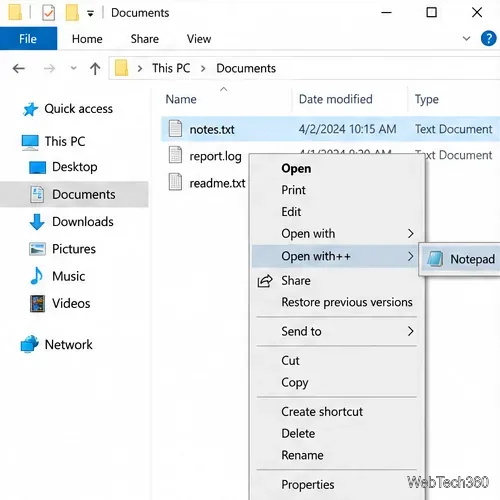
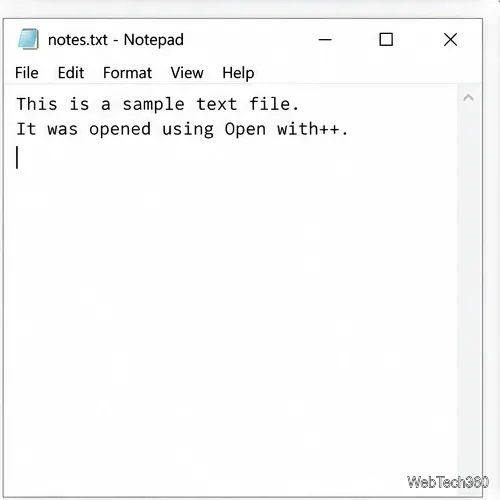
If the command is missing, check the file extension, installation status, and Show in sub menu setting. If it appears but does not launch the file, verify Path and the app’s argument syntax. Reopen File Explorer; if the menu still does not refresh, restart Windows Explorer in Task Manager or sign out and back in.
To remove just one custom entry, reopen the Open with++ manager, select that command, and choose Remove. This leaves the shell extension installed for your other commands.
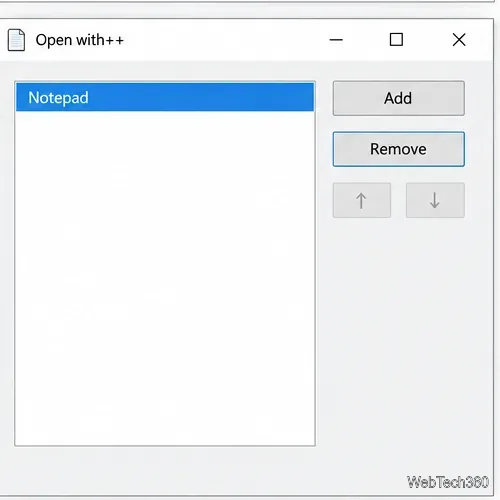
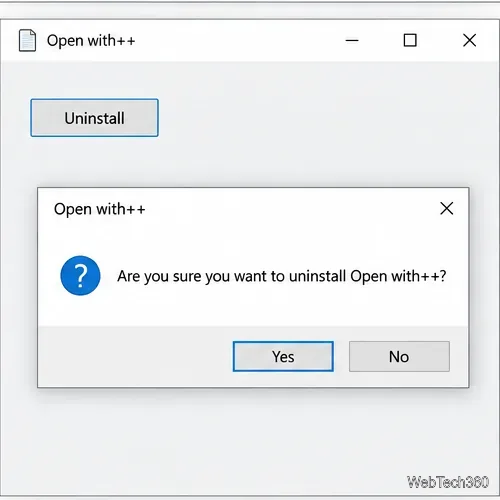
To remove the menu, open Install/Uninstall and choose Uninstall. The maintainer notes that a restart, sign-out, or restart of processes that loaded the extension may be needed. Windows Explorer can be restarted from Task Manager.
Use Open with++ for a repeatable command; use Windows’ built-in Open with for a one-time choice. To change the default app, open Settings > Apps > Default apps and select the file type, as explained in Microsoft’s default apps guide.
Microsoft ended standard Windows 10 support on October 14, 2025; keep the PC on a supported security update plan.
Prepare Java or Bedrock on Windows 10 for offline single-player, enable the right Xbox setting, and back up your local Minecraft worlds.
Change a file type icon in Windows 10 while keeping its current default app. Follow the FileTypesMan steps, handle icon picker issues, and restore the original setting.
Set PhysX in NVIDIA Control Panel on Windows 10, understand Auto-select vs. CPU or GPU, and learn when to use Windows Graphics settings instead.
Compare six free office suites for documents, spreadsheets, and presentations, including browser-based collaboration and offline desktop options.
Turn on Notepad’s Status Bar to see the current line and column in Windows 10, troubleshoot a disabled option, and learn when you need a line-number gutter.
Display a custom Windows dialog with a short PowerShell command, Command Prompt, or a reusable .bat or .ps1 file, including a title, icon, and buttons.
Fix Windows 10 update error 0x80071160 with Microsoft’s troubleshooter, a safe update-cache reset, DISM and SFC repairs, and a careful manual-install check.
Create a Windows 10 UEFI installer with Microsoft’s Media Creation Tool or Rufus, then boot and install safely without wiping the wrong drive.
Stop individual Edge tabs from crowding the Windows 10 Alt+Tab switcher. Change one Multitasking setting, limit recent tabs, and check why the option may be missing.
Enable Adobe’s PDF thumbnail handler, correct File Explorer’s icon settings, rebuild the thumbnail cache, and check OneDrive files that are not stored locally.








