How to Play Minecraft Offline on Windows 10: Java and Bedrock

Prepare Java or Bedrock on Windows 10 for offline single-player, enable the right Xbox setting, and back up your local Minecraft worlds.
To add an alternative Microsoft account to Windows 10 for app sign-ins, open Settings > Accounts > Email & accounts. Under Accounts used by other apps, choose Add a Microsoft account and complete the sign-in prompts. This connects another account for compatible apps without changing the Microsoft account or local account you use to sign in to Windows.
This procedure is for an app account, not a second Windows user profile. If another person needs their own desktop, files, and sign-in, go to Settings > Accounts > Other users and add a user instead. Microsoft's Windows account guide describes both paths.
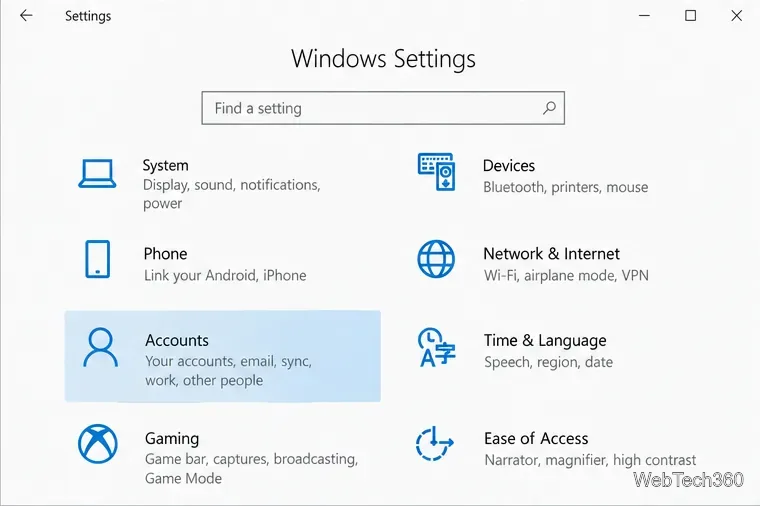
Press Windows key + I to open Settings, select Accounts, then choose Email & accounts in the left pane. Stay on this page; do not choose Your info or a control that changes the account used to sign in to Windows.
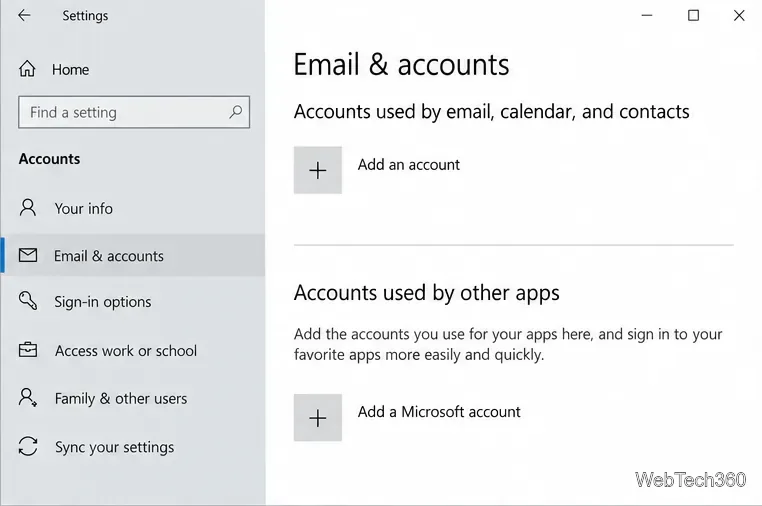
Scroll to Accounts used by other apps. Choose Add a Microsoft account. Windows 10 also has a separate section for accounts used by email, calendar, and contacts; use the lower app-account section for this workflow. If you are adding an organizational identity, choose Add a work or school account instead, if that option is available.
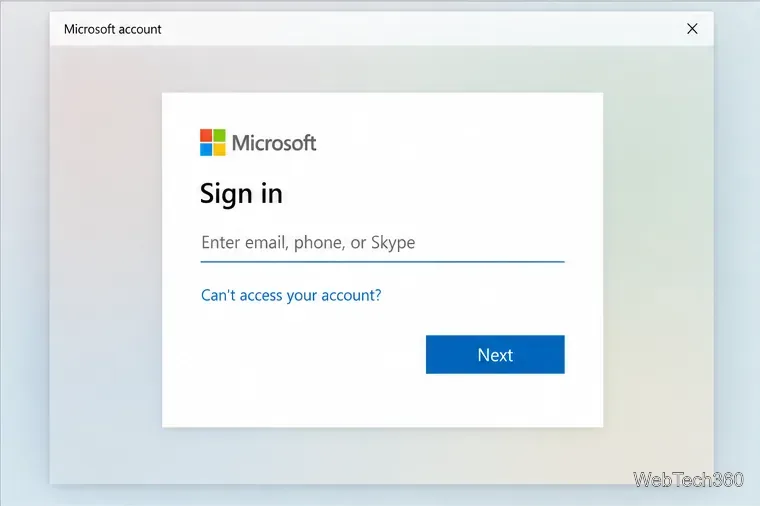
Enter the email address, phone number, or Skype name associated with the second personal Microsoft account, select Next, and follow the prompts. You may be asked for a password, a verification code, or another sign-in method based on the account's security settings. If you do not have an account yet, use the create-account option shown in the sign-in flow.
Use the alternative account's own credentials. Do not enter the Windows account password unless it is also the password for that Microsoft account. If the sign-in page closes or reports a problem, check the account address and internet connection, then repeat the steps. A work-managed PC may also restrict which accounts can be connected.
After sign-in, Windows should list the account under Accounts used by other apps. Open the Microsoft app you want to use and choose this account when the app asks you to sign in. If it automatically opens a different account, look for an account switcher or sign-out option inside that app, then sign back in with the alternative address.
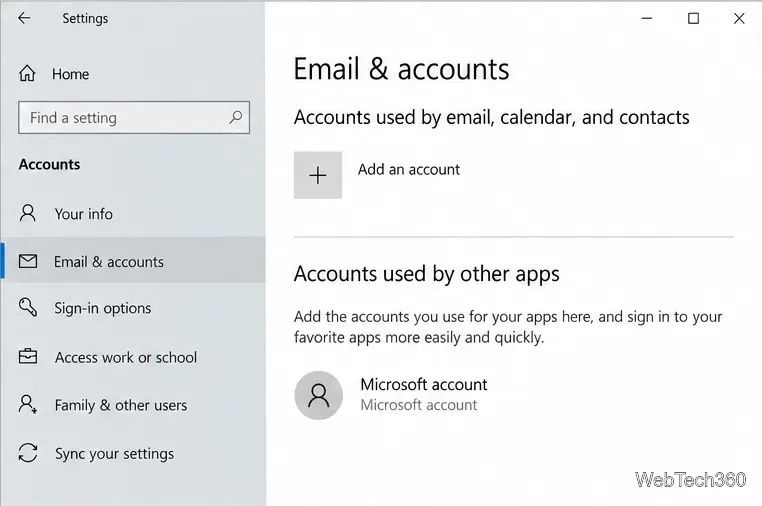
Adding an account here makes it available to compatible apps on the PC. It does not replace the account shown under Your info, create a separate Windows profile, or guarantee that every app will automatically use the new identity. Apps can keep their own saved sign-ins, require you to choose an account, or limit which account types they accept. For that reason, finish the selection in the app itself.
Some older Windows 10 instructions mention an account-use dropdown with wording such as “Microsoft apps can sign me in.” The choices and labels can depend on the Windows build and account state, and Microsoft's current instructions focus on adding the account and following the prompts. If that dropdown is not present, the account can still be added; select it from the app's sign-in screen instead.
Windows Search can use accounts that were added for other Microsoft apps. If Cloud content search is enabled for a Microsoft account, search may include results from services such as personal OneDrive and Outlook. Review Settings > Search > Permissions & History if you do not want Windows Search to use cloud content. Microsoft's Windows Search and Privacy guide explains the connected-account setting.
To disconnect the account, return to Settings > Accounts > Email & accounts, select the entry under Accounts used by other apps, and use the removal option if Windows shows one. This removes the sign-in from the device; it does not close or delete the Microsoft account. If an app has its own saved session, sign out or switch accounts there too.
Windows 10 still runs, but Microsoft ended standard support on October 14, 2025. PCs outside an applicable Extended Security Updates program no longer receive standard security fixes or technical support. See Microsoft's Windows 10 end-of-support guidance if you plan to keep using the device.
Prepare Java or Bedrock on Windows 10 for offline single-player, enable the right Xbox setting, and back up your local Minecraft worlds.
Change a file type icon in Windows 10 while keeping its current default app. Follow the FileTypesMan steps, handle icon picker issues, and restore the original setting.
Set PhysX in NVIDIA Control Panel on Windows 10, understand Auto-select vs. CPU or GPU, and learn when to use Windows Graphics settings instead.
Compare six free office suites for documents, spreadsheets, and presentations, including browser-based collaboration and offline desktop options.
Turn on Notepad’s Status Bar to see the current line and column in Windows 10, troubleshoot a disabled option, and learn when you need a line-number gutter.
Display a custom Windows dialog with a short PowerShell command, Command Prompt, or a reusable .bat or .ps1 file, including a title, icon, and buttons.
Fix Windows 10 update error 0x80071160 with Microsoft’s troubleshooter, a safe update-cache reset, DISM and SFC repairs, and a careful manual-install check.
Create a Windows 10 UEFI installer with Microsoft’s Media Creation Tool or Rufus, then boot and install safely without wiping the wrong drive.
Stop individual Edge tabs from crowding the Windows 10 Alt+Tab switcher. Change one Multitasking setting, limit recent tabs, and check why the option may be missing.
Enable Adobe’s PDF thumbnail handler, correct File Explorer’s icon settings, rebuild the thumbnail cache, and check OneDrive files that are not stored locally.








