How to Schedule a Wallpaper Change in Windows 10

Use Windows 10’s built-in slideshow for interval rotation or schedule an exact daily wallpaper change with Task Scheduler and a short PowerShell script.
If you want to add events to a calendar on Windows 10 today, use the new Outlook for Windows rather than the old built-in Calendar app. Microsoft ended support for Windows Mail, Calendar, and People on December 31, 2024, and those apps can no longer send or receive email or calendar events. New Outlook is the supported replacement and is available on Windows 10 version 17763.0 or later.
If the old Calendar app is still installed, opening it may direct you to Outlook. You can also install new Outlook from the Microsoft Store. Microsoft explains the transition in its Mail and Calendar retirement notice and its new Outlook setup guide.
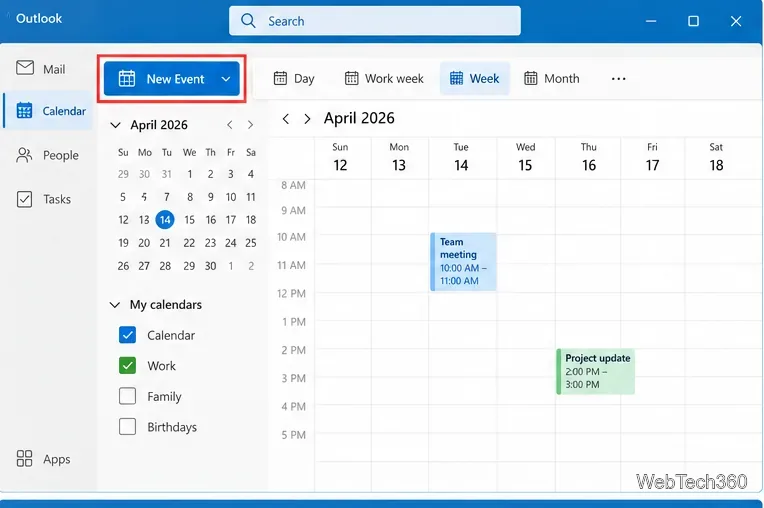
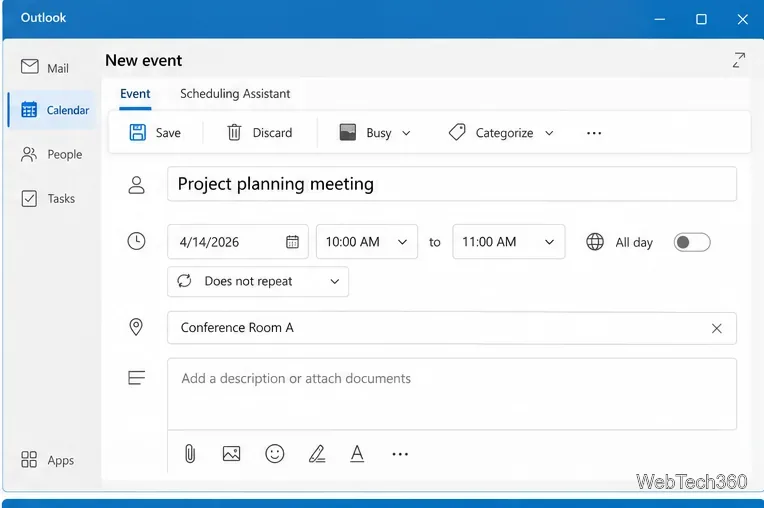
Microsoft's current Outlook calendar instructions also support inviting attendees, adding a location, creating recurring events, and using Scheduling Assistant when that feature is available for the account.
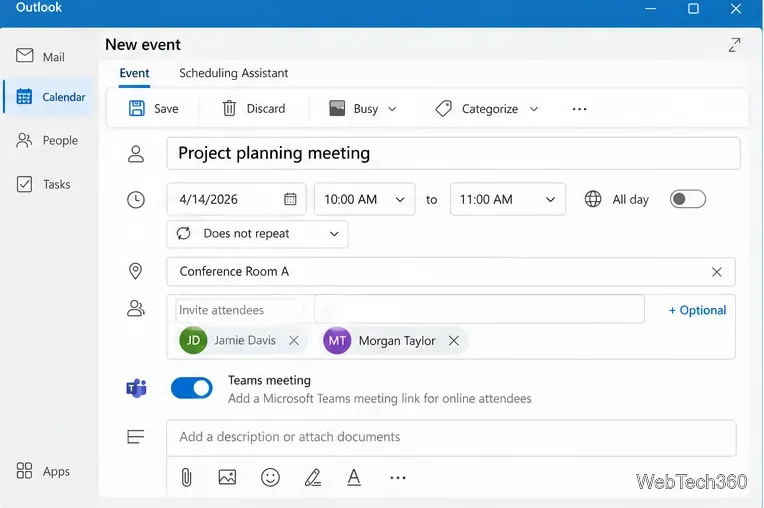
For a meeting, enter one or more people in the attendee field. If your account supports Microsoft Teams, you can turn on the Teams meeting option before sending the invitation. Outlook adds the meeting information to the invitation after you send it.
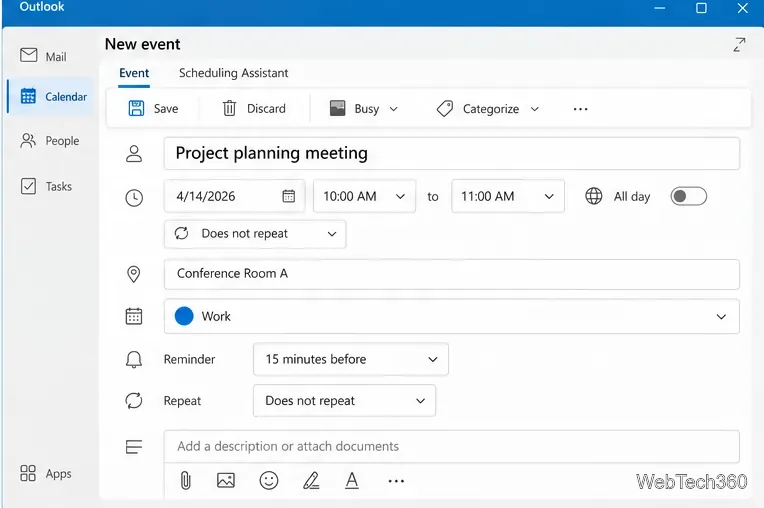
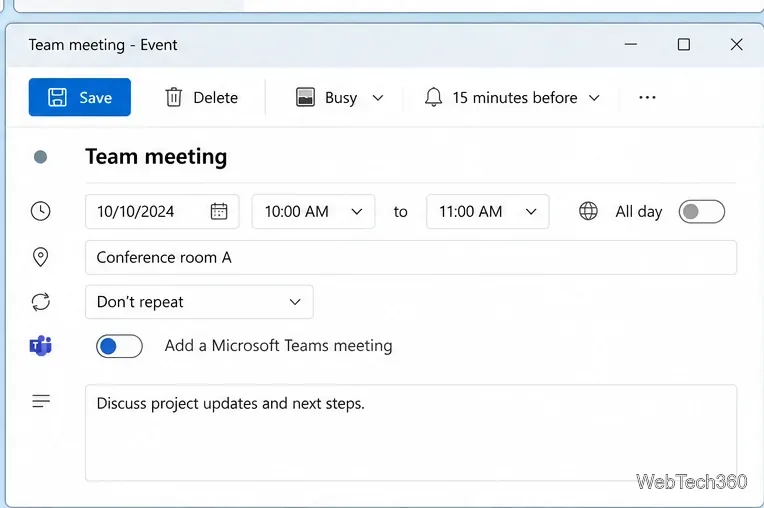
Use the reminder control to choose when Outlook should alert you. For repeating appointments, use the repeat menu. If several calendars are connected, select the calendar you want before saving so the event is stored in the correct account rather than another personal or work calendar.
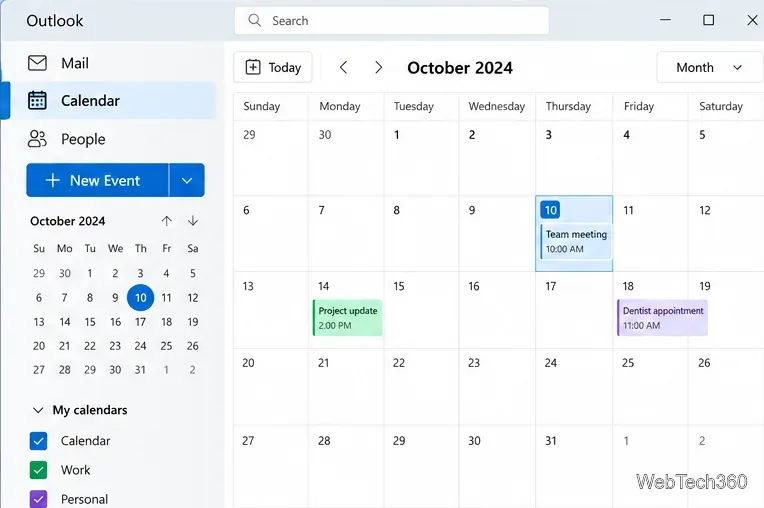
New Outlook can display multiple calendars at the same time. Check or clear the calendars in the left pane to control what appears in the main view. This is useful when you keep work, personal, family, or other calendars separate.
New Outlook supports Microsoft accounts, Microsoft 365 work or school accounts, Gmail, Yahoo, iCloud, and other supported account types. To add another calendar account:
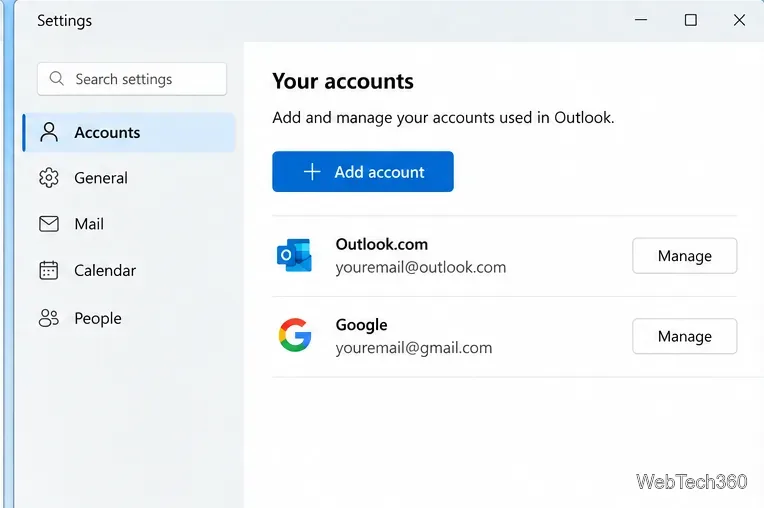
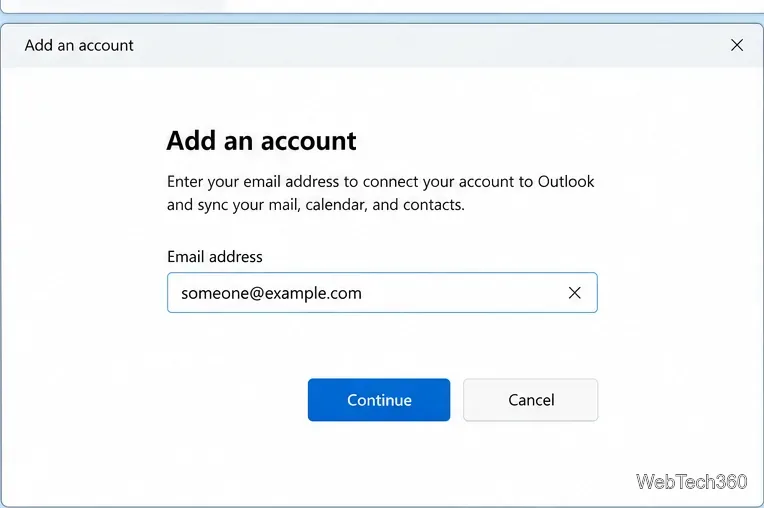
See Microsoft's account setup instructions for Outlook for Windows for current provider-specific guidance. Some services may ask you to approve access in a browser or use an app-specific password.
Select an existing event to open it. Change the details and select Save, or select Delete to remove it. For meetings with attendees, Outlook may ask whether an update or cancellation should be sent. For a recurring series, choose carefully whether you are changing one occurrence or the entire series.
Older Windows 10 builds let you click the taskbar clock and create an event directly from the calendar flyout. That workflow belonged to the retired Windows Calendar experience and should not be the primary method now. Open new Outlook and create the event there instead.
Windows 10 itself reached end of support on October 14, 2025. PCs still run, but standard technical assistance and regular security updates have ended unless the device is covered by an applicable Extended Security Updates program. Microsoft provides the current status on its Windows 10 end-of-support page.
Use Windows 10’s built-in slideshow for interval rotation or schedule an exact daily wallpaper change with Task Scheduler and a short PowerShell script.
Choose a built-in alert tone or WAV file for Windows 10 message notifications, test the change, and troubleshoot apps that keep playing another sound.
Arrange Windows 10 apps in top-and-bottom rows with the taskbar’s Show windows stacked command, or create a reusable two-zone layout with PowerToys FancyZones.
Keep each display at its recommended resolution, arrange Windows 10 monitors accurately, and use MouseUnSnag to cross mismatched edges and sticky corners.
Find whether your connected Wi-Fi uses WPA2, WPA3, or an older security mode in Windows 10 with Settings, Command Prompt, or Control Panel.
Automatically lock Windows 10 after inactivity with a screen saver timer and sign-in prompt, then check how sleep settings affect the result.
Add a persistent colored ring around your Windows 10 mouse pointer with PenAttention, or use built-in pointer tools and PowerToys for temporary highlights.
Keep the Xbox Game Bar Performance widget visible over other windows on Windows 10, with CPU, GPU, and RAM readings you can position and unpin.
Capture two or more Windows 10 displays in one OBS video. Add a Display Capture source for each monitor, fit the canvas, and test the layout.
Create a GUID on Windows 10 with [guid]::NewGuid() or New-Guid, reuse it in a script, and learn when to look up an existing identifier.








