How to Play Minecraft Offline on Windows 10: Java and Bedrock

Prepare Java or Bedrock on Windows 10 for offline single-player, enable the right Xbox setting, and back up your local Minecraft worlds.
To add a Steam game to the Windows 10 Start menu, create a shortcut from the Steam desktop client and place that shortcut in your personal Start Menu Programs folder. It will then appear in the alphabetical app list, where you can right-click it and choose Pin to Start to make a tile. This works even when Steam or the game is installed on a different drive from Windows.
Use a Steam-created shortcut instead of pinning a game’s executable from its installation folder. Some games need Steam to start them correctly, and their folders can contain several executable files. The Steam shortcut points Windows to the game through the client.
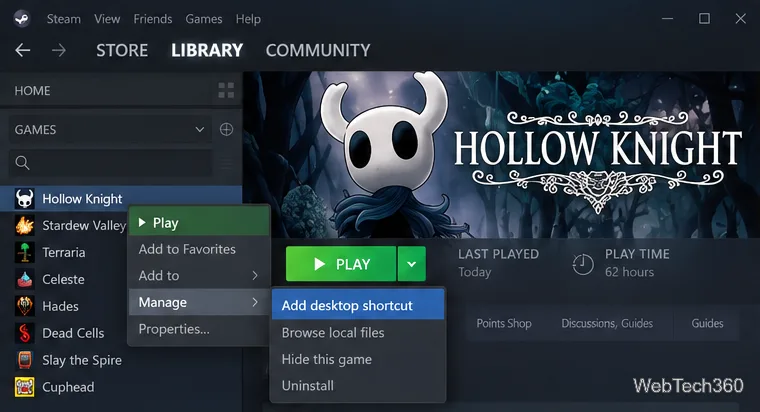
Open the Steam desktop client and select Library. Right-click the game, point to Manage, and select Add desktop shortcut. Steam places a shortcut for that game on your Windows desktop. If the game is already visible in the Start menu’s app list, you can skip to step 4.
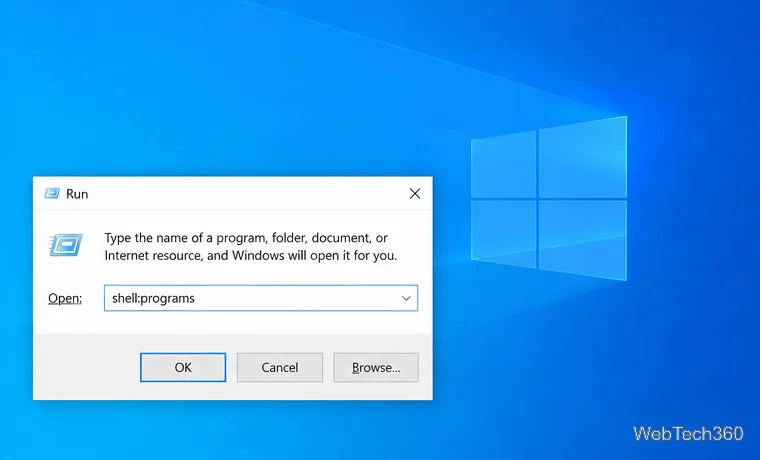
Press Windows key + R to open the Run dialog. Enter shell:programs and press Enter. File Explorer opens the Programs folder for your Windows account, usually at %APPDATA%\Microsoft\Windows\Start Menu\Programs. The shell command saves you from typing your account name or navigating through the hidden AppData folder.
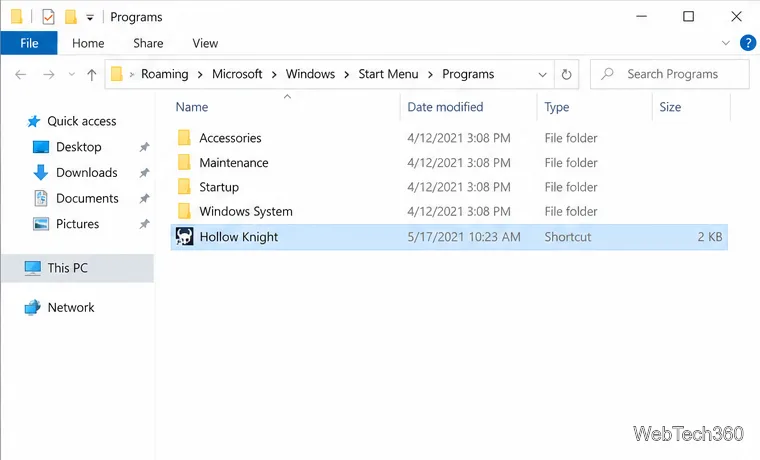
Return to the desktop and locate the shortcut Steam created. Right-click it and select Copy, then switch to the Programs folder and press Ctrl + V. Copying leaves the desktop shortcut in place; choose Cut instead if you want to move it. Give the shortcut a clear name if needed, such as the game’s title. Keep it directly inside Programs if you want a standalone entry in the alphabetical list.
If you prefer to group several games, create a folder such as Steam Games inside Programs and put their shortcuts there. Windows will show a grouped folder in the app list. You do not need to put the shortcut in Steam’s own installation directory.
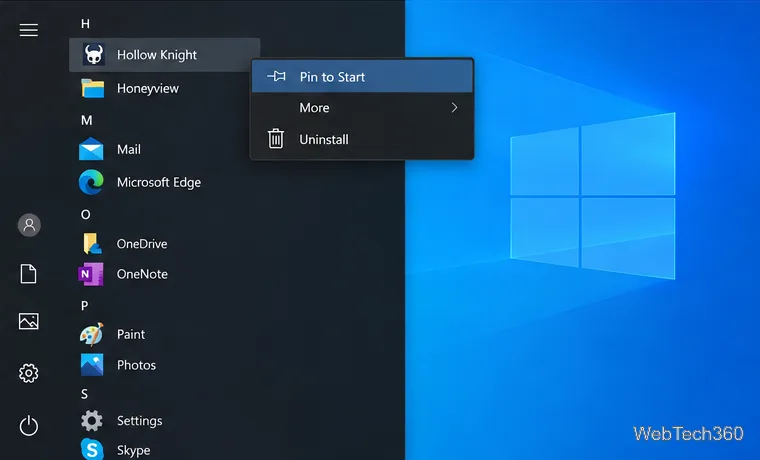
Open Start and find the game in the alphabetical app list. Right-click its name and select Pin to Start. Open the pinned area to see the new tile; you can drag it to a convenient position or leave it as an app-list shortcut without creating a tile.
Windows 10 may show a game that already has a Start menu shortcut. In that case, right-click the existing entry and choose Pin to Start; there is no need to create a second shortcut.
Check that the shortcut is in the folder opened by shell:programs, not in the desktop or in Steam’s library folder. Confirm that the file is a shortcut and not a copied game executable. Close and reopen Start after pasting. If you put the shortcut in a subfolder, look for that folder in the app list.
If you moved the installation to another Steam library, first make sure Steam recognizes the game in Library. Then create a fresh desktop shortcut through Manage → Add desktop shortcut and replace the old shortcut in Programs. A shortcut made directly to a game executable can also stop working if the installation path changes.
Make sure you are right-clicking the game’s entry in the Windows 10 app list. A file selected in File Explorer has a different context menu. Microsoft documents pinning apps or shortcuts from Start search and File Explorer; the exact context-menu options can depend on the selected item.
Microsoft ended Windows 10 support on October 14, 2025. These Start menu steps still apply to an existing Windows 10 installation, but supported security updates and technical assistance are no longer provided through standard support. See Microsoft’s Windows Start menu instructions and its support notice for details.
For Steam shortcuts and launch settings, consult Steam Support’s guide to game launch options. Steam’s documentation notes that launch options can also be set for a game shortcut.
Prepare Java or Bedrock on Windows 10 for offline single-player, enable the right Xbox setting, and back up your local Minecraft worlds.
Change a file type icon in Windows 10 while keeping its current default app. Follow the FileTypesMan steps, handle icon picker issues, and restore the original setting.
Set PhysX in NVIDIA Control Panel on Windows 10, understand Auto-select vs. CPU or GPU, and learn when to use Windows Graphics settings instead.
Compare six free office suites for documents, spreadsheets, and presentations, including browser-based collaboration and offline desktop options.
Turn on Notepad’s Status Bar to see the current line and column in Windows 10, troubleshoot a disabled option, and learn when you need a line-number gutter.
Display a custom Windows dialog with a short PowerShell command, Command Prompt, or a reusable .bat or .ps1 file, including a title, icon, and buttons.
Fix Windows 10 update error 0x80071160 with Microsoft’s troubleshooter, a safe update-cache reset, DISM and SFC repairs, and a careful manual-install check.
Create a Windows 10 UEFI installer with Microsoft’s Media Creation Tool or Rufus, then boot and install safely without wiping the wrong drive.
Stop individual Edge tabs from crowding the Windows 10 Alt+Tab switcher. Change one Multitasking setting, limit recent tabs, and check why the option may be missing.
Enable Adobe’s PDF thumbnail handler, correct File Explorer’s icon settings, rebuild the thumbnail cache, and check OneDrive files that are not stored locally.








