How to Automatically Restart a Crashed App on Windows 10
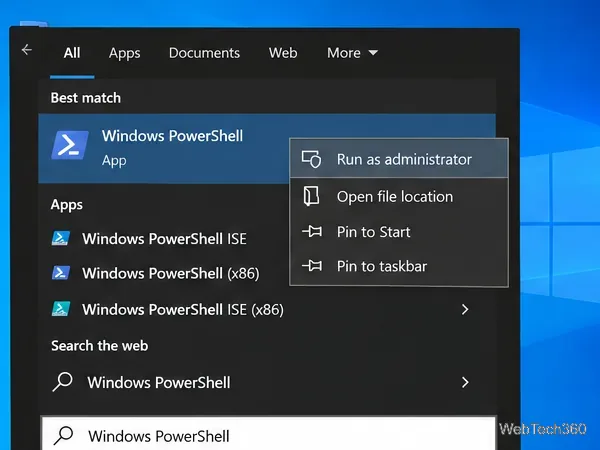
Set up a PowerShell watcher and Task Scheduler task to relaunch a Windows 10 desktop app after it closes, then learn how to test and stop it.
To adjust a Bluetooth headset’s stereo balance in Windows 10, use the separate Left and Right controls in its playback properties, if the driver exposes them. If the controls are missing or linked, an optional registry workaround can disable Bluetooth Absolute Volume synchronization. That setting does not guarantee independent channel controls.
Check the built-in controls first. Back up the registry before trying the workaround.
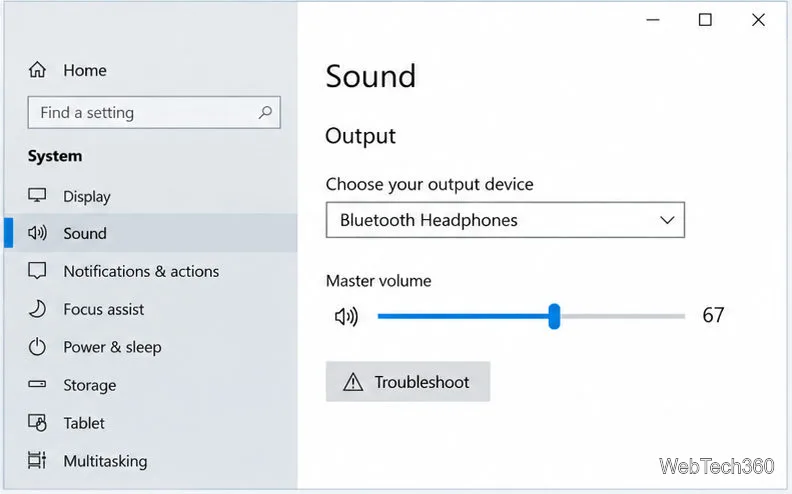
Connect the headphones, then select them as the Windows output device. Open Settings > System > Sound and check the output-device list. Windows 10 builds and audio drivers vary, so the classic Sound panel is the most reliable place to look for a separate balance dialog.
mmsys.cpl, and press Enter. This opens the classic Sound control panel.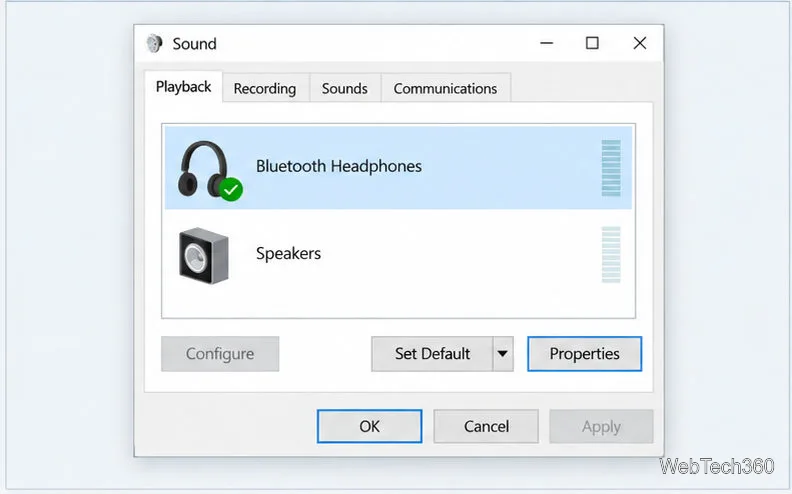
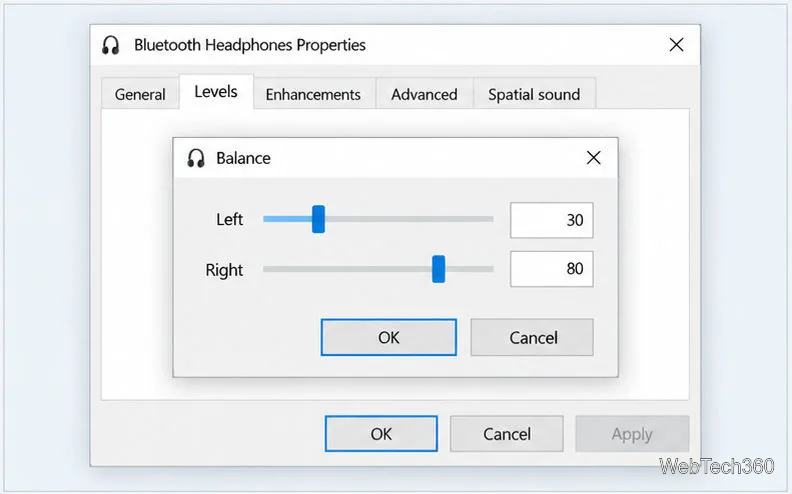
Balance shifts the relative level of the stereo channels; it is not a separate master volume for each earbud. If Balance is missing or the sliders remain linked, try the optional workaround. Silence from one ear calls for connection or hardware troubleshooting instead.
Bluetooth Absolute Volume synchronizes Windows’ volume control with a compatible headset over AVRCP. Microsoft’s Bluetooth accessory guidance describes Windows sending an absolute-volume command. A historical Microsoft Q&A thread documents a Windows 10 registry workaround to disable that synchronization. It may help some older setups, but it is not a universal left/right setting.
This change affects Bluetooth volume behavior systemwide: the Windows slider and headphone buttons may stop syncing. If you proceed, export the key first; see Microsoft’s registry backup guidance.
regedit, and press Enter. Approve the User Account Control prompt if it appears. In Registry Editor, go to HKEY_LOCAL_MACHINE\SYSTEM\ControlSet001\Control\Bluetooth\Audio\AVRCP\CT. Select the CT key in the left pane.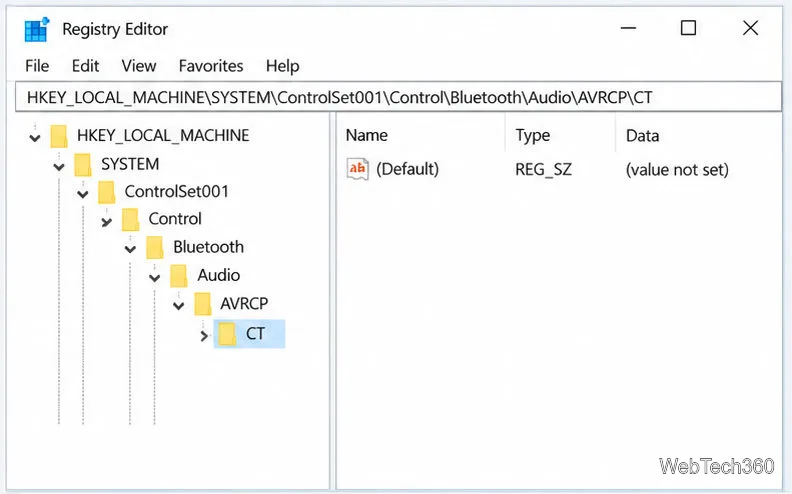
CT key and choose Export. Save the backup somewhere you can find again. This gives you a way to restore the key if you need to undo the change.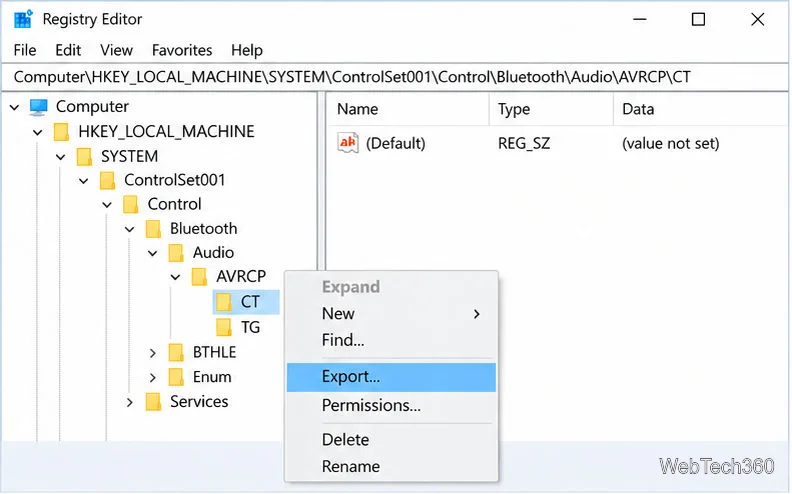
DisableAbsoluteVolume. If it exists, double-click it. If the CT key exists but the value does not, right-click an empty area in the right pane and select New > DWORD (32-bit) Value. Name the value DisableAbsoluteVolume. Set its data to 1, then select OK. Do not create the registry path yourself if the CT key is missing; the workaround may not apply to that installation.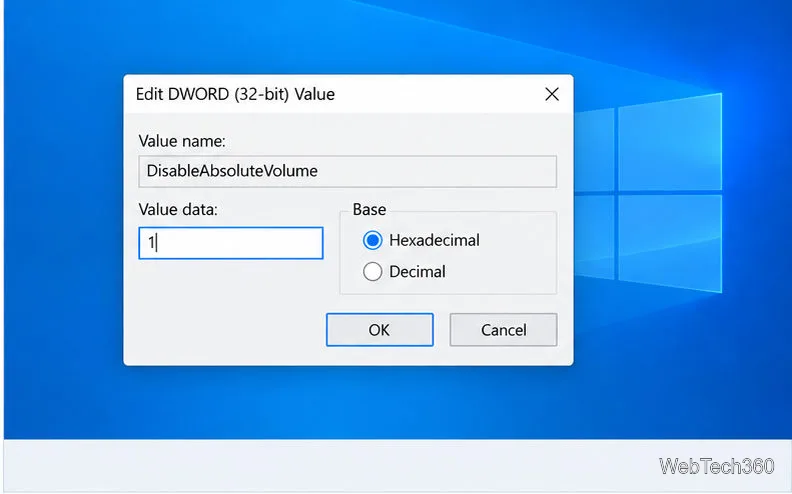
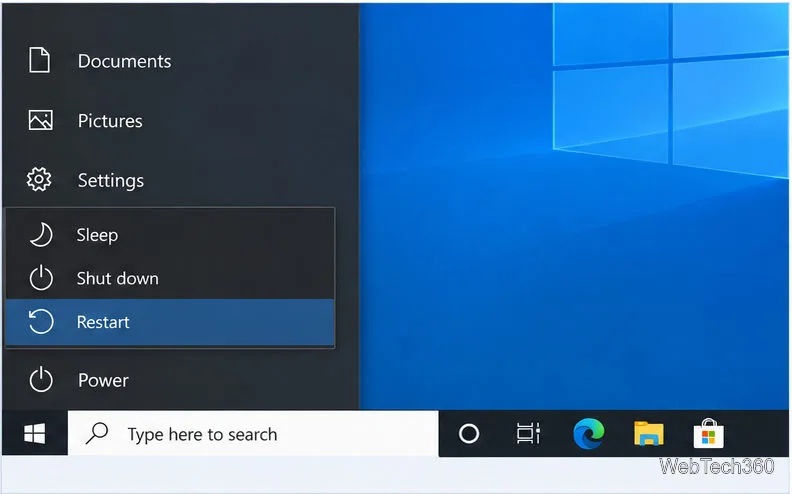
After restarting, revisit mmsys.cpl and check Levels > Balance. If separate controls appear, adjust them and test stereo audio. If they are still missing or linked, this headset-and-driver combination does not expose independent balance through Windows; check the headphone maker’s app or your audio player for a balance setting.
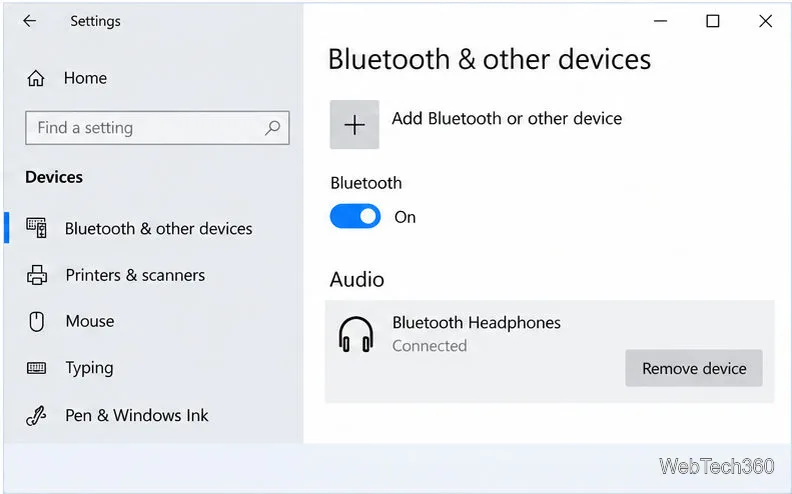
Remove and pair the device again. In Windows 10, open Settings > Devices > Bluetooth & other devices, select the headphones, and choose Remove device. Put the headphones into pairing mode using the manufacturer’s instructions, choose Add Bluetooth or other device, and pair them again. Microsoft recommends removing and re-adding a Bluetooth device when it appears in Windows but will not connect.
If you want to undo the registry change, return to the same key and set DisableAbsoluteVolume to 0, or delete the value you created. Restart Windows afterward. If you exported the key, you can also restore that backup. For other Bluetooth connection or audio problems, use Microsoft’s Bluetooth troubleshooting steps.
Disabling Absolute Volume changes volume synchronization. It does not repair a failed earbud or force a driver to expose separate channel controls. Use Windows balance controls when available; treat the registry edit as a limited compatibility workaround.
Set up a PowerShell watcher and Task Scheduler task to relaunch a Windows 10 desktop app after it closes, then learn how to test and stop it.
Keep app icons out of the hidden overflow in Windows 10. Turn on the all-icons option, then manage system icons separately if one is still missing.
Change the saved username or password Windows uses for a mapped drive or shared folder through Credential Manager, then reconnect to verify access.
Set a lower Defender scan CPU target in PowerShell, handle the idle-scan exception, and verify which Windows 10 scans the setting affects.
Import a Bedrock .mcpack or .mcaddon on Windows 10, activate it for a new or existing world, and avoid confusing add-ons with Java mods.
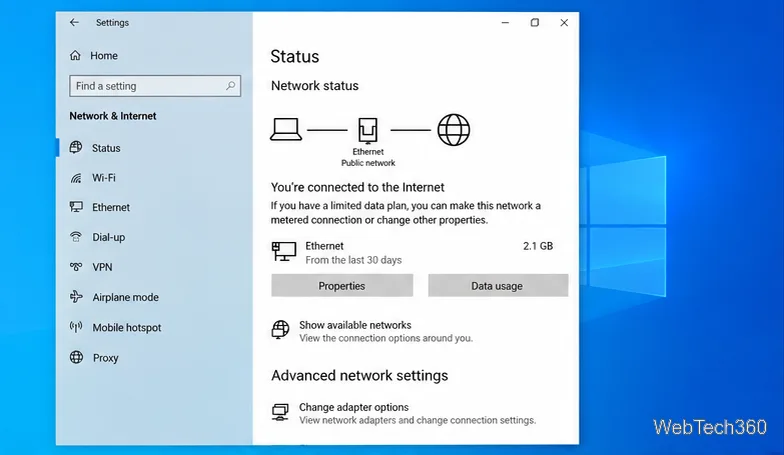
Restore the Windows 10 hotspot by checking the internet source and wireless adapter, repairing its driver, and saving Network reset for last.
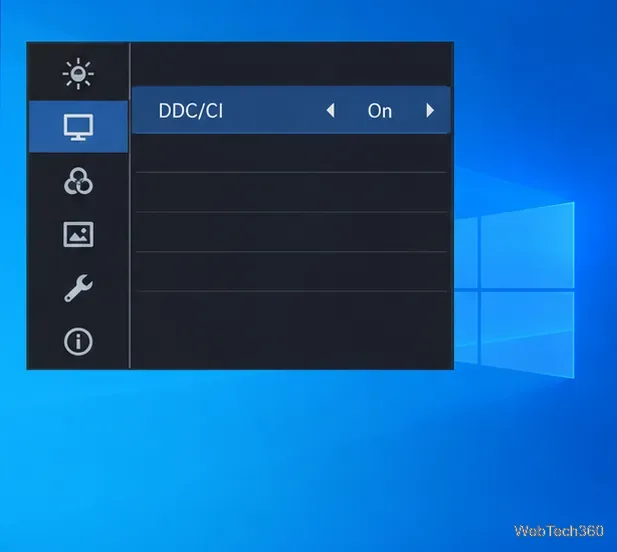
Set daytime and nighttime brightness levels on Windows 10 with ClickMonitorDDC 7.2, and learn about DDC/CI limits and the Night light alternative.
Find Windows 10’s left/right balance controls for Bluetooth headphones, with a cautious registry workaround when volume controls stay linked.
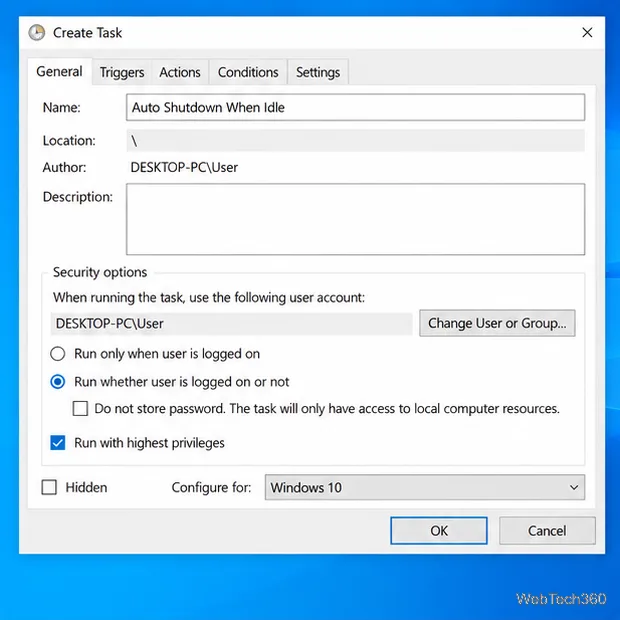
Set up Task Scheduler’s On idle trigger to shut down Windows 10 with a one-minute cancellation window, and learn how Windows defines idle.
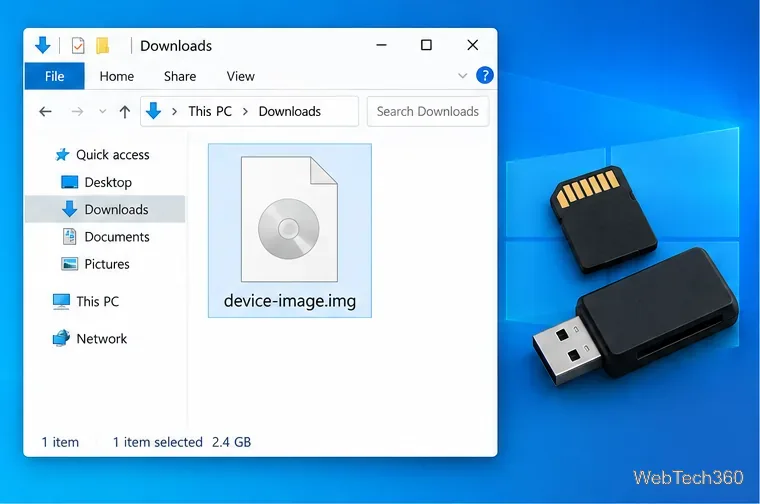
Learn how to burn a disc image to an SD card on Windows 10 with balenaEtcher, verify the target drive, and check whether the finished card can boot.