How to Automatically Restart a Crashed App on Windows 10
Set up a PowerShell watcher and Task Scheduler task to relaunch a Windows 10 desktop app after it closes, then learn how to test and stop it.
To reduce the CPU used by eligible Microsoft Defender Antivirus scans on Windows 10, set a lower scan average CPU target in an elevated PowerShell window. For example, a value of 30 asks the scanning engine to aim for an average CPU load of 30 percent. This is guidance rather than a hard cap, and it does not throttle real-time protection scans.
The PowerShell preference is ScanAvgCPULoadFactor. Microsoft documents a default value of 50 and accepts values from 5 through 100; a value of 0 disables CPU throttling. A lower number can reduce the impact of eligible scans, but it can also make them take longer. Start with a moderate value such as 30, then adjust it upward if scheduled scans are taking too long.
The setting does not control every Defender task. Real-time protection continues checking files as they are accessed. Manual scans can also ignore the CPU target when the device is configured to throttle scheduled scans only. Therefore, this command is most useful for reducing CPU pressure from scheduled scans; it is not a way to cap all activity from MsMpEng.exe.
30 with an integer from 5 to 100 that suits your PC.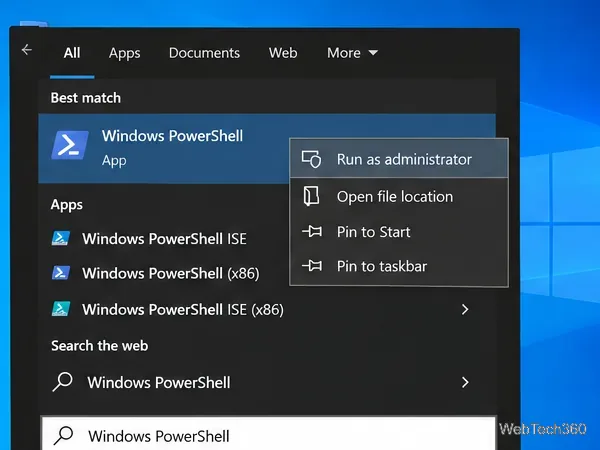
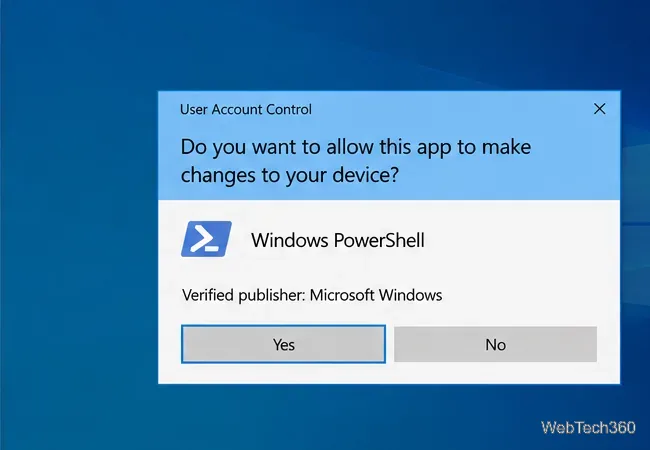
Set-MpPreference -ScanAvgCPULoadFactor 30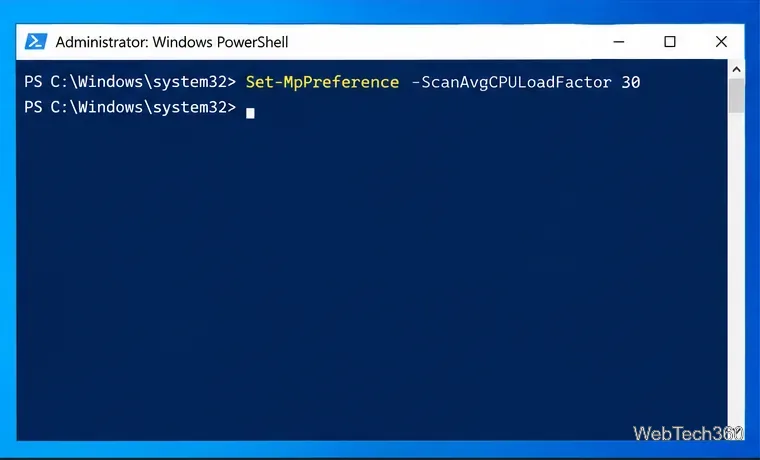
PowerShell normally returns to the prompt without printing a success message. Do not use 0 if you are trying to reduce CPU use: zero turns throttling off. A value of 5 is the lowest documented setting, though a very low target can lengthen a scan considerably.
There is an important exception. Windows Defender can be configured to run scheduled scans only when the PC is idle, and the separate DisableCpuThrottleOnIdleScans preference is enabled by default. When both idle-only scanning and this preference are enabled, the scan average CPU target is ignored during those idle scans.
If you want the target to apply during idle scheduled scans too, run this additional command in the same administrator window:
Set-MpPreference -DisableCpuThrottleOnIdleScans $falseThis tells Defender to throttle scheduled scans while the device is idle. It can make those scans last longer, so leave the default alone if you prefer the scan to finish faster when you are away. On a work-managed PC, Group Policy or Intune may enforce a different value.
Use Get-MpPreference to confirm what Defender reports. To show the relevant settings together, run:
Get-MpPreference | Select-Object ScanAvgCPULoadFactor, DisableCpuThrottleOnIdleScans, ScanOnlyIfIdleEnabled, ThrottleForScheduledScanOnly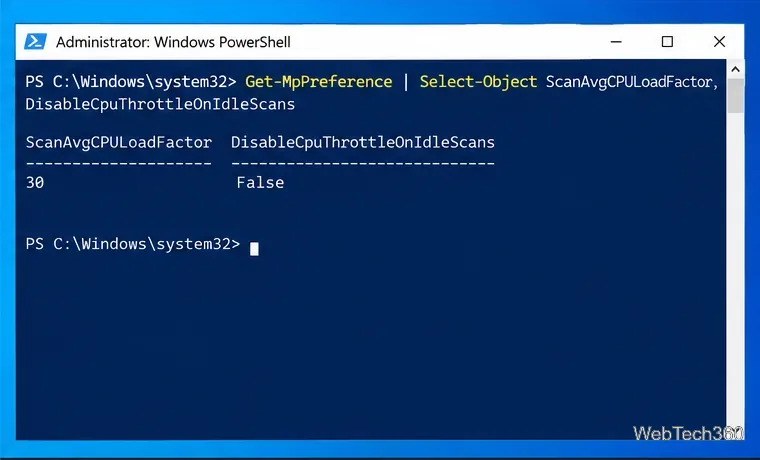
For the example above, ScanAvgCPULoadFactor should show 30. If you also ran the idle-scan command, DisableCpuThrottleOnIdleScans should show False. The other properties help explain why a particular scan may behave differently. If the value reverts or PowerShell reports that access is denied, check whether the PC is managed by an organization and whether a policy controls Defender settings.
First identify what is running. If the spike happens during a manual full scan, the scheduled-scan CPU target may not apply. If it occurs during real-time protection, changing this scan preference will not stop that work. Avoid disabling Defender or adding broad exclusions just to lower CPU use; either action can reduce protection.
For recurring scan slowdowns, Microsoft’s Defender Antivirus Performance Analyzer can record scan activity and help identify files, extensions, or processes that contribute to scan time. Use its findings to investigate a specific workload instead of guessing at exclusions. Microsoft generally recommends scheduled quick scans rather than routine scheduled full scans; full scans may take hours or days depending on the amount and type of data.
Support for standard Windows 10 editions ended on October 14, 2025. Microsoft says enrolled consumer devices can receive Extended Security Updates through October 12, 2027; other editions have their own servicing terms. Changing a Defender CPU preference does not extend Windows support or provide missing security updates.
References: Set-MpPreference reference; schedule scans with PowerShell; Defender scan best practices; Defender Performance Analyzer; Windows 10 end of support.
Set up a PowerShell watcher and Task Scheduler task to relaunch a Windows 10 desktop app after it closes, then learn how to test and stop it.
Keep app icons out of the hidden overflow in Windows 10. Turn on the all-icons option, then manage system icons separately if one is still missing.
Change the saved username or password Windows uses for a mapped drive or shared folder through Credential Manager, then reconnect to verify access.
Set a lower Defender scan CPU target in PowerShell, handle the idle-scan exception, and verify which Windows 10 scans the setting affects.
Import a Bedrock .mcpack or .mcaddon on Windows 10, activate it for a new or existing world, and avoid confusing add-ons with Java mods.
Restore the Windows 10 hotspot by checking the internet source and wireless adapter, repairing its driver, and saving Network reset for last.
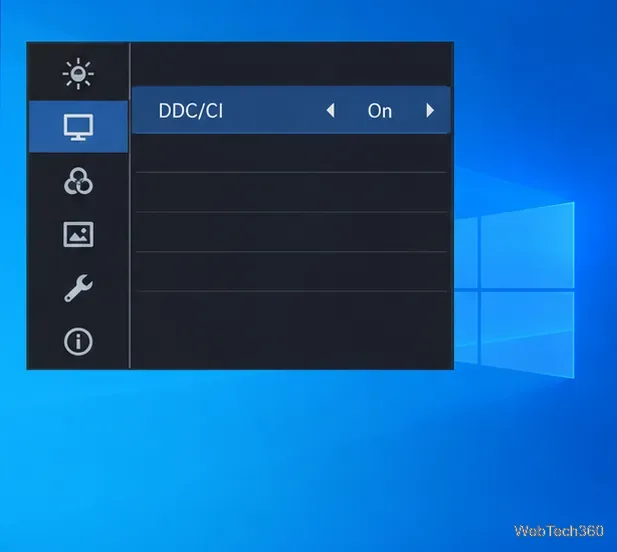
Set daytime and nighttime brightness levels on Windows 10 with ClickMonitorDDC 7.2, and learn about DDC/CI limits and the Night light alternative.
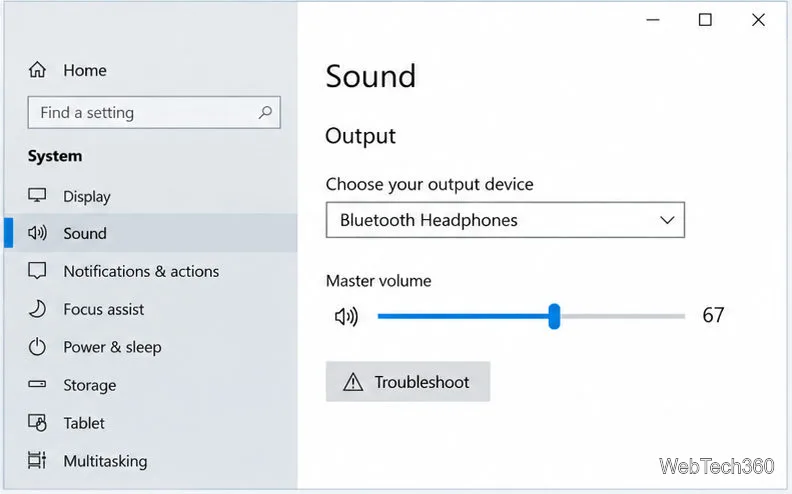
Find Windows 10’s left/right balance controls for Bluetooth headphones, with a cautious registry workaround when volume controls stay linked.
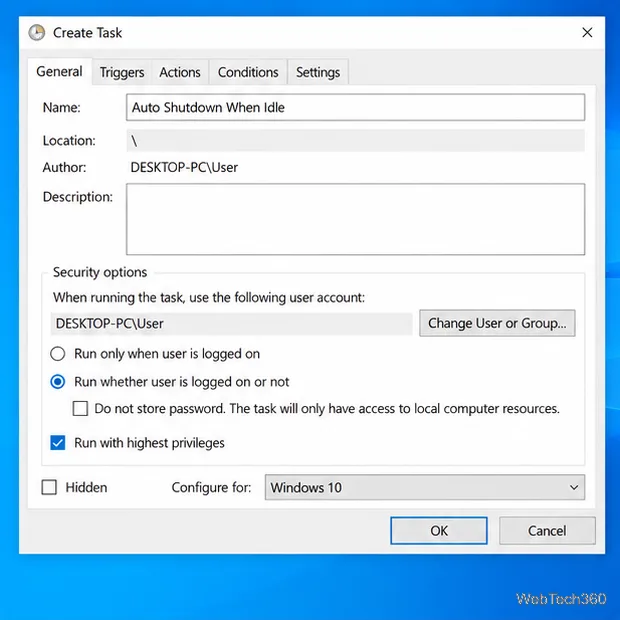
Set up Task Scheduler’s On idle trigger to shut down Windows 10 with a one-minute cancellation window, and learn how Windows defines idle.
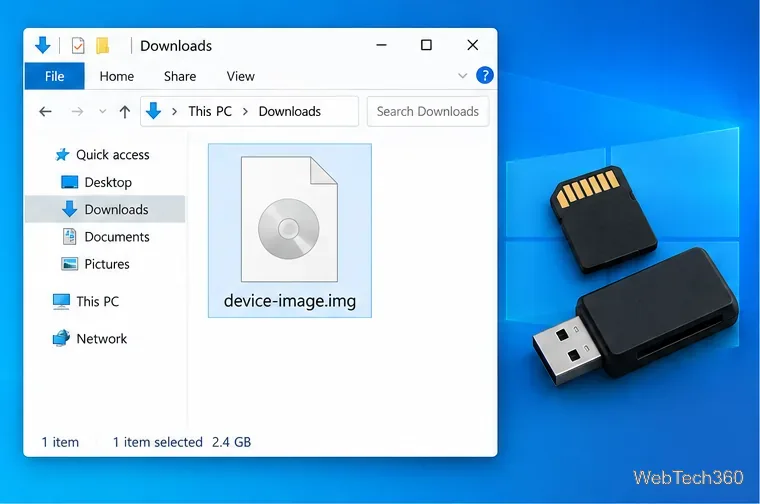
Learn how to burn a disc image to an SD card on Windows 10 with balenaEtcher, verify the target drive, and check whether the finished card can boot.