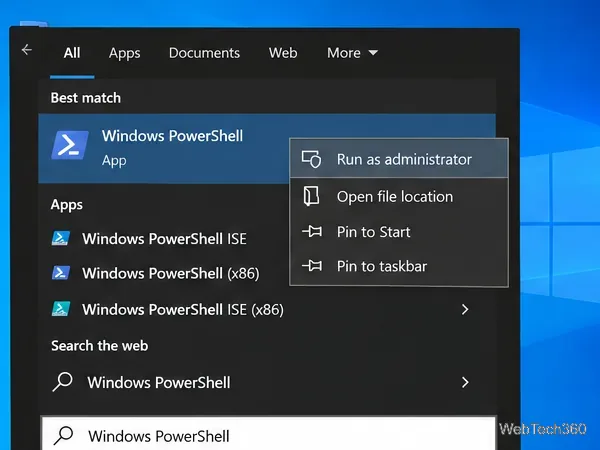
How to Automatically Restart a Crashed App on Windows 10
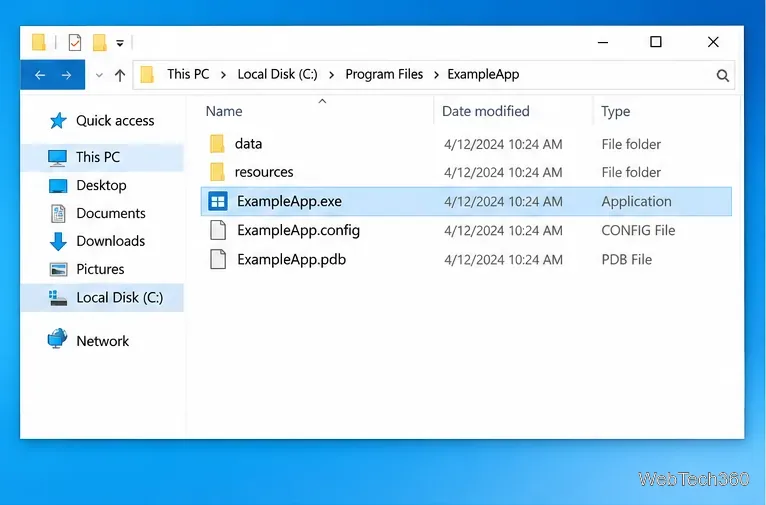
Set up a PowerShell watcher and Task Scheduler task to relaunch a Windows 10 desktop app after it closes, then learn how to test and stop it.
If Windows 10 says “We can’t set up mobile hotspot,” start by checking that the PC has working internet and that its Wi-Fi adapter is enabled. If those are fine, repair or roll back the wireless driver. A missing device named “virtual adapter” is not automatically the cause: adapter names and what Device Manager displays can vary by PC.
The hotspot shares a working connection over Wi-Fi, so it depends on both the internet source and the PC’s wireless adapter.
On the Windows 10 PC, open a webpage to verify the connection you plan to share. If it does not load, fix that connection first or select a different working source in the hotspot settings. Also make sure Airplane mode is off. When you want to share Ethernet or cellular internet over Wi-Fi, the Wi-Fi radio still needs to be available to create the hotspot.
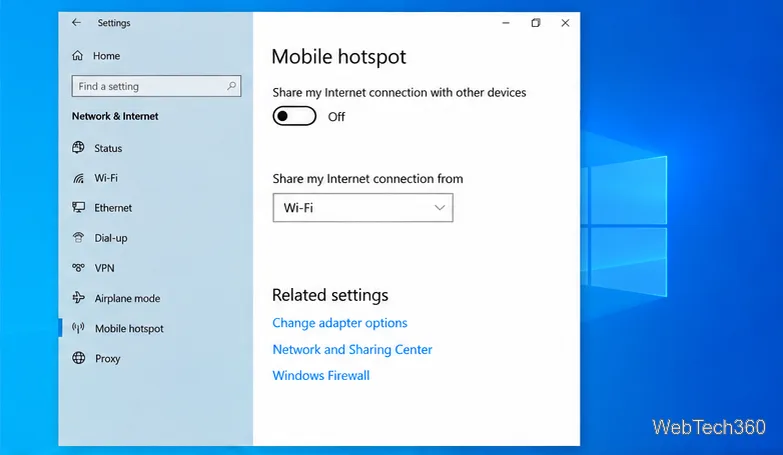
Open Start > Settings > Network & Internet > Mobile hotspot. Under Share my Internet connection from, select the connection that is currently online. Turn on Share my Internet connection with other devices. If you use Edit to change the network name or password, select Save before trying the switch again. Microsoft’s Mobile hotspot instructions describe the Windows 10 settings.
Type Device Manager in the taskbar search box and open it. Expand Network adapters. Look for the PC’s wireless adapter; its name may include Wi-Fi, Wireless, or the adapter maker’s name. If the category is collapsed, expand it before deciding the adapter is missing. A model name such as Intel or Realtek is normal, and names differ between computers.
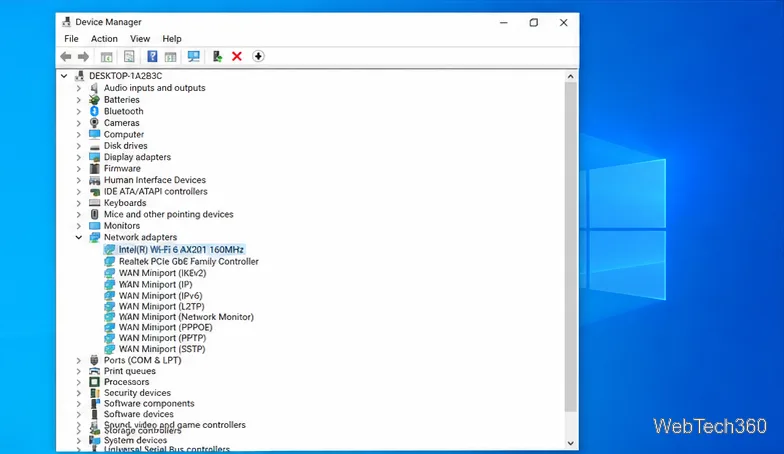
If the wireless adapter is marked disabled, right-click that adapter and choose Enable device. If the menu instead offers Disable device, the adapter is already enabled. You can choose View > Show hidden devices if you are checking for an adapter that is not listed, but do not enable every faded entry or change devices you cannot identify. In particular, Windows may not show a hotspot component with one fixed “virtual adapter” name.
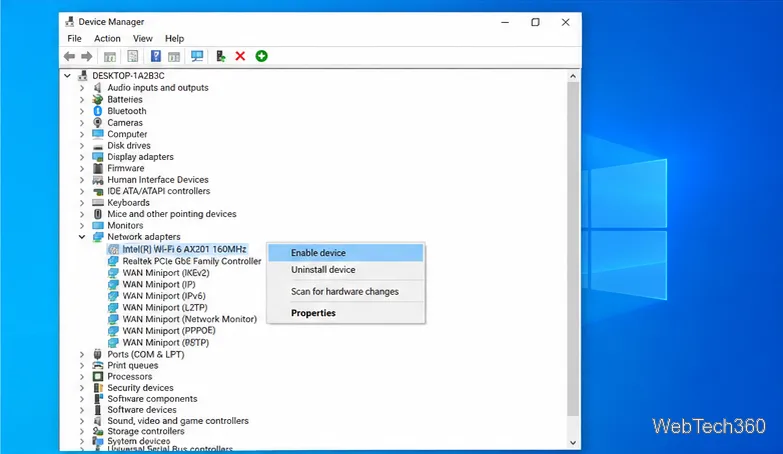
After enabling it, try Mobile hotspot again. If the adapter remains unavailable, restart the PC once and test again before changing its driver.
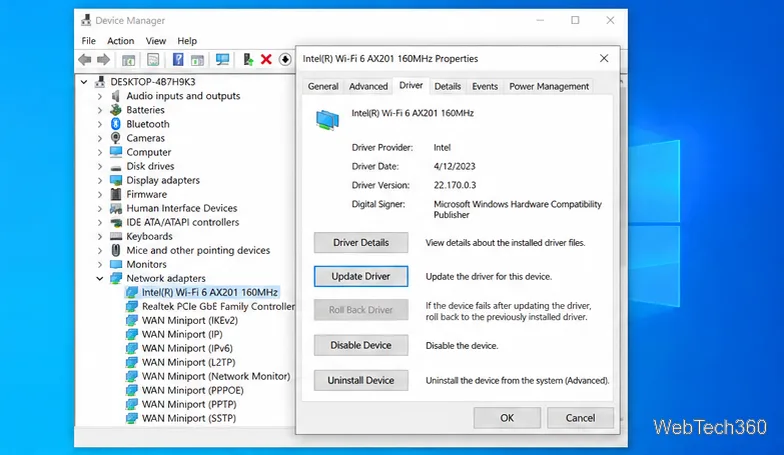
If the problem began after a driver or Windows update, right-click the wireless adapter, select Properties, and open the Driver tab. Choose Roll Back Driver if the button is available. Otherwise, select Update Driver > Search automatically for drivers. If Windows finds nothing or the adapter still fails, get a compatible Windows 10 driver from the PC maker’s official support site. Microsoft explains these options in its guide to updating and rolling back drivers in Device Manager. Avoid uninstalling the adapter until you have a compatible driver available, especially if this is the PC’s only internet connection.
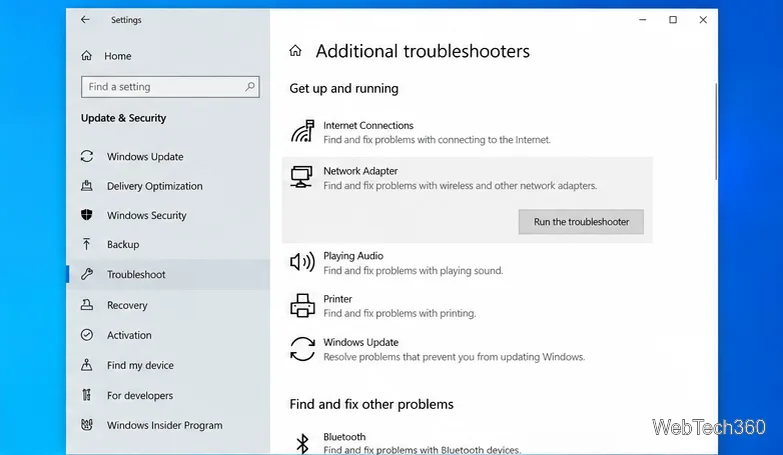
Open Start > Settings > Update & Security > Troubleshoot. Select Additional troubleshooters, choose Network Adapter, and run it. Follow any suggested repair, then return to Mobile hotspot and test the switch. Some Windows 10 builds show different troubleshooter links; if Network Adapter is not listed, continue to the next check. Microsoft’s Wi-Fi troubleshooting guide also covers adapter and driver checks.
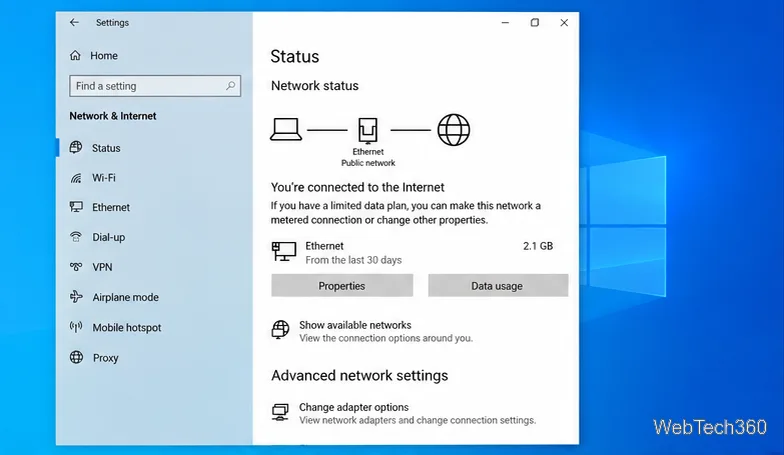
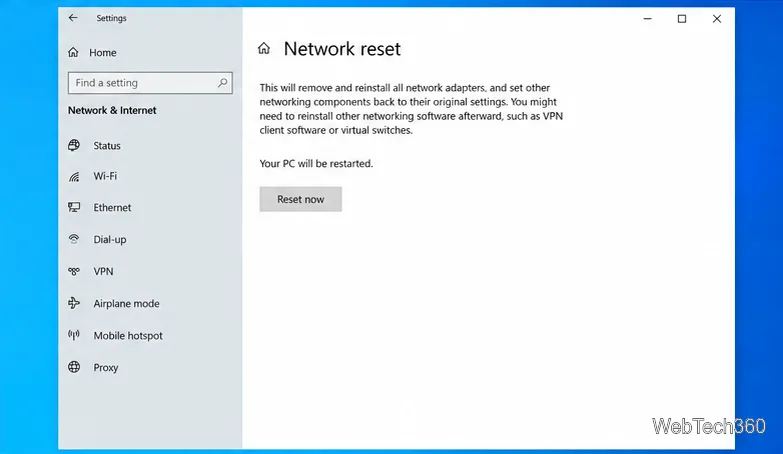
Network reset is a last resort because it removes installed network adapters and returns their settings to defaults. Before using it, save your work and note any VPN, virtual switch, or custom network configuration that may need to be set up again. In Settings, go to Network & Internet > Status, then select Network reset.
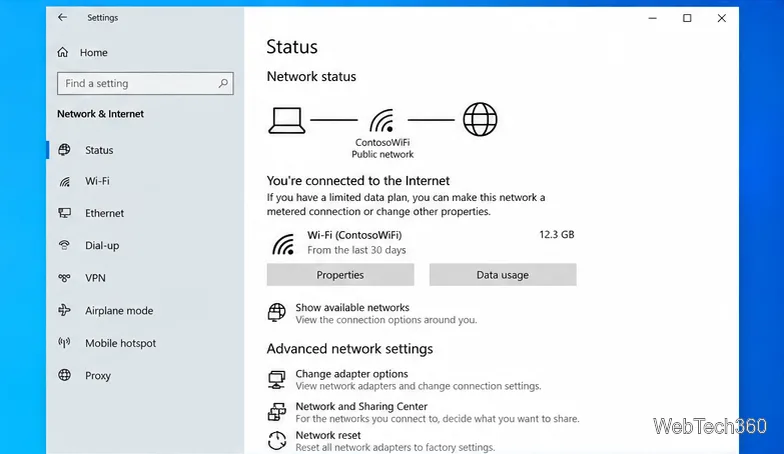
On the Network reset page, select Reset now and confirm with Yes. Windows will restart. After signing back in, reconnect to Wi-Fi if needed, confirm internet access, and try Mobile hotspot again.
If the wireless adapter is absent from Device Manager or shows a device error after these steps, check the PC manufacturer’s support page for a Windows 10-compatible wireless driver or contact its support team. Share the exact adapter name and any Device Manager error code; do not assume every computer has the same hotspot hardware.
Microsoft ended standard support for Windows 10 on October 14, 2025. The PC will still run, but Microsoft no longer provides the usual free Windows Update security fixes and technical support for Windows 10. See Microsoft’s Windows 10 mobile hotspot support page for the current support notice.
Set up a PowerShell watcher and Task Scheduler task to relaunch a Windows 10 desktop app after it closes, then learn how to test and stop it.
Keep app icons out of the hidden overflow in Windows 10. Turn on the all-icons option, then manage system icons separately if one is still missing.
Change the saved username or password Windows uses for a mapped drive or shared folder through Credential Manager, then reconnect to verify access.
Set a lower Defender scan CPU target in PowerShell, handle the idle-scan exception, and verify which Windows 10 scans the setting affects.
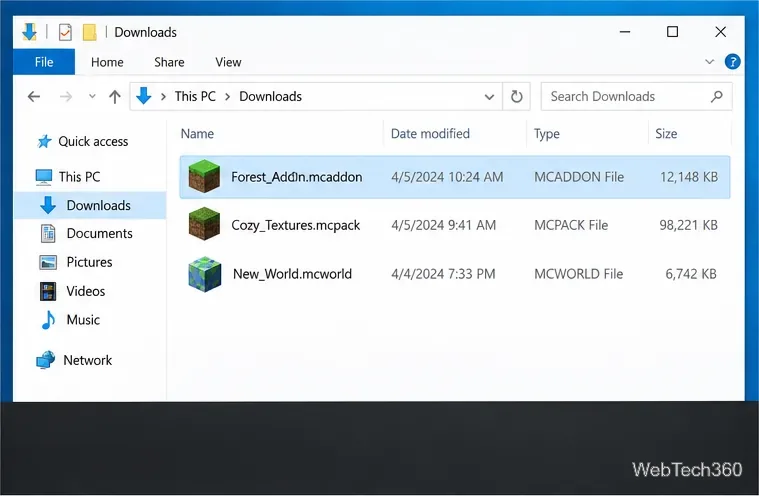
Import a Bedrock .mcpack or .mcaddon on Windows 10, activate it for a new or existing world, and avoid confusing add-ons with Java mods.
Restore the Windows 10 hotspot by checking the internet source and wireless adapter, repairing its driver, and saving Network reset for last.
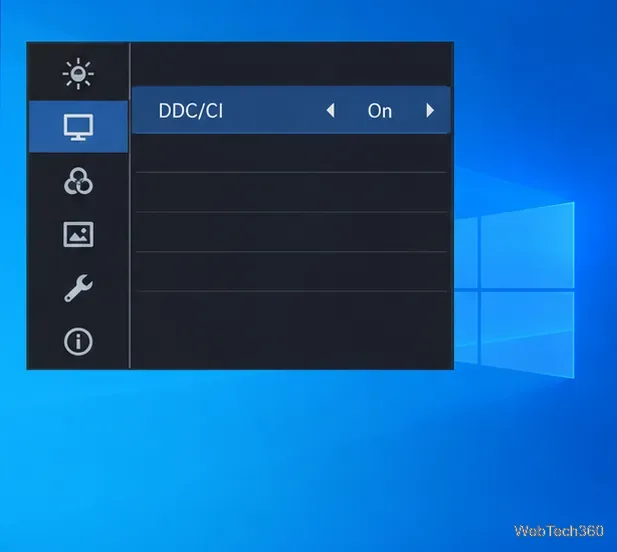
Set daytime and nighttime brightness levels on Windows 10 with ClickMonitorDDC 7.2, and learn about DDC/CI limits and the Night light alternative.
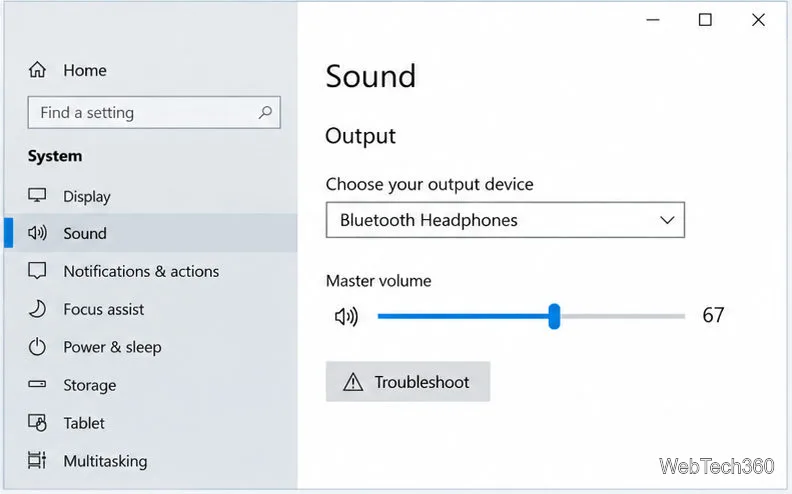
Find Windows 10’s left/right balance controls for Bluetooth headphones, with a cautious registry workaround when volume controls stay linked.
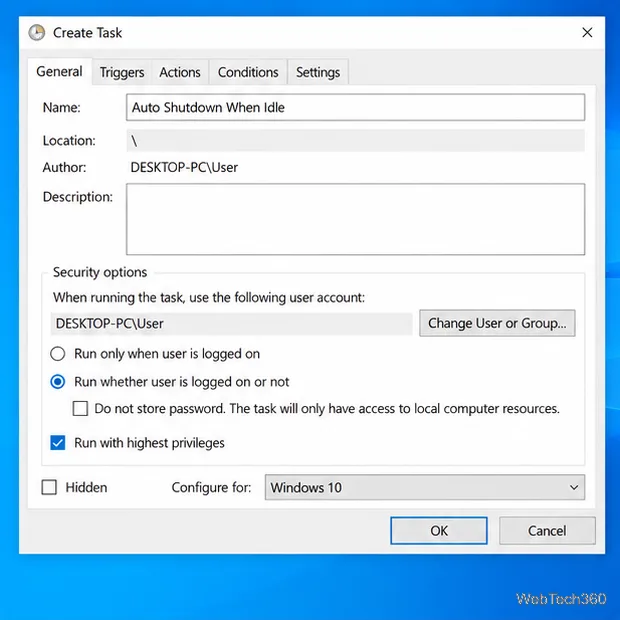
Set up Task Scheduler’s On idle trigger to shut down Windows 10 with a one-minute cancellation window, and learn how Windows defines idle.
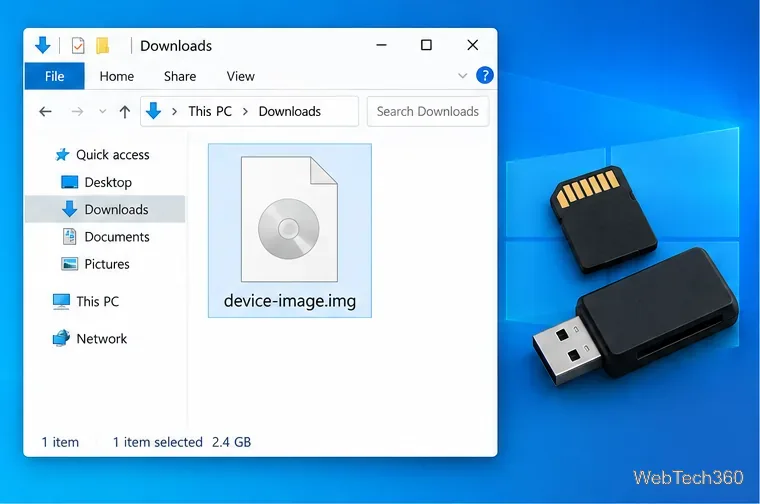
Learn how to burn a disc image to an SD card on Windows 10 with balenaEtcher, verify the target drive, and check whether the finished card can boot.