How to Automatically Restart a Crashed App on Windows 10
Set up a PowerShell watcher and Task Scheduler task to relaunch a Windows 10 desktop app after it closes, then learn how to test and stop it.
To install a Minecraft add-on on Windows 10, import a Bedrock-compatible .mcpack or .mcaddon file into Minecraft for Windows, then activate the pack for a new or existing world. A .mcworld file is a world archive; importing one adds a playable world that may already contain add-ons. Add-ons are for Minecraft: Bedrock Edition, while Java Edition uses a different mod system.
Use an add-on that clearly says it supports Minecraft: Bedrock Edition and your game version. The official Minecraft Add-Ons guide explains that Add-Ons are Bedrock content made from resource packs, behavior packs, or both. Resource packs change assets such as textures and sounds; behavior packs can change game rules, entities, or mechanics.
File extensions tell you what you downloaded. Microsoft describes .mcpack as a zipped resource or behavior pack, .mcaddon as a package that can contain packs or worlds, and .mcworld as a Bedrock world archive. If Windows hides extensions, open File Explorer, choose View, and turn on File name extensions so you can check the complete name. Do not rename a ZIP file to .mcpack unless the add-on creator specifically instructs you to do so.
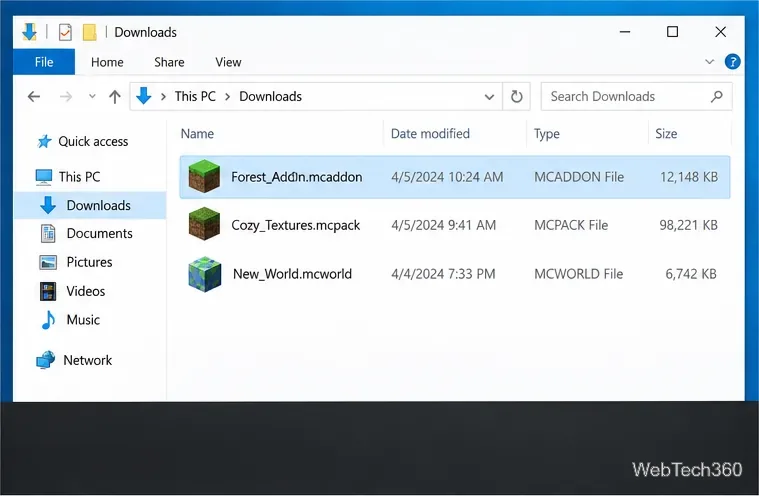
For the simplest route, browse add-ons in the official Minecraft Marketplace catalog and follow the in-game prompts. If you download a file from a creator, use the creator’s own download page, read the compatibility notes, and save the package somewhere easy to find, such as Downloads. Avoid files that claim to be Java mods when you need a Windows Bedrock add-on. Before changing a world you care about, use a test world or a copy of that world.
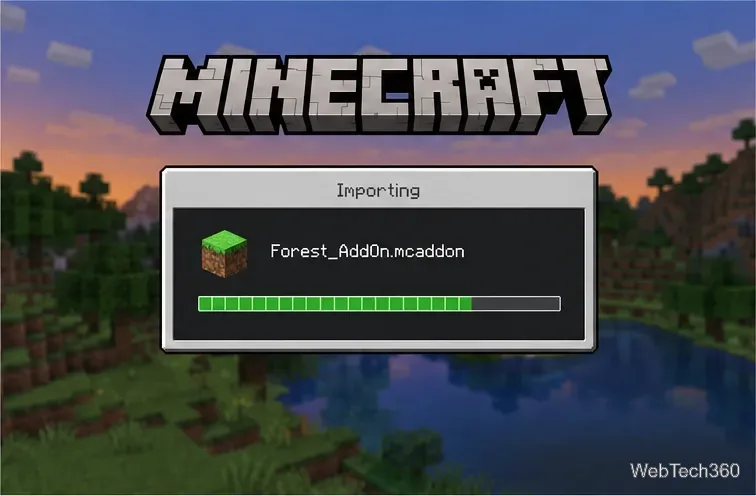
In File Explorer, open the downloaded .mcpack or .mcaddon file. If Windows asks which app to use, choose Minecraft for Windows. Minecraft should launch and show an import status; wait for the import to finish before closing the game. Microsoft identifies these as Bedrock pack formats in its file-extension reference and documents an add-on import handler for .mcaddon files in its Minecraft import documentation.
If the download is a .mcworld, opening it imports a world instead of installing a standalone pack. Return to Play and look for the imported world in your world list. If you received a ZIP, inspect the creator’s instructions rather than changing its extension at random.
For an existing world, select Play, then choose the pencil or edit control beside that world. For a new world, go to Play and choose Create New, then Create New World. In the world settings, find the Add-Ons area and open Resource Packs or Behavior Packs. Minecraft’s official activation instructions use these pack sections for both new and existing single-player worlds.
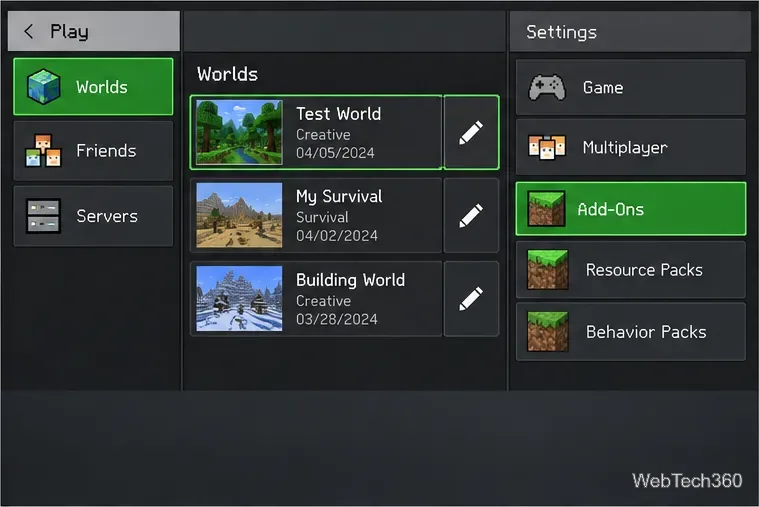
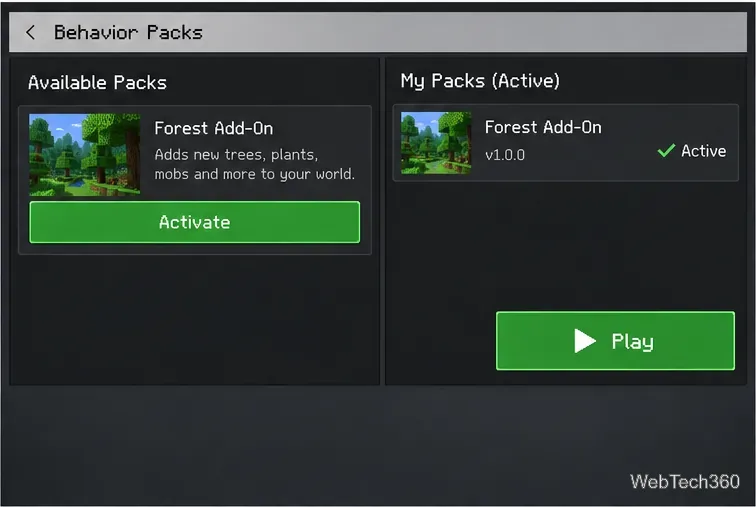
In the relevant pack section, open the available or My Packs list, select the add-on, and choose Activate. Some downloads include both a resource pack and a behavior pack; check both sections and activate the components the creator requires. When the pack appears under the active packs list, return to the world screen and select Create for a new world or Play for an existing one. Test the add-on in the world before adding more packs.
Older tutorials may tell you to copy packs into a Microsoft.MinecraftUWP app-data folder. Microsoft documents a Windows storage migration from UWP to GDK beginning with Minecraft version 1.21.120, so paths in older guides may not match current installations. For a packaged add-on, use Minecraft’s import flow instead of relying on an old folder path; see Microsoft’s Windows Bedrock storage migration notes.
In short: identify the Bedrock file type, import the package, activate its resource or behavior pack in the target world, and then launch that world. This keeps installation separate from Java mod instructions and makes it easier to locate the pack if you need to troubleshoot.
Microsoft Learn: Minecraft file extensions · Microsoft Learn: Windows Bedrock storage migration
Set up a PowerShell watcher and Task Scheduler task to relaunch a Windows 10 desktop app after it closes, then learn how to test and stop it.
Keep app icons out of the hidden overflow in Windows 10. Turn on the all-icons option, then manage system icons separately if one is still missing.
Change the saved username or password Windows uses for a mapped drive or shared folder through Credential Manager, then reconnect to verify access.
Set a lower Defender scan CPU target in PowerShell, handle the idle-scan exception, and verify which Windows 10 scans the setting affects.
Import a Bedrock .mcpack or .mcaddon on Windows 10, activate it for a new or existing world, and avoid confusing add-ons with Java mods.
Restore the Windows 10 hotspot by checking the internet source and wireless adapter, repairing its driver, and saving Network reset for last.
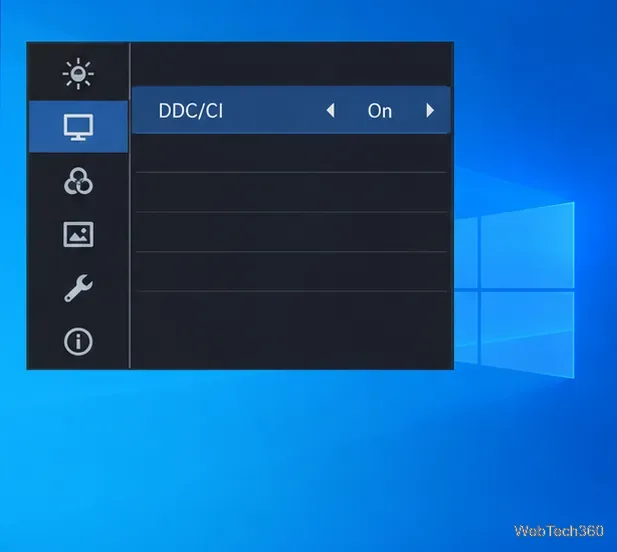
Set daytime and nighttime brightness levels on Windows 10 with ClickMonitorDDC 7.2, and learn about DDC/CI limits and the Night light alternative.
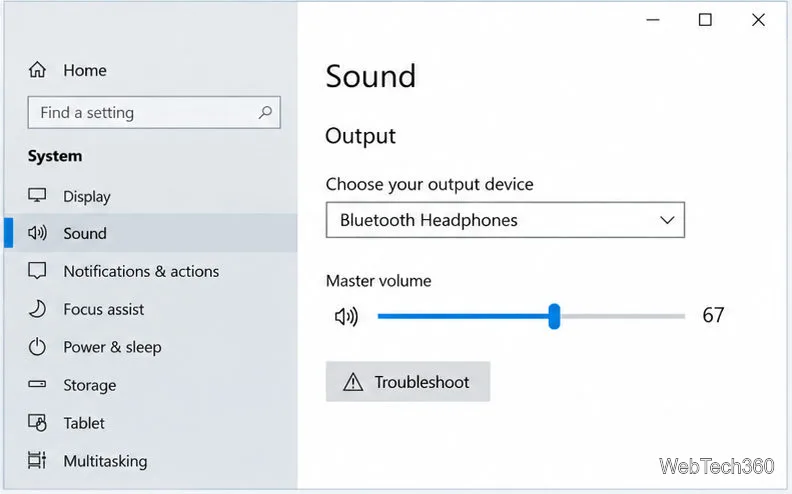
Find Windows 10’s left/right balance controls for Bluetooth headphones, with a cautious registry workaround when volume controls stay linked.
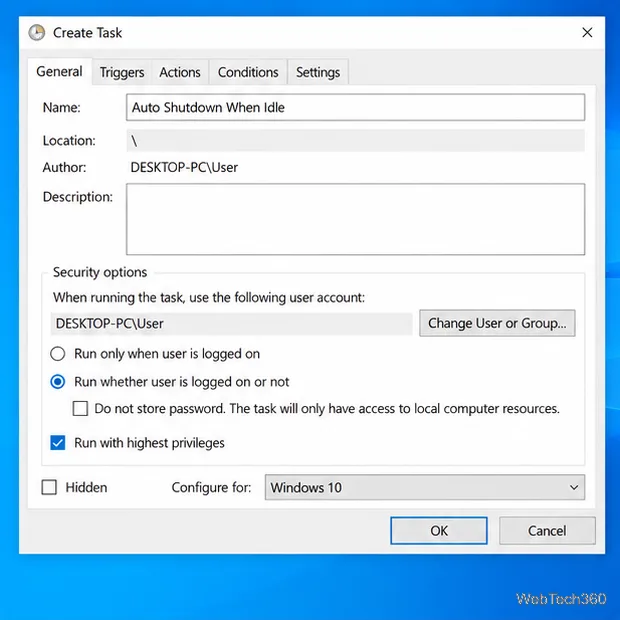
Set up Task Scheduler’s On idle trigger to shut down Windows 10 with a one-minute cancellation window, and learn how Windows defines idle.
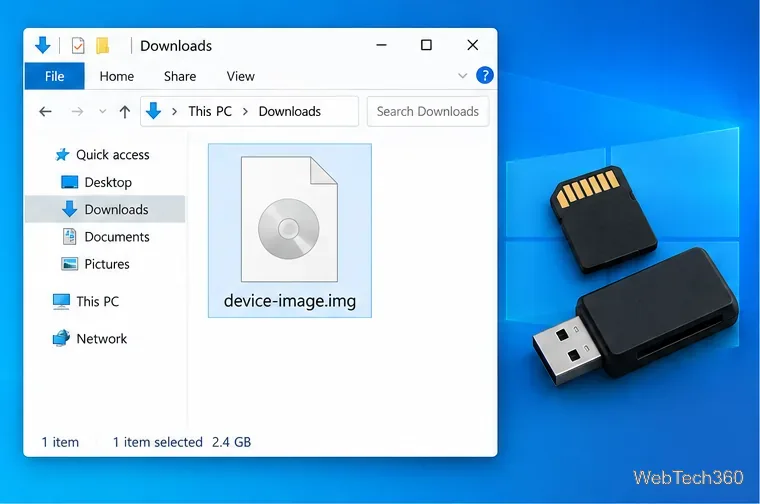
Learn how to burn a disc image to an SD card on Windows 10 with balenaEtcher, verify the target drive, and check whether the finished card can boot.