How to Automatically Restart a Crashed App on Windows 10
Set up a PowerShell watcher and Task Scheduler task to relaunch a Windows 10 desktop app after it closes, then learn how to test and stop it.
Windows 10 does not include a built-in schedule for changing a display’s actual backlight at chosen clock times. A practical option is ClickMonitorDDC 7.2, whose timer can run brightness commands such as b 70 at one time and b 30 later. It works only when the app can control the display, and ClickMonitorDDC is an old, unmaintained utility. If you only want warmer colors after dark, Windows Night light has a built-in schedule, but it does not lower the screen’s physical brightness.
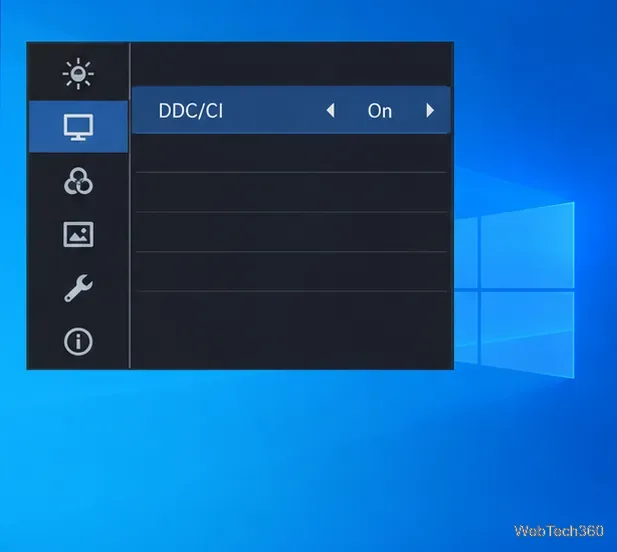
For an external monitor, look in its on-screen display menu for DDC/CI and turn it on. Menu names vary by manufacturer. The monitor also needs to expose brightness control: Microsoft’s monitor API reports failure when DDC/CI is unsupported, and lists brightness as a separate monitor capability. A laptop panel may work through ClickMonitorDDC’s laptop support, but the available brightness steps depend on the panel.
ClickMonitorDDC’s final version is 7.2. The original developer website is no longer available, and the project repository describes its downloadable files as a community rehost. Its rehosted files and project notes and the copied 7.2 instructions are not an actively maintained official download. Only run an archived utility if you are comfortable verifying its source and file; otherwise use your monitor’s controls. Windows 10 support ended on October 14, 2025, so keep the PC on a supported security-update path when possible.
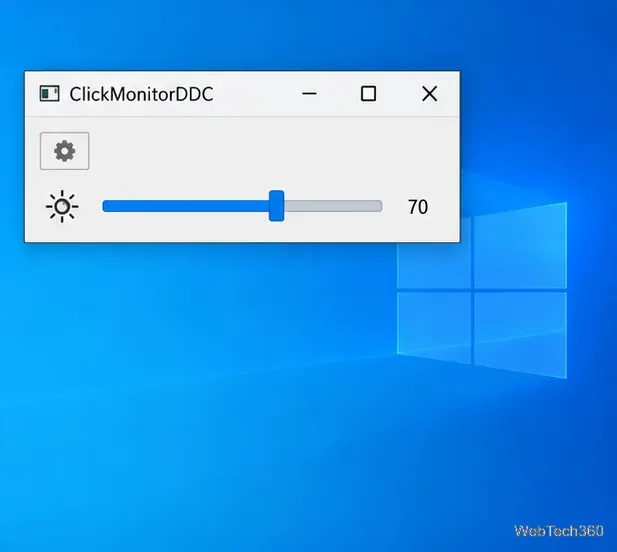
b, a space, and a brightness value from 0 to 100. For example, b 70 sets 70, while b 30 sets 30. These are sample levels, not recommended values for every monitor. Pick levels that remain comfortable and readable in your room.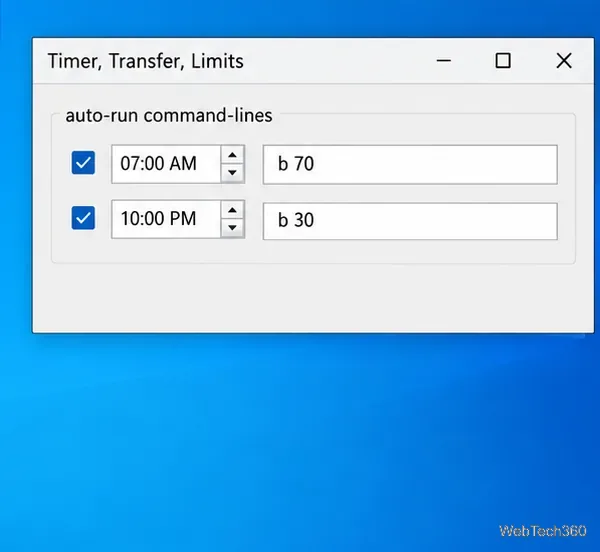
A simple two-point schedule might look like this:
| Time | Command | Example result |
|---|---|---|
| 7:00 AM | b 70 | Raise brightness for daytime use |
| 10:00 PM | b 30 | Lower brightness for evening use |
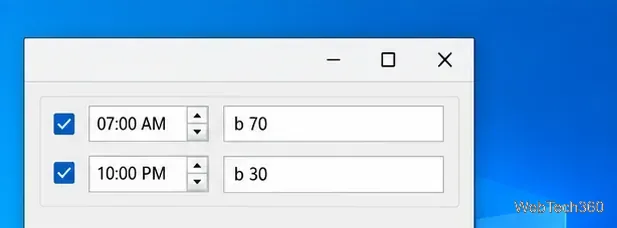
b command for brightness. Contrast and blue luminance use different commands and change different display properties.To schedule a warmer-looking screen instead, go to Start > Settings > System > Display > Night light settings, turn on Schedule night light, and choose Set hours. Microsoft describes Night light as a warmer color treatment; it is different from changing the backlight level. Its brightness and Night light instructions are in Microsoft’s Windows display guide. For DDC/CI capability details, see Microsoft Learn’s monitor capability reference; for Windows 10’s support status, see Microsoft Support.
Set up a PowerShell watcher and Task Scheduler task to relaunch a Windows 10 desktop app after it closes, then learn how to test and stop it.
Keep app icons out of the hidden overflow in Windows 10. Turn on the all-icons option, then manage system icons separately if one is still missing.
Change the saved username or password Windows uses for a mapped drive or shared folder through Credential Manager, then reconnect to verify access.
Set a lower Defender scan CPU target in PowerShell, handle the idle-scan exception, and verify which Windows 10 scans the setting affects.
Import a Bedrock .mcpack or .mcaddon on Windows 10, activate it for a new or existing world, and avoid confusing add-ons with Java mods.
Restore the Windows 10 hotspot by checking the internet source and wireless adapter, repairing its driver, and saving Network reset for last.
Set daytime and nighttime brightness levels on Windows 10 with ClickMonitorDDC 7.2, and learn about DDC/CI limits and the Night light alternative.
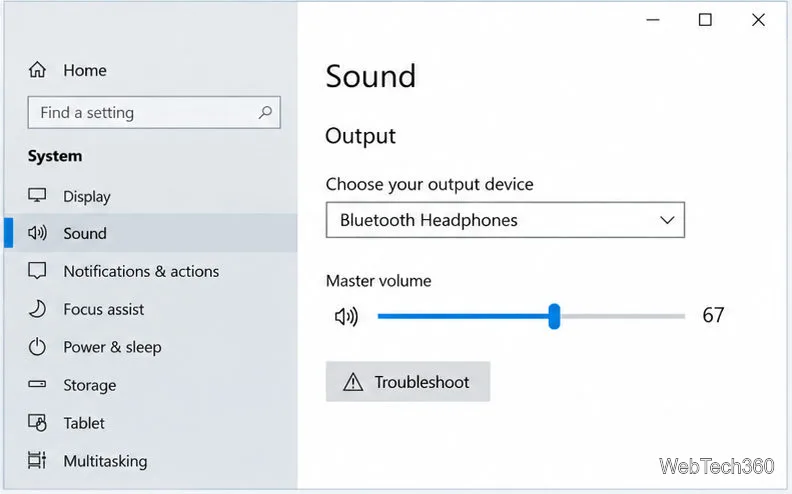
Find Windows 10’s left/right balance controls for Bluetooth headphones, with a cautious registry workaround when volume controls stay linked.
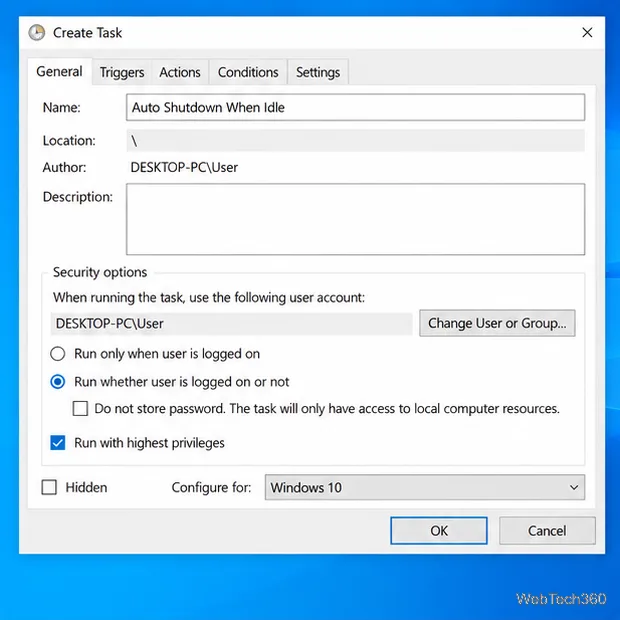
Set up Task Scheduler’s On idle trigger to shut down Windows 10 with a one-minute cancellation window, and learn how Windows defines idle.
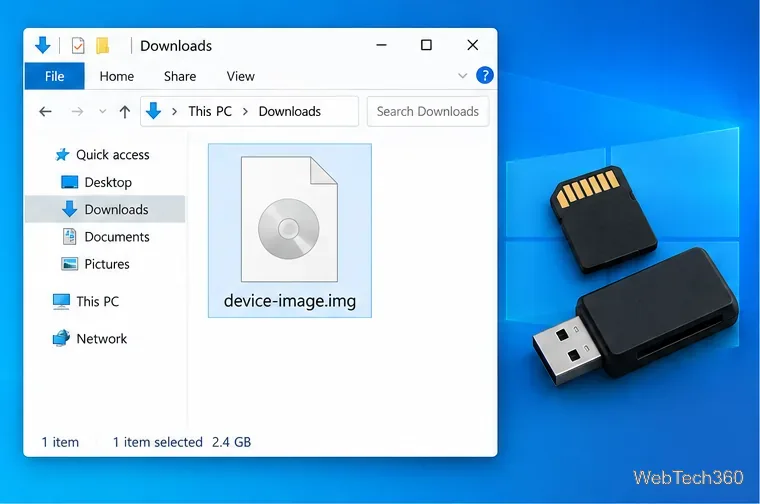
Learn how to burn a disc image to an SD card on Windows 10 with balenaEtcher, verify the target drive, and check whether the finished card can boot.