How to Automatically Restart a Crashed App on Windows 10
Set up a PowerShell watcher and Task Scheduler task to relaunch a Windows 10 desktop app after it closes, then learn how to test and stop it.
To automatically restart a crashed app on Windows 10, use a PowerShell watcher and Task Scheduler. The watcher checks a classic desktop app’s process; when it exits, the script waits 60 seconds and opens it again.
This restarts the app after any exit, including a normal close. It cannot recover unsaved work or fix the reason for a crash. Task Scheduler’s “If the task fails” option retries a failed scheduled task; it does not continuously monitor an app process, so this guide uses a small watcher script.
Use this method with a traditional desktop program that has a stable .exe. Microsoft Store apps and programs whose launchers switch to a different helper process may not be tracked reliably. If the app includes its own restart or recovery option, use that instead.
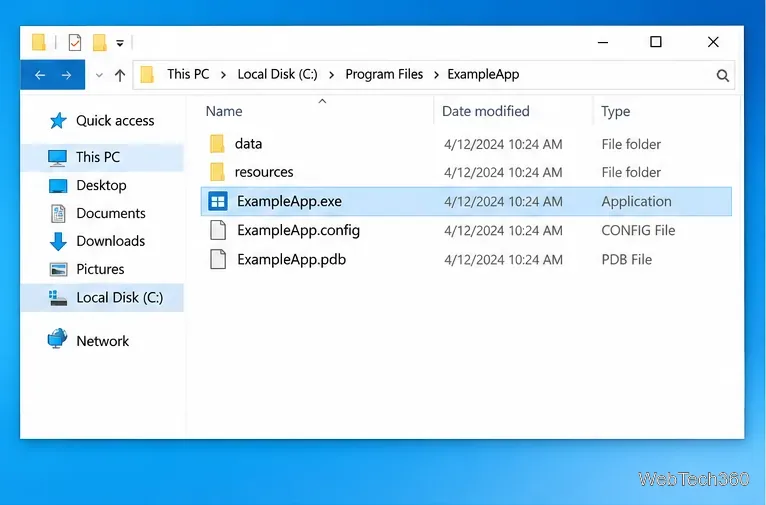
From Start, right-click the app shortcut and choose More > Open file location if available. Right-click the shortcut, choose Properties, and copy the path in Target. Use the actual executable, not the .lnk shortcut, updater, or crash reporter.
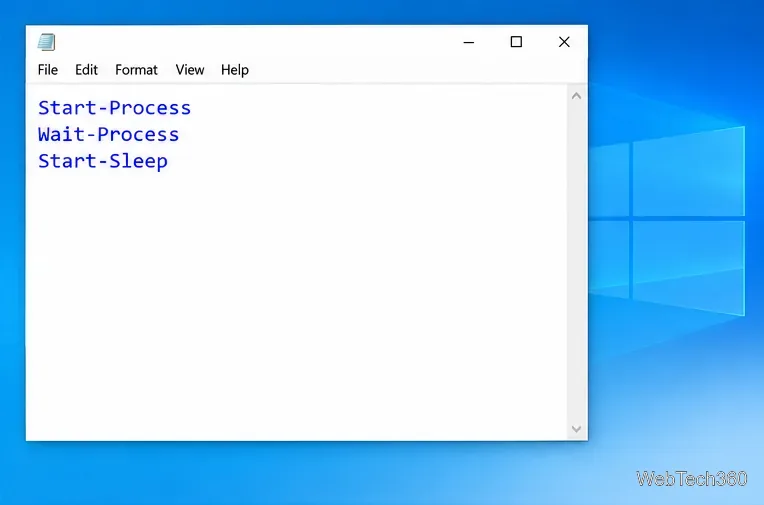
Open Notepad, paste this script, and replace the example path with the one you copied. Keep the path inside the single quotation marks.
$exe = 'C:\Path\To\ExampleApp.exe'
$processName = [System.IO.Path]::GetFileNameWithoutExtension($exe)
$workingDirectory = Split-Path -Path $exe -Parent
$delaySeconds = 60

while ($true) {
    $process = Get-Process -Name $processName -ErrorAction SilentlyContinue |
        Select-Object -First 1

    if (-not $process) {
        try {
            $process = Start-Process -FilePath $exe -WorkingDirectory $workingDirectory -PassThru -ErrorAction Stop
        } catch {
            Start-Sleep -Seconds $delaySeconds
            continue
        }
    }

    Wait-Process -Id $process.Id -ErrorAction SilentlyContinue
    Start-Sleep -Seconds $delaySeconds
}
Start-Process opens the executable, while Wait-Process waits for it to stop. The delay helps prevent rapid relaunches if the app keeps crashing. See Microsoft’s Start-Process and Wait-Process documentation.
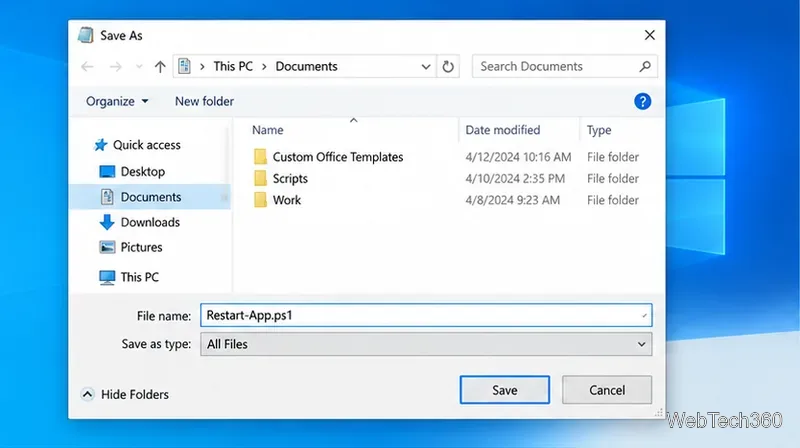
In Notepad, select File > Save As, choose Documents, name the file Restart-App.ps1, and set Save as type to All Files so Notepad does not add .txt.
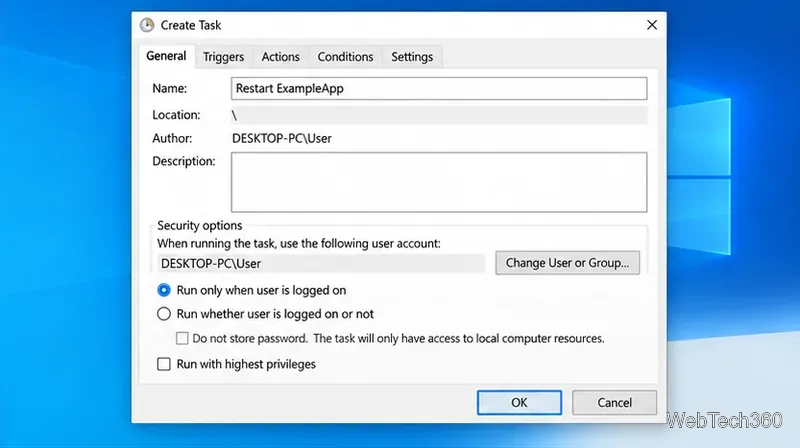
Search Start for Task Scheduler and open it. Choose Create Task. On the General tab, enter a name such as Restart ExampleApp, then select Run only when user is logged on so the app window opens in your desktop session.
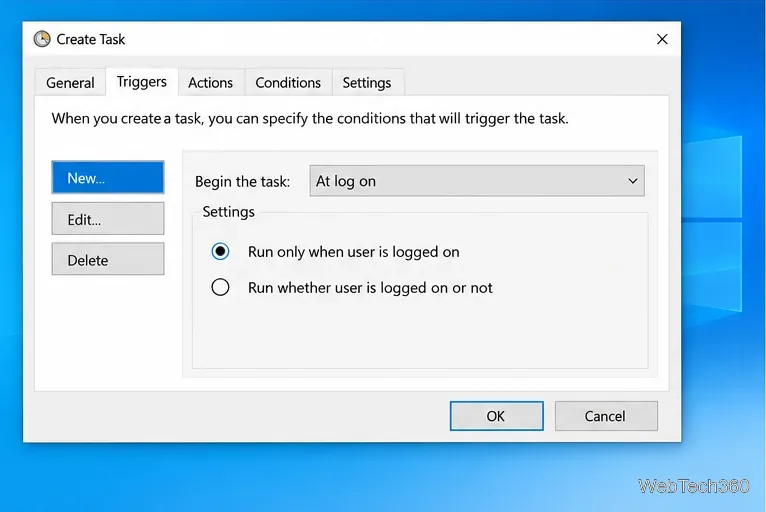
Open the Triggers tab, choose New, set Begin the task to At log on, select your account if prompted, and click OK. This follows Microsoft’s documented pattern of a logon trigger and executable action in Task Scheduler.
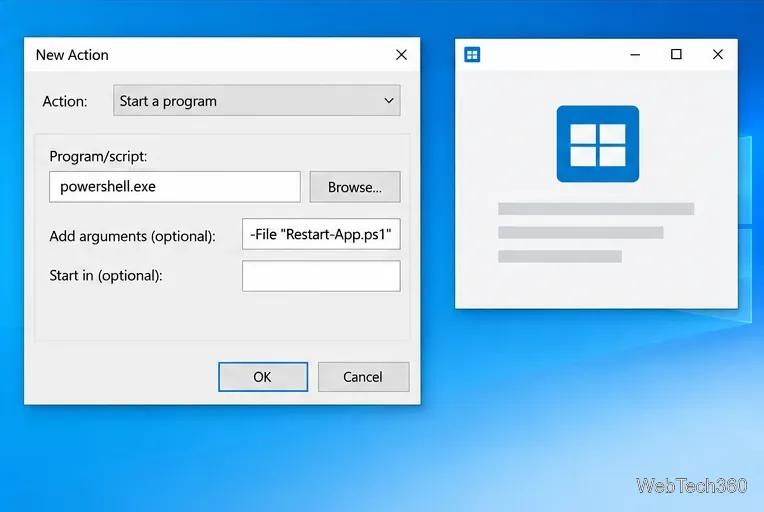
On Actions, select New and choose Start a program. Enter powershell.exe for Program/script. In Add arguments, use the script path below and change YourName to your Windows user folder:
-NoProfile -WindowStyle Hidden -ExecutionPolicy RemoteSigned -File "C:\Users\YourName\Documents\Restart-App.ps1"RemoteSigned applies to this PowerShell process only; it does not change the computer-wide policy. An organization’s policy may still block scripts. See Microsoft’s guide to PowerShell execution policies.
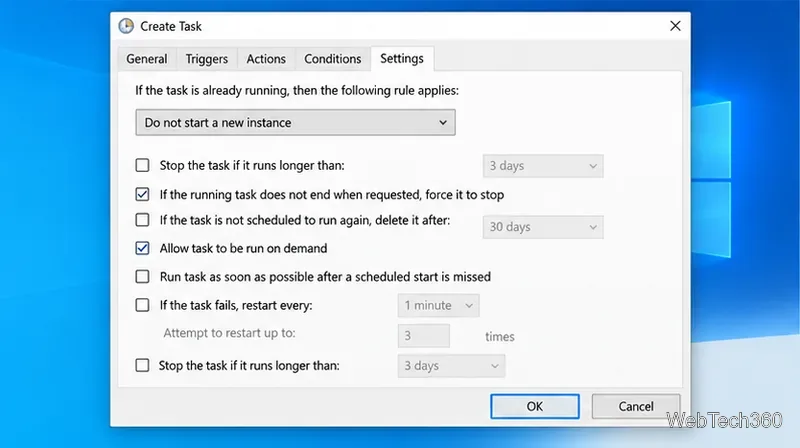
On Settings, set If the task is already running, then the following rule applies to Do not start a new instance. This avoids launching a second watcher if you run the task manually. Click OK to save it.
In Task Scheduler Library, select the task and choose Run. If the app is already open, the watcher waits for it. Save your work, close the app, and wait about a minute; it should reopen. Because every exit triggers a restart, closing it normally is a useful test too.
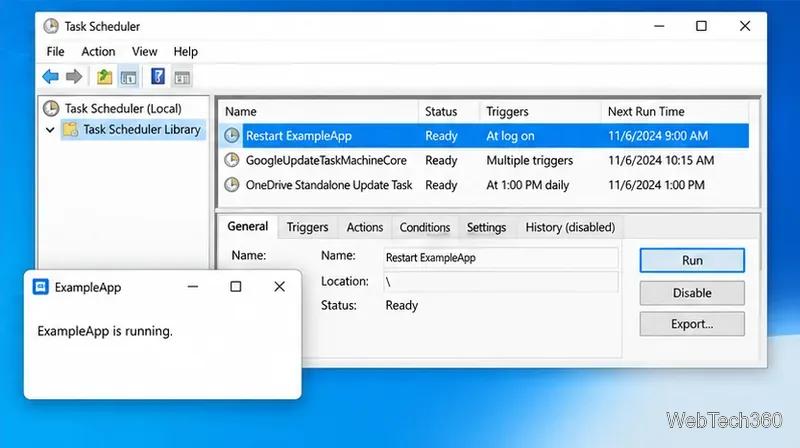
To stop the current watcher, right-click the task and select End. Choose Disable to stop it from starting at your next sign-in, or delete the task after disabling it.
.ps1, not .ps1.txt. Run the script in a PowerShell window first to see any error. Do not weaken a work or school policy; ask the administrator..exe. If it differs, set $processName to the actual process name. Stop the task before editing the script.Set up a PowerShell watcher and Task Scheduler task to relaunch a Windows 10 desktop app after it closes, then learn how to test and stop it.
Keep app icons out of the hidden overflow in Windows 10. Turn on the all-icons option, then manage system icons separately if one is still missing.
Change the saved username or password Windows uses for a mapped drive or shared folder through Credential Manager, then reconnect to verify access.
Set a lower Defender scan CPU target in PowerShell, handle the idle-scan exception, and verify which Windows 10 scans the setting affects.
Import a Bedrock .mcpack or .mcaddon on Windows 10, activate it for a new or existing world, and avoid confusing add-ons with Java mods.
Restore the Windows 10 hotspot by checking the internet source and wireless adapter, repairing its driver, and saving Network reset for last.
Set daytime and nighttime brightness levels on Windows 10 with ClickMonitorDDC 7.2, and learn about DDC/CI limits and the Night light alternative.
Find Windows 10’s left/right balance controls for Bluetooth headphones, with a cautious registry workaround when volume controls stay linked.
Set up Task Scheduler’s On idle trigger to shut down Windows 10 with a one-minute cancellation window, and learn how Windows defines idle.
Learn how to burn a disc image to an SD card on Windows 10 with balenaEtcher, verify the target drive, and check whether the finished card can boot.