How to Automatically Restart a Crashed App on Windows 10
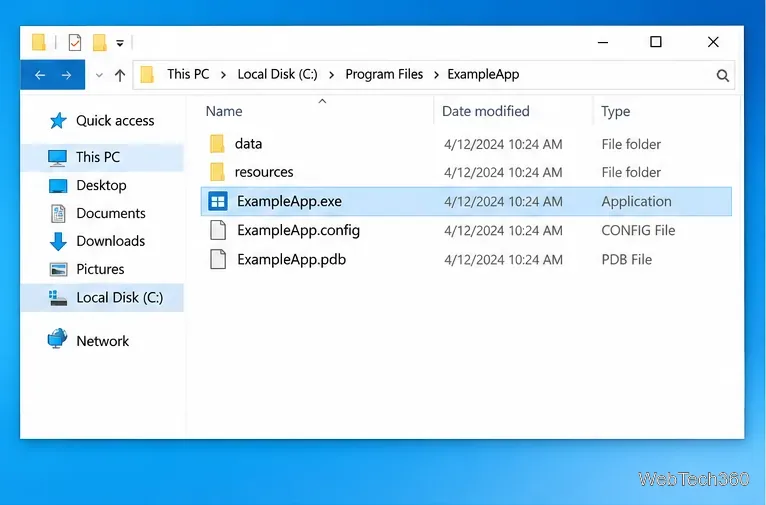
Set up a PowerShell watcher and Task Scheduler task to relaunch a Windows 10 desktop app after it closes, then learn how to test and stop it.
To automatically shut down Windows 10 when it becomes idle, create a task in Task Scheduler with an On idle trigger and an action that runs shutdown.exe /s /t 60. Windows decides when the computer is idle; this setup does not provide an exact, user-selected inactivity countdown. The 60-second delay gives you a chance to cancel the shutdown if you return to the PC.
Task Scheduler uses Windows’ idle state, which can depend on user presence and system activity. No mouse or keyboard input alone does not guarantee an immediate trigger: an application that keeps the computer active, such as a presentation, can affect idle detection. Microsoft also notes that the “idle duration” and “wait for idle” values still visible in Task Scheduler are deprecated and are no longer used. Leave those legacy timing boxes unchecked; do not rely on them to create a precise 30-minute shutdown rule. Read Microsoft’s Task Scheduler idle-conditions documentation for the details.
Before setting up the task, save your files. The task cannot detect unsaved work in every app, and a shutdown request does not save documents for you. Some applications may delay or block shutdown while they ask you to handle open work.
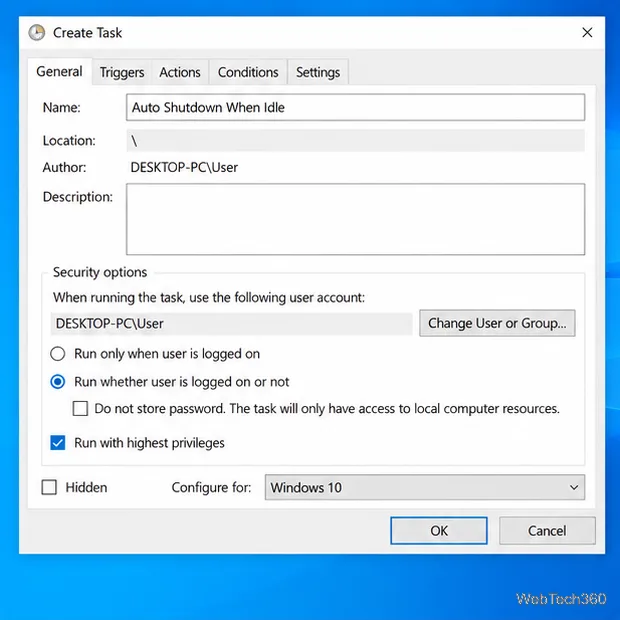
Open Start, search for Task Scheduler, and launch it. In the right-hand Actions pane, select Create Task rather than Create Basic Task. On the General tab, name it “Shut down when idle.” Select Run with highest privileges. Choose Run whether user is logged on or not if you want the task to remain eligible after signing out; Windows may ask for your account password. Otherwise, choose Run only when user is logged on. If the Configure for menu is available, select Windows 10.
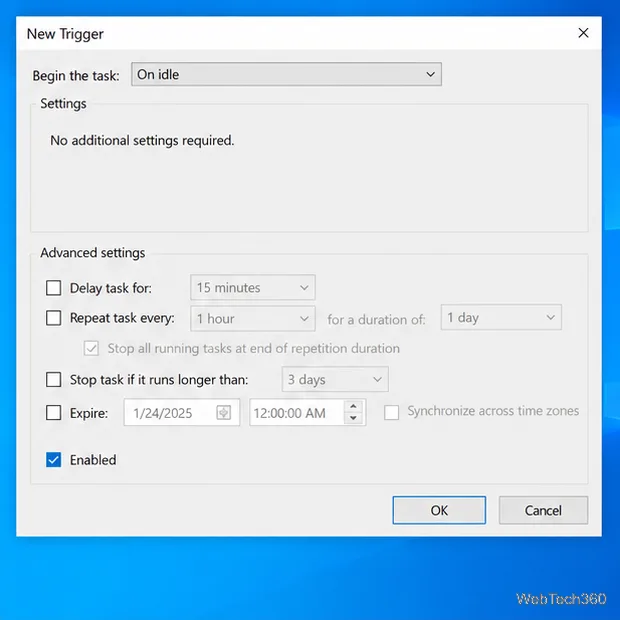
Open the Triggers tab and select New. In Begin the task, choose On idle, make sure Enabled is selected, and click OK. This tells Task Scheduler to start the task when Windows detects an idle state. You do not need a midnight schedule or a daily repeat for this trigger.
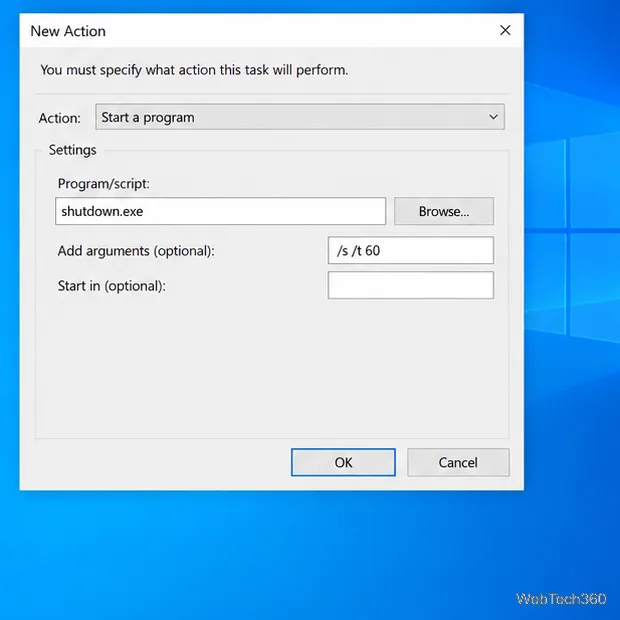
Open the Actions tab, choose New, and set Action to Start a program. Enter shutdown.exe in Program/script. In Add arguments, enter /s /t 60. Leave Start in blank, then click OK. The /s switch requests a shutdown and /t 60 sets a 60-second timeout. Do not add /f unless you deliberately want Windows to force-close running apps, which can put unsaved changes at risk.
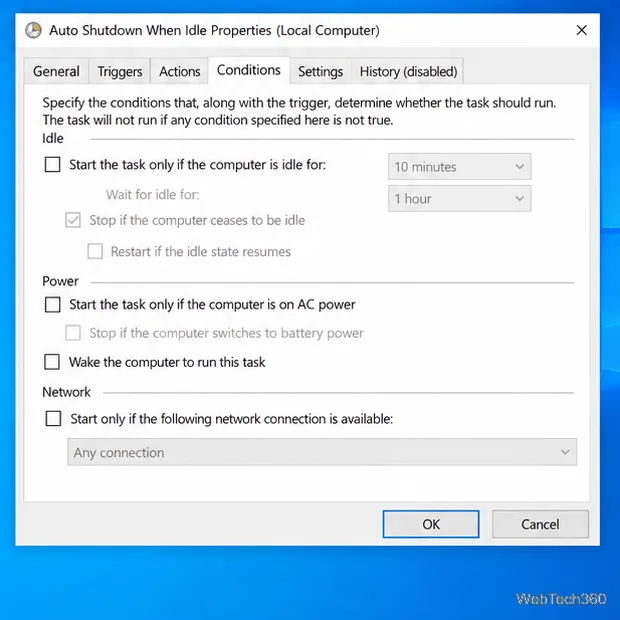
On the Conditions tab, leave “Start the task only if the computer is idle for” unchecked because the trigger is already set to On idle. The duration and wait fields beside it are legacy settings, not a reliable extra timer. On a laptop, decide whether the task should run on battery. If you want that, clear “Start the task only if the computer is on AC power” and clear “Stop if the computer switches to battery power” if that option is selected. Microsoft documents that idle tasks are blocked on battery by default. Click OK to save the task.
Find the task in Task Scheduler Library, right-click it, and select Run to test the action. A 60-second shutdown countdown should begin. If you want to stop it, open Command Prompt, type shutdown /a, and press Enter before the countdown ends. Microsoft lists /a as the switch for aborting a pending shutdown during its timeout period; see the shutdown command reference.
When you have confirmed the task is configured correctly, avoid running it manually unless you intend to start the countdown. For a safer check, open the task’s Properties and confirm that its trigger says On idle and its action lists shutdown.exe with /s /t 60.
This method is useful when you want Windows 10 to shut down after it enters its built-in idle state. If you need a precise inactivity interval, Task Scheduler’s legacy idle-duration fields are not a dependable way to enforce it.
Set up a PowerShell watcher and Task Scheduler task to relaunch a Windows 10 desktop app after it closes, then learn how to test and stop it.
Keep app icons out of the hidden overflow in Windows 10. Turn on the all-icons option, then manage system icons separately if one is still missing.
Change the saved username or password Windows uses for a mapped drive or shared folder through Credential Manager, then reconnect to verify access.
Set a lower Defender scan CPU target in PowerShell, handle the idle-scan exception, and verify which Windows 10 scans the setting affects.
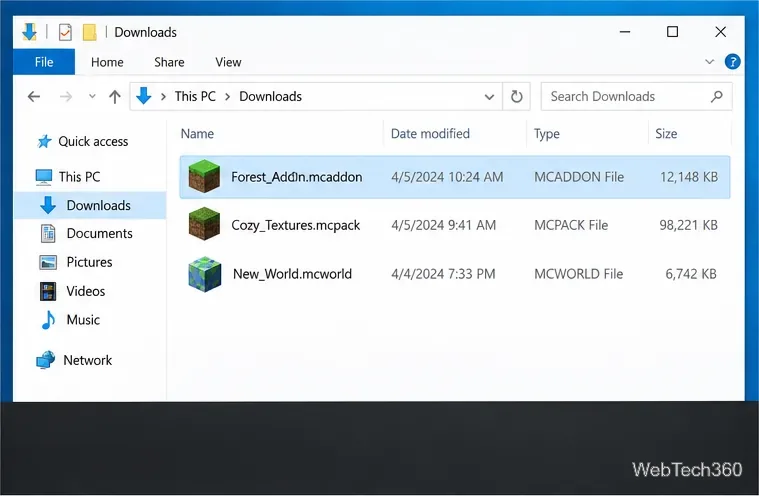
Import a Bedrock .mcpack or .mcaddon on Windows 10, activate it for a new or existing world, and avoid confusing add-ons with Java mods.
Restore the Windows 10 hotspot by checking the internet source and wireless adapter, repairing its driver, and saving Network reset for last.
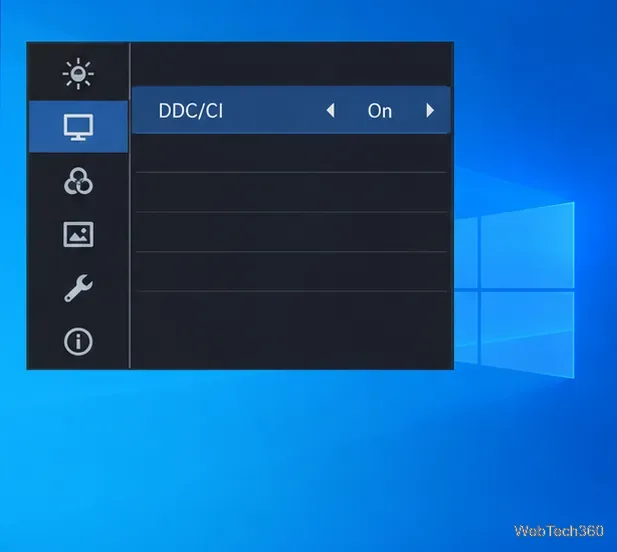
Set daytime and nighttime brightness levels on Windows 10 with ClickMonitorDDC 7.2, and learn about DDC/CI limits and the Night light alternative.
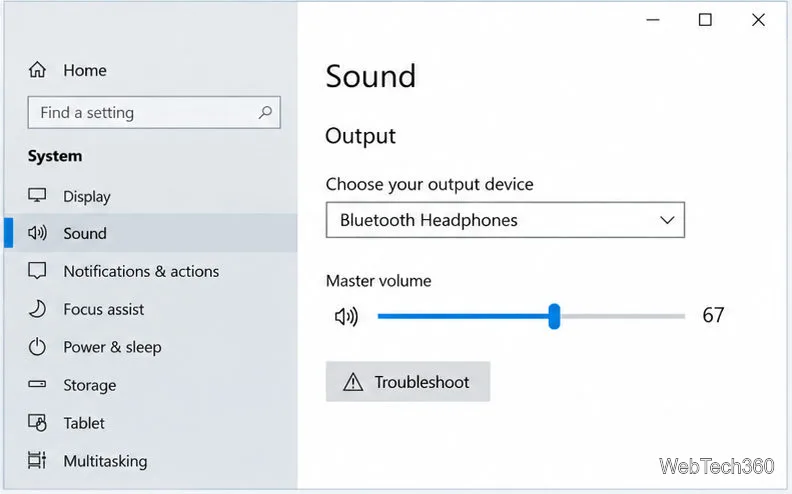
Find Windows 10’s left/right balance controls for Bluetooth headphones, with a cautious registry workaround when volume controls stay linked.
Set up Task Scheduler’s On idle trigger to shut down Windows 10 with a one-minute cancellation window, and learn how Windows defines idle.
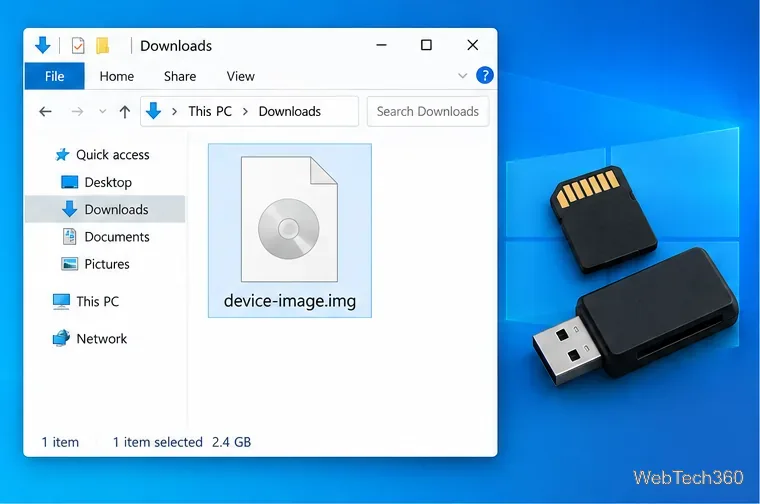
Learn how to burn a disc image to an SD card on Windows 10 with balenaEtcher, verify the target drive, and check whether the finished card can boot.