How to Automatically Restart a Crashed App on Windows 10
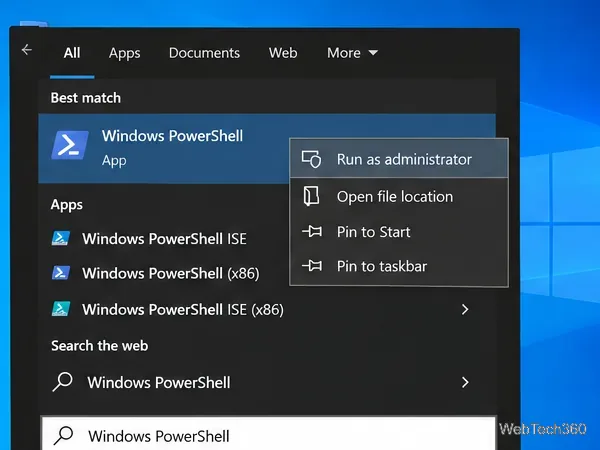
Set up a PowerShell watcher and Task Scheduler task to relaunch a Windows 10 desktop app after it closes, then learn how to test and stop it.
To burn a compatible disc image to an SD card in Windows 10, use an image-writing tool such as balenaEtcher. Choose the image file, select the SD card as the target, and start the flash. This writes the image to the card’s storage; it does not simply copy the file. Everything already on the selected card will be erased, so back up anything you need and verify the target before you continue.
Download the image from the publisher of the operating system or device you plan to use. Check that it is intended for your target hardware and follow the publisher’s installation instructions. An image for a single-board computer, for example, may not work on a different model. If the publisher provides a checksum, compare it with the downloaded file before writing it.
Use an SD card with enough capacity for the image and the target’s stated requirements. A card whose advertised capacity is close to the image size may have less usable space than the label suggests, so a larger card can avoid a size mismatch. Etcher does not require you to format the card first; it replaces the card’s contents when it flashes the image. Connect the card through a built-in reader or a USB card reader.
Keep the downloaded image somewhere easy to find, such as Downloads, and insert the SD card. If File Explorer asks you to format a card that already contains files, cancel and copy those files elsewhere first. Once you flash the image, the card’s existing partitions and files are overwritten.
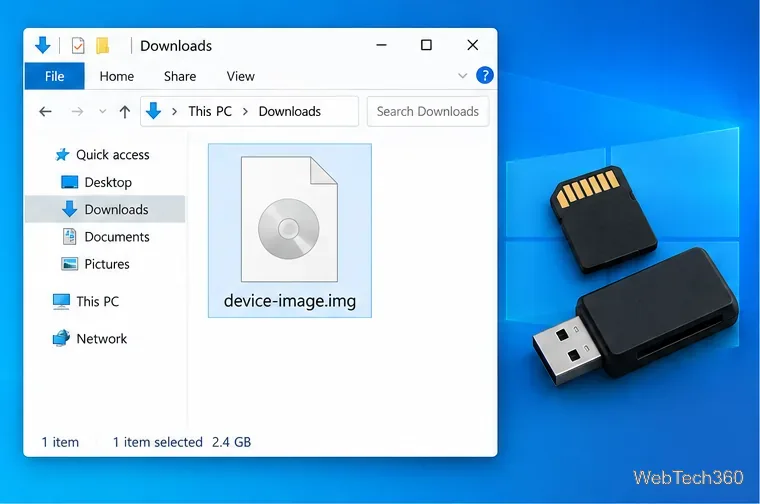
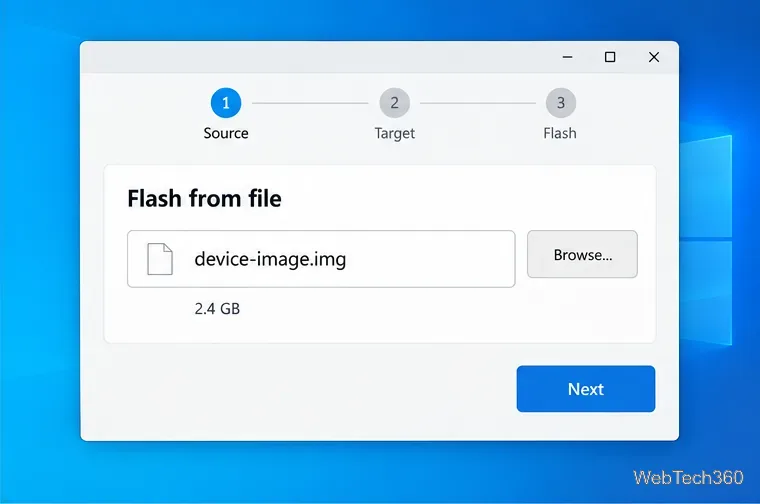
Download balenaEtcher from the official Etcher site, install it, and open the app. Its current documentation lists Windows 10 and later as supported. In Etcher, choose Flash from file, browse to the image you downloaded, and select it. Confirm the filename so you do not accidentally write a different image.
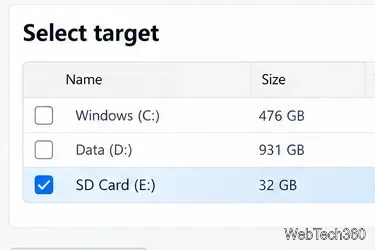
Choose the target-drive control, then identify the SD card by its name and capacity. If the interface labels it as removable storage, use that as an additional clue. Do not assume the first listed drive is the card: compare its details with the card you inserted, and leave internal drives unchecked. If you are unsure which entry is the SD card, stop and check Windows Disk Management or disconnect other removable drives before proceeding.
Review the source image and destination one last time, then click Flash. If Windows asks for permission to write to the device, continue only if the prompt is expected and you opened Etcher from its official download. Keep the card connected while Etcher writes and validates the data. Wait for its completion status before closing the app or removing the card.
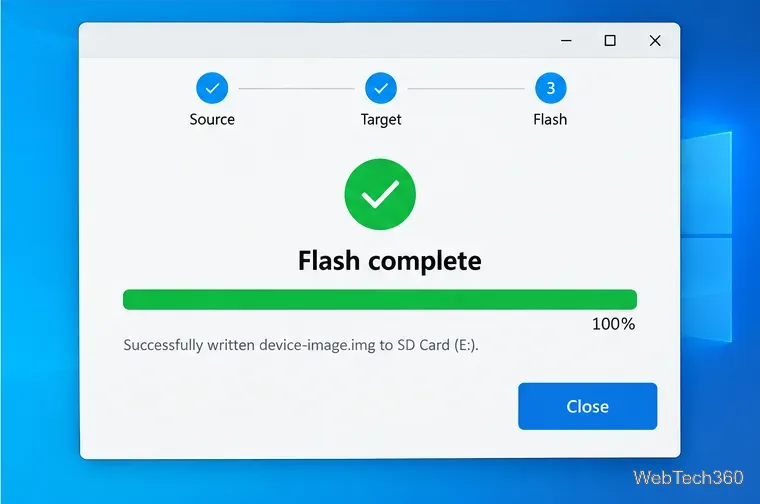
After flashing, Windows may show a prompt saying the card must be formatted, or it may display only one partition. That can happen when the image uses a file system Windows does not recognize. Do not format the card if you want to keep using the flashed image; doing so can overwrite it.
Flashing successfully does not guarantee that a device can boot from the card. The image must be bootable for that device, and the device’s firmware and card reader must support SD-card booting. Microsoft’s firmware documentation lists booting from external media such as USB or SD as a configurable option on supported devices, but available settings vary by hardware. Check the target device’s manual for its boot menu and supported media.
There is an important exception for Windows installation images: Etcher writes an image byte-for-byte and does not apply special changes. Balena’s documentation says Windows images need additional treatment to become bootable, so Etcher is not the right way to create a Windows installer from an ISO. For Windows setup, use the installation-media method recommended by Microsoft or the image publisher. Microsoft’s instructions describe creating Windows installation media on a USB flash drive.
Reconnect the card and reader, try another USB port, or test a different card reader or SD card. Balena notes that a faulty card or adapter can cause a failed flash. If the write reports an error, download the image again from its official source and verify its checksum when one is available, then retry. If the same card continues to fail, try another card before assuming the image itself is unusable.
Set up a PowerShell watcher and Task Scheduler task to relaunch a Windows 10 desktop app after it closes, then learn how to test and stop it.
Keep app icons out of the hidden overflow in Windows 10. Turn on the all-icons option, then manage system icons separately if one is still missing.
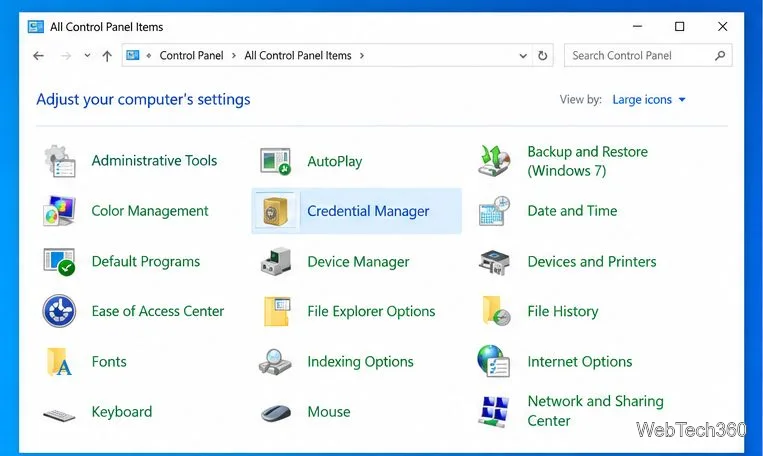
Change the saved username or password Windows uses for a mapped drive or shared folder through Credential Manager, then reconnect to verify access.
Set a lower Defender scan CPU target in PowerShell, handle the idle-scan exception, and verify which Windows 10 scans the setting affects.
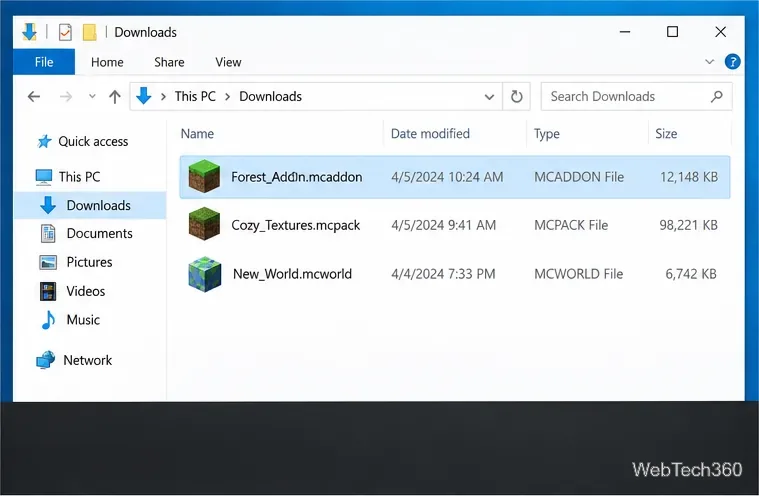
Import a Bedrock .mcpack or .mcaddon on Windows 10, activate it for a new or existing world, and avoid confusing add-ons with Java mods.
Restore the Windows 10 hotspot by checking the internet source and wireless adapter, repairing its driver, and saving Network reset for last.
Set daytime and nighttime brightness levels on Windows 10 with ClickMonitorDDC 7.2, and learn about DDC/CI limits and the Night light alternative.
Find Windows 10’s left/right balance controls for Bluetooth headphones, with a cautious registry workaround when volume controls stay linked.
Set up Task Scheduler’s On idle trigger to shut down Windows 10 with a one-minute cancellation window, and learn how Windows defines idle.
Learn how to burn a disc image to an SD card on Windows 10 with balenaEtcher, verify the target drive, and check whether the finished card can boot.