How to Play Minecraft Offline on Windows 10: Java and Bedrock

Prepare Java or Bedrock on Windows 10 for offline single-player, enable the right Xbox setting, and back up your local Minecraft worlds.
To manage webcam brightness and contrast in Windows 10, open the software supplied for your camera and change the image controls it supports. Windows 10 does not provide one universal brightness-and-contrast panel for every built-in or USB webcam. If the manufacturer’s app has no controls, a compatible utility can expose the camera’s standard properties, but only when the camera and driver support them.
Use the Windows Camera app to preview the result. Its documented settings cover capture options such as photo and video quality, not a universal brightness-and-contrast panel. Microsoft’s camera interface documentation says driver-exposed image controls depend on hardware support.
Close Zoom, Teams, browsers, and other apps using the camera. If it is external, note its model. Reopen only the utility while adjusting, then test the result in your meeting app.
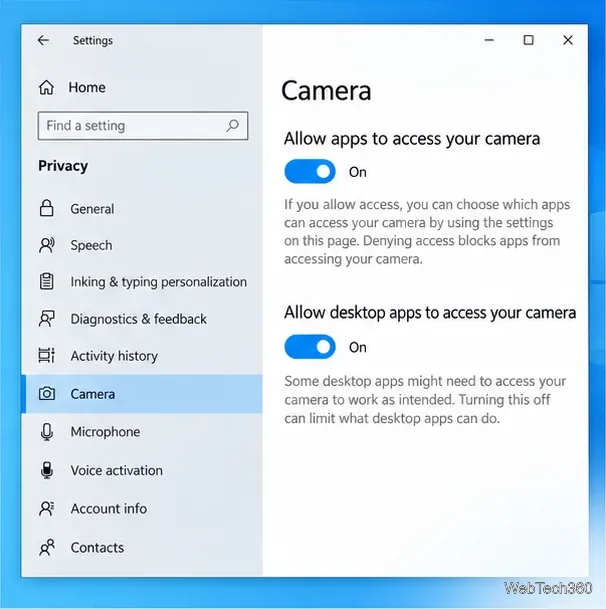
Open Start > Settings > Privacy > Camera. Turn on Allow apps to access your camera if you use a Microsoft Store app, and scroll down to enable Allow desktop apps to access your camera for desktop software such as a webcam utility or video-call app. If a control is locked, an administrator may manage it. Microsoft explains these permissions in its camera access guide.
Search the webcam model on its manufacturer’s support site and install the maker’s current camera utility, if one is offered for Windows 10. Select the correct webcam in the app and look for image, video, or camera controls. The available sliders vary by model. For Logitech webcams, Logitech’s current guide lists Logi Options+, G HUB, and Logi Tune as possible tools; the right app and available image controls depend on the model. Logitech’s older Camera Settings app is no longer supported.
If you cannot find maker software, the free Webcam Settings utility from eKiwi is one fallback. The developer describes it as a tool that opens the webcam’s supported settings page and offers installable and portable versions. Its page dates to 2020, so compatibility with every current camera or Windows setup is not guaranteed. Download it only from the developer’s page.
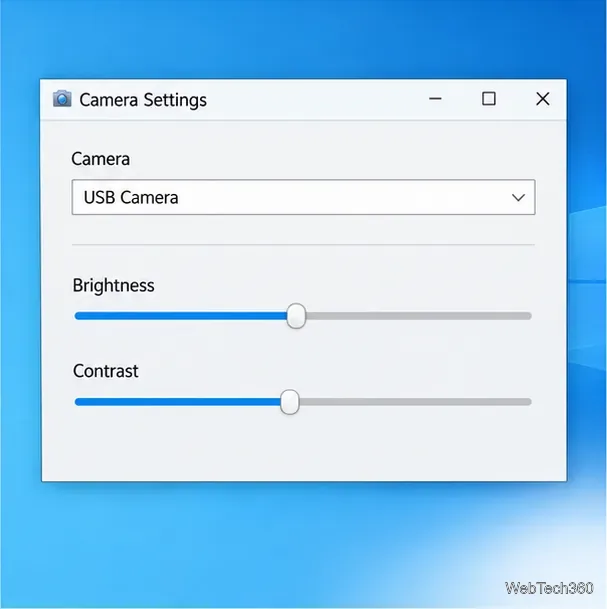
In the utility, choose the webcam from its camera list, open Settings or the image-controls page, and adjust one slider at a time. Start near the default position. Raise brightness only enough to make your face visible; then adjust contrast modestly so light and dark areas remain distinct without losing detail. A lamp in front of you often helps more than pushing brightness to its maximum, especially if a bright window is behind you.
Watch the live preview after each small change. Avoid extreme settings: too much brightness can wash out the image, while excessive contrast can hide detail in shadows or highlights. If the app has additional controls such as saturation, sharpness, or exposure, leave them unchanged until brightness and contrast look right.
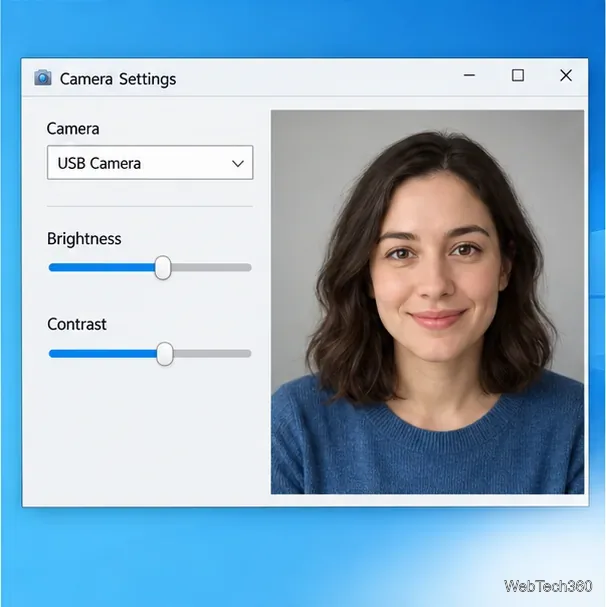
Select OK, Apply, or the save control shown by the utility. Open the Windows Camera app to check the feed, then test the same camera in your meeting app. Some camera or conferencing software applies its own image processing, so the result may look different between apps. If the picture changes only in one program, check that program’s camera, exposure, lighting, or filter settings as well.
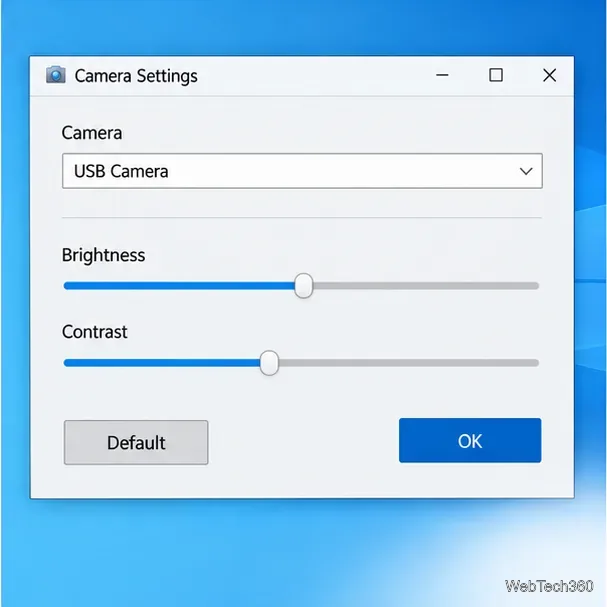
Reopen the same utility, select the same webcam, and choose Default, Restore defaults, or the equivalent option if it is available. Confirm with OK or Apply, then check the Camera app again. A reset button may return only that utility’s listed controls to the camera’s default values; it does not necessarily reset settings saved inside a meeting app.
If no compatible utility offers a manual control, improve the room lighting or use a camera app with settings supported by that webcam; Windows cannot add an image property the device does not expose. Microsoft notes that Windows 10 support ended on October 14, 2025, so download utilities only from the camera maker or original developer.
Prepare Java or Bedrock on Windows 10 for offline single-player, enable the right Xbox setting, and back up your local Minecraft worlds.
Change a file type icon in Windows 10 while keeping its current default app. Follow the FileTypesMan steps, handle icon picker issues, and restore the original setting.
Set PhysX in NVIDIA Control Panel on Windows 10, understand Auto-select vs. CPU or GPU, and learn when to use Windows Graphics settings instead.
Compare six free office suites for documents, spreadsheets, and presentations, including browser-based collaboration and offline desktop options.
Turn on Notepad’s Status Bar to see the current line and column in Windows 10, troubleshoot a disabled option, and learn when you need a line-number gutter.
Display a custom Windows dialog with a short PowerShell command, Command Prompt, or a reusable .bat or .ps1 file, including a title, icon, and buttons.
Fix Windows 10 update error 0x80071160 with Microsoft’s troubleshooter, a safe update-cache reset, DISM and SFC repairs, and a careful manual-install check.
Create a Windows 10 UEFI installer with Microsoft’s Media Creation Tool or Rufus, then boot and install safely without wiping the wrong drive.
Stop individual Edge tabs from crowding the Windows 10 Alt+Tab switcher. Change one Multitasking setting, limit recent tabs, and check why the option may be missing.
Enable Adobe’s PDF thumbnail handler, correct File Explorer’s icon settings, rebuild the thumbnail cache, and check OneDrive files that are not stored locally.








