How to Schedule a Wallpaper Change in Windows 10

Use Windows 10’s built-in slideshow for interval rotation or schedule an exact daily wallpaper change with Task Scheduler and a short PowerShell script.
To let a trusted app communicate over a network on Windows 10, add it to the Windows Defender Firewall allowed-apps list and choose which network types it can use. Open Windows Security, go to Firewall & network protection, select Allow an app through firewall, and enable the app for the appropriate network profile. You do not need to turn off the firewall.
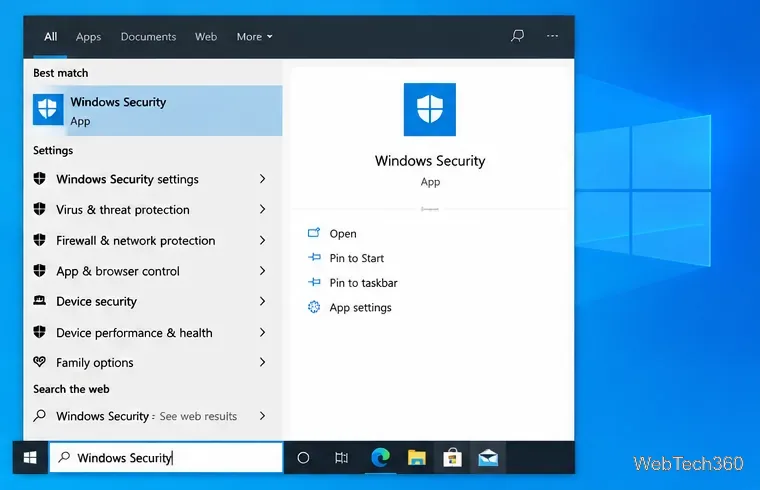
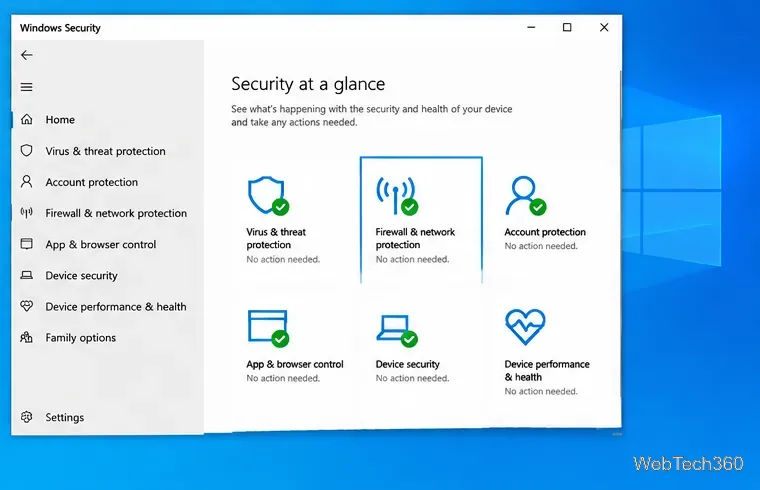
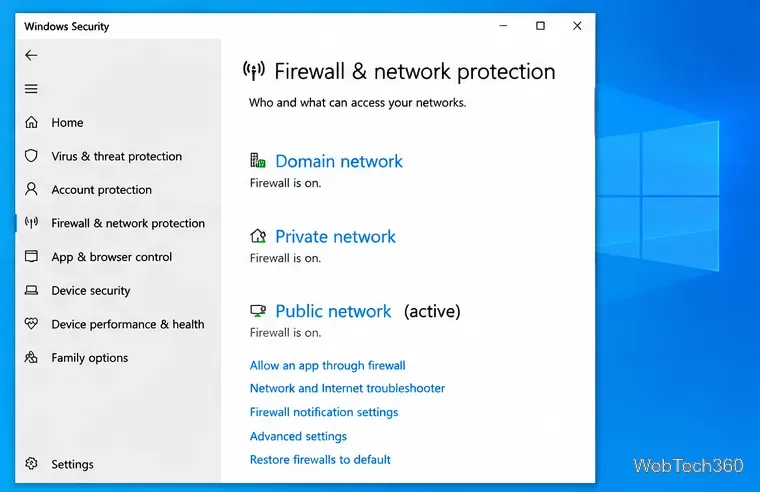
You can also reach the same list through Control Panel > System and Security > Windows Defender Firewall > Allow an app or feature through Windows Defender Firewall.
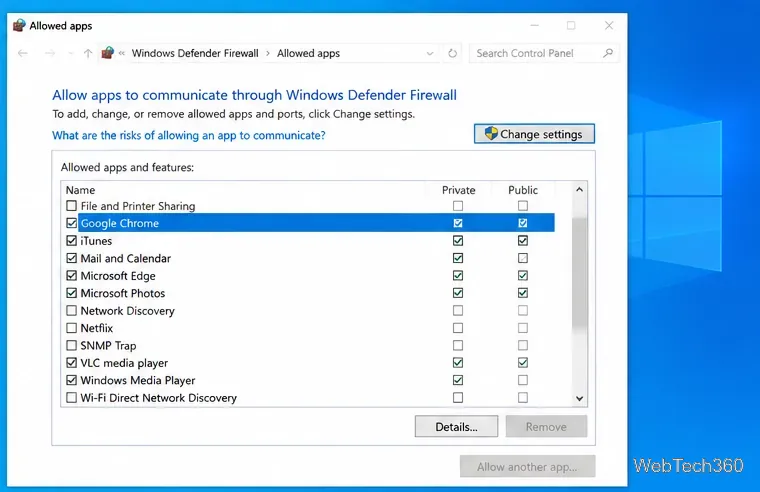
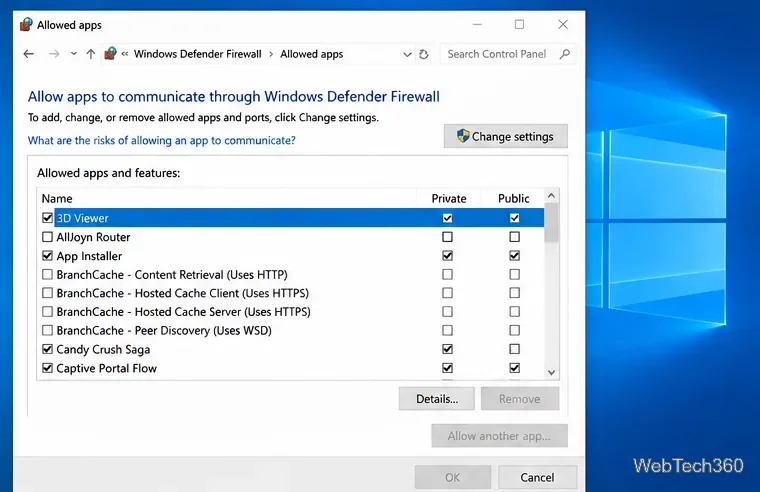
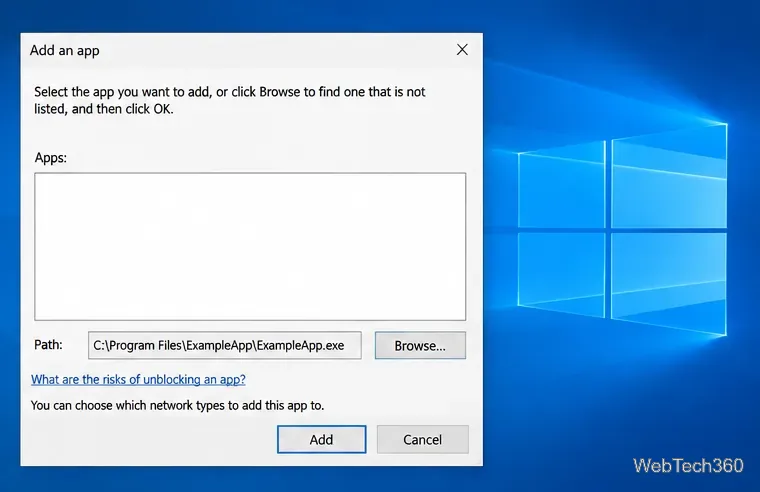
.exe), and click Open. Choose the actual application file, not a shortcut or an unrelated file. 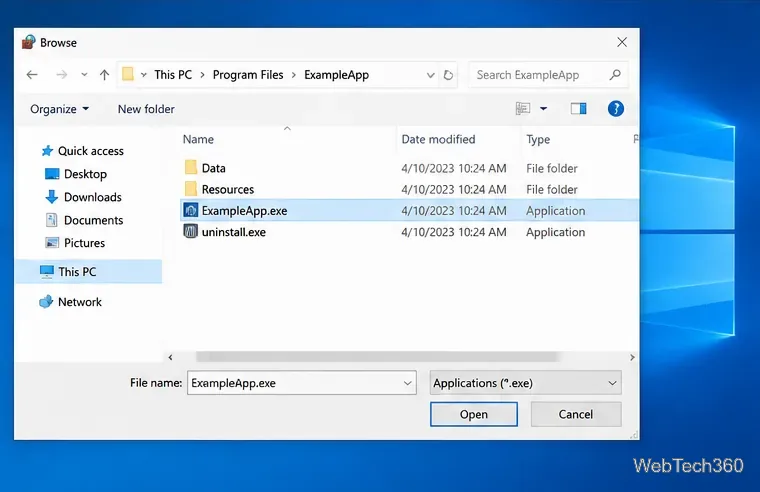
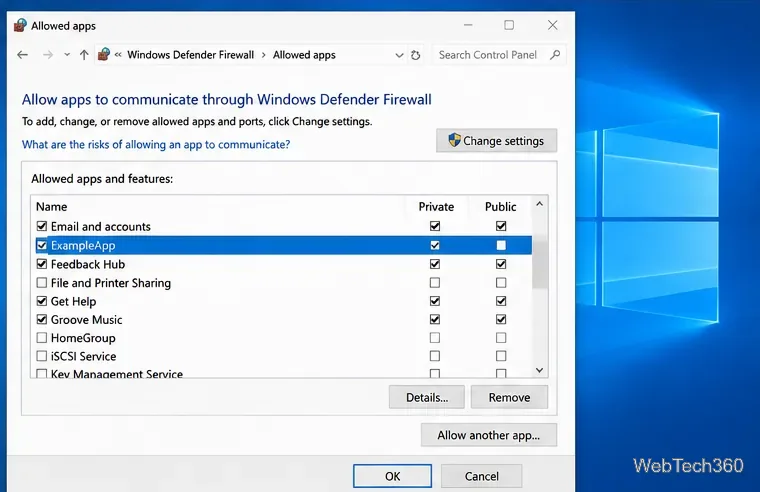
You usually do not need to select both profiles. Grant the narrowest access that supports the app’s intended use. Only allow programs you recognize and obtained from a trustworthy source; if you are unsure why an app needs network access, check its official documentation before changing the firewall.
Adding a specific app to the allowed list is generally safer than opening a port manually, and it is much safer than disabling Windows Firewall. Remove exceptions that are no longer needed. For more details, read Microsoft’s guidance on the risks of allowing apps through Windows Firewall and its Windows Firewall overview.
Use Windows 10’s built-in slideshow for interval rotation or schedule an exact daily wallpaper change with Task Scheduler and a short PowerShell script.
Choose a built-in alert tone or WAV file for Windows 10 message notifications, test the change, and troubleshoot apps that keep playing another sound.
Arrange Windows 10 apps in top-and-bottom rows with the taskbar’s Show windows stacked command, or create a reusable two-zone layout with PowerToys FancyZones.
Keep each display at its recommended resolution, arrange Windows 10 monitors accurately, and use MouseUnSnag to cross mismatched edges and sticky corners.
Find whether your connected Wi-Fi uses WPA2, WPA3, or an older security mode in Windows 10 with Settings, Command Prompt, or Control Panel.
Automatically lock Windows 10 after inactivity with a screen saver timer and sign-in prompt, then check how sleep settings affect the result.
Add a persistent colored ring around your Windows 10 mouse pointer with PenAttention, or use built-in pointer tools and PowerToys for temporary highlights.
Keep the Xbox Game Bar Performance widget visible over other windows on Windows 10, with CPU, GPU, and RAM readings you can position and unpin.
Capture two or more Windows 10 displays in one OBS video. Add a Display Capture source for each monitor, fit the canvas, and test the layout.
Create a GUID on Windows 10 with [guid]::NewGuid() or New-Guid, reuse it in a script, and learn when to look up an existing identifier.








