How to Schedule a Wallpaper Change in Windows 10

Use Windows 10’s built-in slideshow for interval rotation or schedule an exact daily wallpaper change with Task Scheduler and a short PowerShell script.
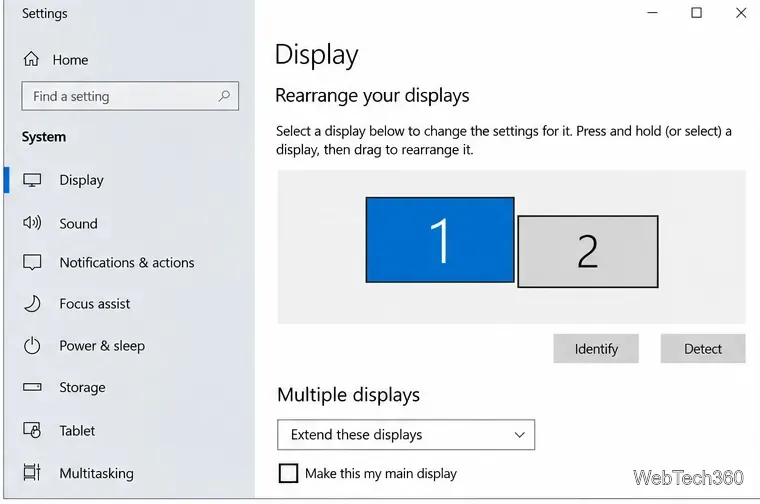
To arrange multiple monitors on Windows 10, open Settings > System > Display, use Identify to match each numbered box to a physical screen, then drag the boxes until they mirror the real position of your monitors. Select Apply and move the mouse between screens to confirm the layout feels natural.
Microsoft still documents these Windows 10 display controls, although standard Windows 10 support ended on October 14, 2025. The operating system continues to work, but Microsoft recommends moving to a supported version of Windows or using an eligible Extended Security Updates option. See Microsoft’s Windows 10 end-of-support guidance.
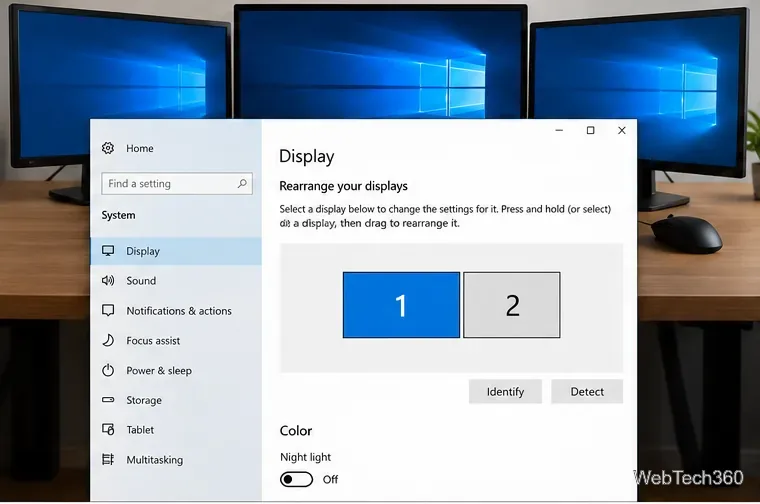
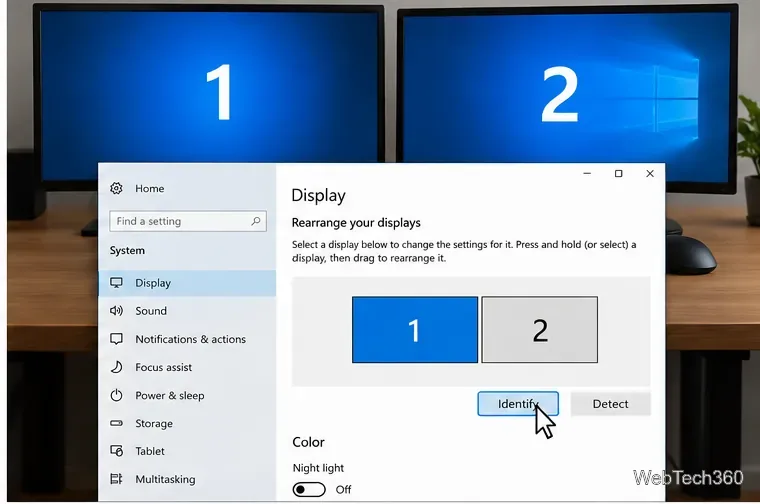
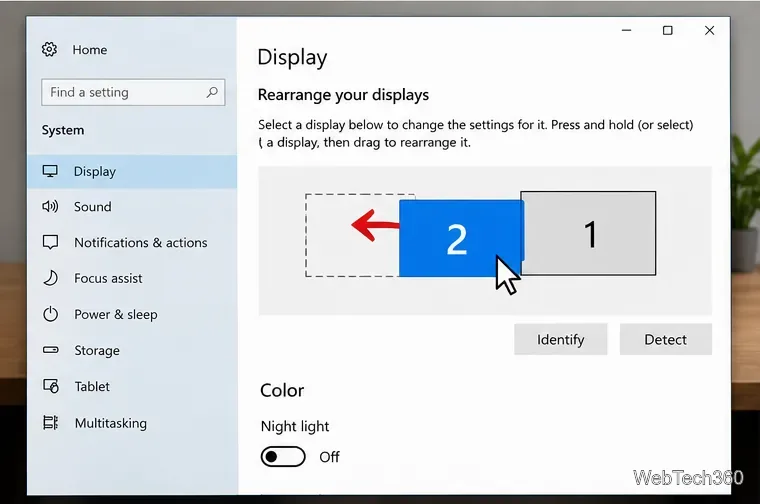
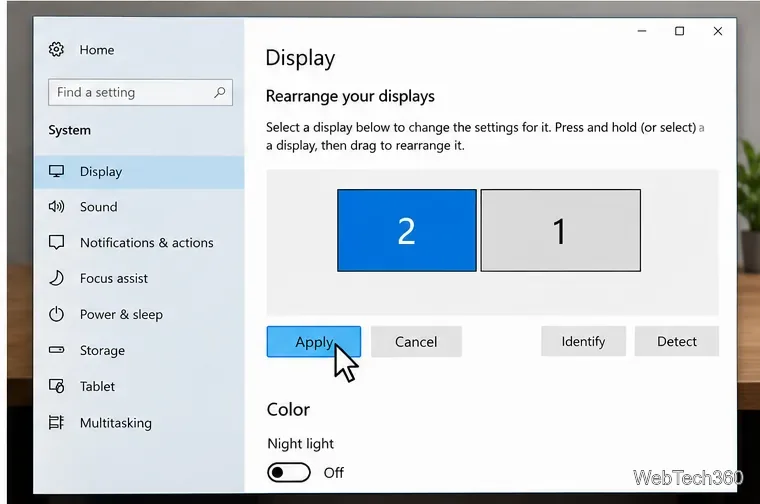
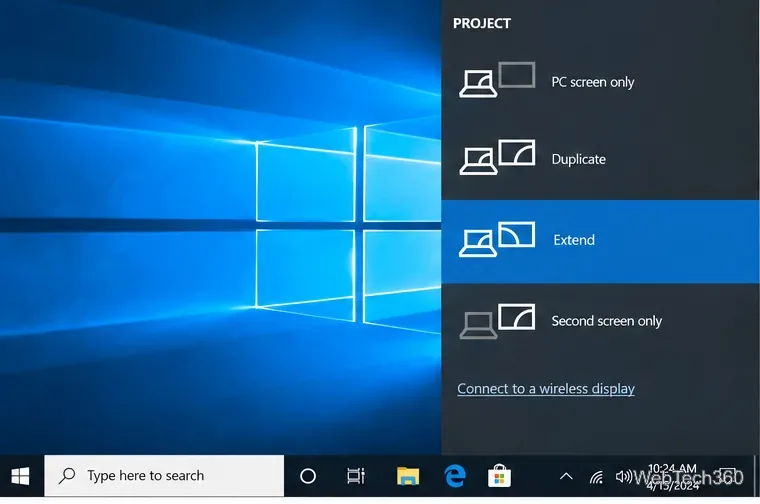
If both screens show the same content, you are probably using Duplicate mode. Press Windows key + P and choose Extend to spread the desktop across the monitors. Microsoft lists PC screen only, Duplicate, Extend, and Second screen only as the available projection choices in Windows 10. You can verify the current instructions on Microsoft’s multiple-monitor support page.
The monitor number does not have to match which screen you consider “primary.” In Settings > System > Display, select the monitor you want, then under Multiple displays choose Make this my main display. The main display normally hosts the Start menu, notification area, and the default location for many new windows.
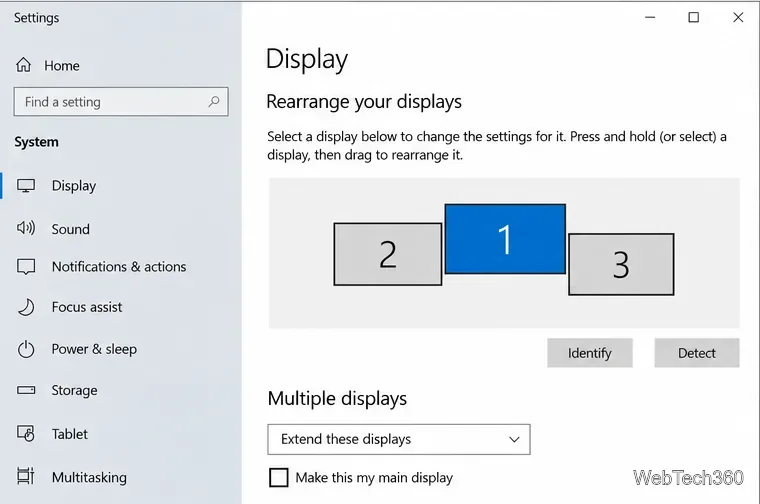
A common problem is a mouse pointer that seems to hit an invisible wall or jumps to the wrong height on the next monitor. The fix is usually the arrangement diagram. If one physical monitor sits higher than another, drag its rectangle higher too. With three monitors, you can make a straight row, a stepped layout, an L shape, or another arrangement that reflects the real desk.
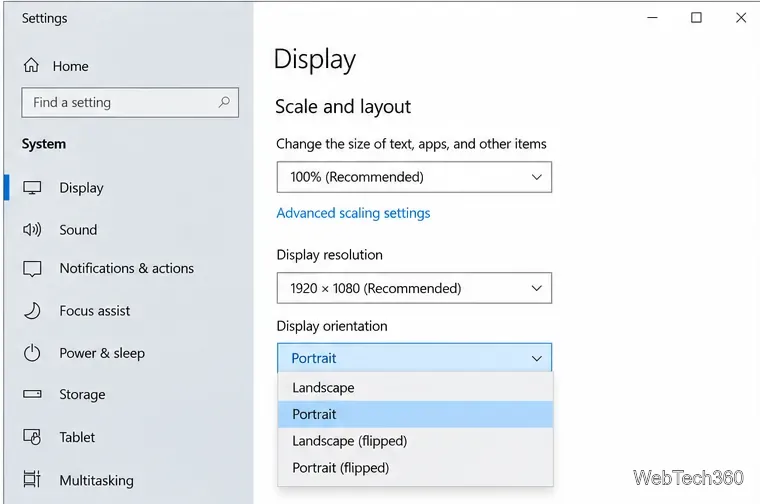
Select a monitor in Display settings before changing its options. For the sharpest image, Microsoft generally recommends using the resolution marked Recommended. You can also adjust scaling independently and switch Display orientation to Portrait if you physically rotate a monitor. Microsoft’s screen resolution and layout guide covers these settings for Windows 10 and Windows 11.
First confirm the display is powered on and the video cable or dock connection is secure. Then open Settings > System > Display, scroll to Multiple displays, and select Detect. Press Windows key + P and make sure Extend is selected if you want separate desktop space.
If the monitor still does not appear, disconnect unnecessary docks or adapters temporarily, reconnect the display, and check Windows Update for available driver updates. Microsoft also recommends these basic connection checks in its external-monitor troubleshooting guide.
Once the numbered display boxes match the real monitor positions, Windows 10 uses that map to decide how the pointer and windows move between screens. That alignment is the key to making a multi-monitor setup feel natural.
Use Windows 10’s built-in slideshow for interval rotation or schedule an exact daily wallpaper change with Task Scheduler and a short PowerShell script.
Choose a built-in alert tone or WAV file for Windows 10 message notifications, test the change, and troubleshoot apps that keep playing another sound.
Arrange Windows 10 apps in top-and-bottom rows with the taskbar’s Show windows stacked command, or create a reusable two-zone layout with PowerToys FancyZones.
Keep each display at its recommended resolution, arrange Windows 10 monitors accurately, and use MouseUnSnag to cross mismatched edges and sticky corners.
Find whether your connected Wi-Fi uses WPA2, WPA3, or an older security mode in Windows 10 with Settings, Command Prompt, or Control Panel.
Automatically lock Windows 10 after inactivity with a screen saver timer and sign-in prompt, then check how sleep settings affect the result.
Add a persistent colored ring around your Windows 10 mouse pointer with PenAttention, or use built-in pointer tools and PowerToys for temporary highlights.
Keep the Xbox Game Bar Performance widget visible over other windows on Windows 10, with CPU, GPU, and RAM readings you can position and unpin.
Capture two or more Windows 10 displays in one OBS video. Add a Display Capture source for each monitor, fit the canvas, and test the layout.
Create a GUID on Windows 10 with [guid]::NewGuid() or New-Guid, reuse it in a script, and learn when to look up an existing identifier.








