How to Automatically Restart a Crashed App on Windows 10
Set up a PowerShell watcher and Task Scheduler task to relaunch a Windows 10 desktop app after it closes, then learn how to test and stop it.
If you need to stop a Windows 10 PC from shutting down or restarting while a long task is running, you have two useful approaches. ShutdownBlocker can intercept many shutdown and restart requests, while a built-in Group Policy can remove the power commands from the Windows interface. The right choice depends on whether you want to block background requests or simply stop users from clicking Shut down or Restart.
Important: Microsoft ended free support for Windows 10 on October 14, 2025. This guide still applies to Windows 10 systems that remain in use, but unsupported PCs should not be treated as fully protected just because shutdowns are blocked. Microsoft documents the current Windows 10 lifecycle and restart controls on its Active Hours support page.
ShutdownBlocker is a small portable utility from Cresstone. It does not require a traditional installer: download the ZIP from the developer's ShutdownBlocker page, extract it to a folder you control, and run shutdownBlocker.exe. Because it is an older utility, download it only from the developer's site and keep a copy of your files before relying on it for important work.
Open ShutdownBlocker and select Block if blocking is not already active. When the app reports that shutdowns are blocked, it stays available in the background and can stop many ordinary shutdown, restart, and logoff requests.
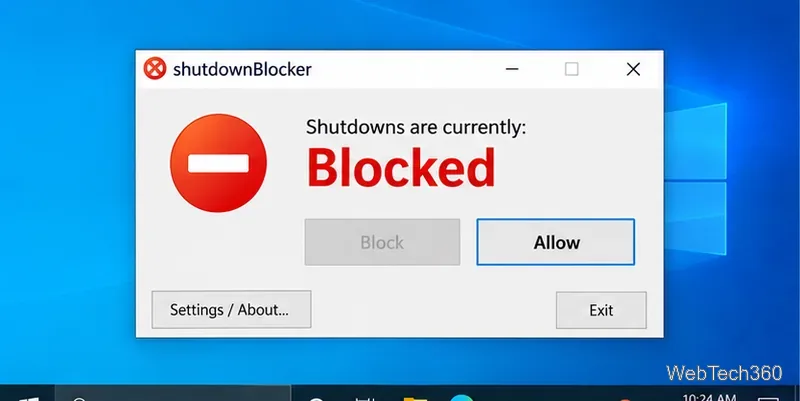
This is useful during a large download, export, render, backup, or other job that you do not want interrupted. It is not a security control and it cannot guarantee that every forced power action will be prevented.
Before intentionally restarting or shutting down Windows, open ShutdownBlocker and select Allow. The status should change to show that shutdowns are allowed. You can then use the normal Windows power menu.
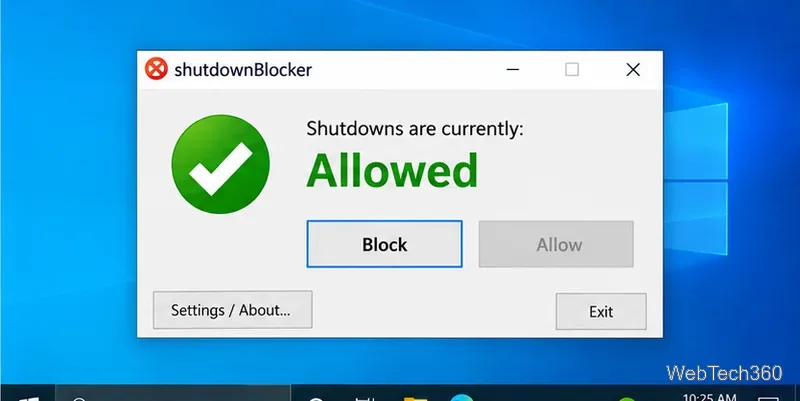
Do not leave blocking enabled indefinitely just to postpone maintenance. If Windows Update is waiting for a restart, schedule that restart for a convenient time instead of repeatedly preventing it.
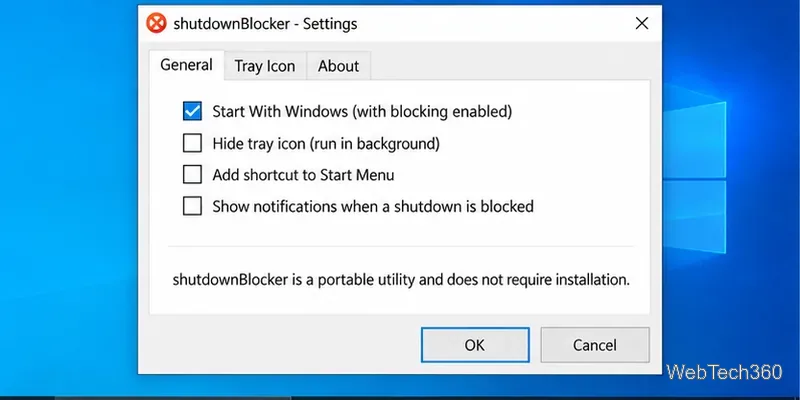
If you regularly need the protection, open Settings / About in ShutdownBlocker and enable Start With Windows (with blocking enabled). This makes the utility start automatically and begin blocking after sign-in. You can later return to the same settings page to turn the option off.
If your edition of Windows 10 includes Local Group Policy Editor, you can remove the power commands from the Start menu, sign-in screen, and the Ctrl+Alt+Delete security screen.
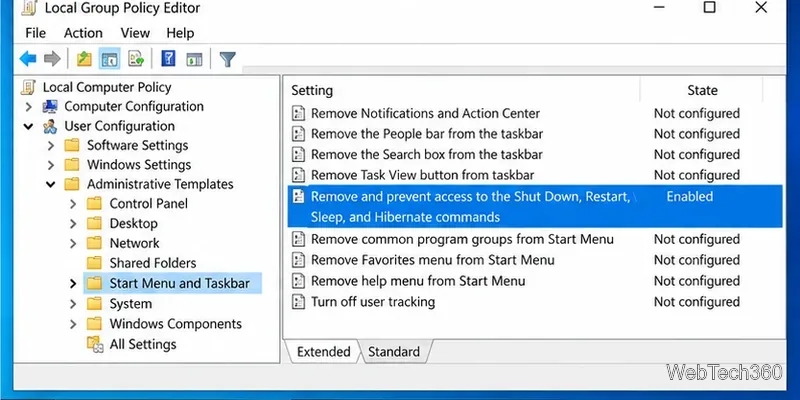
Microsoft's Start policy documentation notes an important limitation: this policy removes the user-facing power commands, but it does not prevent Windows programs from performing shutdown or restart operations. That makes it useful for kiosks, shared PCs, or accounts where you mainly want to prevent accidental clicks, not for blocking every restart source.
For update-related restarts, use Windows' own scheduling controls first. In Windows 10, go to Settings > Update & Security > Windows Update > Change active hours and set the period when you normally use the PC. Microsoft says Windows uses Active Hours to help avoid automatic update restarts while the device is in use.
If Windows already has a timed shutdown pending, the built-in command shutdown /a can abort it only while the timeout is still active. Microsoft documents this behavior in the shutdown command reference. It is a one-time cancellation, not a permanent shutdown blocker.
Whichever method you choose, save important work regularly and remember how to reverse the block. A shutdown blocker can reduce accidental interruptions, but it should not replace normal updates, backups, or planned restarts.
Set up a PowerShell watcher and Task Scheduler task to relaunch a Windows 10 desktop app after it closes, then learn how to test and stop it.
Keep app icons out of the hidden overflow in Windows 10. Turn on the all-icons option, then manage system icons separately if one is still missing.
Change the saved username or password Windows uses for a mapped drive or shared folder through Credential Manager, then reconnect to verify access.
Set a lower Defender scan CPU target in PowerShell, handle the idle-scan exception, and verify which Windows 10 scans the setting affects.
Import a Bedrock .mcpack or .mcaddon on Windows 10, activate it for a new or existing world, and avoid confusing add-ons with Java mods.
Restore the Windows 10 hotspot by checking the internet source and wireless adapter, repairing its driver, and saving Network reset for last.
Set daytime and nighttime brightness levels on Windows 10 with ClickMonitorDDC 7.2, and learn about DDC/CI limits and the Night light alternative.
Find Windows 10’s left/right balance controls for Bluetooth headphones, with a cautious registry workaround when volume controls stay linked.
Set up Task Scheduler’s On idle trigger to shut down Windows 10 with a one-minute cancellation window, and learn how Windows defines idle.
Learn how to burn a disc image to an SD card on Windows 10 with balenaEtcher, verify the target drive, and check whether the finished card can boot.