How to Automatically Restart a Crashed App on Windows 10
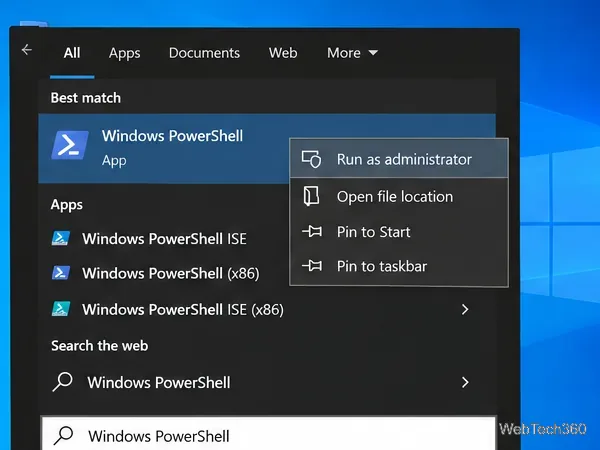
Set up a PowerShell watcher and Task Scheduler task to relaunch a Windows 10 desktop app after it closes, then learn how to test and stop it.
To change a file extension on Windows 10, first make file name extensions visible in File Explorer, then rename the file and replace only the characters after the final period. Windows will warn you before it applies the new extension. The important limitation is that renaming an extension does not convert the file to a different format; it only changes the file name and how Windows and apps may try to handle it.
Windows 10 can hide extensions for recognized file types, so a file may appear as report even though its full name is report.txt. Make extensions visible before editing anything so you know exactly which part of the name you are changing.
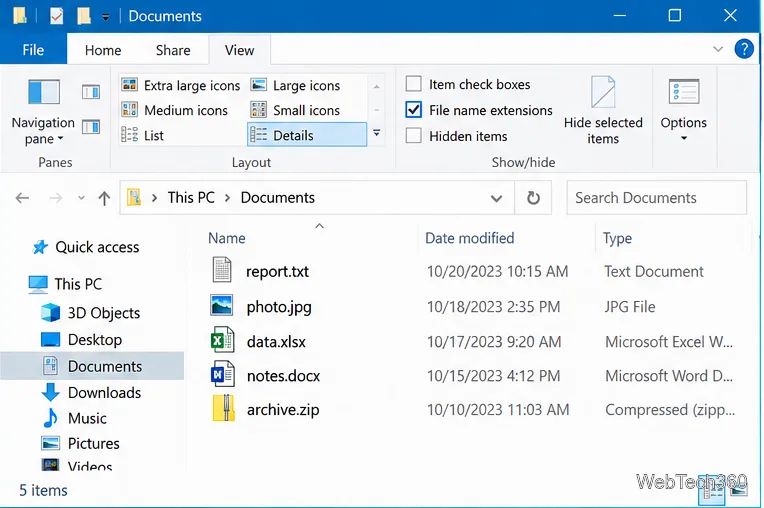
Microsoft documents this Windows 10 setting in its instructions for making file extensions visible in File Explorer. You can also use File Explorer's Folder Options and clear Hide extensions for known file types, as described in Microsoft's File Explorer help.
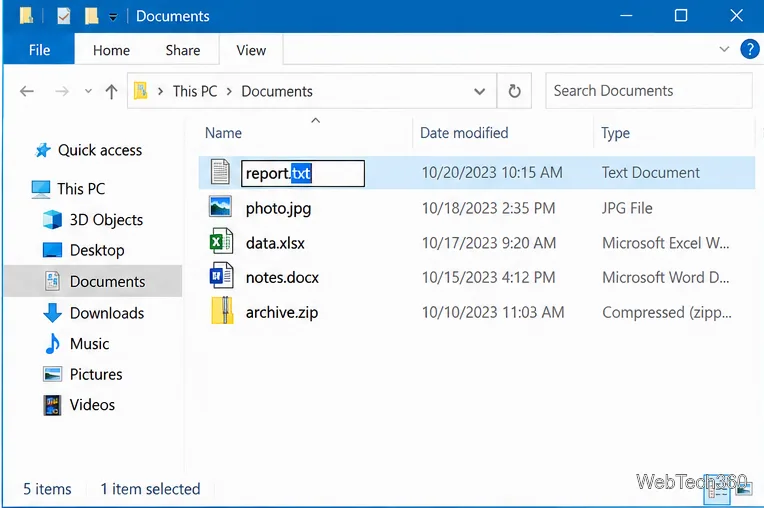
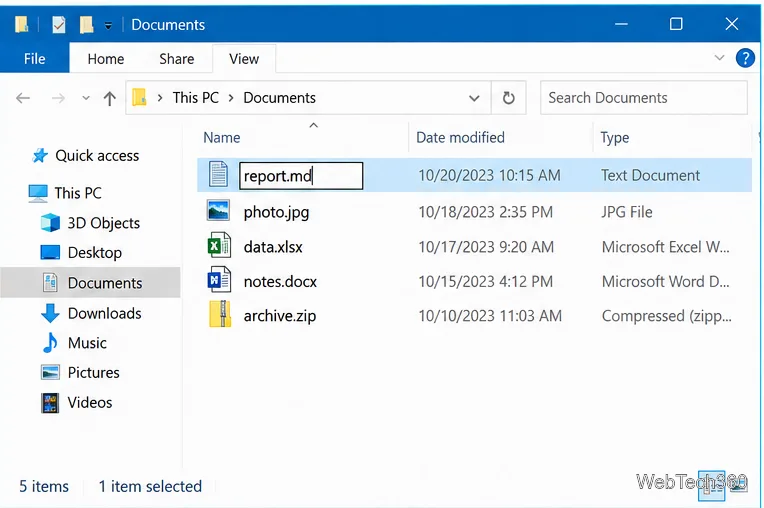
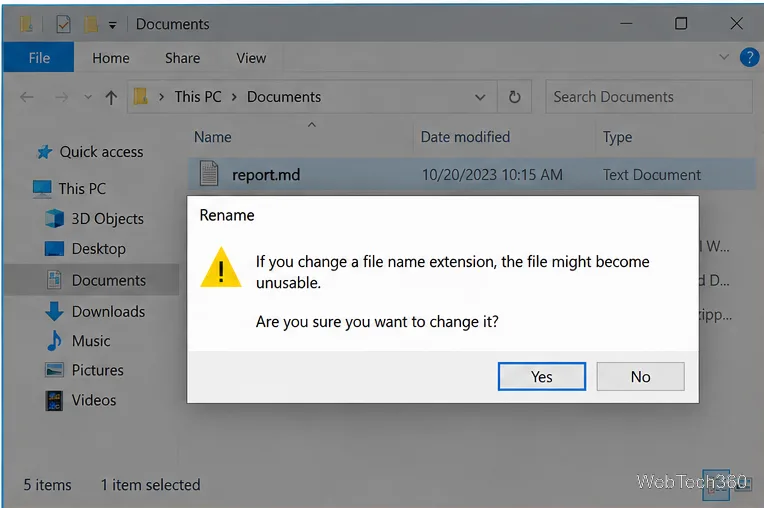
The file's icon or default app association may change after the rename because Windows now sees a different extension. Microsoft notes that an extension identifies a file type and helps Windows determine which applications can open it; its file name extension reference also confirms that changing the extension does not convert the underlying file format.
This distinction prevents the most common mistake. Renaming photo.jpg to photo.png does not turn JPEG image data into PNG data. Likewise, renaming song.mp3 to song.wav does not re-encode the audio. An application may refuse to open the renamed file because the contents no longer match what the extension suggests.
If you truly need a different format, open the file in an application that supports the original format and use an option such as Save As, Export, or a trusted conversion tool. Use direct extension changes mainly when the file was given the wrong extension, an extension was omitted, or a workflow specifically requires a different recognized suffix without changing the underlying data.
If a file stops opening after you change its extension, the quickest fix is usually to rename it again and restore the original extension. Renaming alone does not rewrite the file's contents, so reversing the name change normally restores the previous association.
Changing the extension by itself changes the name, not the file's stored data. However, the renamed file may become difficult to open or may be handled by the wrong application until you restore the correct extension. For that reason, use the rename method only when you know what the new extension should be. If your goal is to change the actual format, convert or export the file instead.
Set up a PowerShell watcher and Task Scheduler task to relaunch a Windows 10 desktop app after it closes, then learn how to test and stop it.
Keep app icons out of the hidden overflow in Windows 10. Turn on the all-icons option, then manage system icons separately if one is still missing.
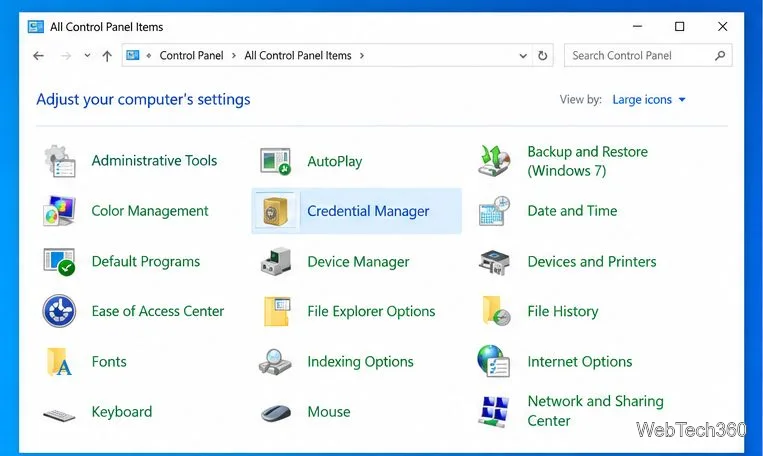
Change the saved username or password Windows uses for a mapped drive or shared folder through Credential Manager, then reconnect to verify access.
Set a lower Defender scan CPU target in PowerShell, handle the idle-scan exception, and verify which Windows 10 scans the setting affects.
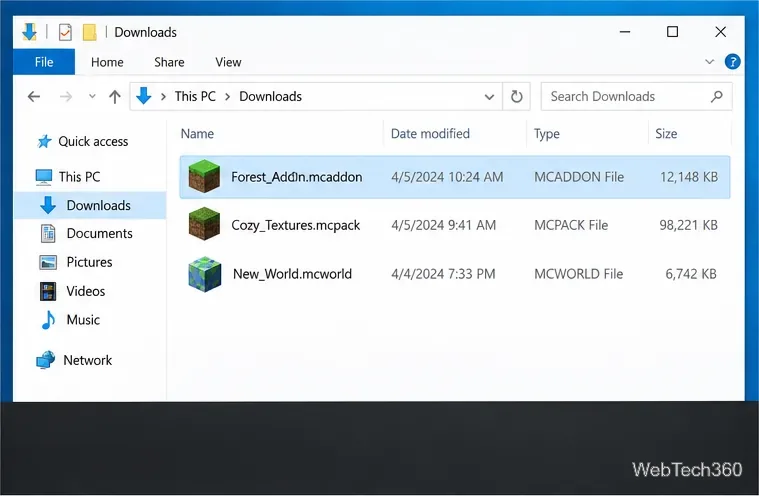
Import a Bedrock .mcpack or .mcaddon on Windows 10, activate it for a new or existing world, and avoid confusing add-ons with Java mods.
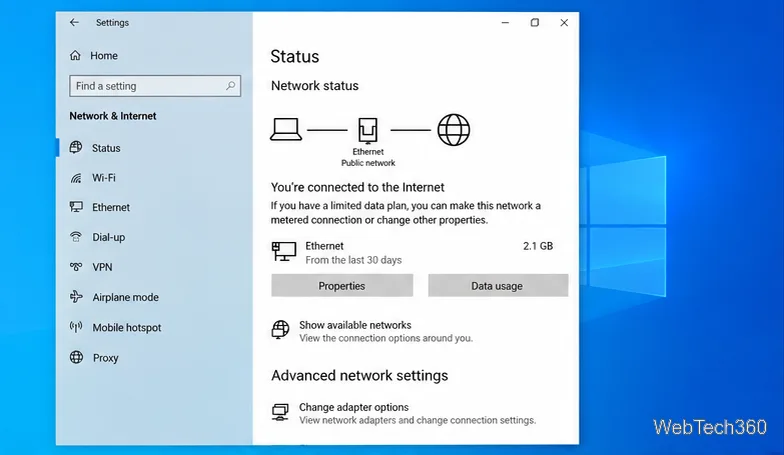
Restore the Windows 10 hotspot by checking the internet source and wireless adapter, repairing its driver, and saving Network reset for last.
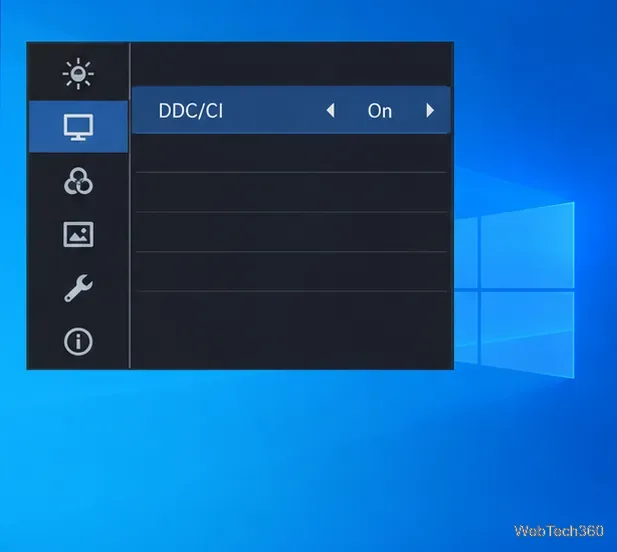
Set daytime and nighttime brightness levels on Windows 10 with ClickMonitorDDC 7.2, and learn about DDC/CI limits and the Night light alternative.
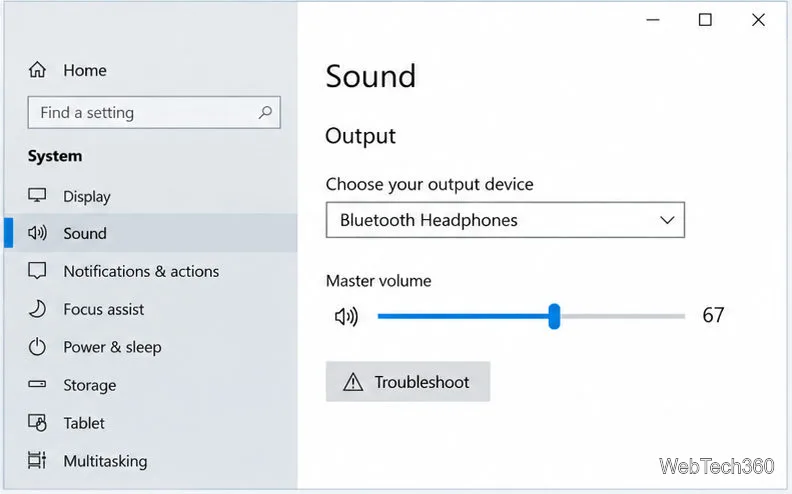
Find Windows 10’s left/right balance controls for Bluetooth headphones, with a cautious registry workaround when volume controls stay linked.
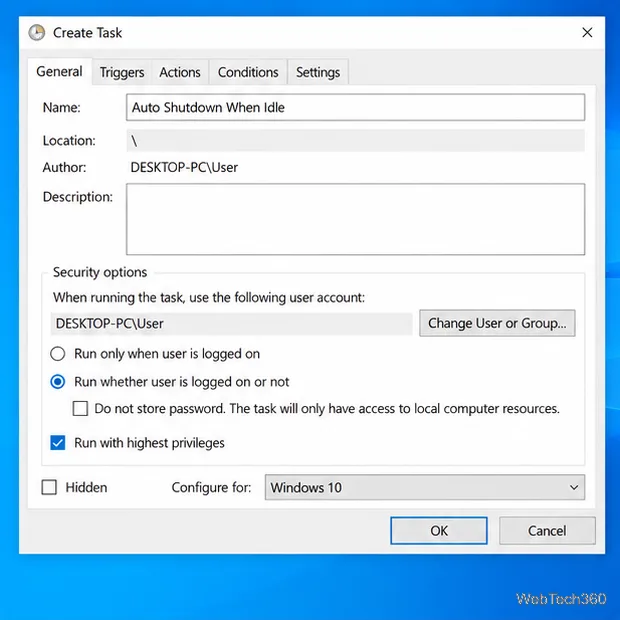
Set up Task Scheduler’s On idle trigger to shut down Windows 10 with a one-minute cancellation window, and learn how Windows defines idle.
Learn how to burn a disc image to an SD card on Windows 10 with balenaEtcher, verify the target drive, and check whether the finished card can boot.