How to Play Minecraft Offline on Windows 10: Java and Bedrock

Prepare Java or Bedrock on Windows 10 for offline single-player, enable the right Xbox setting, and back up your local Minecraft worlds.
The reliable way to change sign text color in current Minecraft is to use dye on the sign. This works for normal signs and hanging signs in both Java Edition and Bedrock Edition. If you specifically want to type Minecraft color codes, the § section-sign method is a Bedrock Edition feature; it is not the normal way to color text in Java Edition's in-game sign editor.
That distinction matters because many older guides treated Java and the old Windows 10/UWP edition as if the same color-code steps worked everywhere. Today, Windows uses Bedrock Edition, while Java players should use dyes for ordinary sign text.
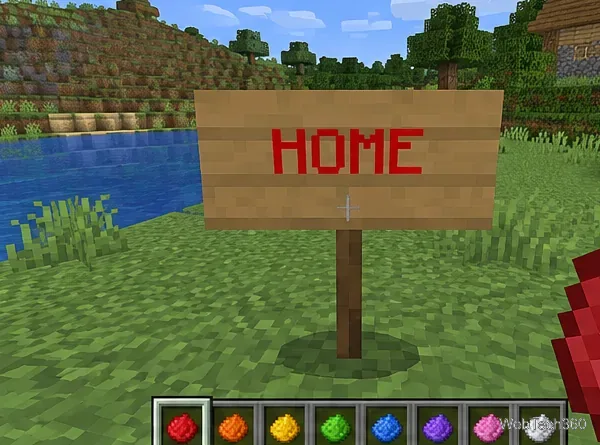
Mojang's Java Edition 1.20 notes confirm that the two sides of a sign can hold separate text and colors, and that signs can be waxed after editing. See the official Java Edition 1.20 sign notes.
On Bedrock Edition, you can use the section symbol followed immediately by a formatting code. For example, §cRed text makes the following text red where section-sign formatting is accepted. Microsoft's Bedrock documentation describes this syntax and lists the current mappings in its Raw Message JSON reference.
On a Windows keyboard with a numeric keypad, Microsoft documents Alt+0167 (and also Alt+21 on some setups) for entering §. Copy-and-paste may be easier on devices where the symbol is difficult to type. If your platform or current text-entry UI does not accept the symbol, use dye instead.
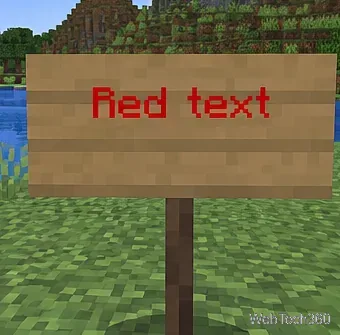
These are the standard color codes most players use:
| Code | Color | Code | Color |
|---|---|---|---|
§0 | Black | §8 | Dark gray |
§1 | Dark blue | §9 | Blue |
§2 | Dark green | §a | Green |
§3 | Dark aqua | §b | Light blue |
§4 | Dark red | §c | Red |
§5 | Dark purple | §d | Pink |
§6 | Orange | §e | Yellow |
§7 | Gray | §f | White |
Current Bedrock documentation also lists extra color codes: §g gold, §h warm light gray, §i cool light gray, §j dark brown, §m dark red, §n brown, §p gold, §q dark green, §s aqua, §t dark teal, and §u purple.
This is one place where older tutorials can be misleading: in the current Bedrock reference, §m and §n are colors, not strikethrough and underline.
Bedrock's current documented text effects include §k for obfuscated text, §l for bold, §o for italic, and §r to reset formatting. You can place a color code before the text and add an effect code as needed. For example, §c§lWarning requests red, bold text, while §r returns following text to normal formatting.
Do not depend on old Java-style lists that label §m as strikethrough or §n as underline when you are writing Bedrock sign text.
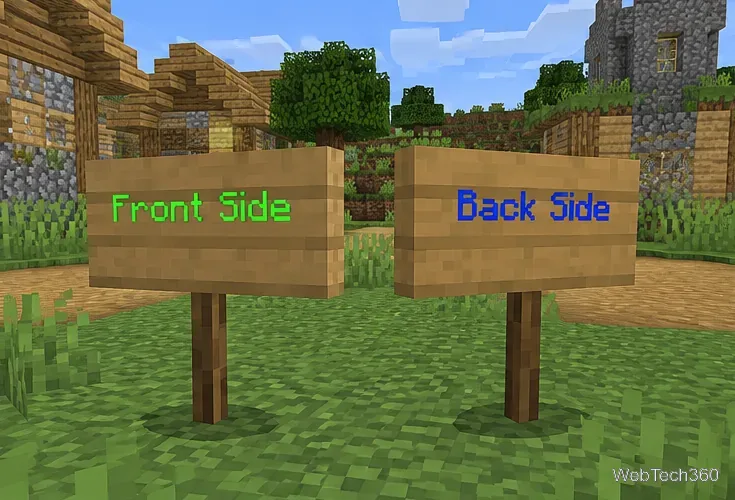
Modern signs have two editable faces. Color the front, walk around the sign, and edit or color the back independently. This is useful for directions, entrances, shops, and signs that need different information depending on which way a player approaches.
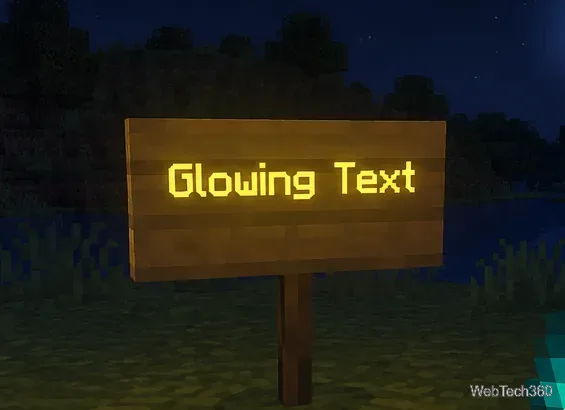
If colored text is hard to see at night or against darker wood, use a glow ink sac on the sign. Mojang explains that glow ink makes sign text much more visible in low light without turning the sign into a light source. A regular ink sac removes the glow effect. See Mojang's Glow Ink Sac guide.
§ method is not the normal in-game sign-entry workflow.§, the code character, and the text you want to format.For most players, the best rule is simple: use dyes in Java and Bedrock for whole-sign colors, and use § color codes only when you specifically need Bedrock text formatting.
Prepare Java or Bedrock on Windows 10 for offline single-player, enable the right Xbox setting, and back up your local Minecraft worlds.
Change a file type icon in Windows 10 while keeping its current default app. Follow the FileTypesMan steps, handle icon picker issues, and restore the original setting.
Set PhysX in NVIDIA Control Panel on Windows 10, understand Auto-select vs. CPU or GPU, and learn when to use Windows Graphics settings instead.
Compare six free office suites for documents, spreadsheets, and presentations, including browser-based collaboration and offline desktop options.
Turn on Notepad’s Status Bar to see the current line and column in Windows 10, troubleshoot a disabled option, and learn when you need a line-number gutter.
Display a custom Windows dialog with a short PowerShell command, Command Prompt, or a reusable .bat or .ps1 file, including a title, icon, and buttons.
Fix Windows 10 update error 0x80071160 with Microsoft’s troubleshooter, a safe update-cache reset, DISM and SFC repairs, and a careful manual-install check.
Create a Windows 10 UEFI installer with Microsoft’s Media Creation Tool or Rufus, then boot and install safely without wiping the wrong drive.
Stop individual Edge tabs from crowding the Windows 10 Alt+Tab switcher. Change one Multitasking setting, limit recent tabs, and check why the option may be missing.
Enable Adobe’s PDF thumbnail handler, correct File Explorer’s icon settings, rebuild the thumbnail cache, and check OneDrive files that are not stored locally.








