How to Play Minecraft Offline on Windows 10: Java and Bedrock

Prepare Java or Bedrock on Windows 10 for offline single-player, enable the right Xbox setting, and back up your local Minecraft worlds.
If text is difficult to read on Windows 10, you can make the text larger without changing your screen resolution. The fastest route is Windows key + U, then use the Make text bigger control on the Display page. If you also want icons, buttons, and app windows to grow, use Make everything bigger instead.
Microsoft still documents these controls for Windows 10. The steps below keep the two settings separate so you can improve readability without accidentally enlarging the entire desktop.
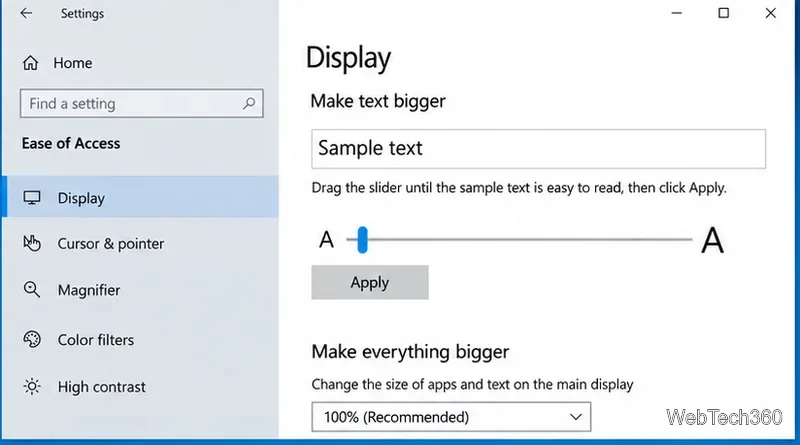
This setting is intended to enlarge text such as title bars, menus, and icon labels while leaving most other interface elements at their existing size. To return toward the default text size later, move the slider back to the left and select Apply again.
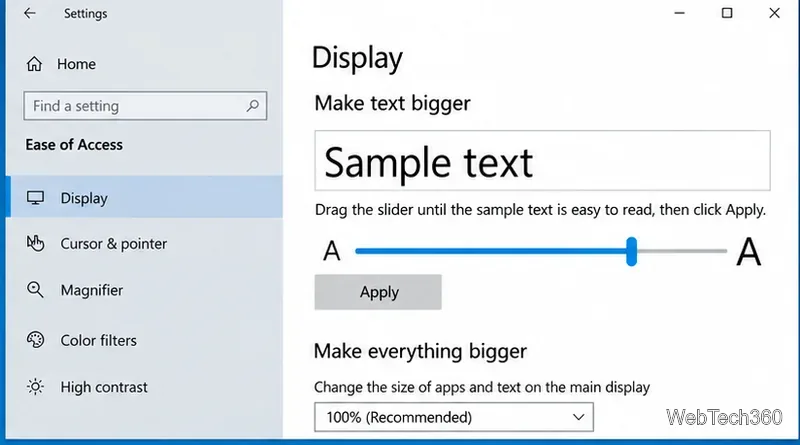
Microsoft’s current support page for Windows 10 confirms this path and behavior: Change the size of text in Windows.
If larger text alone is not enough, stay on Ease of Access > Display and use the Make everything bigger menu. This changes display scaling, so text, icons, buttons, and application interfaces become larger together.
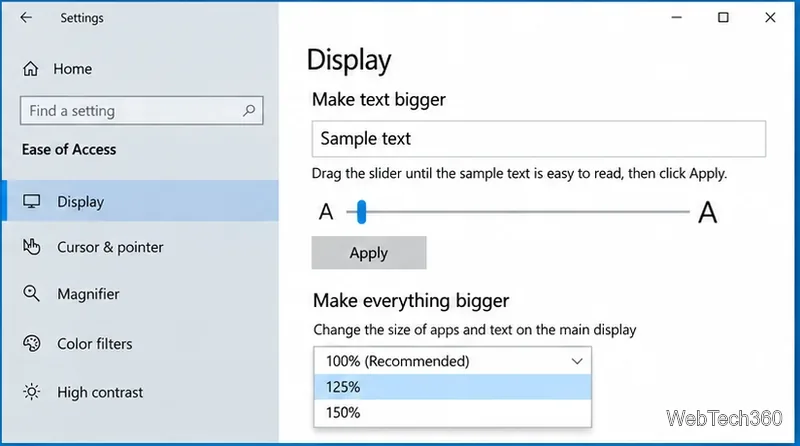
Choose the smallest scaling level that is comfortable. Higher scaling leaves less usable space on the desktop because each interface element occupies more pixels. For sharp text, keep your display resolution at the value Windows marks as Recommended instead of lowering resolution just to make things appear larger.
| Setting | What it changes | Best for |
|---|---|---|
| Make text bigger | Primarily text across Windows and many apps | Small labels or menus when icons already look fine |
| Make everything bigger | Text, icons, controls, and app interfaces | High-resolution displays or when the whole UI feels too small |
| App or browser zoom | Content inside one app or page | Websites, documents, or a single application |
The Windows text-size setting does not guarantee that every piece of content inside every app becomes larger. A common example is a web page: the browser interface may follow Windows settings, while the page itself uses its own text and layout rules.
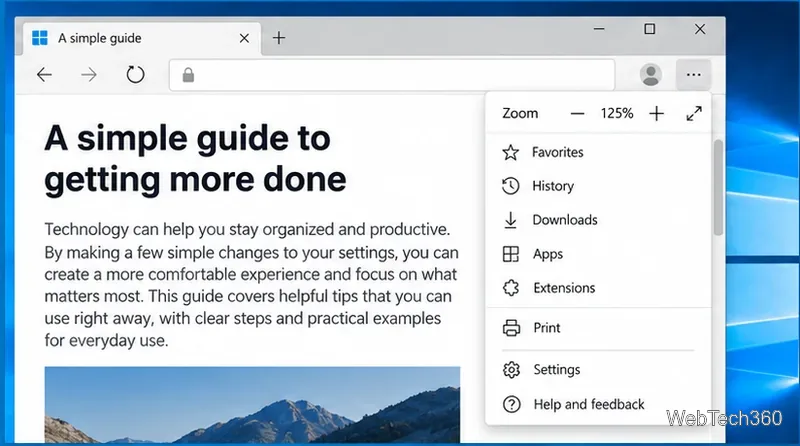
For websites, use the browser’s zoom control. In Microsoft Edge and most browsers, Ctrl + Plus (+) zooms in, Ctrl + Minus (-) zooms out, and Ctrl + 0 resets the page. Edge also exposes zoom in its three-dot menu. Microsoft documents these controls on its Edge accessibility page.
Most changes apply quickly, but Microsoft notes that some apps may require you to sign out and sign back in before the new size is reflected. Try these fixes in order:
For temporary magnification instead of a permanent size change, press Windows key + Plus (+) to start Magnifier. Press Windows key + Esc to exit it.
Windows 10 itself still works, but Microsoft ended standard support on October 14, 2025. If you continue using Windows 10, review Microsoft’s Windows 10 end-of-support guidance and consider a supported upgrade path or Extended Security Updates where applicable.
Prepare Java or Bedrock on Windows 10 for offline single-player, enable the right Xbox setting, and back up your local Minecraft worlds.
Change a file type icon in Windows 10 while keeping its current default app. Follow the FileTypesMan steps, handle icon picker issues, and restore the original setting.
Set PhysX in NVIDIA Control Panel on Windows 10, understand Auto-select vs. CPU or GPU, and learn when to use Windows Graphics settings instead.
Compare six free office suites for documents, spreadsheets, and presentations, including browser-based collaboration and offline desktop options.
Turn on Notepad’s Status Bar to see the current line and column in Windows 10, troubleshoot a disabled option, and learn when you need a line-number gutter.
Display a custom Windows dialog with a short PowerShell command, Command Prompt, or a reusable .bat or .ps1 file, including a title, icon, and buttons.
Fix Windows 10 update error 0x80071160 with Microsoft’s troubleshooter, a safe update-cache reset, DISM and SFC repairs, and a careful manual-install check.
Create a Windows 10 UEFI installer with Microsoft’s Media Creation Tool or Rufus, then boot and install safely without wiping the wrong drive.
Stop individual Edge tabs from crowding the Windows 10 Alt+Tab switcher. Change one Multitasking setting, limit recent tabs, and check why the option may be missing.
Enable Adobe’s PDF thumbnail handler, correct File Explorer’s icon settings, rebuild the thumbnail cache, and check OneDrive files that are not stored locally.








