How to Play Minecraft Offline on Windows 10: Java and Bedrock

Prepare Java or Bedrock on Windows 10 for offline single-player, enable the right Xbox setting, and back up your local Minecraft worlds.
The fastest way to check whether an SSD is SATA or NVMe on Windows 10 is to read its BusType with PowerShell. If Windows reports NVMe, the drive is NVMe; if it reports SATA, it is a SATA drive. When Windows instead shows RAID, USB, or an unclear value, identify the exact SSD model and confirm its interface on the manufacturer’s official specifications page.
Windows includes the Storage PowerShell module, and Microsoft’s Get-Disk documentation confirms that disk objects expose a BusType property.
Get-Disk | Select-Object Number, FriendlyName, BusType, Size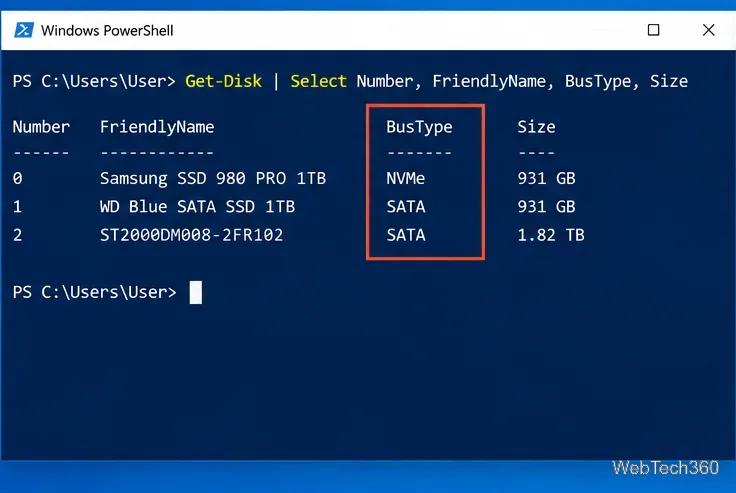
| BusType result | What it usually means |
|---|---|
| NVMe | The SSD is using NVMe. |
| SATA | The drive is connected through SATA. |
| RAID, USB, Unknown, or another value | Do not guess. A controller, enclosure, or driver may be what Windows is reporting, so verify the SSD model separately. |
If you want a second built-in check, try Get-PhysicalDisk | Select-Object FriendlyName, MediaType, BusType, Size. Microsoft documents Get-PhysicalDisk as returning physical disks visible through Windows storage management providers.
Task Manager is helpful when the PowerShell bus value is ambiguous. It normally identifies the disk as an SSD and shows its model, but the SSD label by itself does not tell you whether the drive is SATA or NVMe.
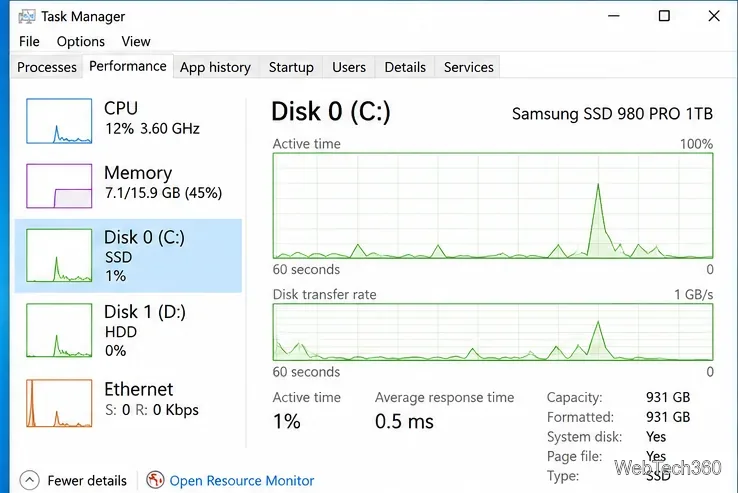
Search that exact model on the SSD manufacturer’s official website and look for fields such as Interface, Protocol, or Host Interface. Wording such as SATA 6 Gb/s indicates SATA. Wording such as PCIe x4, NVMe indicates NVMe.
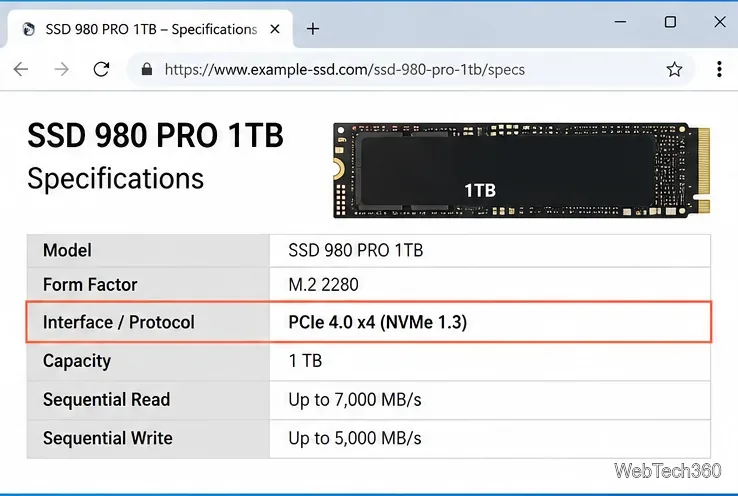
This model lookup is also the best fallback when Intel RST/VMD, a RAID configuration, a USB enclosure, or another storage controller prevents Windows from exposing the underlying protocol cleanly.
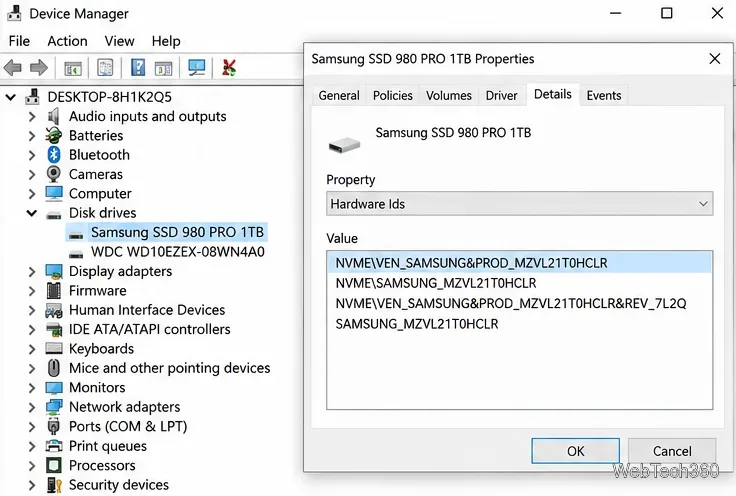
Microsoft documents NVMe as a distinct storage protocol supported by Windows 10 through its storage APIs and StorNVMe driver. See Microsoft’s Working with NVMe drives reference for the underlying Windows support.
M.2 is a form factor, not a guarantee that a drive is NVMe. SATA-IO’s M.2 documentation notes that the M.2 form factor can carry SATA or PCIe. That means two SSDs can look almost identical while using different interfaces.
Likewise, physical size alone is not a perfect test. A common 2.5-inch consumer SSD is usually SATA, but 2.5-inch NVMe form factors such as U.2 also exist. NVM Express explains this distinction in its NVMe form-factor overview.
NVMe generally offers much more available bandwidth than SATA because it uses PCIe and the NVMe protocol, but the real performance of a particular SSD depends on the drive, PCIe generation and lane count, controller, thermals, and workload. If your goal is simply to identify what is already installed, checking BusType and then confirming the model specification is more reliable than judging by benchmark speed.
Windows 10 note: Microsoft ended standard Windows 10 support on October 14, 2025, although the operating system continues to run and eligible devices may use Extended Security Updates. Microsoft’s current status is available on its Windows 10 support page.
Prepare Java or Bedrock on Windows 10 for offline single-player, enable the right Xbox setting, and back up your local Minecraft worlds.
Change a file type icon in Windows 10 while keeping its current default app. Follow the FileTypesMan steps, handle icon picker issues, and restore the original setting.
Set PhysX in NVIDIA Control Panel on Windows 10, understand Auto-select vs. CPU or GPU, and learn when to use Windows Graphics settings instead.
Compare six free office suites for documents, spreadsheets, and presentations, including browser-based collaboration and offline desktop options.
Turn on Notepad’s Status Bar to see the current line and column in Windows 10, troubleshoot a disabled option, and learn when you need a line-number gutter.
Display a custom Windows dialog with a short PowerShell command, Command Prompt, or a reusable .bat or .ps1 file, including a title, icon, and buttons.
Fix Windows 10 update error 0x80071160 with Microsoft’s troubleshooter, a safe update-cache reset, DISM and SFC repairs, and a careful manual-install check.
Create a Windows 10 UEFI installer with Microsoft’s Media Creation Tool or Rufus, then boot and install safely without wiping the wrong drive.
Stop individual Edge tabs from crowding the Windows 10 Alt+Tab switcher. Change one Multitasking setting, limit recent tabs, and check why the option may be missing.
Enable Adobe’s PDF thumbnail handler, correct File Explorer’s icon settings, rebuild the thumbnail cache, and check OneDrive files that are not stored locally.








