How to Play Minecraft Offline on Windows 10: Java and Bedrock

Prepare Java or Bedrock on Windows 10 for offline single-player, enable the right Xbox setting, and back up your local Minecraft worlds.
Windows 10 can show how much memory is installed and its current speed, but Task Manager does not reliably identify whether a computer uses DDR3 or DDR4 RAM. For a direct answer, query the memory information Windows receives from the system firmware, or use CPU-Z and read its Memory tab. If the report is blank or says Unknown, check the computer or motherboard model and confirm its supported memory generation.
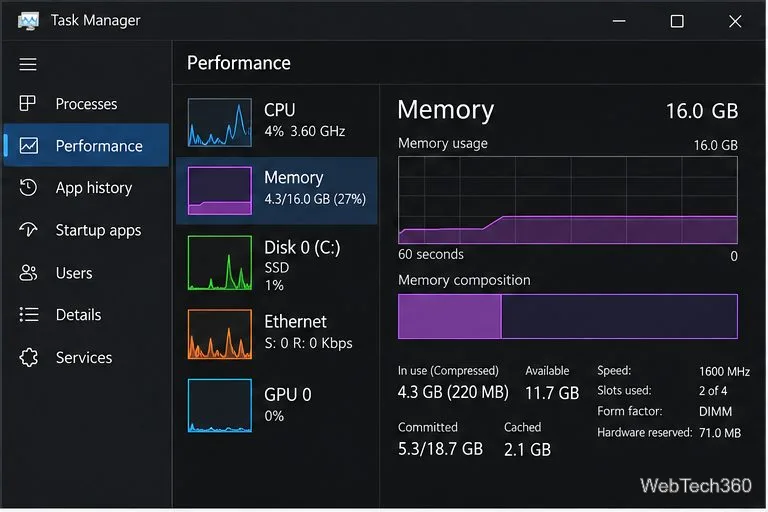
Task Manager is a quick first stop. It can confirm the installed capacity, speed, number of slots in use, and form factor. Those details can help identify a module, but they are not a dependable DDR-generation label: a speed such as 1600 MHz alone does not prove that a stick is DDR3.
Windows exposes information about physical memory devices through the Win32_PhysicalMemory class. Its MemoryType property maps known types to readable labels, while SMBIOSMemoryType contains the raw value supplied by the system firmware. On Windows 10, the raw value is useful when the mapped label is missing.
Get-CimInstance Win32_PhysicalMemory | Select-Object DeviceLocator, MemoryType, SMBIOSMemoryType, PartNumber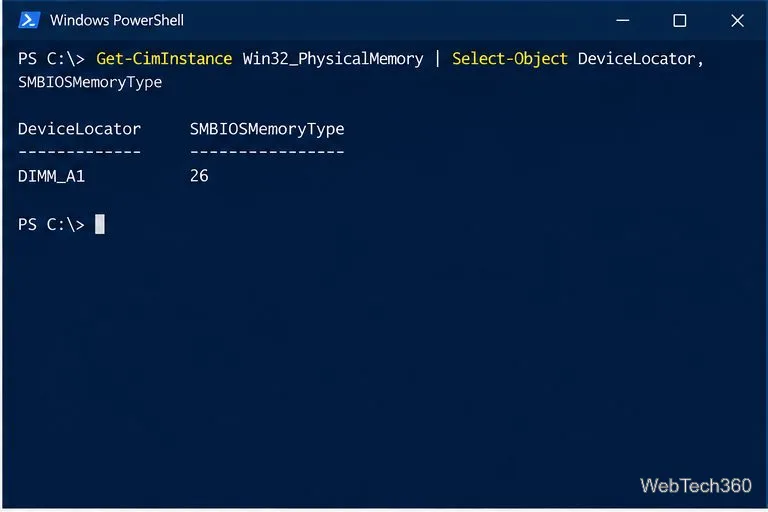
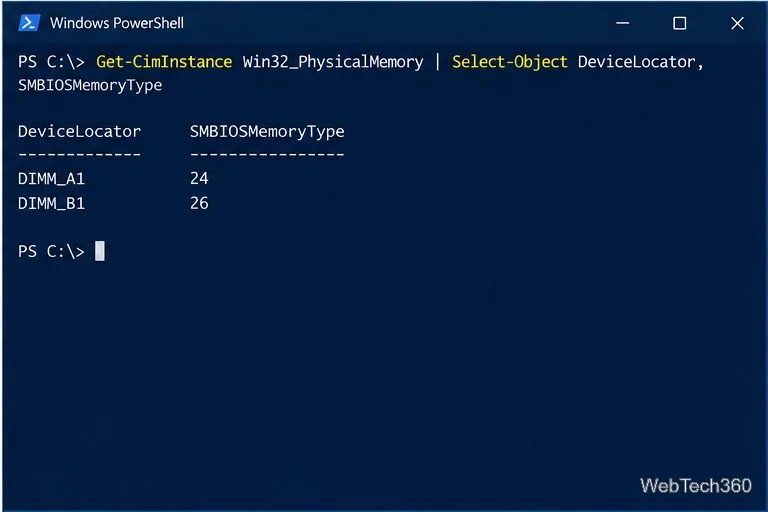
Example: a row with MemoryType reported as DDR4 or SMBIOSMemoryType set to 26 indicates DDR4 according to the firmware data. A value of 24 indicates DDR3. If the type is 0, blank, or otherwise unrecognized, that does not mean the RAM is a different generation; some systems provide incomplete SMBIOS details. Continue with CPU-Z or verify the exact module part number.
CPU-Z is a free hardware-information utility from CPUID. Its official product page says it reports memory type, size, timings, and module specifications. Download it from CPUID’s CPU-Z page, install and open the application, then select the Memory tab. The Type field should name the memory generation, such as DDR3 or DDR4.
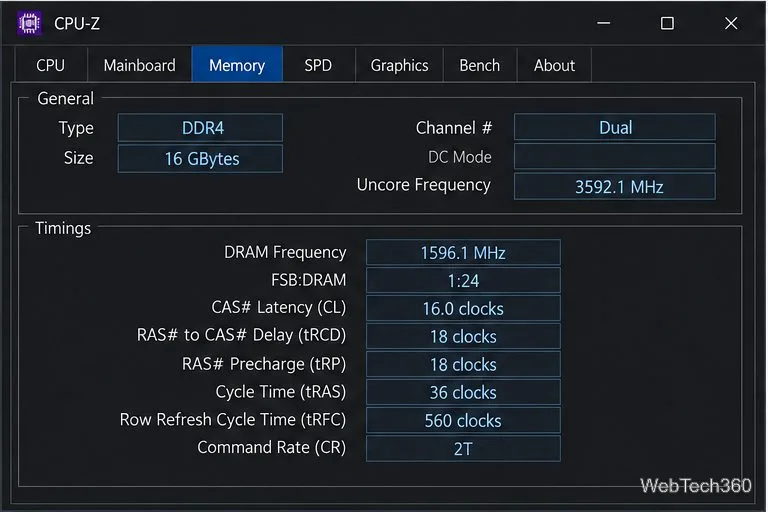
The Memory tab summarizes the memory currently in use. If you need to identify the part number of a particular stick, open the SPD tab and choose a populated slot in the slot selector. Some laptops and compact systems do not expose SPD information, so an empty SPD panel is not conclusive. Compare any manufacturer and part-number details with the module’s label or the system maker’s specifications.
DDR3 and DDR4 are different memory generations. Their modules use different electrical specifications and physical key positions, so they are not interchangeable in a motherboard slot. Before buying RAM, check the motherboard or laptop’s official specifications for the supported generation, capacity, module form factor, and slot configuration. A faster-rated kit also does not guarantee that the system will run at that speed; the processor and motherboard set their own limits.
Windows software cannot convert DDR3 into DDR4. If you want to upgrade, the supported memory type is determined by the computer’s hardware. Check the manufacturer’s documentation first, and use the computer’s exact model number rather than guessing from the CPU age or the speed shown in Task Manager.
Prepare Java or Bedrock on Windows 10 for offline single-player, enable the right Xbox setting, and back up your local Minecraft worlds.
Change a file type icon in Windows 10 while keeping its current default app. Follow the FileTypesMan steps, handle icon picker issues, and restore the original setting.
Set PhysX in NVIDIA Control Panel on Windows 10, understand Auto-select vs. CPU or GPU, and learn when to use Windows Graphics settings instead.
Compare six free office suites for documents, spreadsheets, and presentations, including browser-based collaboration and offline desktop options.
Turn on Notepad’s Status Bar to see the current line and column in Windows 10, troubleshoot a disabled option, and learn when you need a line-number gutter.
Display a custom Windows dialog with a short PowerShell command, Command Prompt, or a reusable .bat or .ps1 file, including a title, icon, and buttons.
Fix Windows 10 update error 0x80071160 with Microsoft’s troubleshooter, a safe update-cache reset, DISM and SFC repairs, and a careful manual-install check.
Create a Windows 10 UEFI installer with Microsoft’s Media Creation Tool or Rufus, then boot and install safely without wiping the wrong drive.
Stop individual Edge tabs from crowding the Windows 10 Alt+Tab switcher. Change one Multitasking setting, limit recent tabs, and check why the option may be missing.
Enable Adobe’s PDF thumbnail handler, correct File Explorer’s icon settings, rebuild the thumbnail cache, and check OneDrive files that are not stored locally.








