How to Play Minecraft Offline on Windows 10: Java and Bedrock

Prepare Java or Bedrock on Windows 10 for offline single-player, enable the right Xbox setting, and back up your local Minecraft worlds.
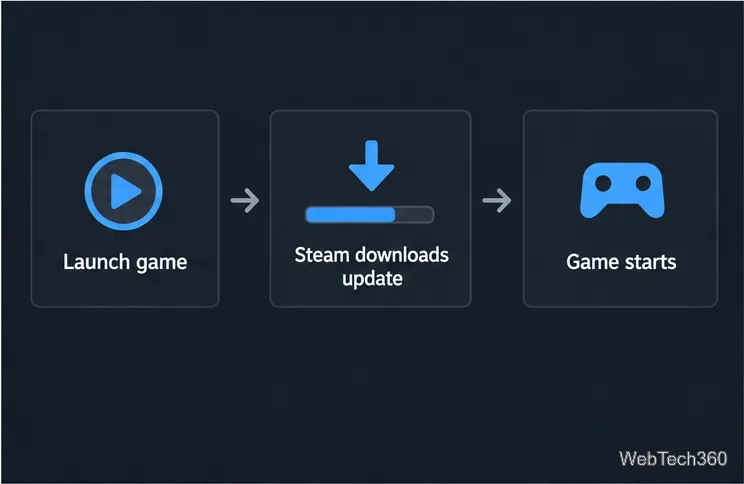
To delay automatic updates for one Steam game, change that title’s setting in Library > Manage > Properties > Updates. Under Automatic Updates, choose Only update this game when I launch it. This postpones automatic updates for that game; it does not keep the game permanently on an older version. When you launch it, Steam will check for and download an available update before you play.
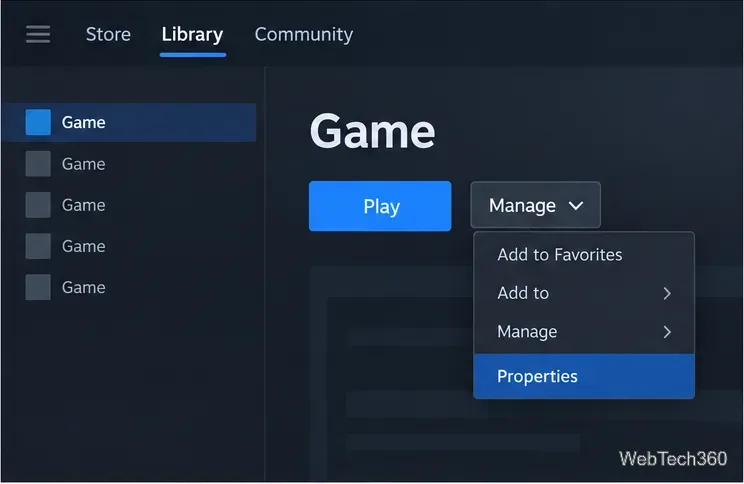
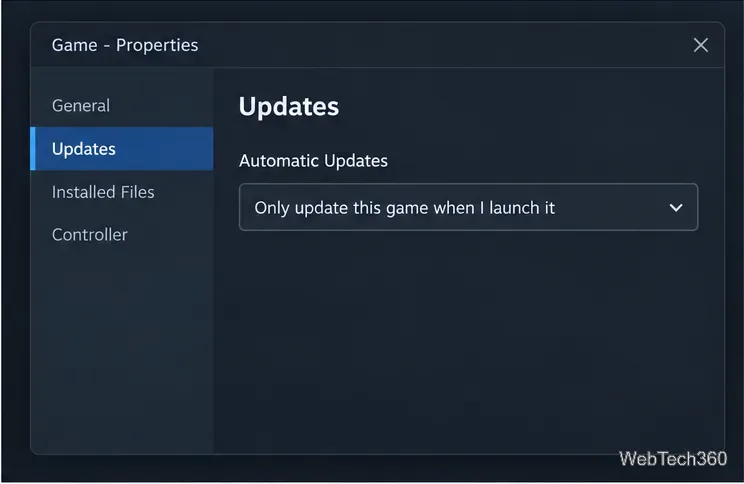
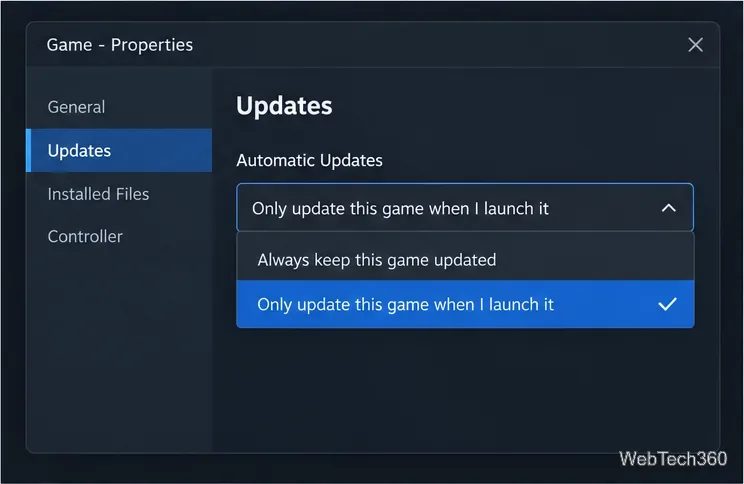
This is a per-game setting. It changes when Steam updates the selected title, while your other games keep their own update preferences. If you want to delay several games, repeat the steps for each one.
The setting is a postponement, not a permanent block. Valve describes it as temporarily disabling game updates, and its download guidance says that launching a game can force its update immediately. If a patch is available, expect Steam to download it before the game starts. Some online games also require the current version to connect to their servers, so delaying an update may prevent online play until you install it.
If Steam had already started downloading an update before you changed the setting, check the Downloads view in the client. The setting controls the game’s automatic update policy; review the Download Manager’s current queue and use its controls to manage an update that is already listed.
If your goal is to keep Steam from downloading updates while you are using your computer, a scheduled window may be more convenient. Open Steam > Settings > Downloads, enable the option to auto-update games only during a specified time range, and choose the hours that suit you. This is a client-wide schedule for automatic game downloads, not a permanent off switch for one title. Steam’s support page notes that you can override the schedule from the Download Manager, and launching a game can also trigger its update.
The Download Manager is where you can review progress, see queued updates, schedule downloads, and change their order. Open it from the Downloads link in the client or from the View menu. If a download is already active, check the controls shown for that item there rather than relying on the per-game preference to cancel it.
A bandwidth limit is not an update-blocking control. Steam’s download-speed setting limits how much bandwidth downloads can use; it can make an update slower, but it does not stop Steam from updating a game. A very low limit can also affect other Steam downloads, so use it only if you actually want to throttle the client.
Steam’s documented update preference is set per game. The Downloads settings let you restrict the hours when automatic game updates occur, but that schedules them rather than disabling them permanently. To delay specific titles, set each one to update when launched.
Not necessarily. The launch-only choice delays the automatic download, but launching the title can trigger the update. A game that requires a current version for online services may also refuse connections until it is updated.
For the current menu names and behavior, see Steam Support’s guide to managing downloads and updates and its download speed settings.
Prepare Java or Bedrock on Windows 10 for offline single-player, enable the right Xbox setting, and back up your local Minecraft worlds.
Change a file type icon in Windows 10 while keeping its current default app. Follow the FileTypesMan steps, handle icon picker issues, and restore the original setting.
Set PhysX in NVIDIA Control Panel on Windows 10, understand Auto-select vs. CPU or GPU, and learn when to use Windows Graphics settings instead.
Compare six free office suites for documents, spreadsheets, and presentations, including browser-based collaboration and offline desktop options.
Turn on Notepad’s Status Bar to see the current line and column in Windows 10, troubleshoot a disabled option, and learn when you need a line-number gutter.
Display a custom Windows dialog with a short PowerShell command, Command Prompt, or a reusable .bat or .ps1 file, including a title, icon, and buttons.
Fix Windows 10 update error 0x80071160 with Microsoft’s troubleshooter, a safe update-cache reset, DISM and SFC repairs, and a careful manual-install check.
Create a Windows 10 UEFI installer with Microsoft’s Media Creation Tool or Rufus, then boot and install safely without wiping the wrong drive.
Stop individual Edge tabs from crowding the Windows 10 Alt+Tab switcher. Change one Multitasking setting, limit recent tabs, and check why the option may be missing.
Enable Adobe’s PDF thumbnail handler, correct File Explorer’s icon settings, rebuild the thumbnail cache, and check OneDrive files that are not stored locally.








