How to Automatically Restart a Crashed App on Windows 10
Set up a PowerShell watcher and Task Scheduler task to relaunch a Windows 10 desktop app after it closes, then learn how to test and stop it.
If you rarely use your webcam, you can disable it in Windows so apps cannot open it until you turn it back on. On Windows 11, the cleanest option is the built-in Camera settings page. On Windows 10 or on hardware that does not appear there, Device Manager is the reliable fallback. If you only want to control which apps can use the camera, change camera privacy permissions instead of disabling the device.
You do not need a third-party webcam utility for any of these methods.
| Option | What it does | Best for |
|---|---|---|
| Disable in Camera settings | Turns off a supported camera device in Windows 11 | Most Windows 11 users |
| Disable in Device Manager | Disables the camera device at the driver/device level | Windows 10, or cameras missing from Windows 11 Camera settings |
| Camera privacy permissions | Blocks or limits app access without disabling the hardware | People who still use the camera occasionally |
| Physical shutter or unplugging | Physically blocks the lens or disconnects an external webcam | Extra privacy assurance |
Microsoft lets Windows 11 users disable supported cameras directly from Settings. This is the simplest built-in method when your camera appears on the Cameras page.
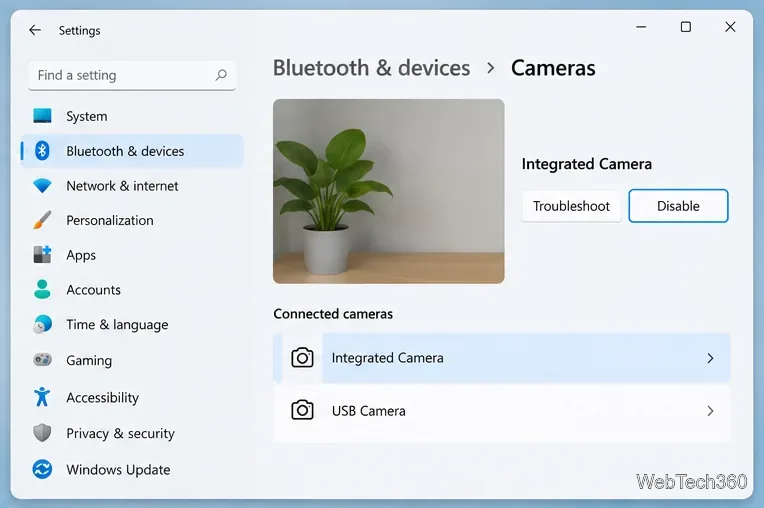
Microsoft notes that some cameras need a restart before they are fully disabled. On certain tablets and other systems, multiple cameras share processing hardware, so disabling one camera can disable more than one. Windows should warn you when that applies. See Microsoft's Camera settings documentation for the current Windows 11 behavior.
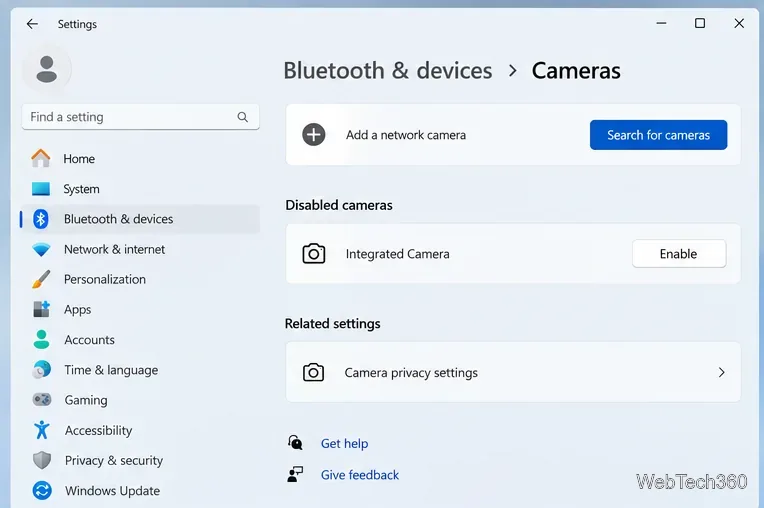
Return to Settings > Bluetooth & devices > Cameras. Under Disabled cameras, select the camera and choose Enable. Administrator access is required to enable or disable cameras from this page.
Use Device Manager if you are on Windows 10, if the Windows 11 Cameras page does not show your device, or if you prefer the classic device-management route.
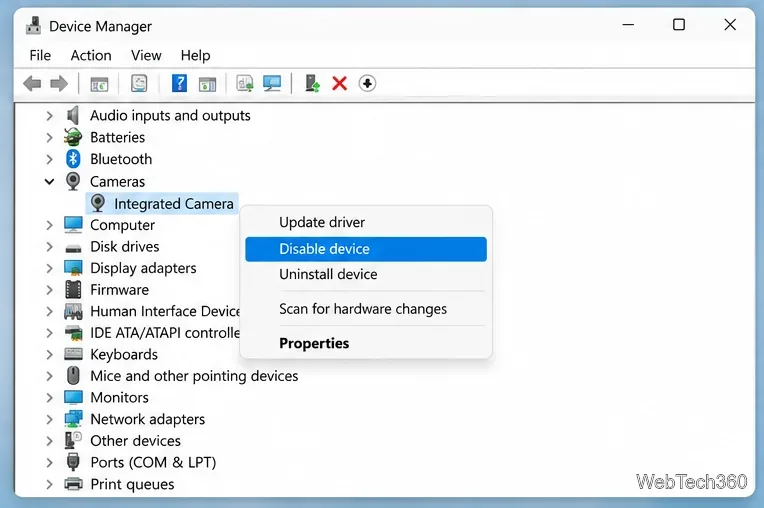
To restore the camera later, repeat the same steps and choose Enable device. Microsoft's current camera troubleshooting guidance also points to Device Manager for enabling a camera that Windows cannot detect. See Camera doesn't work in Windows.
If you still run Windows 10, note that Microsoft ended standard Windows 10 support on October 14, 2025. The operating system continues to run, but staying on a supported Windows release is the safer long-term choice. Microsoft's Windows 10 end-of-support page explains the available paths.
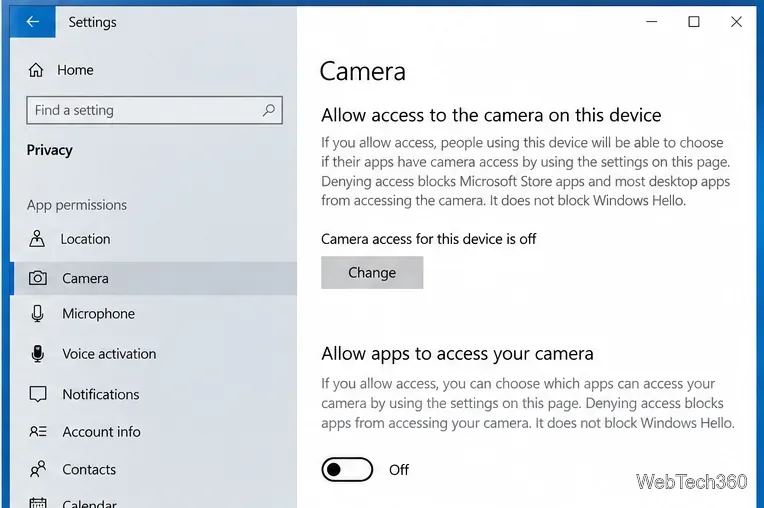
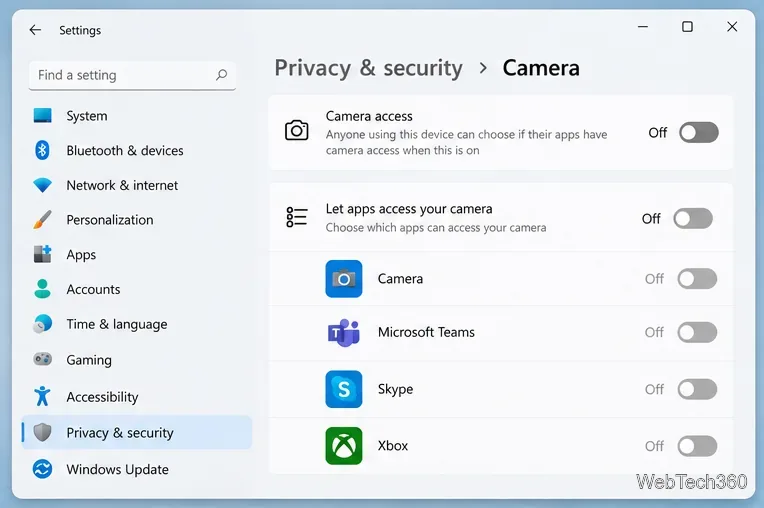
If you use your webcam for occasional calls, changing permissions is more convenient than disabling the device. In Windows 11, open Settings > Privacy & security > Camera. You can turn off Camera access, control Microsoft Store app access, or control access for desktop apps.
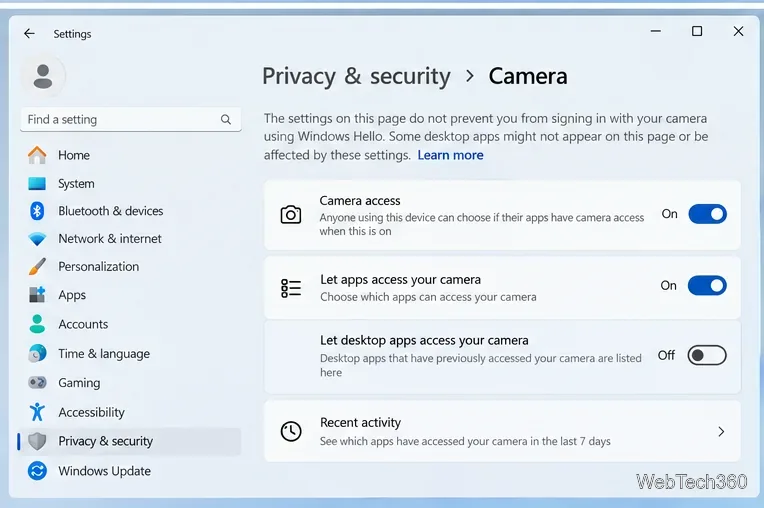
This is not identical to disabling the camera device. Microsoft specifically notes that Windows Hello can still use the camera for sign-in even when normal camera access is turned off. Desktop apps also have a limitation: Windows does not provide an individual on/off switch for every desktop app, so their camera access is handled as a broader category. Review the details in Microsoft's camera app-permissions guide.
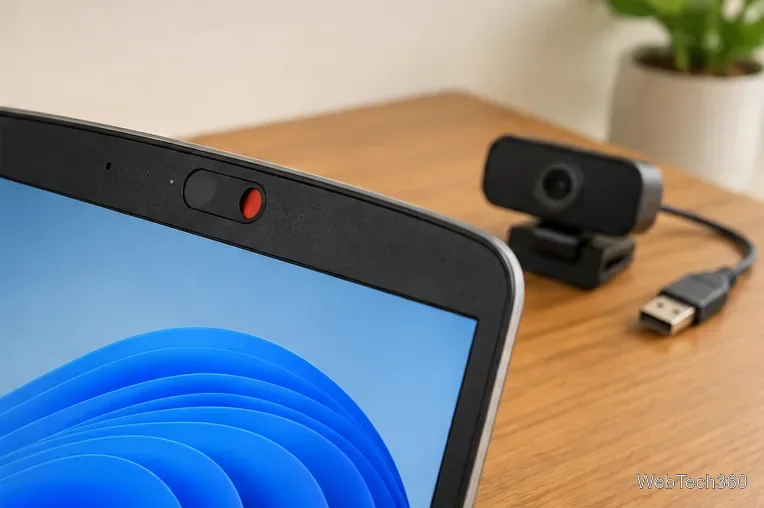
A built-in privacy shutter is a useful extra layer because it blocks the lens regardless of software settings. For an external USB webcam, unplugging it disconnects the camera from the PC entirely. A simple lens cover only blocks video; it does not necessarily disable a microphone built into the same webcam, so manage microphone permissions separately if that matters to you.
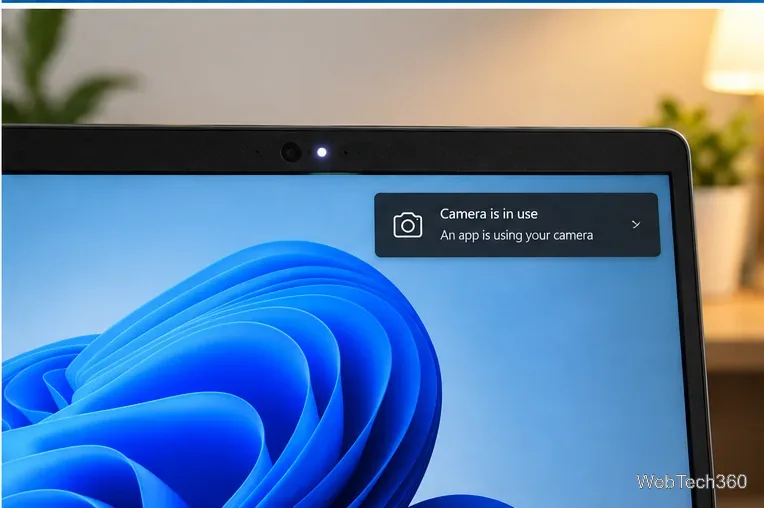
Windows also provides usage indicators. If your device has a camera activity light, it should turn on when the camera is active. If the device does not have such a light, Windows can show a notification when the camera turns on or off. Microsoft describes these indicators in its camera and microphone privacy documentation.
For most people, the best balance is to disable the webcam in Windows 11 Camera settings when it is not needed, then re-enable it only for calls or recordings. If your camera is missing from that page, use Device Manager. For maximum assurance, combine the software setting with a physical shutter or disconnect an external webcam.
Set up a PowerShell watcher and Task Scheduler task to relaunch a Windows 10 desktop app after it closes, then learn how to test and stop it.
Keep app icons out of the hidden overflow in Windows 10. Turn on the all-icons option, then manage system icons separately if one is still missing.
Change the saved username or password Windows uses for a mapped drive or shared folder through Credential Manager, then reconnect to verify access.
Set a lower Defender scan CPU target in PowerShell, handle the idle-scan exception, and verify which Windows 10 scans the setting affects.
Import a Bedrock .mcpack or .mcaddon on Windows 10, activate it for a new or existing world, and avoid confusing add-ons with Java mods.
Restore the Windows 10 hotspot by checking the internet source and wireless adapter, repairing its driver, and saving Network reset for last.
Set daytime and nighttime brightness levels on Windows 10 with ClickMonitorDDC 7.2, and learn about DDC/CI limits and the Night light alternative.
Find Windows 10’s left/right balance controls for Bluetooth headphones, with a cautious registry workaround when volume controls stay linked.
Set up Task Scheduler’s On idle trigger to shut down Windows 10 with a one-minute cancellation window, and learn how Windows defines idle.
Learn how to burn a disc image to an SD card on Windows 10 with balenaEtcher, verify the target drive, and check whether the finished card can boot.