How to Play Minecraft Offline on Windows 10: Java and Bedrock

Prepare Java or Bedrock on Windows 10 for offline single-player, enable the right Xbox setting, and back up your local Minecraft worlds.
Windows 10 can show an on-screen notification when the camera starts or stops streaming. Normally, Windows expects a physical camera activity light to provide that signal. If you want the on-screen Camera on and Camera off indicator, you can enable the behavior through the NoPhysicalCameraLED registry value.
Microsoft documents NoPhysicalCameraLED as a setting that tells the Windows shell whether the device has a physical camera LED. A value of 1 means there is no physical LED, so Windows draws a UI indicator when video frames are streaming; 0 is the default and assumes a hardware indicator exists. See Microsoft's NoPhysicalCameraLED documentation.
Important: this changes the camera status indicator only. It does not grant an app camera permission, bypass a privacy shutter or kill switch, or guarantee that every unusual camera driver will trigger the same overlay.
You need administrator permission because the setting is stored under HKEY_LOCAL_MACHINE. Before editing the registry, it is sensible to export the key you are changing so you can restore it if necessary.
Open Registry Editor. Press Windows + R, type regedit, and press Enter. Approve the User Account Control prompt if Windows asks.
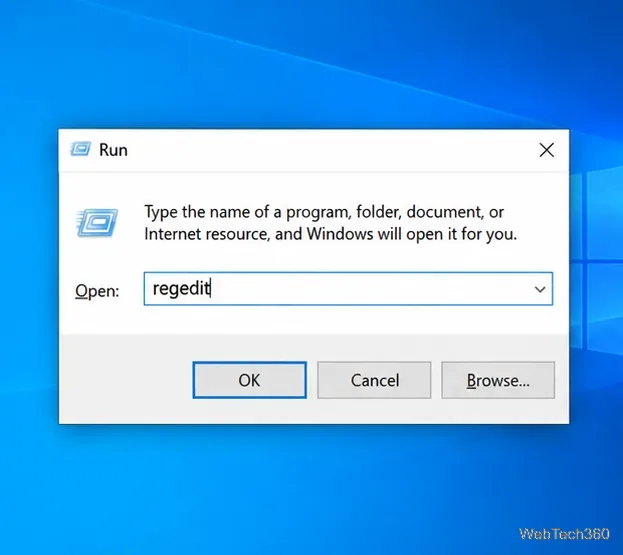
regedit.Go to the camera capture key. In Registry Editor, navigate to:
HKEY_LOCAL_MACHINE\SOFTWARE\Microsoft\OEM\Device\Capture
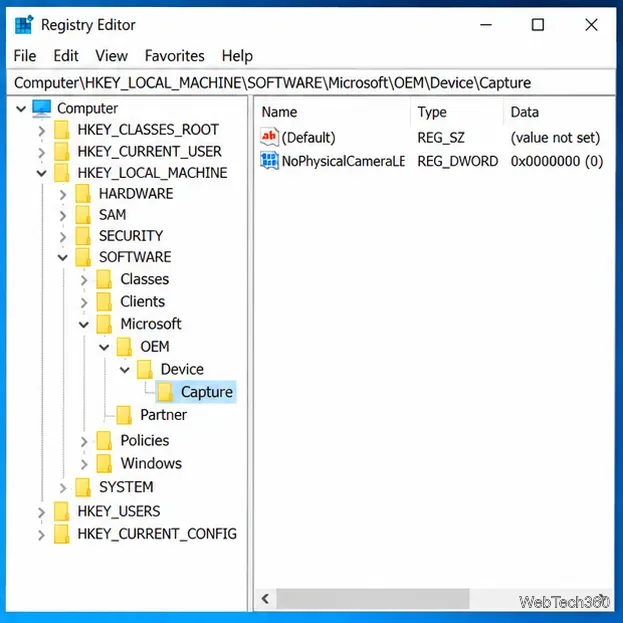
Find NoPhysicalCameraLED. If the DWORD already exists, open it. If it is missing, right-click an empty area in the right pane, choose New > DWORD (32-bit) Value, and name it exactly NoPhysicalCameraLED. Use a 32-bit DWORD even on 64-bit Windows.
Set the value to 1. Double-click NoPhysicalCameraLED, enter 1 in Value data, and select OK.
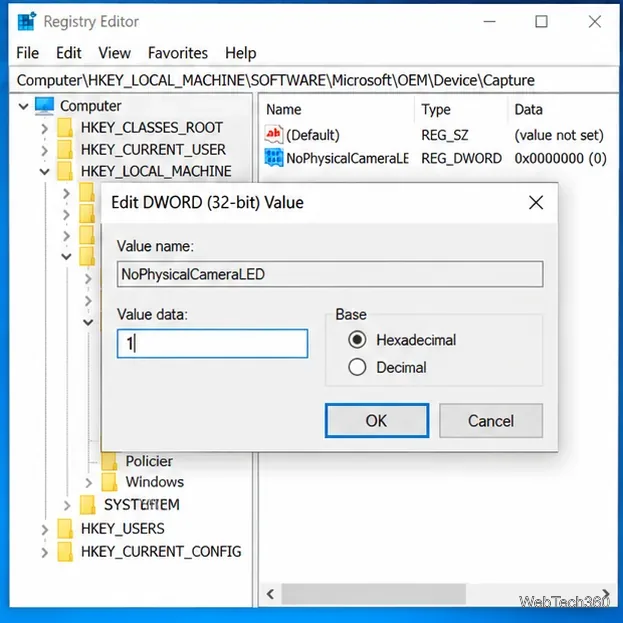
NoPhysicalCameraLED to 1 tells Windows to provide a UI camera-use indicator.Restart Windows, then test the camera. After the restart, open the Windows Camera app or another app that has permission to use the webcam and start its preview. When Windows detects the camera streaming, the camera-on overlay should appear; stopping the stream should produce the camera-off indicator.
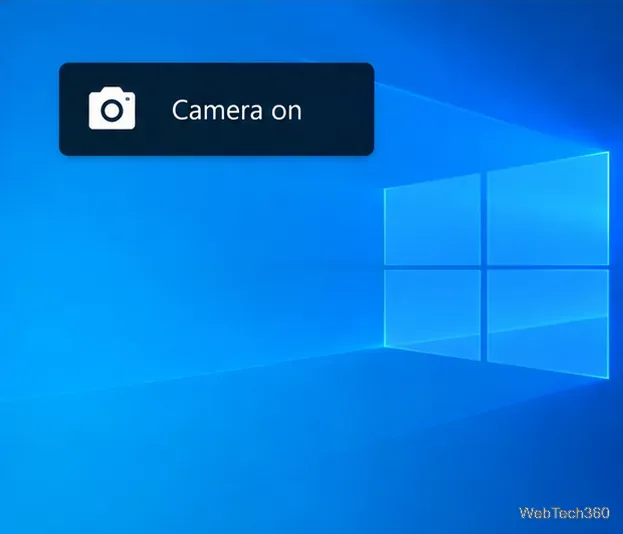
If your computer already has a working hardware camera light, this registry change is not a reliable way to disable that light. Its documented purpose is to tell Windows whether it should provide the software indicator.
First make sure the camera itself works. In Windows 10, camera permissions are managed under Start > Settings > Privacy > Camera. Microsoft notes that device access, app access, and desktop-app access can all affect whether software can use the camera. Its camera permissions guide explains the available controls.
Also check these points:
NoPhysicalCameraLED.1.Open the same registry location, double-click NoPhysicalCameraLED, change Value data back to 0, and restart the PC. A value of 0 restores the documented default behavior in which Windows assumes a physical camera activity indicator is present.
The on-screen indicator is useful because it can make camera activity easier to notice, but it should not be treated as a security boundary. Microsoft distinguishes camera-use indicators from camera privacy controls such as physical shutters and kill switches. Windows also separately controls which apps can access the camera. For background on how Windows reports camera use, see Microsoft's camera, microphone, and privacy guidance.
One final platform note: Microsoft ended standard support for Windows 10 on October 14, 2025. Windows 10 PCs still run, but Microsoft recommends moving to Windows 11 or using an eligible Extended Security Updates option when continued Windows 10 use is necessary. See the official Windows 10 end-of-support notice.
Prepare Java or Bedrock on Windows 10 for offline single-player, enable the right Xbox setting, and back up your local Minecraft worlds.
Change a file type icon in Windows 10 while keeping its current default app. Follow the FileTypesMan steps, handle icon picker issues, and restore the original setting.
Set PhysX in NVIDIA Control Panel on Windows 10, understand Auto-select vs. CPU or GPU, and learn when to use Windows Graphics settings instead.
Compare six free office suites for documents, spreadsheets, and presentations, including browser-based collaboration and offline desktop options.
Turn on Notepad’s Status Bar to see the current line and column in Windows 10, troubleshoot a disabled option, and learn when you need a line-number gutter.
Display a custom Windows dialog with a short PowerShell command, Command Prompt, or a reusable .bat or .ps1 file, including a title, icon, and buttons.
Fix Windows 10 update error 0x80071160 with Microsoft’s troubleshooter, a safe update-cache reset, DISM and SFC repairs, and a careful manual-install check.
Create a Windows 10 UEFI installer with Microsoft’s Media Creation Tool or Rufus, then boot and install safely without wiping the wrong drive.
Stop individual Edge tabs from crowding the Windows 10 Alt+Tab switcher. Change one Multitasking setting, limit recent tabs, and check why the option may be missing.
Enable Adobe’s PDF thumbnail handler, correct File Explorer’s icon settings, rebuild the thumbnail cache, and check OneDrive files that are not stored locally.








