How to Play Minecraft Offline on Windows 10: Java and Bedrock

Prepare Java or Bedrock on Windows 10 for offline single-player, enable the right Xbox setting, and back up your local Minecraft worlds.
When you press Windows + PrtScn on Windows 10, the system captures the full screen and saves the image to Pictures > Screenshots. Windows can briefly dim or flash the display as visual confirmation. If you want to show or hide that effect, change the Show animations in Windows setting.
The important limitation is that this is a system-wide animation setting. Turning it off removes the screenshot flash, but it also disables other Windows animation effects. Microsoft documents the same setting under Windows 10's accessibility options and notes that disabling Windows animations also affects animations in Microsoft 365 apps.
Use these steps to control the visual flash that appears when a screenshot is captured with Windows + PrtScn:
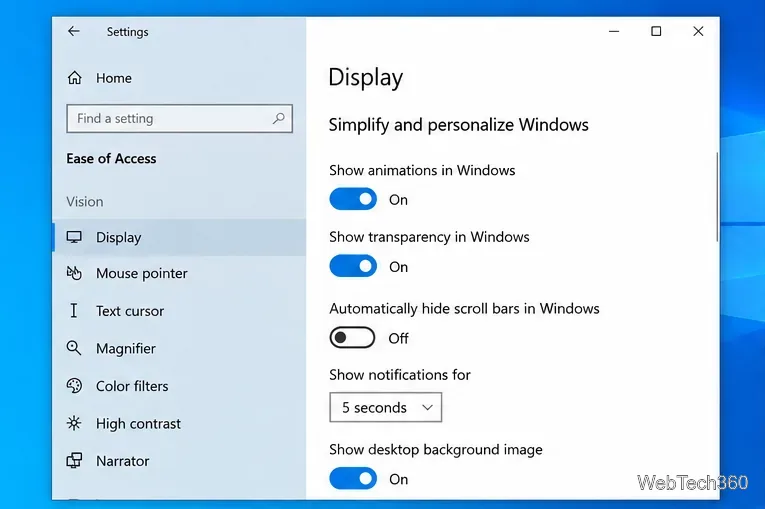
In Windows 10, the screenshot flash is tied to the broader Show animations in Windows setting.
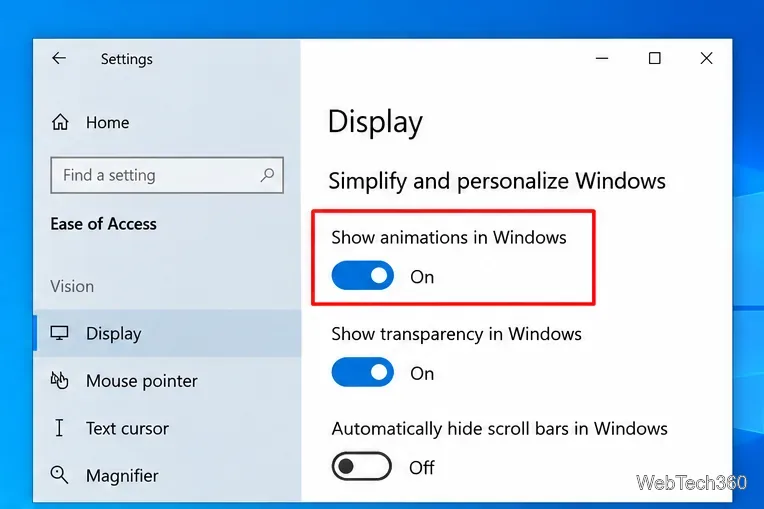
If you want visual confirmation after a full-screen capture, set Show animations in Windows to On. When the supported screenshot shortcut is used, the screen can briefly dim or flash while Windows saves the capture.
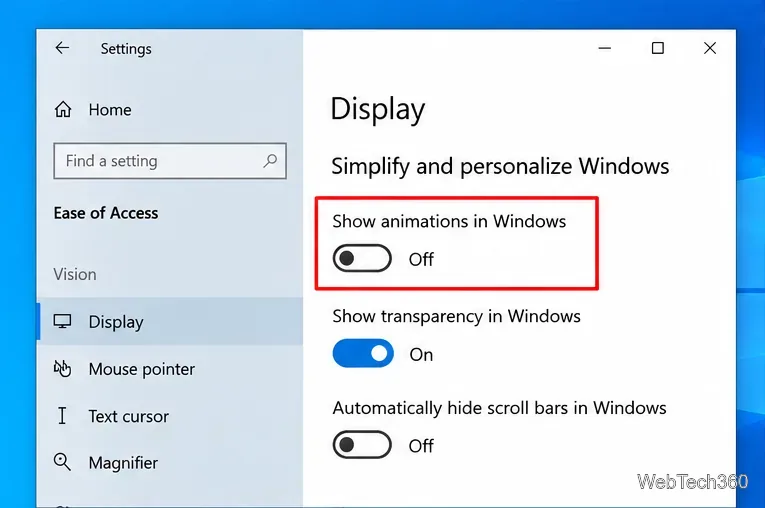
If the flash is distracting or you prefer a quieter visual experience, set Show animations in Windows to Off. The screenshot still works; you are only removing the animation feedback. Because the setting is global, window transitions and other animated effects may also stop.
Microsoft's current documentation confirms that Windows logo key + PrtScn saves a screenshot that you can find in File Explorer > Pictures > Screenshots. If your device does not have a PrtScn key, Microsoft also documents Fn + Windows logo key + Space Bar as an alternative on supported hardware.
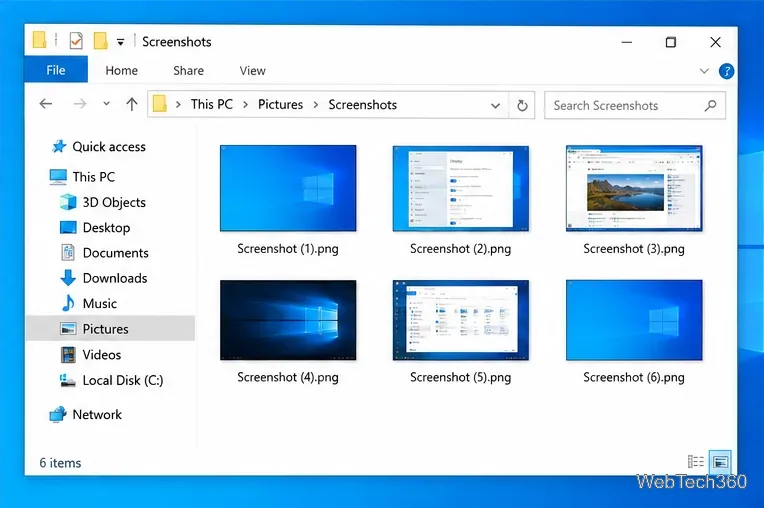
Full-screen captures made with Windows + PrtScn are stored in the Pictures > Screenshots folder.
For the official shortcut details, see Microsoft's Print Screen keyboard shortcut documentation.
The original Print Screen key and the Windows-key shortcut are easy to confuse. Their normal Windows 10 behavior differs:
| Shortcut | Typical result |
|---|---|
| PrtScn | Copies a full-screen capture to the clipboard, unless the key has been reassigned to another screenshot function. |
| Windows + PrtScn | Captures the full screen and saves it as an image in Pictures > Screenshots. |
| Windows + Shift + S | Opens the Windows screen-snipping interface so you can select what to capture. |
If you are testing the flash setting, use Windows + PrtScn. Pressing PrtScn by itself may not produce the same visual feedback because it follows a different capture path.
The screenshot flash does not have its own dedicated toggle in this Windows 10 settings path. The relevant control is Show animations in Windows, so changing it can affect more than screenshots. You may notice fewer transition effects when minimizing, maximizing, opening, or closing parts of the interface. Microsoft also states that turning off Windows animations automatically turns off animations for Office apps.
Microsoft's instructions for this option are available in its Windows 10 animation guidance.
These instructions remain relevant for PCs still running Windows 10, but Microsoft ended standard Windows 10 support on October 14, 2025. The operating system continues to run, but Microsoft recommends moving to Windows 11 or using an eligible Extended Security Updates option when more transition time is needed. See Microsoft's Windows 10 end-of-support notice for the current support options.
Prepare Java or Bedrock on Windows 10 for offline single-player, enable the right Xbox setting, and back up your local Minecraft worlds.
Change a file type icon in Windows 10 while keeping its current default app. Follow the FileTypesMan steps, handle icon picker issues, and restore the original setting.
Set PhysX in NVIDIA Control Panel on Windows 10, understand Auto-select vs. CPU or GPU, and learn when to use Windows Graphics settings instead.
Compare six free office suites for documents, spreadsheets, and presentations, including browser-based collaboration and offline desktop options.
Turn on Notepad’s Status Bar to see the current line and column in Windows 10, troubleshoot a disabled option, and learn when you need a line-number gutter.
Display a custom Windows dialog with a short PowerShell command, Command Prompt, or a reusable .bat or .ps1 file, including a title, icon, and buttons.
Fix Windows 10 update error 0x80071160 with Microsoft’s troubleshooter, a safe update-cache reset, DISM and SFC repairs, and a careful manual-install check.
Create a Windows 10 UEFI installer with Microsoft’s Media Creation Tool or Rufus, then boot and install safely without wiping the wrong drive.
Stop individual Edge tabs from crowding the Windows 10 Alt+Tab switcher. Change one Multitasking setting, limit recent tabs, and check why the option may be missing.
Enable Adobe’s PDF thumbnail handler, correct File Explorer’s icon settings, rebuild the thumbnail cache, and check OneDrive files that are not stored locally.








