How to Schedule a Wallpaper Change in Windows 10

Use Windows 10’s built-in slideshow for interval rotation or schedule an exact daily wallpaper change with Task Scheduler and a short PowerShell script.
To factory reset Windows 10, open Start > Settings > Update & Security > Recovery, select Get started under Reset this PC, then choose whether to keep your personal files or remove everything. Windows will reinstall the operating system using either a cloud download or files already on the PC.
Microsoft calls this feature Reset this PC. It is the closest built-in option to a factory reset, although it does not always mean restoring the exact image that shipped with your computer. Manufacturer customizations can be restored on some PCs when the related option is enabled.
Current support note: Microsoft ended standard support for Windows 10 on October 14, 2025. Windows 10 PCs still work, but Microsoft recommends Windows 11 or an eligible Extended Security Updates option for continued security coverage. See Microsoft's Windows 10 end-of-support guidance.
A reset can remove apps, settings, and—depending on the option you choose—personal files. Before starting:
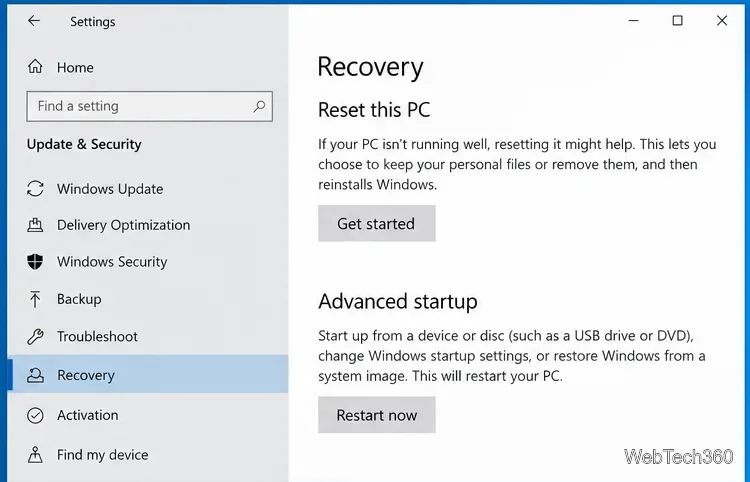
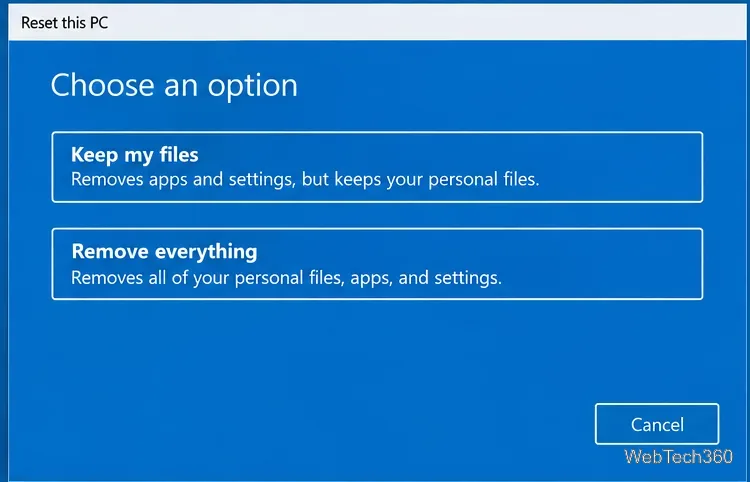
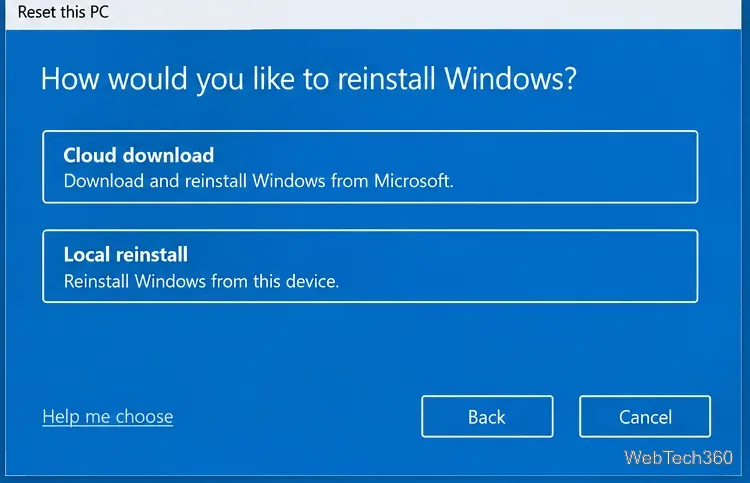
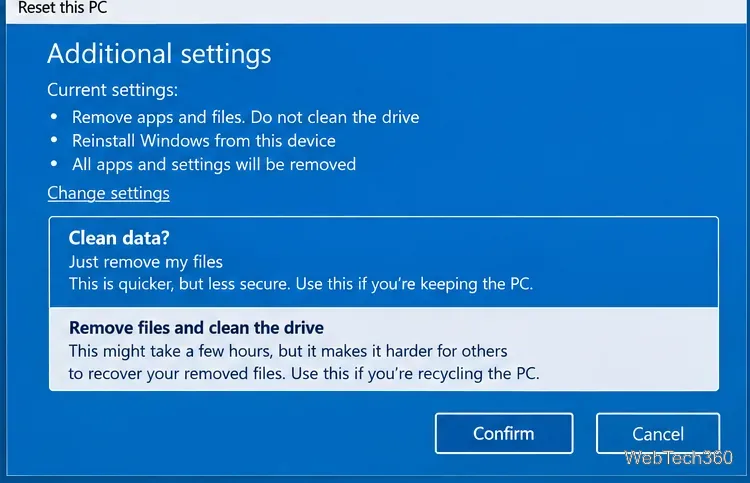
Microsoft's current Reset your PC documentation describes these choices and their effects.
| Option | Best for | What it does |
|---|---|---|
| Keep my files | Fixing Windows while retaining personal data | Reinstalls Windows, removes installed apps and settings, and keeps personal files |
| Remove everything | Starting over or transferring the PC | Removes personal files, apps, and settings, then reinstalls Windows |
| Cloud download | Suspected damaged local recovery files | Downloads a fresh Windows image |
| Local reinstall | Limited or slow internet | Uses files already stored on the PC |
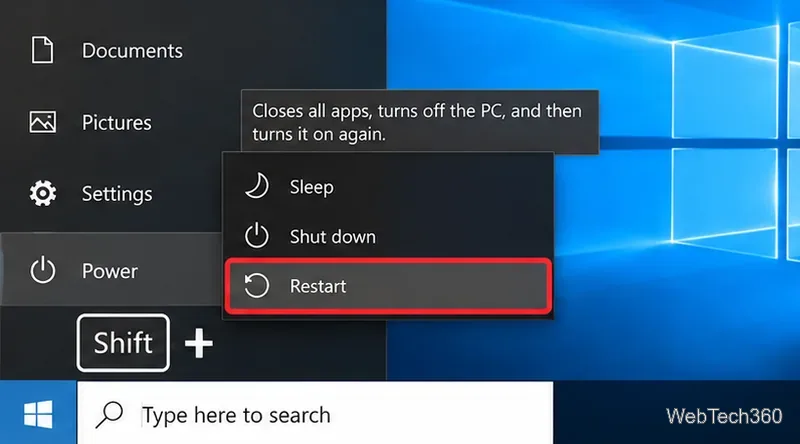
You can also launch Reset this PC from the Windows Recovery Environment (Windows RE). If you can reach the sign-in screen or Start menu, hold Shift while selecting Power > Restart.
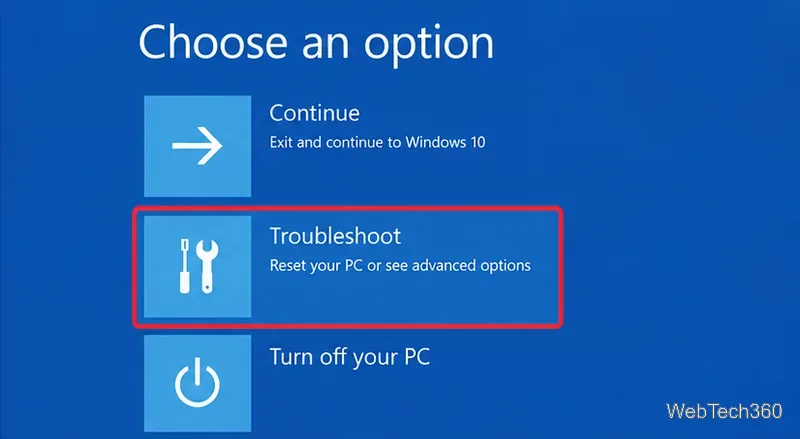
When the recovery menu appears, select Troubleshoot.
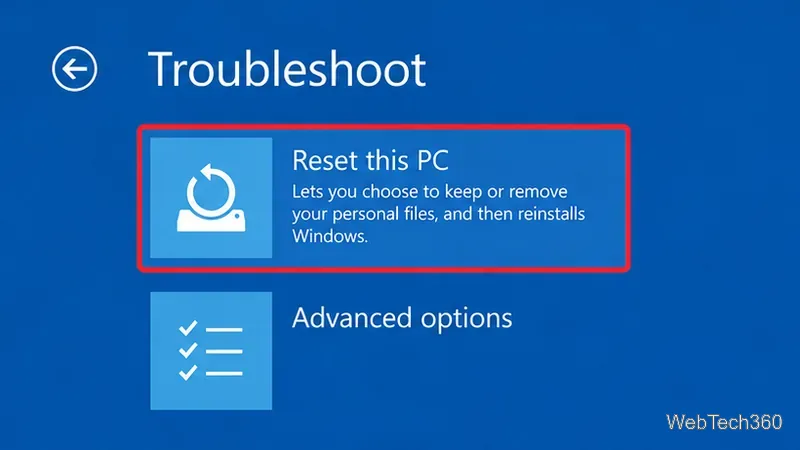
Next, select Reset this PC and choose the same keep/remove and reinstall options described above. An encrypted device can ask for its BitLocker recovery key before recovery tools continue.
If Windows cannot boot, it may enter Windows RE automatically after repeated startup failures. See the official Windows Recovery Environment guide.
If a local reinstall fails, retry with Cloud download when possible; it avoids relying on the same local recovery files. If Windows RE cannot complete the reset, create Windows 10 installation media on another working PC.
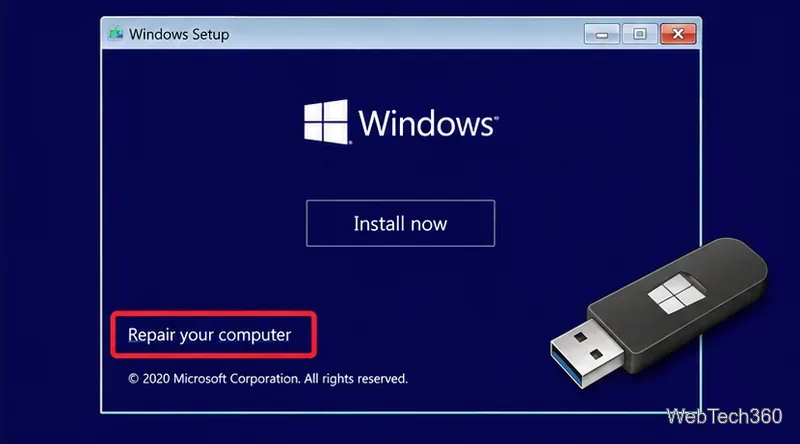
Microsoft's installation-media instructions call for a blank USB flash drive with at least 8 GB of space. Boot the affected PC from that drive and select Repair your computer to reach recovery tools. A clean installation is a more destructive fallback and should only be used after you have backed up anything you need.
System Restore is different from a factory reset. If restore points exist, System Restore can roll back system files and settings without serving as a full reset. It can help with a recent software problem, but it does not replace a full reset.
Complete Windows setup, reinstall needed apps, and restore your backed-up files. If the PC supports Windows 11, consider upgrading to a supported Windows version rather than treating a fresh Windows 10 installation as a long-term security solution.
Use Windows 10’s built-in slideshow for interval rotation or schedule an exact daily wallpaper change with Task Scheduler and a short PowerShell script.
Choose a built-in alert tone or WAV file for Windows 10 message notifications, test the change, and troubleshoot apps that keep playing another sound.
Arrange Windows 10 apps in top-and-bottom rows with the taskbar’s Show windows stacked command, or create a reusable two-zone layout with PowerToys FancyZones.
Keep each display at its recommended resolution, arrange Windows 10 monitors accurately, and use MouseUnSnag to cross mismatched edges and sticky corners.
Find whether your connected Wi-Fi uses WPA2, WPA3, or an older security mode in Windows 10 with Settings, Command Prompt, or Control Panel.
Automatically lock Windows 10 after inactivity with a screen saver timer and sign-in prompt, then check how sleep settings affect the result.
Add a persistent colored ring around your Windows 10 mouse pointer with PenAttention, or use built-in pointer tools and PowerToys for temporary highlights.
Keep the Xbox Game Bar Performance widget visible over other windows on Windows 10, with CPU, GPU, and RAM readings you can position and unpin.
Capture two or more Windows 10 displays in one OBS video. Add a Display Capture source for each monitor, fit the canvas, and test the layout.
Create a GUID on Windows 10 with [guid]::NewGuid() or New-Guid, reuse it in a script, and learn when to look up an existing identifier.








