How to Play Minecraft Offline on Windows 10: Java and Bedrock

Prepare Java or Bedrock on Windows 10 for offline single-player, enable the right Xbox setting, and back up your local Minecraft worlds.
The quickest way to find your monitor's make and model in Windows 10 is to open Settings > System > Display, select the monitor, and open Advanced display settings. If the monitor reports its identification data correctly, Windows can show a friendly name that includes the manufacturer or model. If it only says "Generic PnP Monitor," use Device Manager, PowerShell, or the label on the monitor itself.
One important note: Microsoft ended standard support for Windows 10 on October 14, 2025. Windows 10 PCs still work, and the identification methods below remain useful, but Microsoft recommends moving to a supported Windows version when possible.
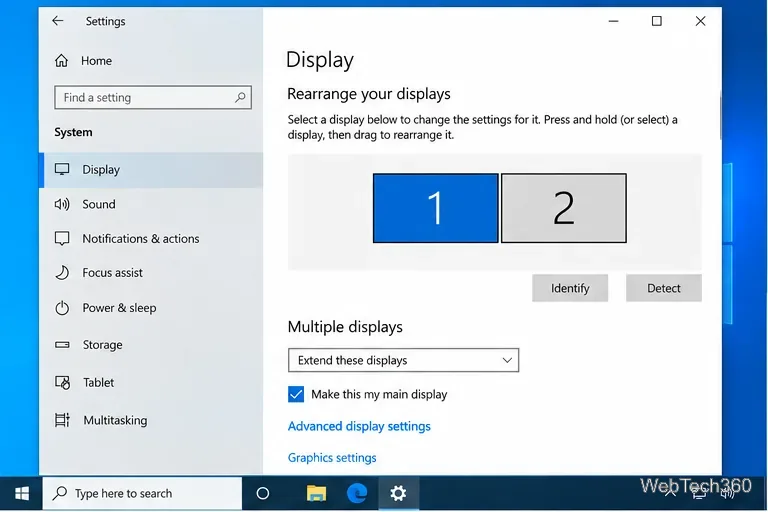
Microsoft's current display documentation still lists Start > Settings > System > Display as the place to choose a connected screen and change its settings. See Microsoft's display settings guide.
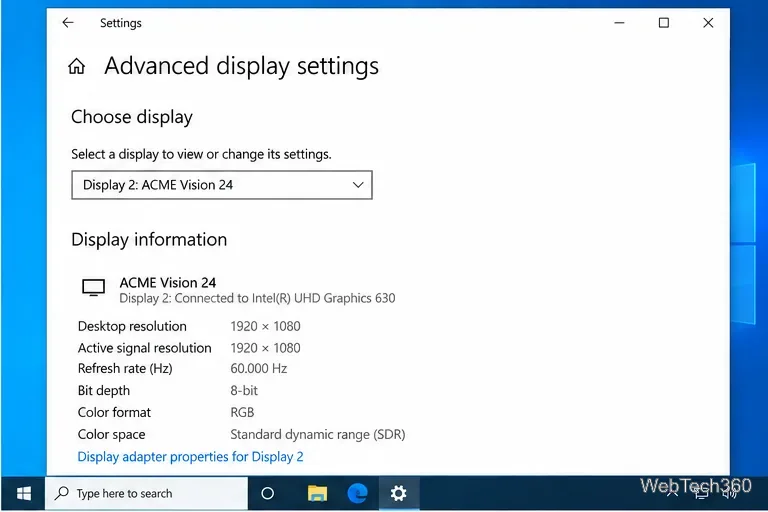
Windows gets much of this information from the monitor's EDID data. Microsoft documents EDID as the metadata a display uses to report its identity and capabilities, including manufacturer and monitor identification information. That means the result depends on what the monitor, adapter, dock, cable path, and driver expose to Windows.
A generic name does not automatically mean the monitor is unknown. It often means Windows did not receive or apply a useful friendly name. Device Manager can still expose a hardware identifier.
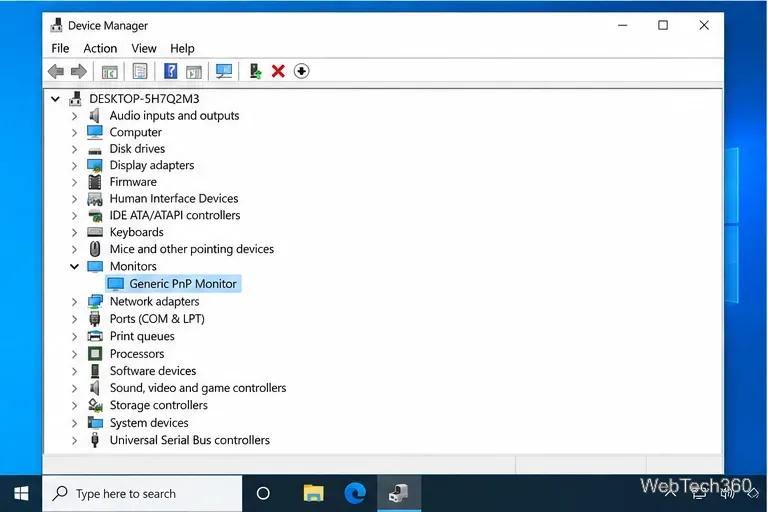
Microsoft explains that a hardware ID is a vendor-defined identification string used by Windows to match a device with a driver. A monitor hardware ID can help confirm the vendor or product code, although it may not be as readable as the model printed on the monitor.
For a more direct check, Windows exposes monitor identification through the WmiMonitorID class. Microsoft says this class can contain the manufacturer name, user-friendly monitor name, serial number, and manufacturing date. Because the name fields are stored as character arrays, the command below converts them into readable text:
Get-CimInstance -Namespace root\wmi -ClassName WmiMonitorID | ForEach-Object {
    [PSCustomObject]@{
        Manufacturer = (($_.ManufacturerName | Where-Object { $_ -ne 0 } |
            ForEach-Object { [char]$_ }) -join '')
        Model = (($_.UserFriendlyName | Where-Object { $_ -ne 0 } |
            ForEach-Object { [char]$_ }) -join '')
        Serial = (($_.SerialNumberID | Where-Object { $_ -ne 0 } |
            ForEach-Object { [char]$_ }) -join '')
        Year = $_.YearOfManufacture
    }
}
Run it in Windows PowerShell. If you have multiple monitors, you may get more than one result. Microsoft documents the fields in WmiMonitorID. If the Model field is blank, the monitor did not supply a usable friendly name through that path; PowerShell cannot reconstruct information that is missing from the display data.
The most reliable fallback is the product label on the monitor. Look on the rear panel, underside, stand area, or near the input ports for entries such as Model, Model No., Product, or S/N. The model number identifies the product; the serial number identifies your individual unit, so do not confuse the two.
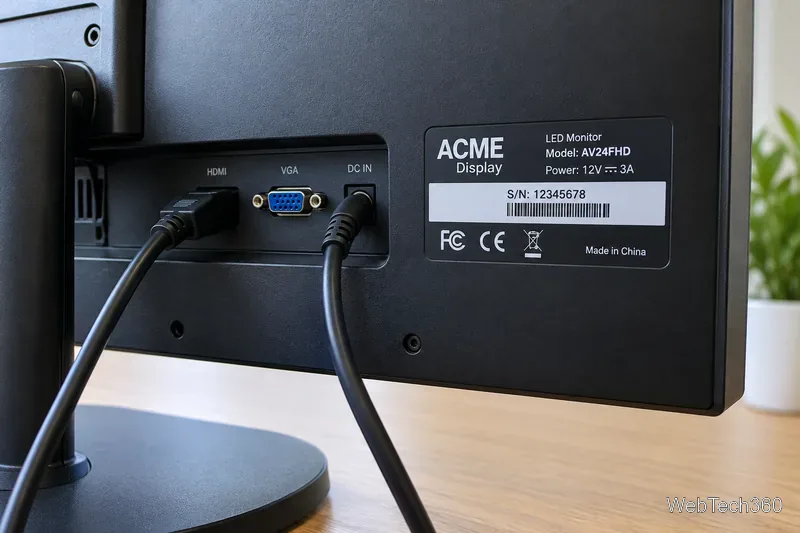
You can also check the original box, invoice, manufacturer account, or support page if you still have the serial number. This is especially useful for older displays, KVM switches, docks, and adapters that may interfere with EDID reporting.
| Method | Best use | Limit |
|---|---|---|
| Advanced display settings | Fastest everyday check | May show a generic name |
| PowerShell WmiMonitorID | Manufacturer, model, serial, and manufacture year when available | Depends on EDID data |
| Device Manager hardware IDs | Confirming a vendor/product identifier | Not always human-readable |
| Physical product label | Confirming the exact chassis model and serial | Requires access to the monitor |
For most people, start with Advanced display settings. If the model is missing, use PowerShell or Device Manager, then confirm the exact model on the physical label before downloading firmware, drivers, color profiles, manuals, or replacement parts.
Prepare Java or Bedrock on Windows 10 for offline single-player, enable the right Xbox setting, and back up your local Minecraft worlds.
Change a file type icon in Windows 10 while keeping its current default app. Follow the FileTypesMan steps, handle icon picker issues, and restore the original setting.
Set PhysX in NVIDIA Control Panel on Windows 10, understand Auto-select vs. CPU or GPU, and learn when to use Windows Graphics settings instead.
Compare six free office suites for documents, spreadsheets, and presentations, including browser-based collaboration and offline desktop options.
Turn on Notepad’s Status Bar to see the current line and column in Windows 10, troubleshoot a disabled option, and learn when you need a line-number gutter.
Display a custom Windows dialog with a short PowerShell command, Command Prompt, or a reusable .bat or .ps1 file, including a title, icon, and buttons.
Fix Windows 10 update error 0x80071160 with Microsoft’s troubleshooter, a safe update-cache reset, DISM and SFC repairs, and a careful manual-install check.
Create a Windows 10 UEFI installer with Microsoft’s Media Creation Tool or Rufus, then boot and install safely without wiping the wrong drive.
Stop individual Edge tabs from crowding the Windows 10 Alt+Tab switcher. Change one Multitasking setting, limit recent tabs, and check why the option may be missing.
Enable Adobe’s PDF thumbnail handler, correct File Explorer’s icon settings, rebuild the thumbnail cache, and check OneDrive files that are not stored locally.








