How to Play Minecraft Offline on Windows 10: Java and Bedrock

Prepare Java or Bedrock on Windows 10 for offline single-player, enable the right Xbox setting, and back up your local Minecraft worlds.
A Windows shortcut is only a pointer to another file, folder, or program. If you need to find the original item behind a shortcut in Windows 10, the quickest option is to right-click the shortcut and choose Open file location when that command is available. If it is not, open the shortcut's Properties and read the Target field.
Deleting a normal .lnk shortcut does not delete the file it points to. Microsoft describes Shell Links as references to target objects, and Windows can retrieve the target path stored by the link. These steps work for ordinary desktop and File Explorer shortcuts to files, folders, and classic desktop programs.
Windows 10 note: Microsoft ended standard Windows 10 support on October 14, 2025. Existing Windows 10 PCs still work, and the shortcut behavior described here remains useful on those systems. See Microsoft's Windows 10 support notice for current support options.
This is the fastest method when Windows shows the command for the shortcut.
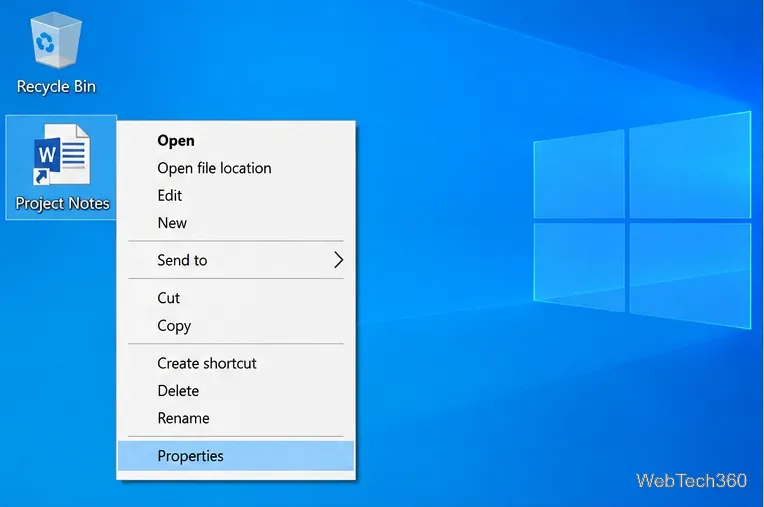
If Open file location takes you to a folder that contains another shortcut instead of the actual program, you are probably starting from a Start menu entry. Right-click that shortcut and use the Properties method below to see its real target.
The Properties window is the most reliable way to inspect a standard .lnk shortcut because it shows the destination recorded by the link.
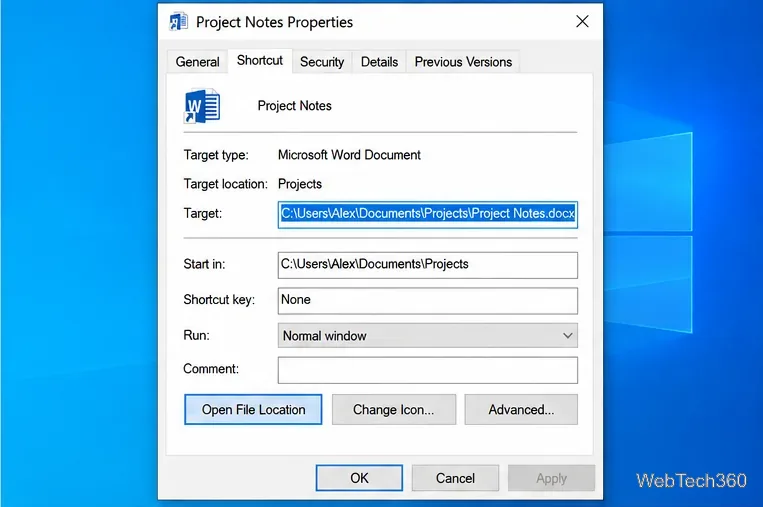
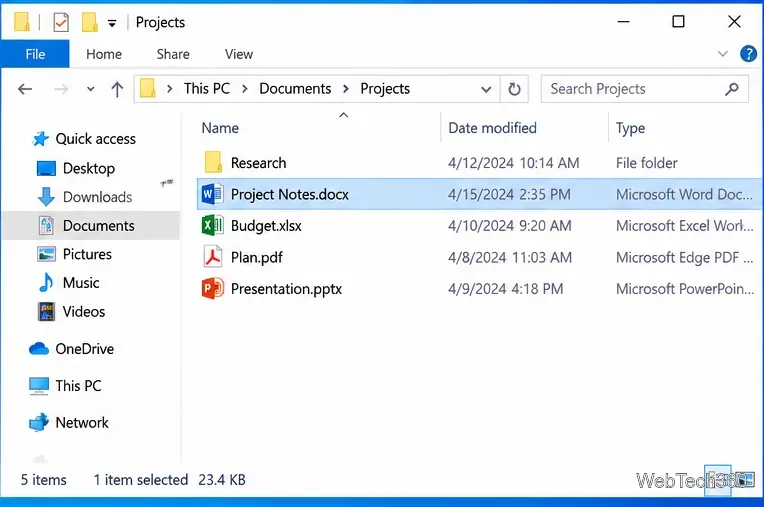
For example, if Target shows C:\Users\Alex\Documents\Projects\Project Notes.docx, the original file is Project Notes.docx inside C:\Users\Alex\Documents\Projects.
| Field | What it tells you |
|---|---|
| Target | The file, folder, or executable the shortcut is intended to open. This is the field to use when finding the original item. |
| Target location | A simplified description of where Windows considers the target to be located. It is not the field to copy when you need the full path. |
| Start in | The working folder used when launching some programs. It can be blank or different from the folder that contains the executable. |
If the original file was deleted, renamed, disconnected from a network drive, or moved somewhere Windows cannot resolve, opening the shortcut may produce a Problem with Shortcut message. The old path can still be useful because it tells you where the file was expected to be, but it does not restore the file.
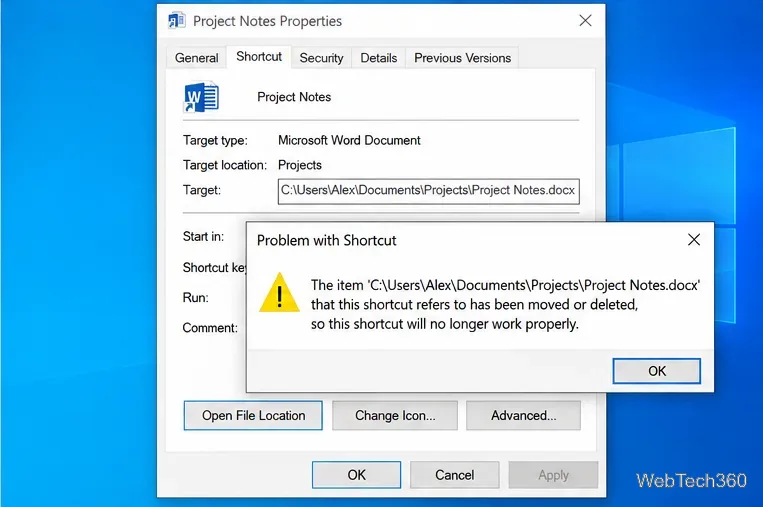
Windows Shell Links can attempt to resolve a target that has moved, but you should not assume that every moved file will be found automatically. If the shortcut no longer works, copy the filename from the Target field and search for it in File Explorer. Also check the Recycle Bin, OneDrive or another synced folder you use, and any backup location that may contain the missing file.
Traditional desktop shortcuts usually point to a file path that you can inspect. Some packaged or Microsoft Store apps are launched through app identifiers rather than a conventional executable target exposed in the same way. If a shortcut does not have the normal Shortcut tab or Target field, it may not be a standard Shell Link to a local file.
For the underlying Windows behavior, see Microsoft's Shell Links documentation, which explains that a Shell Link stores a reference to its associated object and that Windows can retrieve the current target path from the link.
Prepare Java or Bedrock on Windows 10 for offline single-player, enable the right Xbox setting, and back up your local Minecraft worlds.
Change a file type icon in Windows 10 while keeping its current default app. Follow the FileTypesMan steps, handle icon picker issues, and restore the original setting.
Set PhysX in NVIDIA Control Panel on Windows 10, understand Auto-select vs. CPU or GPU, and learn when to use Windows Graphics settings instead.
Compare six free office suites for documents, spreadsheets, and presentations, including browser-based collaboration and offline desktop options.
Turn on Notepad’s Status Bar to see the current line and column in Windows 10, troubleshoot a disabled option, and learn when you need a line-number gutter.
Display a custom Windows dialog with a short PowerShell command, Command Prompt, or a reusable .bat or .ps1 file, including a title, icon, and buttons.
Fix Windows 10 update error 0x80071160 with Microsoft’s troubleshooter, a safe update-cache reset, DISM and SFC repairs, and a careful manual-install check.
Create a Windows 10 UEFI installer with Microsoft’s Media Creation Tool or Rufus, then boot and install safely without wiping the wrong drive.
Stop individual Edge tabs from crowding the Windows 10 Alt+Tab switcher. Change one Multitasking setting, limit recent tabs, and check why the option may be missing.
Enable Adobe’s PDF thumbnail handler, correct File Explorer’s icon settings, rebuild the thumbnail cache, and check OneDrive files that are not stored locally.








