How to Play Minecraft Offline on Windows 10: Java and Bedrock

Prepare Java or Bedrock on Windows 10 for offline single-player, enable the right Xbox setting, and back up your local Minecraft worlds.
Your Steam ID is the permanent numeric identifier attached to your Steam account. The format most people mean when they ask for a Steam ID is the 64-bit ID, also called SteamID64: a 17-digit number. The fastest way to find it is to open Account details in Steam and copy the number labeled Steam ID.
This method is the simplest because it works even if your Steam Community profile uses a custom URL. You do not need to remove or change that custom address just to get your ID.
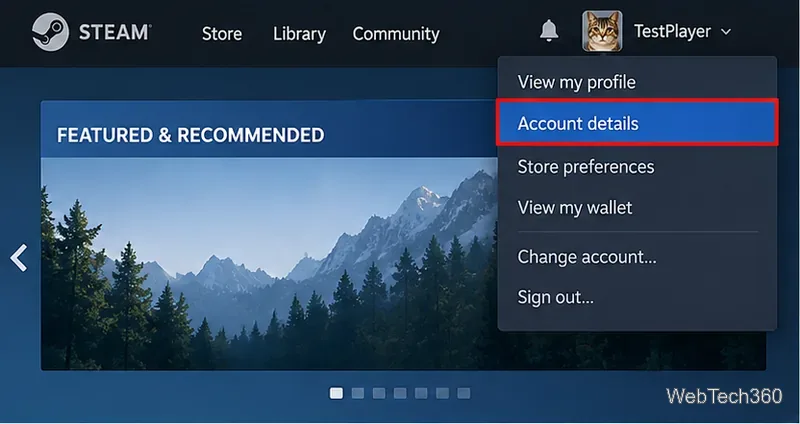
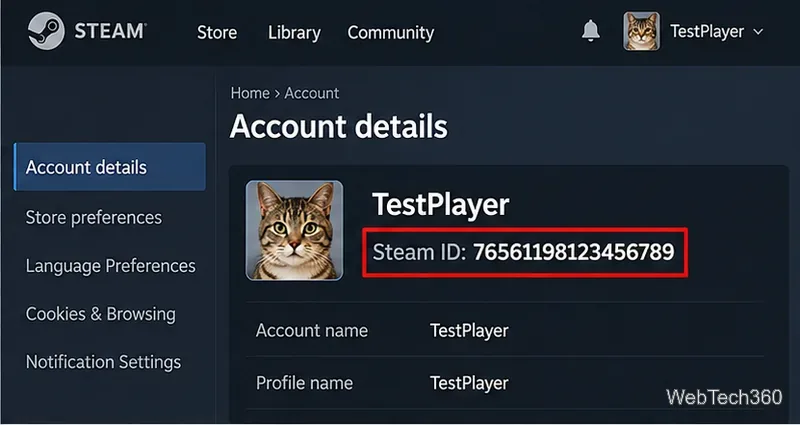
You can also open the official Steam Account Details page in a browser after signing in. If a game publisher, support agent, server tool, or account-linking service asks for your “17-digit Steam ID,” this is usually the value it wants.
Valve's Steam Support guide to SteamID describes another official method through your Steam Community profile. Open your profile, choose Edit Profile, and check the Custom URL area.
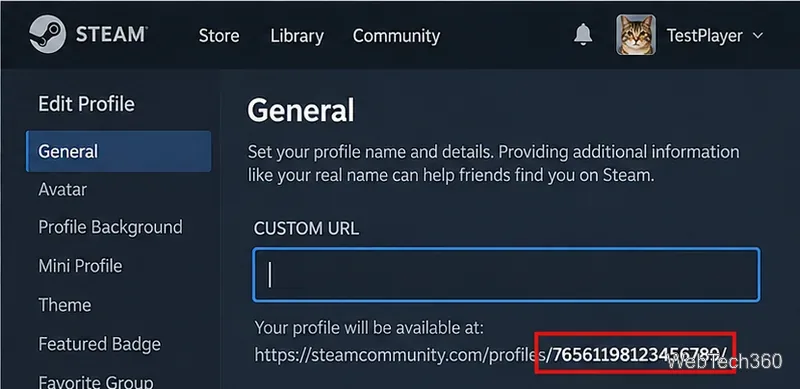
If you have never set a custom profile address, Steam can show a URL in the form steamcommunity.com/profiles/76561198#########. The 17-digit number at the end is your SteamID64.
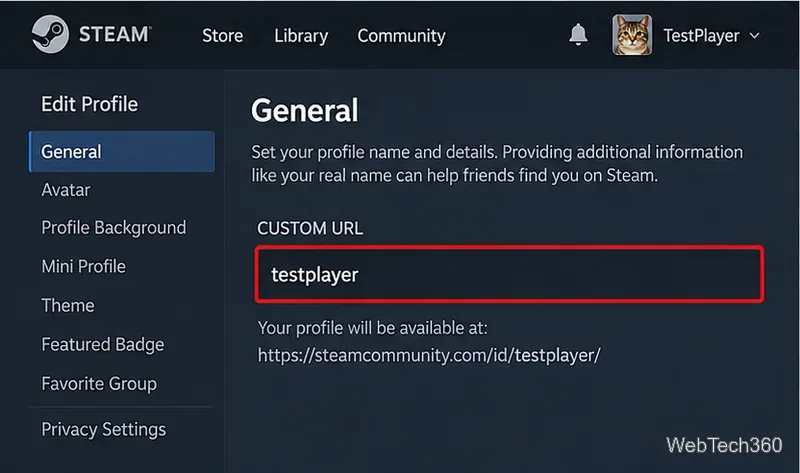
If you use a vanity address such as steamcommunity.com/id/yourname, the public URL itself does not contain your numeric Steam ID. Steam Support says you can remove the text from the Custom URL field to reveal the numeric profile URL shown below it. You do not need to do this if you already copied your ID from Account details.
Steam uses several names and identifiers, so it is easy to copy the wrong one. The important differences are:
| Item | What it is | Can it change? |
|---|---|---|
| Steam ID / SteamID64 | Your unique 17-digit numeric account identifier. | No. Valve says a SteamID cannot be changed. |
| Steam account name | The account name used for the Steam account. | No. Valve says the Steam Account Name cannot be changed. |
| Profile or player name | The public display name other people see. | Yes. It can be changed in profile settings. |
| Custom profile URL | A readable vanity address such as /id/yourname. | Yes. It is separate from the permanent Steam ID. |
A custom URL does not mean your Steam ID has changed. It only replaces the numeric ID in the visible Community profile address. For that reason, older instructions that tell you to delete your custom URL are unnecessary when you use the Account details method.
If you specifically need the number from the Community profile page, use Edit Profile as Valve documents. Otherwise, leave the vanity URL alone and copy the ID directly from Account details.
When a service asks only for “Steam ID,” check whether it specifies a format. Steam identifiers can appear in more than one format, but Valve notes that the most commonly used form is the account's 64-bit ID, the 17-digit number covered in this guide. If the service explicitly asks for SteamID3, a legacy SteamID format, a friend code, or another identifier, do not assume the 17-digit number is interchangeable.
For most users, the shortest path is simply account menu > Account details > Steam ID. It is faster than searching local Steam folders and avoids changing your Community profile settings.
Prepare Java or Bedrock on Windows 10 for offline single-player, enable the right Xbox setting, and back up your local Minecraft worlds.
Change a file type icon in Windows 10 while keeping its current default app. Follow the FileTypesMan steps, handle icon picker issues, and restore the original setting.
Set PhysX in NVIDIA Control Panel on Windows 10, understand Auto-select vs. CPU or GPU, and learn when to use Windows Graphics settings instead.
Compare six free office suites for documents, spreadsheets, and presentations, including browser-based collaboration and offline desktop options.
Turn on Notepad’s Status Bar to see the current line and column in Windows 10, troubleshoot a disabled option, and learn when you need a line-number gutter.
Display a custom Windows dialog with a short PowerShell command, Command Prompt, or a reusable .bat or .ps1 file, including a title, icon, and buttons.
Fix Windows 10 update error 0x80071160 with Microsoft’s troubleshooter, a safe update-cache reset, DISM and SFC repairs, and a careful manual-install check.
Create a Windows 10 UEFI installer with Microsoft’s Media Creation Tool or Rufus, then boot and install safely without wiping the wrong drive.
Stop individual Edge tabs from crowding the Windows 10 Alt+Tab switcher. Change one Multitasking setting, limit recent tabs, and check why the option may be missing.
Enable Adobe’s PDF thumbnail handler, correct File Explorer’s icon settings, rebuild the thumbnail cache, and check OneDrive files that are not stored locally.








